


Save GA Account Number Entered in GA Discount Prompt
IG OnDemand has been enhanced to allow guests to save the GA account number entered in the GA Discount prompt to their signed-in profile. Previously, GA account numbers could be saved only from the Payment screen.
With this enhancement, the GA account can be saved through the GA Discount prompt and can be viewed in the Employee Details section of the Navigation menu (Navigation menu ➜ Payment ➜ Employee Details).
This feature is supported for To Go and Catering profiles only.
Important Points
-
Though guests can save more than 10 accounts, a maximum of 10 accounts (combined across all payment methods, such as GA, loyalty, casino, and credit card) are retrieved and displayed in the Discount Lookup prompt and the Saved Accounts screen. Additional accounts added during the same session may be temporarily visible due to browser cache; however, they are not retained after a page refresh or a new session.
-
Guests cannot save the account details when tender groups are configured with only an account name.
Implementation in OnDemand
Launch IG OnDemand.
Add preferred items to the cart.
Navigate to the Checkout screen.
Select Add Account in the GA Discounts prompt. The Add Account prompt is displayed. Multiple GA account numbers can be added to the profile by selecting Add Account.
Enter the GA account number and select the Save account details checkbox.
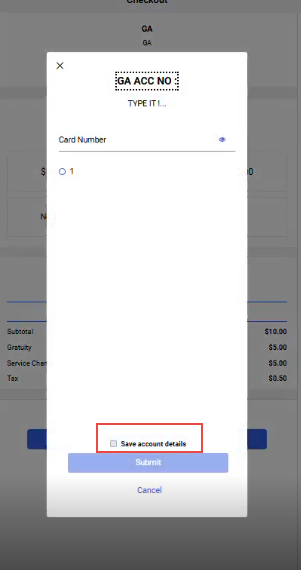
Select Submit. The eligible GA discount is automatically applied for the selected account.
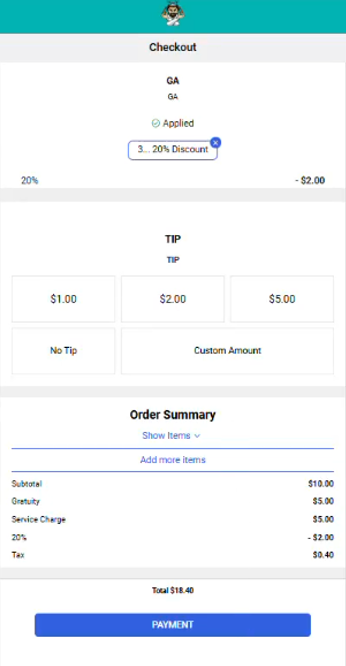
Navigate to the Payment screen and select the GA payment method. The saved GA account number is automatically populated in the card number field.
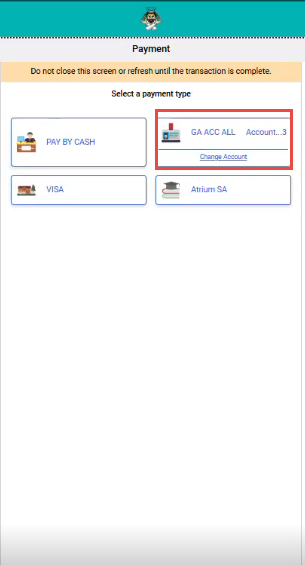
Complete the payment. After successful payment, the Order Confirmation screen is displayed. Users can verify the saved GA account in the Employee Details section (Navigation menu ➜ Payment ➜ Employee Details).