


OTP Based Guest Account Verification
IG OnDemand has been enhanced to support OTP-based account verification during guest sign-up by sending OTP to the guest email. Previously, the guest account was verified using an activation link sent in the email, which initiated a new session, resulting in the loss of cart items. With this enhancement, items already added to the cart are retained, allowing guests to seamlessly continue their session.
This feature is supported for To Go and Catering profiles only.
Important Points
-
Use B2C for Agilysys Login checkbox in the OnDemand Internal Login subsection of the Enterprise menu is not supported (Kiosk/OnDemand Configuration ➜ Administration ➜ Enterprise ➜ API Registration).
-
OTP encryption is not supported.
Limitation
-
In ADA mode, if the guest reaches the maximum resend attempts and enters an invalid OTP, the screen reader does not read the prompt, and the guest must use the down arrow to read the message.
Changes Made in IGCM
To support this, the following changes have been made in the Site menu (Kiosk/OnDemand Configuration ➜ Administration ➜ Site)
-
To support this, the following checkboxes have been added under the Activate User Division sub section under the Login Authentication section in the Site Settings submenu. Additionally, when one checkbox is enabled, the other is displayed in read-only mode.
-
Link Verification
-
When enabled, account verification is performed using an activation link sent in the email during guest sign-up. This is the existing scenario, and this checkbox is enabled by default.
-
When disabled, account verification is not performed using an activation link during guest sign-up.
-
-
OTP Verification
-
When enabled, account verification is performed using OTP sent in the email during guest sign-up.
-
When disabled, account verification is not performed using OTP during guest sign-up. This checkbox is disabled by default.
-
-
-
Two new fields, OTP Expiration Time (Seconds) and Security Lock Duration will be displayed when the OTP Verification checkbox is enabled.
-
A new checkbox, Hide Sign Up button after Checkout, has been added to the Toggles section under the Site Settings submenu of the Site menu (Kiosk/OnDemand Configuration ➜ Administration ➜ Site)
-
When enabled, the Sign-Up option is hidden during checkout.
-
When disabled, the Sign-Up option is displayed during checkout. This checkbox is disabled by default.
-
Configurations in IGCM
Navigate to Kiosk/OnDemand Configuration ➜ Administration ➜ Site.
Select the record for which Agilysys Login is enabled and select Edit to modify it.
Navigate to the Site Settings submenu.
Refer to the following table and fill in the fields:
|
Field |
Description |
|---|---|
|
OTP Verification |
|
|
OTP Verification |
Enable this checkbox. |
|
From Address |
Enter the address of the sender. |
|
Email Subject |
Enter the email subject. |
|
Email Body |
Enter the custom email content. Users must include the placeholder,{0}, which is replaced by the OTP. If not delivered, the OTP will not be displayed in the email. Sample Body: Your OTP for Sign up is {0}. |
|
OTP Expiration Time (Seconds) |
Enter the validity duration of the OTP. Range: 30 sec to 5 min. |
|
Security Lock Duration |
Enter the lock duration for which the session must be locked after the OTP attempt limit of 5 is exceeded. Range: 5 min to 60 min |
|
Toggles |
|
|
Hide Sign Up button after Checkout |
Disable this checkbox. |
Select Save.
Implementation at OnDemand
Sign Up Flow
Launch IG OnDemand.
Add preferred items to the cart.
Select Checkout. The Sign in prompt is displayed with sign in and sign up options.
Select the Sign Up. The Sign Up prompt is displayed.
Refer to the following table and fill in the following details:
|
Field |
Description |
|---|---|
|
First Name |
Enter the first name. |
|
Last Name |
Enter the last name. |
|
Email Address |
Enter the email address. Note: Email addresses with Unicode characters are not supported. |
|
Mobile Number |
Enter the mobile number. This field is optional. |
|
Password |
Enter the password. |
Select Sign Up. The OTP Verification prompt will be displayed.
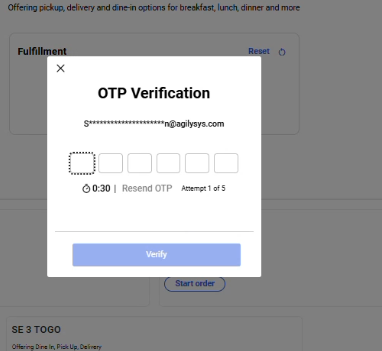
Enter the OTP sent to the registered email address and select Verify.
-
If an invalid OTP is entered, the message, Invalid OTP. Please check the code and re-enter it is displayed.
-
If the OTP expires, the message, Your OTP has expired. Please click Resend OTP to receive a new code is displayed.
-
If Resend OTP is selected more than five times without successful OTP verification, the session is temporarily locked, and the message, You’ve requested OTP too many times. For security reasons, please try again in (pending minutes/seconds) or continue as guest is displayed.
-
If a registered guest attempts to sign up using an existing email address, the message, An account already exists with this email. Please sign in is displayed.
Sign In Flow without Account Activation
Launch IG OnDemand.
Navigate to the Navigation menu.
Select Sign In. A prompt is displayed with sign in and sign up options.
Refer to the following table and fill in the fields:
|
Field |
Description |
|---|---|
|
Email Address |
Enter the email address. |
|
Password |
Enter the password. |
Select Sign In. If the user is not activated, the prompt, Account not activated. Do you want to resend confirmation email? will be displayed.
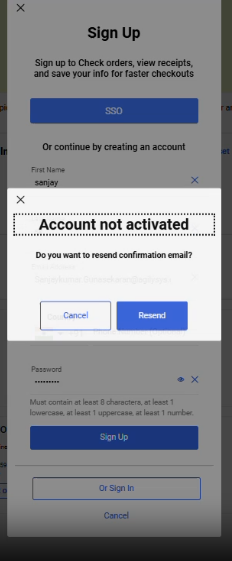
Select Resend. The OTP Verification prompt will be displayed.
Enter the OTP sent to the registered email address and select Verify. The account is logged in successfully.