


12.3.15
Display only Available Time Slots for a Site Entity
IG OnDemand has been enhanced to display only available time slots in the AT drop‑down list in the Your Order prompt for the selected fulfilment type. This prompt is displayed when the Start Order button is selected from the site entity card on the Home screen.
Previously, all time slots were displayed, and the selected slot was validated only during checkout. If the selected time slot had reached maximum capacity, the guest had to return to the Home screen to select a different time slot.
With this enhancement:
-
Unavailable time slots are either hidden or disabled in the AT drop‑down list in the Your Order prompt.
-
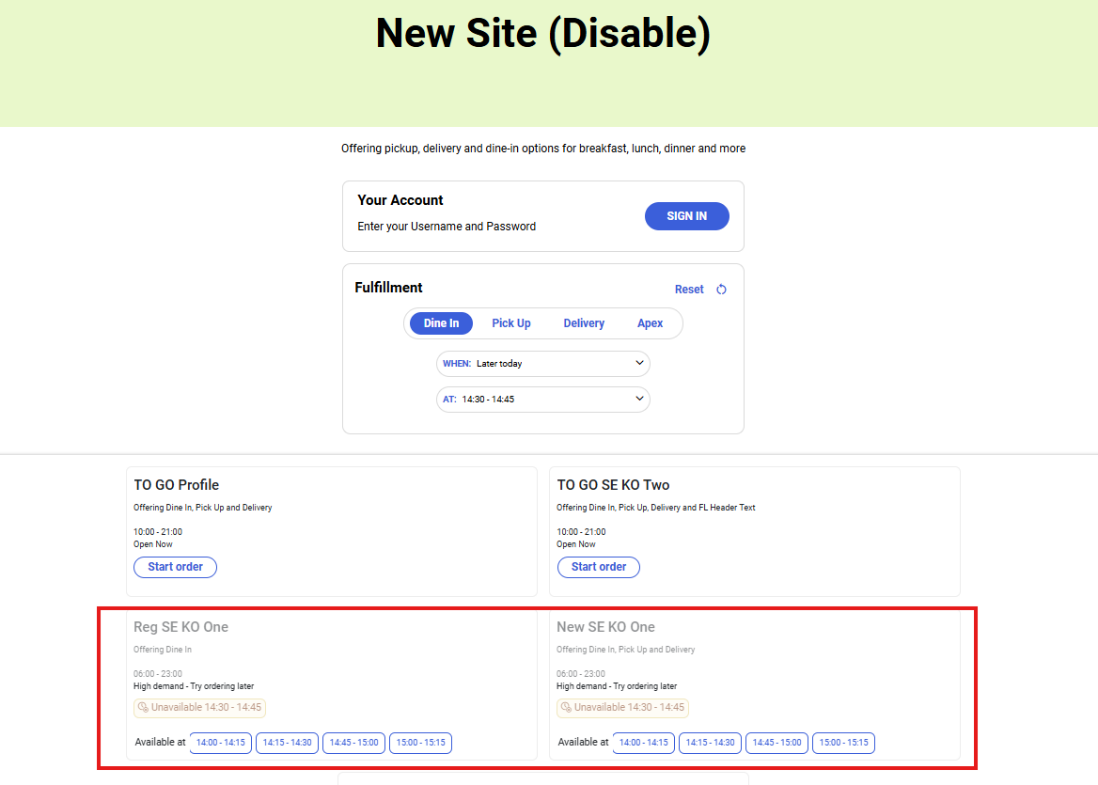
If a time slot is selected from the AT drop‑down list in the Fulfillment prompt on the Home screen, and a site entity is not available for that time slot, the site entity card is displayed in the disabled state. Guests must select another available site entity to proceed with the order.
This feature is:
-
Supported in Streamlined To Go profile only
-
Applicable for scheduled orders only.
Important Points
-
The time configured in the Order Scheduling Time Interval (min) field under the User Idle Limit Timer section in the Site Settings submenu in the Site menu must be the same across sites sharing the same site entity and kitchen operations (Kiosk/OnDemand Configuration ➜ Administration ➜ Site ➜ Site Settings).
-
The skip entity in landing page functionality is supported.
-
The show logistics filters in landing page functionality is supported.
-
The configurations in the Schedule time unavailable section under the Web Throttling submenu of the Kitchen Operation menu (POS Configuration ➜ Kitchen ➜ Kitchen Operation) is supported.
Changes Made in IGCM
To support this, the following checkboxes have been added to the Schedule Order Timeslot Configuration section under the Site Settings submenu in the Site menu (Kiosk/OnDemand Configuration ➜ Administration ➜ Site)
|
Field |
Description |
|---|---|
|
Enhanced ondemand slot handling |
Note - The Time slot reservation checkbox must be disabled to enable this checkbox. |
|
Hide slots in landing page if full |
Note - This checkbox is displayed only when Enhanced ondemand slot handling checkbox is enabled. |
|
Disable slots in landing page if full |
Note - This checkbox is displayed only when Enhanced ondemand slot handling checkbox is enabled. |
Configurations in IGCM
Navigate to Kiosk/OnDemand Configuration ➜ Administration ➜ Site.
Select the preferred record from the screen and select Edit to modify it.
Refer to the following table and fill in the fields:
|
Field |
Description |
|---|---|
|
Themes |
|
|
Streamlined Homepage |
Enable this checkbox. |
|
Site Settings |
|
|
Enhanced ondemand slot handling |
Enable this checkbox and select any of the following checkboxes:
|
Select Save.
Implementation at OnDemand
Standard Flow
Launch IG OnDemand.
Select Start Order button on the preferred Site Entity card. The Your Order prompt is displayed.
Select the preferred fulfillment types.
Navigate to the AT drop-down list to select a time slot.
-
If the selected time slot is not available, time slot is hidden or disabled.
-
If an unavailable time slot is selected from the Fulfillment prompt, Unavailable message will be displayed along with the available time slots for selection.
Behavior
Case1
Refer to the following table for the timeslot display behavior:
|
Enhanced OnDemand Slot handling |
Schedule time Unavailable |
Time Slot in AT drop-down list and Site Entity |
|---|---|---|
|
Hide the slot in landing page if full |
Allow the Order |
Displayed
|
|
Disable the slot in landing page if full |
Allow the Order |
Displayed |
|
Hide the slot in landing page if full |
Suggest another time range, but allow the original |
Displayed |
|
Disable the slot in landing page if full |
Suggest another time range, but allow the original |
Displayed |
|
Hide the slot in landing page if full |
Suggest another time range, and do not allow the original |
Hidden |
|
Disable the slot in landing page if full |
Suggest another time range, and do not allow the original |
Disabled |
|
Hide the slot in landing page if full |
Reject the Order |
Hidden |
|
Disable the slot in landing page if full |
Reject the Order |
Disabled |
Case 2
Refer to the following table for the timeslot display behavior when a site has multiple site entities that use the same or different kitchen operations:
|
Kitchen Operation |
Capacity Status |
Schedule time Unavailable |
Time Slot in AT drop-down list |
|---|---|---|---|
|
Same |
Maximum order capacity reached |
When any of the following option is selected:
|
Hidden or disabled |
|
Same |
Maximum order capacity reached |
When any of the following option is selected:
|
Displayed |
|
Different |
Maximum order capacity reached for Kitchen Operation 1 only
|
When any of the following option is selected:
|
Displayed |
Case 3
Consider the following configuration:
-
Skip Site Entity in Landing Page checkbox - Disabled
-
Site Entities: 2
-
Kitchen Operation: 2
|
Site Entity |
Kitchen Operation |
Capacity Reached |
Schedule time Unavailable |
Site Entity Behavior |
|---|---|---|---|---|
|
Site Entity 1 |
Kitchen Operation1 |
Yes |
When any of the following option is selected:
|
Displayed
|
|
Site Entity 2 |
Kitchen Operation2 |
No |
When any of the following option is selected:
|
Displayed
|
|
Site Entity 1 |
Kitchen Operation1 |
Yes |
When any of the following option is selected:
|
Site Entity 1 is disabled |
|
Site Entity 2 |
Kitchen Operation2 |
No |
When any of the following option is selected:
|
Displayed
|
Case 4
Consider the following configuration:
-
Show logistics filters in landing page: Disabled
-
Site entities: 2
-
Kitchen operation: 2
|
Site Entity |
Kitchen Operation |
Capacity Reached |
Schedule time Unavailable |
Time Slot in AT drop-down list |
|---|---|---|---|---|
|
Site Entity 1 |
Kitchen Operation1 |
Yes |
When any of the following option is selected:
|
Displayed
|
|
Site Entity 2 |
Kitchen Operation2 |
No |
When any of the following option is selected:
|
Displayed
|
|
Site Entity 1 |
Kitchen Operation1 |
Yes |
When any of the following option is selected:
|
Hidden or disabled |
|
Site Entity 2 |
Kitchen Operation2 |
No |
When any of the following option is selected:
|
Displayed
|
Case 5
Consider the following configuration:
-
Show logistics filters in landing page: Disabled
-
Site entities: 2
-
Kitchen operation: Single
-
Capacity status: Maximum capacity reached
|
Site Entity |
Schedule time Unavailable |
Time Slot in AT drop-down list |
|---|---|---|
|
Site Entity 1 |
When any of the following options are selected:
|
Displayed |
|
Site Entity 2 |
When any of the following options are selected:
|
Hidden or disabled |