


12.3.15.7
Place Orders through Microsoft Teams Chatbot
IG OnDemand has been enhanced to allow users to place orders through a chatbot in Microsoft Teams. With this enhancement, users can:
-
Place orders from available profit centers
-
Manage profile information
-
View order history, order status, and receipts
-
View item recommendations filtered based on dietary preferences and allergen selections
-
Complete payments using GA and Credit Card payment methods
This feature is applicable only to ASAP orders with the pick-up fulfillment type in the To Go profile.
This is a pilot feature is supported only for SaaS customers. Contact Agilysys to enable this feature at your property.
Important Points
-
A separate chatbot must be configured for each site.
-
The chatbot supports one valid request at a time.
-
Users must have valid kitchen configurations to view kitchen order status in the chatbot.
-
Site entity names are not displayed in the chatbot. Only the profit centers available under the site entity are displayed as outlets.
-
The chatbot supports profit center selection using numeric values and equivalent Roman numeral values.
-
When a category contains more than ten items, the chatbot displays ten items at a time. Select or enter Show More to view additional items.
-
Item ordering supports only direct modifiers. Items with nested modifiers are not displayed in the chatbot.
-
When multiple items that require customization are selected together, the message, You have selected multiple items that require customization, and they cannot be added together in one request. Please add them one at a time. Which one would you like to add first, is displayed.
-
Users cannot add multiple packages at the same time.
-
When no menu is configured for the active daypart, the selected profit center is unavailable for ordering and the message, The selected outlet does not have menus available. Please select a different outlet, is displayed.
-
Items added to the cart are validated based on the item rules and cart rules configured in the Rules and Restrictions menu (Kiosk/OnDemand Configuration ➜ Items ➜ Rules and Restrictions).
-
In iOS devices, prompt suggestions from the previous chatbot response remain displayed until new prompt suggestions are displayed. After an order is completed, prompt suggestions for payment options continue to be displayed until the chatbot displays new prompt suggestions.
-
In iOS devices running Microsoft Teams in landscape mode, the bot response may not be displayed immediately after a message is sent. If the response is not displayed, users must switch to another chat and return to the bot chat to view the latest response.
-
The profit center mapped to the site entity must have a valid payment processing configuration to allow users to add the credit card in IG Profile Manager.
-
Item calorie information is displayed next to the item only for items configured with calorie information in the Calories/Energy section under the Guest Facing Display Settings submenu under the Items menu (Kiosk/OnDemand Configuration ➜ Items ➜ Item ➜ Guest Facing Display Settings ➜ Calories/Energy).
-
The chatbot does not support generic meal-type requests, such as breakfast, lunch, or dinner. Users must select a menu category or search for specific menu items.
-
When searching for items, results are displayed from all available categories.
-
Ordering across multiple profit centers is not supported.
-
Scheduled orders are not supported.
-
Menus configured using the Profit center screen type are not supported in the chatbot. When selected, the message, There are no items available in the selected category, is displayed.
-
The quantity of items in the current order can be increased.
-
Reordering a completed order is not supported.
-
Partial payments are not supported.
-
SMS and email receipts are not supported.
-
Track order status functionality is not supported.
-
Location display is not supported.
-
I am here functionality is not supported.
-
Guest cover count is not supported.
-
Emojis are not supported when interacting with the chatbot.
-
Discounts cannot be applied.
-
Tips cannot be added to orders.
-
The payment method cannot be changed after selection.
-
Saved card details are displayed in a masked format in the payment selection screen in IG Profile Manager.
-
When unsupported text is entered, the message, I can only help with food ordering, what would you like to order, is displayed.
-
When unsupported text is entered more than three times, the message, Due to Unauthorized Message, Your account will be temporarily blocked for 60 minutes, is displayed and access is restored after 60 minutes.
-
A chatbot session expires after 5 minutes of inactivity. By default, the Teams ordering bot supports up to 6,000 sessions per site per month.
-
An individual user can initiate a maximum of 5 chatbot sessions per hour.
-
A maximum of 300 characters can be entered. If more than 300 characters are entered, the message, Your message is too long. Please keep your message under 300 characters and try again, is displayed.
-
It is recommended to add up to 50 items per order for clear display of cart details and receipt images in Microsoft Teams.
-
When the user sends a message after the 5-minute timeout period, the message, Your previous session has expired, and a new session is being created, is displayed and a new session is created automatically.
-
Contact Agilysys to modify the prompts suggestions displayed in chatbot.
Changes Made in IGCM
To support this, a new section, External Integration, has been added under the Site Settings submenu in the Site menu (Kiosk/OnDemand Configuration ➜ Administration ➜ Site).
The following options have been added under this section:
|
Field |
Description |
|---|---|
|
Microsoft Teams |
|
|
Azure Bot ID |
This field is displayed only when the Microsoft Teams checkbox is enabled. |
Integration Setup
Configurations in IGCM
Map Bot ID to the Site
Navigate to Kiosk/OnDemand Configuration ➜ Administration ➜ Site.
Select the preferred record from the screen and select Edit to modify it.
Navigate to Site Settings ➜ External Integration.
Refer to the following table and fill in the fields:
|
Field |
Description |
|---|---|
|
Microsoft Teams |
Enable this checkbox. |
|
Azure Bot Id |
Enter the Azure Bot Service ID. |
Select Save.
Perform Slow Cook
Select the Prepare Terminal Data icon in the top bar of the IGCM.
Select All Data (Slow) as Prepare Data Option.
Select Prepare Terminal Data to perform the slow cook operation.
Select the Task Manager icon in the top bar of the IGCM to view the cook operation status.
Supported Functionality
Install Chatbot in Teams
Launch Microsoft Teams.
Select the Apps icon.
Search for the configured chatbot. The chatbot is available only to users who have been granted access by the property's Microsoft Teams or Microsoft 365 administrators.
Select Add. The chatbot is added to Microsoft Teams and can be accessed from the Chat section.
IG Profile Manager
IG Profile Manager allows users to manage profile information, view order history, maintain addresses, manage payment methods, and configure tags and allergen preferences.
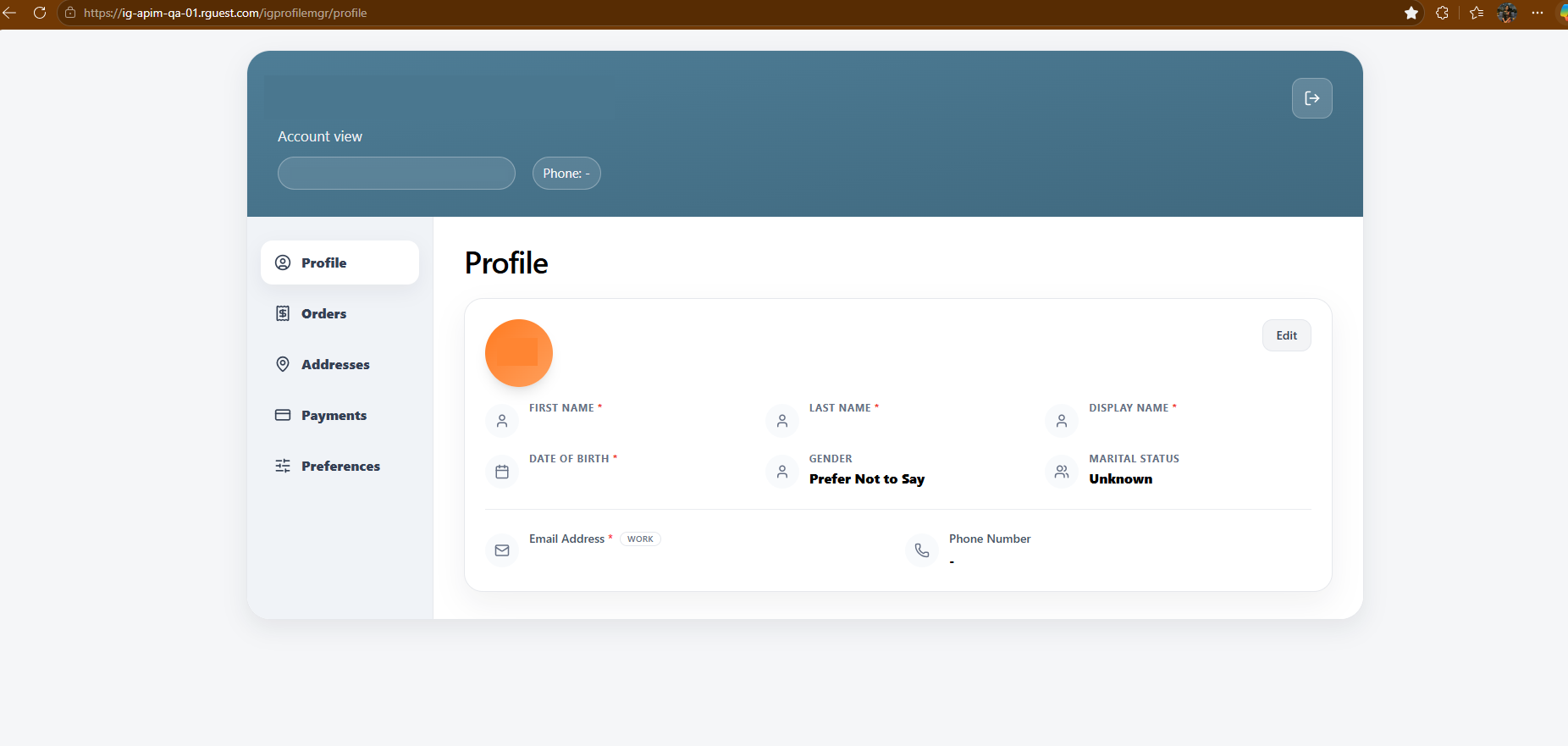
Users must complete all mandatory fields and add date of birth in Profile section and a payment method in the Payments section before proceeding.
Perform the following steps in the chatbot to access the IG Profile Manager screen.
Sign In Flow
Launch the chatbot.
Enter Hi to start an order.
Select the View Profile button to navigate to the IG Profile Manager screen. The Secure Login prompt is displayed.
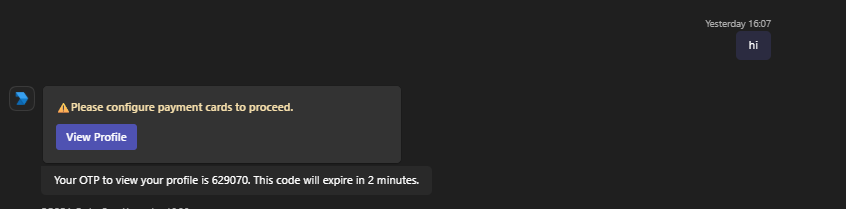
Select Send OTP. An OTP is sent to the chatbot.
-
OTP verification is required each time the IG Profile Manager screen is accessed.
-
When an incorrect OTP is entered more than five times, the message, You've entered an incorrect code too many times. Please request a new OTP after 15 minutes or contact support if you continue to experience issues, is displayed.
Enter the OTP within 2 minutes and select Verify OTP or select Resend OTP after 2 minutes to receive a new OTP. The IG Profile Manager screen is displayed with the following sections:
-
Profile
-
Orders
-
Addresses
-
Payments
-
Preferences
Profile
Some of the fields in this section are autofilled based on the information available in the user's Microsoft Teams account. However, it can be modified.
Refer to the following table and fill in the fields:
|
Field |
Description |
|---|---|
|
First Name |
Modify the first name, if preferred. |
|
Last Name |
Modify the last name, if preferred. |
|
Display Name |
Modify the display name, if preferred. |
|
Date of Birth |
Select the date of birth. |
|
Gender |
Select the preferred gender from the drop-down list.
|
|
Marital Status |
Select the preferred marital status from the drop-down list.
|
|
Email Address |
Modify the email address and type if preferred |
|
Phone Number |
Select the country code, enter the phone number, and then select one of the following phone number types:
|
Orders
This section allows users to view and filter order history and access receipts. By default, orders from the last seven days, including the current date, are displayed. Order history can be searched for up to 90 days.
Filter Orders
Select the Filter icon to filter the order history.
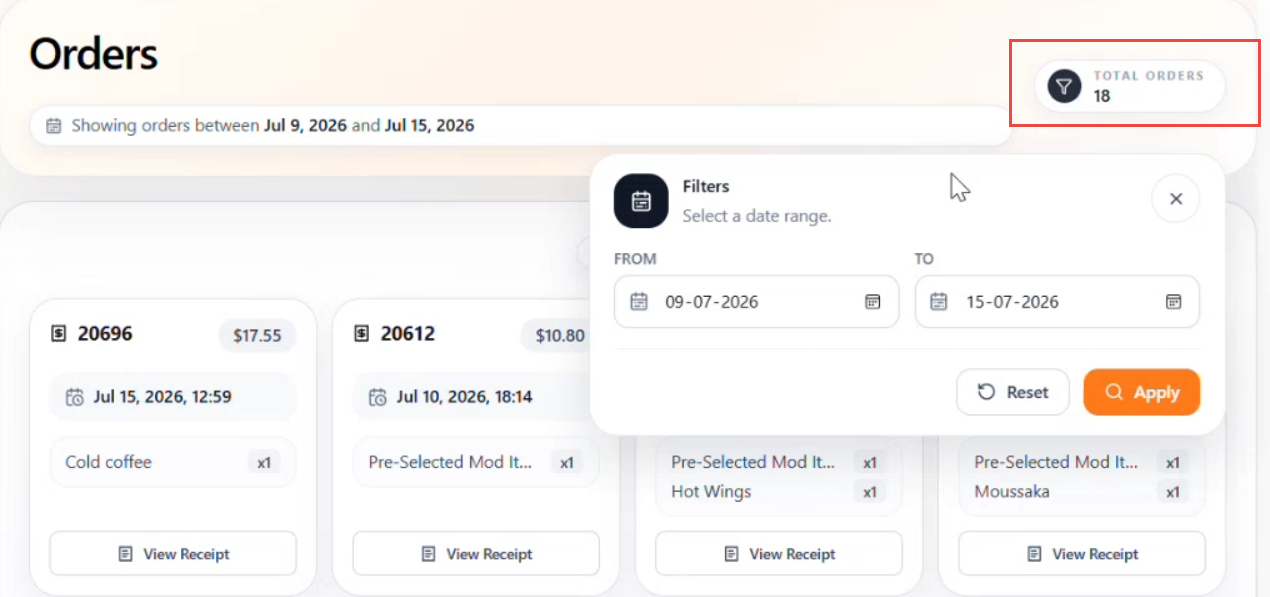
Refer to the following table and fill in the fields:
|
Field |
Description |
|---|---|
|
From |
Select the start date. |
|
To |
Select the end date. |
|
Apply |
Select this to display orders for the selected date range. |
|
Reset |
Select this to clear the selected date range. |
The Total Orders field displays the total number of orders available for the selected date range.
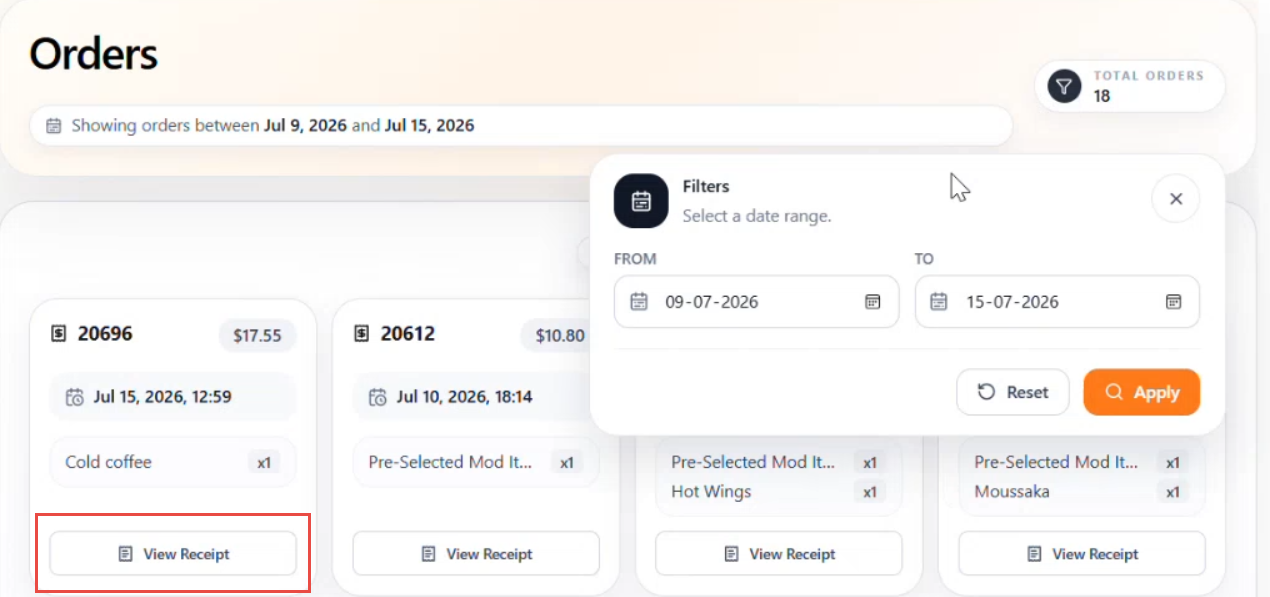
View Receipts
Select the View Receipt button to view the receipt details for the selected order.
Addresses
This section allows users to add, view, and manage multiple delivery addresses.
Select Add.
Refer to the following table and fill in the fields:
|
Field |
Description |
|---|---|
|
Select the preferred option from the drop-down list.
|
|
|
Address Line 1 |
Enter the primary address. |
|
Address Line 2 |
Enter the secondary address, if applicable. |
|
Address Line 3 |
Enter additional address information, if applicable. |
|
Country |
Select the preferred country from the drop-down list. |
|
Region |
Select the preferred region from the drop-down list. |
|
City |
Select the preferred city from the drop-down list. |
|
PostalCode |
Enter the postal or ZIP code associated with the address. |
Select Save. The saved address can be deleted from the Addresses section.
Payments
This section allows users to manage the following payment methods:
-
Employee Account (GA)
-
Credit Cards
A payment method must be configured before placing an order. If no payment method is configured, the message, Please configure payment cards to proceed, is displayed in the chatbot.
Employee Account (GA)
Select Add. The Add GA account prompt is displayed.
Refer to the following table and fill in the fields:
|
Field |
Description |
|---|---|
|
Account Number |
Enter the GA account number. |
|
Name |
Enter the account name. |
Select Save. Users can edit or delete saved GA accounts from the Payments section.
Personal Cards (Credit Card)
Credit cards can be added as personal payment methods A Temporary authorization of $2.00 is performed when adding credit card and is automatically reversed after card verification.
Select Add. The Add personal credit card prompt is displayed.
Refer to the following table and fill in the fields:
|
Field |
Description |
|---|---|
|
Card Holder Name |
Enter the name displayed on the card. |
|
Card Number |
Enter the credit card number. |
|
Expiration Date |
Enter the card expiration date. |
|
CVV |
Enter the card verification value. |
|
Zip/Postal Code |
Enter the billing zip or postal code. |
Select Submit to save the card details or select Clear to remove all entered values. Saved card details can be deleted from the Payments section.
Preferences
This section allows users to manage the following preferences used for item recommendations and filtering. Preferences for the following sections displayed in IG Profile Manager are based on the configurations available in IGCM:
-
Allergens
-
Tags
Allergens
Item recommendations are filtered based on the guest's allergen preferences.
Select the allergens to be excluded from item recommendations.
Tags
Items are prioritized within a category based on the selected tags. Items are not filtered based on the selected Include tags.
-
If Spicy is selected as an Include tag and spicy items are available in the category, the spicy items are displayed first, followed by the remaining items in the menu.
-
If no spicy items are available, all items in the category are displayed without tag-based prioritization in the menu.
If Peanut is selected as an Exclude tag, items with peanuts will not be displayed in the menu.
Select Add.
Enter or search for the preferred tag.
Select one of the following options:
-
Include - Include items associated with the selected tag.
-
Exclude - Exclude items associated with the selected tag.
Select Save Preferences to save the configured preferences.
Select Reset Changes to discard the unsaved changes.
Sign Out Flow
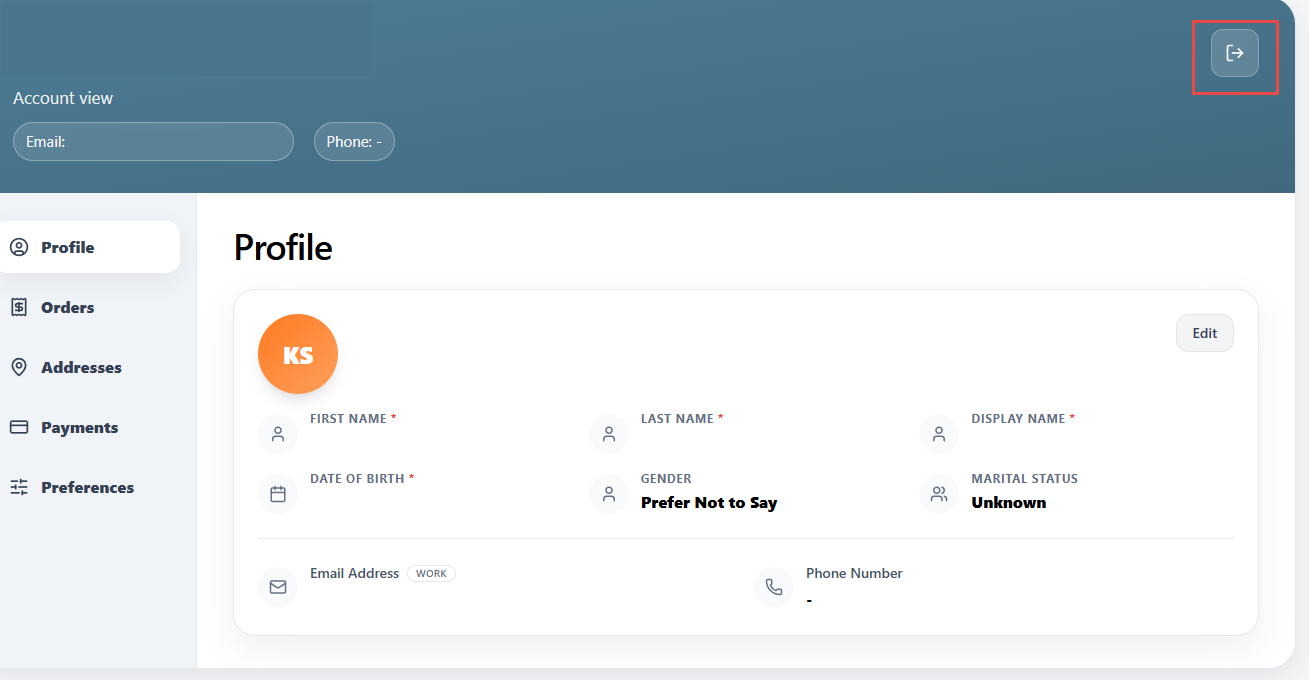
Select the Sign Out icon. The message, Sign out now? Do you want to sign out from your account, is displayed.
Select Yes. The message, Logged out. You have been logged out. To sign in again, please request a new profile link, is displayed.
Order Flow
Launch the chatbot.
Enter Hi to start an order.
Select the preferred profit center. If the profit center is unavailable, the message, Currently unavailable and the opening time are displayed next to the profit center.
Select the preferred category.
Add the preferred item and modifiers to the cart.
-
Enter Remove followed by the item name to remove an item from the cart.
-
When the user enters Hi while an order is in progress and items are present in the cart, the message, You already have an outlet selected. What would you like to do next?, is displayed.
-
When the user tries to change the profit center while an order is in progress, the message, You have items in your cart. Switching outlets will cancel your current order. Do you want to continue?, is displayed.
-
Enter Cancel to cancel the current order. The message, Would you like to Cancel Order or Undo Last Action?, is displayed.
-
Enter Exit to cancel the current order. The message, Your previous order has been cancelled. Please select an outlet to start your new order, is displayed.
-
Enter Item Summary or Item Description followed by the item name to view the item description.
-
Enter View Cart. The items added to the cart are displayed.
Enter Checkout.
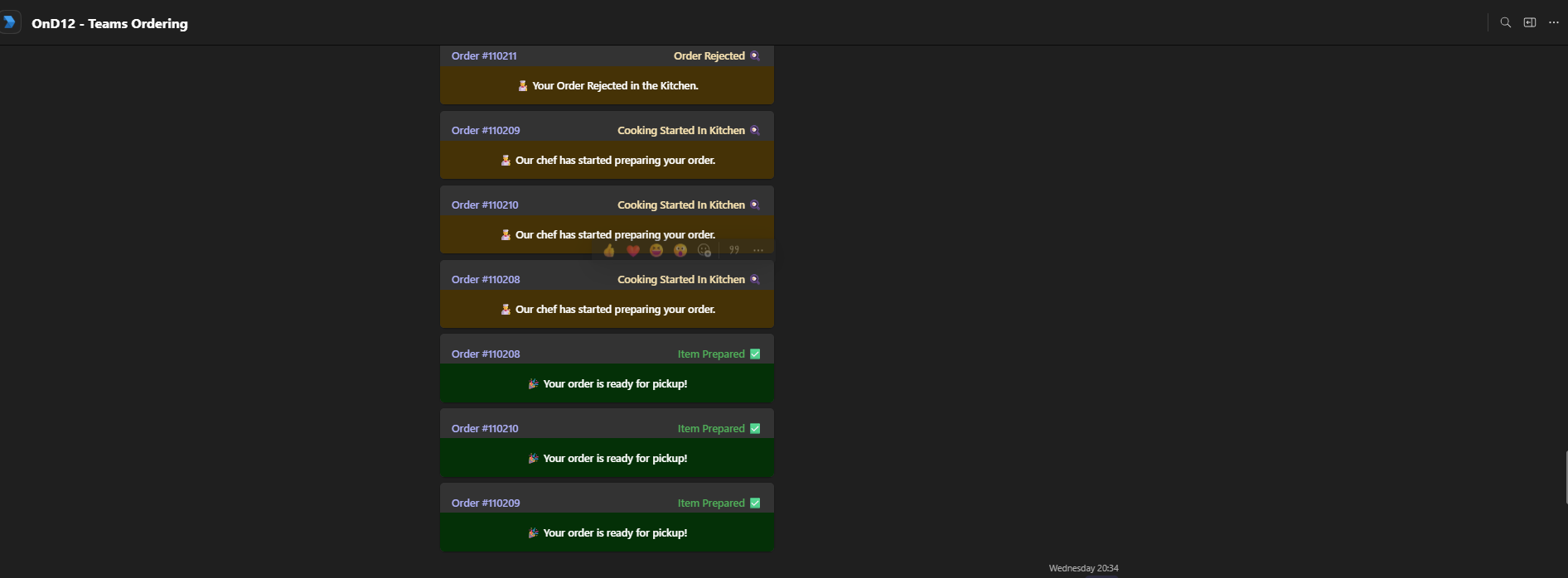
Select Proceed to payment and select the preferred payment method to complete the payment. The order confirmation receipt is displayed. The following order statuses are displayed:
-
Cooking Started in Kitchen - Indicates that order preparation has started in the kitchen.
-
Item Prepared - Indicates that the order is prepared and ready for pickup.
-
Order Recalled - Indicates that the order has been recalled in the kitchen.
-
Order Rejected - Indicates that the order has been rejected in the kitchen and will not be prepared.
(Updated Documentation: Agilysys InfoGenesis POS - Microsoft Teams Chatbot Integration Guide)