


12.3.14
Guest Verification for Full Service Orders
IG OnDemand has been enhanced to support guest verification for full service orders using an order name and PIN. On scanning the QR code generated for the table number, the primary guest is prompted for a unique order name and PIN. Other guests at the table must use the same order name and PIN after scanning the QR code to add, remove, or modify the items in the cart. This ensures that only authorized guests can access the cart.
Additionally, multiple checks can be created for a table, and in such cases, the order name must be unique. The order name cannot be modified once it is created. However, the PIN can be modified in 12UX terminal.
This feature is applicable to the Full Service profile only.
Prerequisite
-
InfoGenesis POS Terminal 12.3.14
Important Points
-
The same order name and PIN can be reused for the subsequent check only after the first check is closed. If guests use the same order name while the first check is open, the following message is displayed: Warning. An order with this name already exists. Please join the existing order or create a new one with a different order name.
-
If the OnDemand site is refreshed, guests are prompted with the order name and PIN to continue ordering.
-
This functionality is not applicable for checks created in the terminal.
-
The checks created before enabling this functionality cannot be recalled in OnDemand.
Changes Made in IGCM
To support this, the following changes have been made:
-
A new section, Code Validation, has been added with the following fields in the Site Settings submenu (Kiosk/OnDemand Configuration ➜ Administration ➜ Site):
|
Field |
Description |
|---|---|
|
Code Validation for Order Confirmation |
|
|
Code Limit |
Select the number of digits supported for the PIN. This value cannot be modified after saving the record. The following are the available options:
Note - This drop-down list is enabled only when the Code Validation for Order Confirmation checkbox is enabled. |
|
Character Limit for Order Name |
Select the number of characters supported for the order name. This value cannot be modified after saving the record. The following are the available options:
Note - This drop-down list is enabled only when the Code Validation for Order Confirmation checkbox is enabled. |
|
Create Multi Check Against a Table |
Note - This drop-down list is enabled only when the Code Validation for Order Confirmation checkbox is enabled. |
-
A new function, Reset FS PIN, has been introduced in 12UX terminal to reset the PIN created for the order.
Configurations in IGCM
Navigate to Kiosk/OnDemand Configuration ➜ Administration ➜ Site.
Choose the appropriate record and select Edit.
Navigate to the Code Validation section in the Site Settings submenu.
Refer to the following table and fill in the fields:
|
Field |
Description |
|---|---|
|
Code Validation for Order Confirmation |
Enable this checkbox. |
|
Code Limit |
Select the preferred number of digits to be supported for the PIN. |
|
Character Limit for Order Name |
Select the preferred number of characters to be supported for the order name. |
|
Create Multi Check Against a Table |
Enable or disable this checkbox based on the preference. |
Select Save.
Implementation in OnDemand
Scenario 1
Consider the following configuration:
|
Checkbox |
Enabled or Disabled |
|---|---|
|
Code Validation for Order Confirmation |
Enabled |
|
Create Multi Check Against a Table |
Disabled |
Scan the table number QR code. The Home screen is displayed.
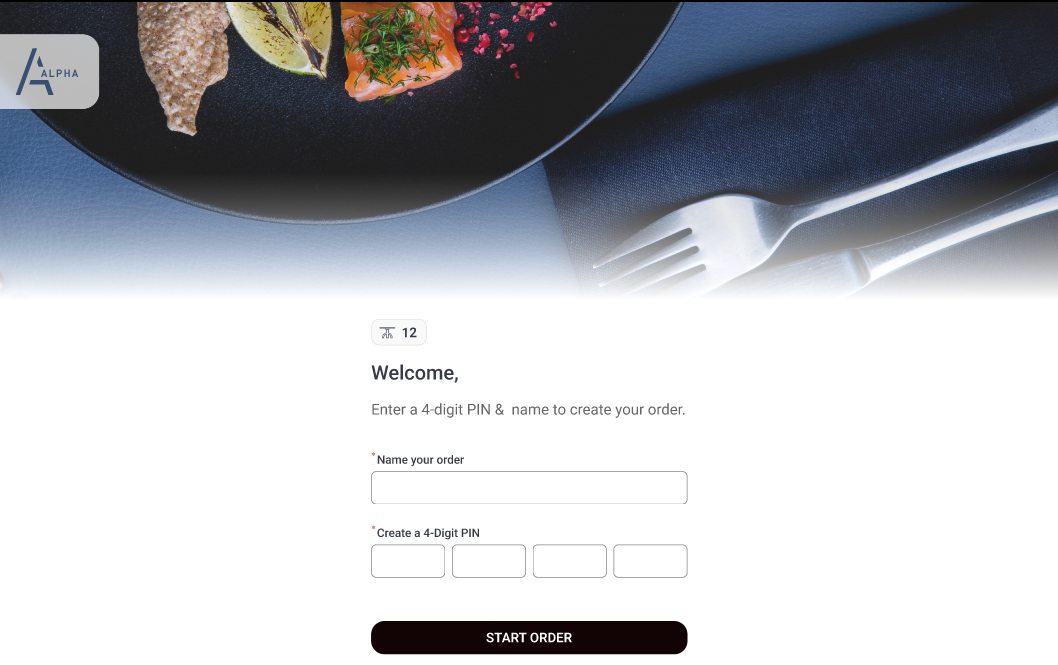
Refer to the following table and fill in the fields:
|
Field |
Description |
|---|---|
|
Name your order |
Enter the name for the order. Example: George’s Order |
|
Create a 4-digit PIN |
Enter the PIN for the order. Example: 2244 |
Select Start Order. The Menu screen is displayed.
Add preferred items to the cart. When another guest at the table scans the QR code, the Home screen is displayed.
Enter the same order name and PIN.
Select Join Order.
-
On successful validation, the Menu screen is displayed.
-
If the order name or PIN is incorrect, the following message is displayed: Order processing failed. Please re-enter your details or contact staff for assistance.
Verify that items already added are displayed in the cart.
Add or modify items in the cart and place the order.
Scenario 2
Consider the following configuration:
|
Checkbox |
Enabled or Disabled |
|---|---|
|
Code Validation for Order Confirmation |
Enabled |
|
Create Multi Check Against a Table |
Enabled |
Scan the table number QR code. The Home screen is displayed.
Refer to the following table and fill in the fields:
|
Field |
Description |
|---|---|
|
Name your order |
Enter the name for the order. Example: George’s Order |
|
Create a 4-digit PIN |
Enter the PIN for the order. Example: 2244 |
Select Start Order. The Menu screen is displayed.
Add preferred items to the cart. When another guest at the table scans the QR code, the following screen is displayed.
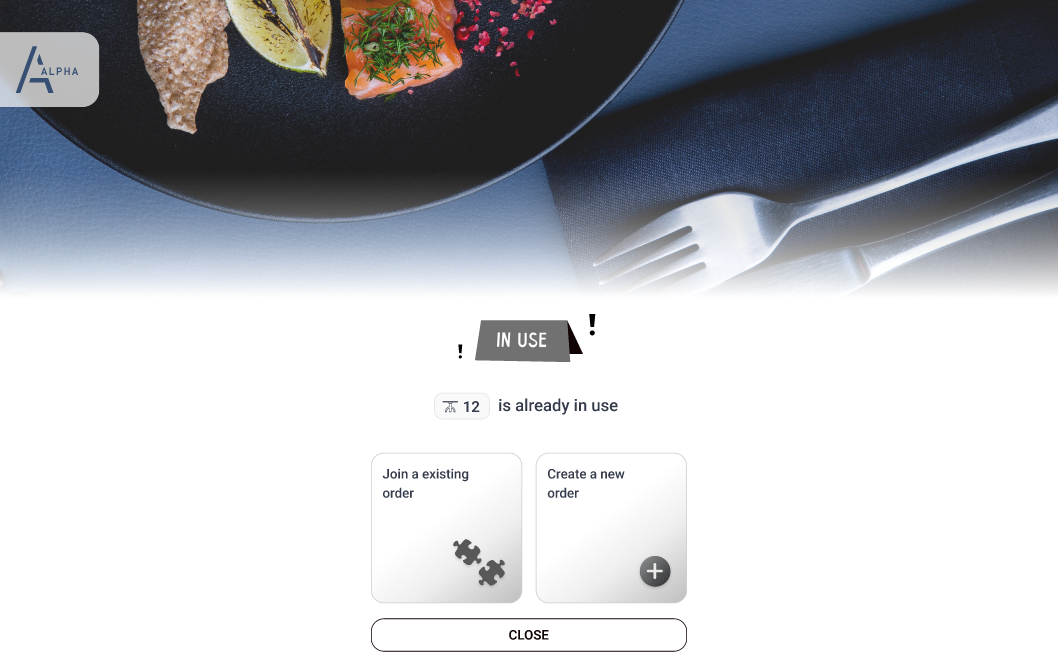
Join an Existing Order
Select Join an Existing Order to join an order that is already created by the primary guest. The following screen is displayed.
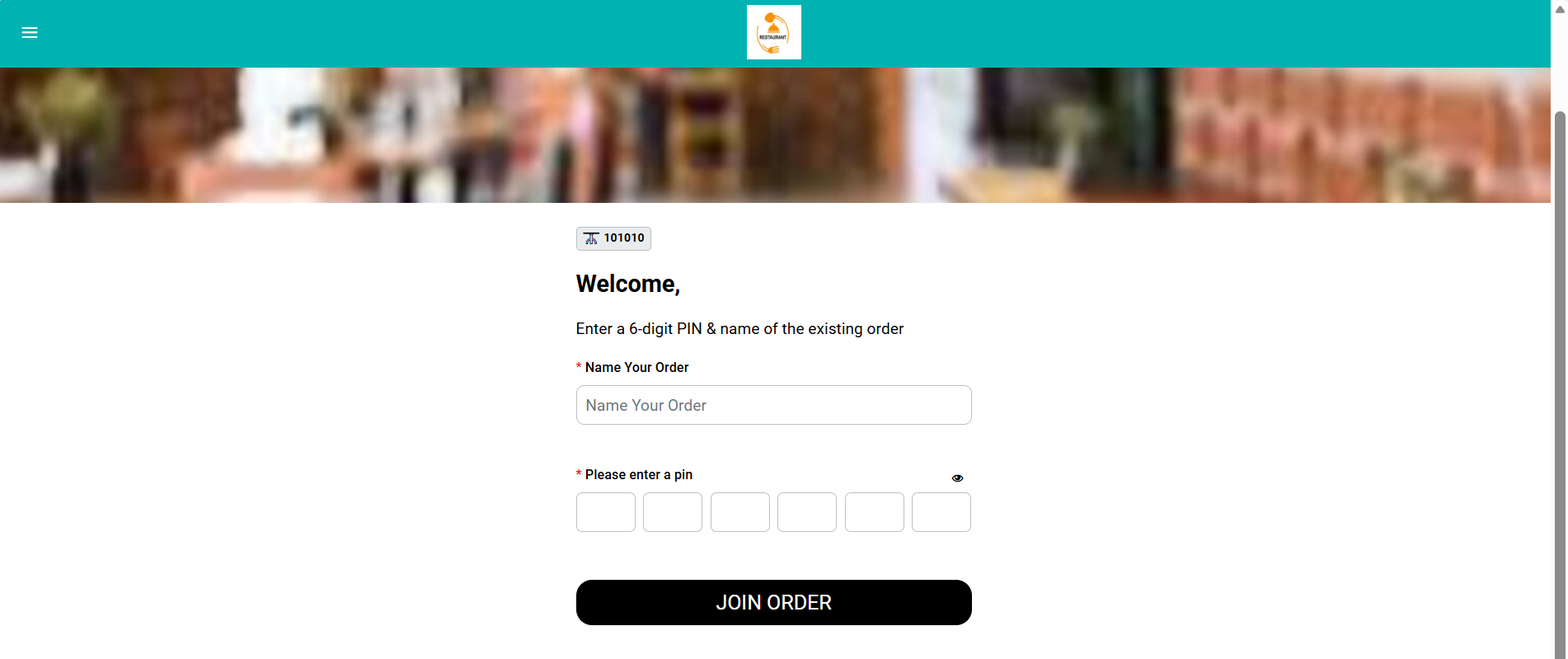
Enter the same order name and PIN.
Select Join Order.
-
On successful validation, the Menu screen is displayed.
-
If the order name or PIN is incorrect, the following message is displayed: Order processing failed. Please re-enter your details or contact staff for assistance.
Verify that items already added are displayed in the cart.
Add or modify items in the cart and place the order.
Create a New Order
Select Create a New Order to create a new order. The following screen is displayed.
Refer to the following table and fill in the fields:
|
Field |
Description |
|---|---|
|
Name your order |
Enter a unique name for the order. The name must be different from the one given for the first check. |
|
Create a 4-digit PIN |
Enter a PIN for the order. |
Select Start Order. The Menu screen is displayed.
Add preferred items to the cart. New guests can either join the first check or second check by entering the appropriate order name and PIN.
Implementation in 12UX Terminal
Reset PIN
If guests forget the PIN or wish to change it for an order, the PIN can be modified in 12UX terminal.
Navigate to the Functions screen.
Select Reset FS PIN. The list of checks created for the table is displayed. If a full service check is already opened in the check view, this function cannot be used.
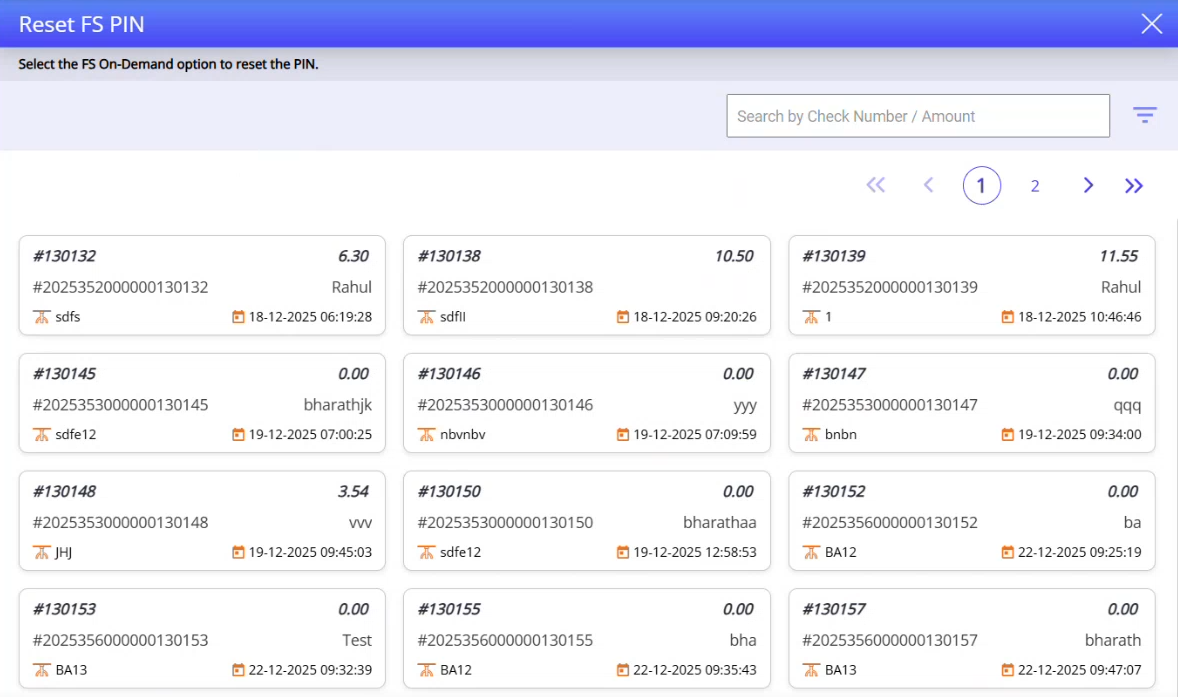
Select the appropriate check. The Change PIN prompt is displayed.
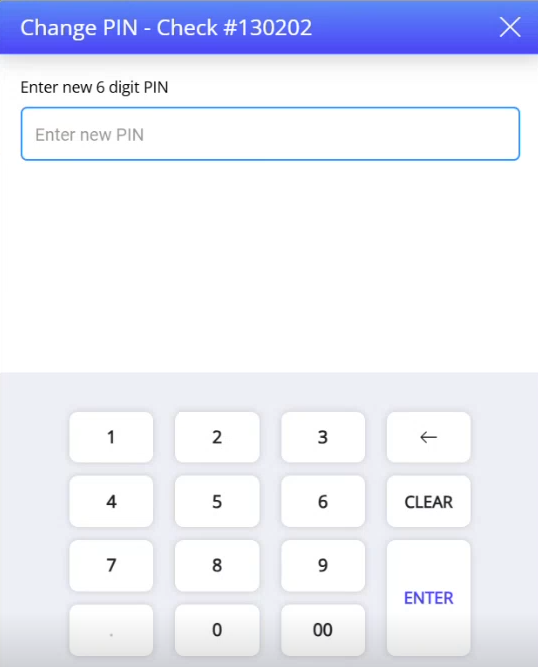
Enter the new PIN in the Enter New PIN field. It is recommended to enter only numeric characters.
Select Enter. The following message is displayed: PIN changed successfully for (Check Number). Guests can now join the order using the new PIN.
(Updated Documentation: Using IG OnDemand 12.3.14)