12.3.13.7 (12.x Server Only)
Improvements in Global Menu
IG Kiosk has been enhanced with the following improvements in the global menu:
-
Display choice groups and modifiers in the IGCM.
-
Hide or unhide items, choice groups, modifiers, and packages in kiosk.
-
Set display rule for profit center and terminal groups.
Users need not perform a cook. It will be reflected in kiosks once the changes are saved in the IGCM.
Additionally, the following improvements have been made in the global menu:
-
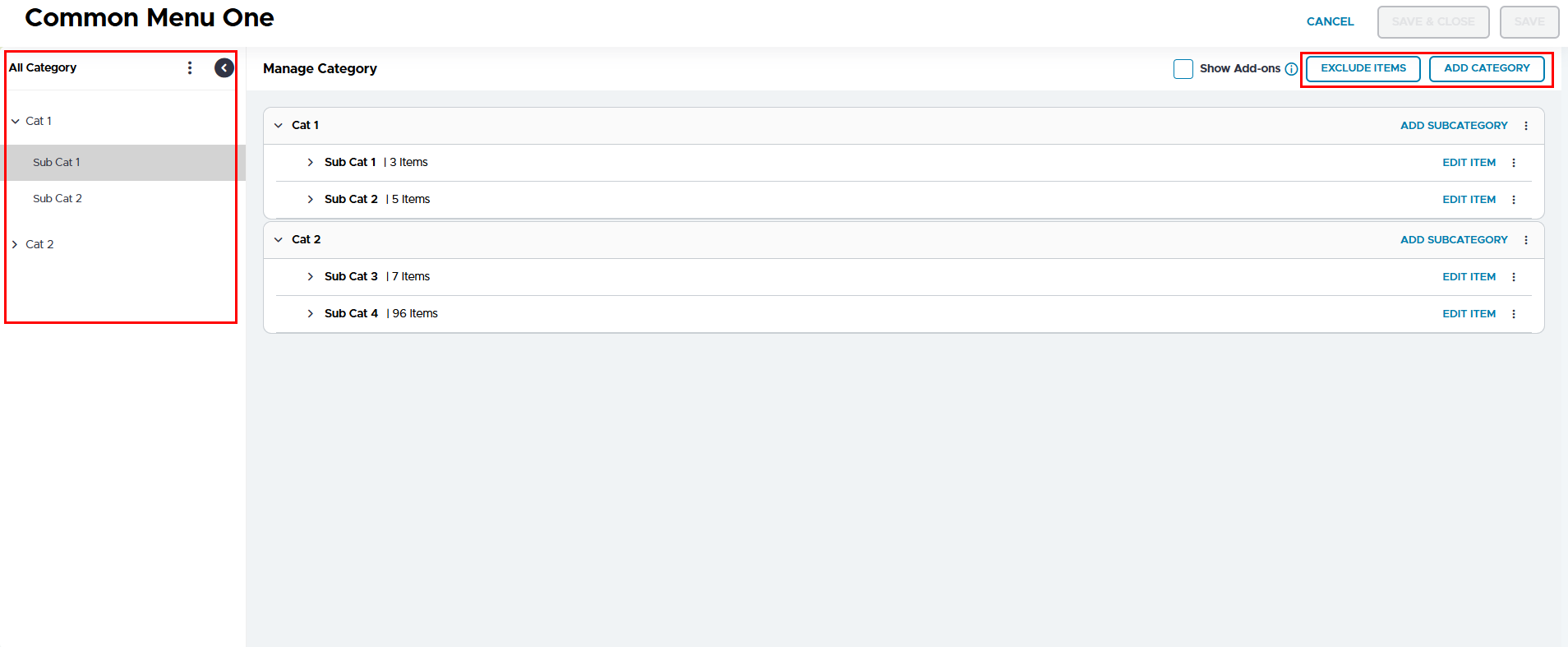
The Guest Facing checkbox has been placed horizontally next to the Employee Facing checkbox for better usability.
-
The Exclude Items and Add Category buttons are now added as dedicated buttons on the top right of the screen, making the action more visible and easier to access.
-
A hierarchical category tree is introduced on the left panel to clearly display category and subcategory relations.
Previous Configuration

Current Configuration
Display Choice Groups and Modifiers in IGCM
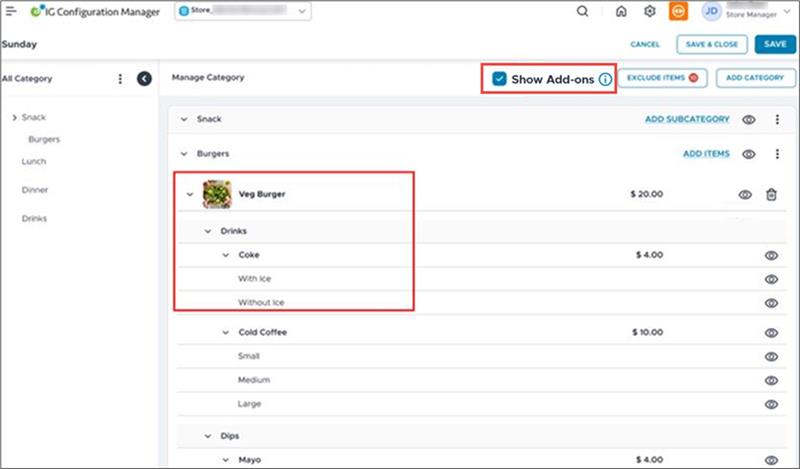
IGCM displays the choice groups and modifiers associated with each item in the menu.
To support this, a new checkbox, Show Addons, has been added to the Menus menu (Kiosk/OnDemand Configuration ➜ Items ➜ Menus).
-
When enabled, IGCM displays choice groups and modifiers within an item in the menu.
-
If the menu is guest facing, only one level of nested modifiers will be displayed.
-
If the menu is both guest and employee facing, all levels of nested modifiers will be displayed.
-
If the menu was first configured as guest facing and later modified to employee facing, all levels of nested modifiers will be displayed.
-
-
When disabled, IGCM does not display choice groups and modifiers within the item. By default, this checkbox is disabled.
Hide or Unhide Items, Choice Groups, Modifiers, and Packages in Kiosk
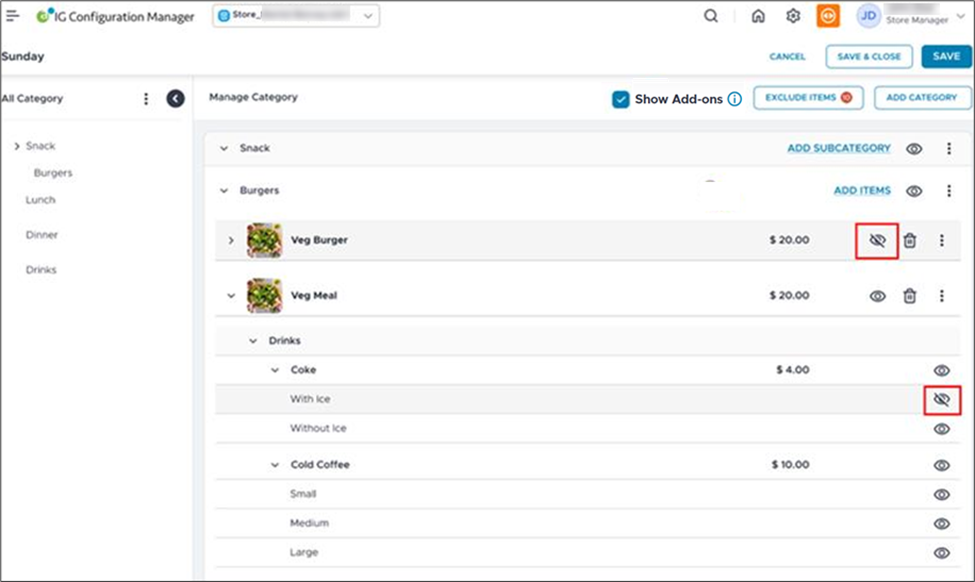
Users can hide or unhide items, choice groups, modifiers, and packages in kiosks by making the appropriate changes to the menu in IGCM. The hidden items cannot be added by scanning or searching in the kiosk, and these items will not be displayed in upsell, cross-sell, or promotion prompts.
If the automatic package recognition feature is enabled, and if one of the items in the package is hidden, the package will not be formed. For a package, the selection group along with the choice groups associated with each item will be displayed. If all items within a choice group, sub-category, or are hidden, a message, Hiding all items will also hide the parent item. Do you want to proceed?, is displayed.
Audit logging is supported for this functionality.
To support this, a new checkbox, Enable Hide/Unhide Option, has been added to the Other Configuration submenu of the Store menu.
-
When enabled, the Hide or Unhide icon is displayed for items, choice groups, modifiers, and packages available in the global menu in the Menus menu. On selecting the Hide icon, the appropriate item will not be displayed in the kiosk's menu, while selecting the Unhide icon will display the item again in the kiosk's menu. Users must save the changes in IGCM for the updates to take effect in the kiosk.
-
When disabled, the Hide or Unhide icon is not displayed for all items, choice groups, modifiers, and packages available in the global menu. The Hide icon will not be displayed for items or the selection group within a package.
Cart Validation
To support this, a new terminal option, Terminal Option 1504 (Override Cart Validation to allow hidden items), has been introduced.
-
When enabled, even if an item is hidden in the IGCM, it can still be added to the cart by scanning or using Global Search.
-
When disabled, the hidden item can be added to the cart but will be removed when the guest tries to perform checkout. By default, this option is disabled.
Set Display Rule for Profit Center and Terminal Group
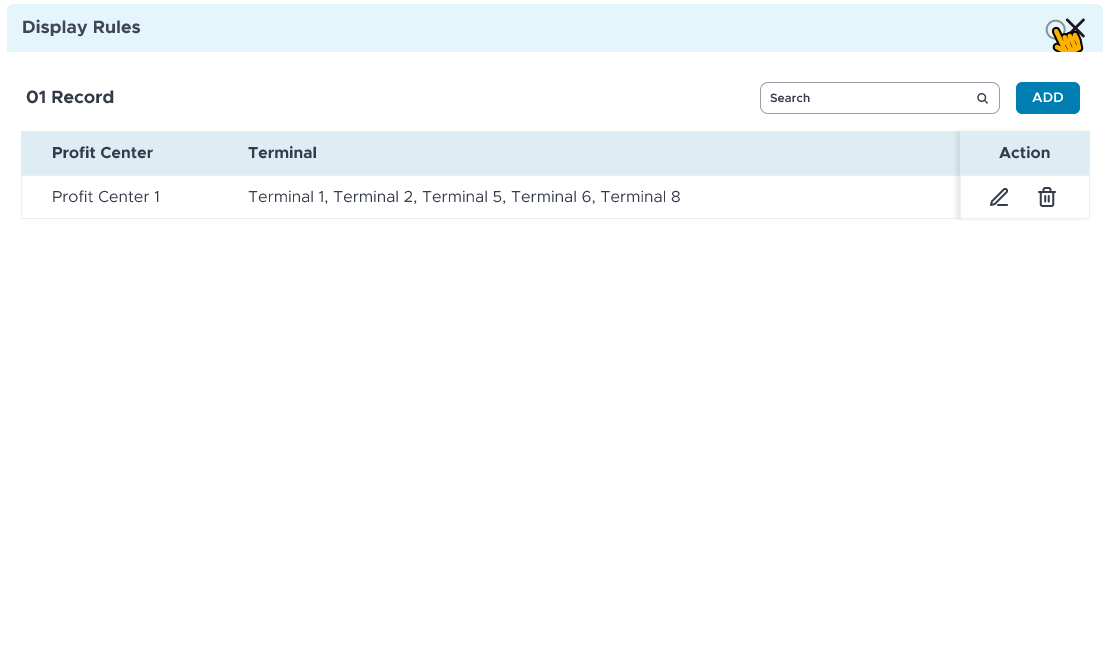
Users can configure rules to hide or unhide items, choice groups, modifiers, and packages based on the profit center and terminal groups associated to the profit center. Multiple rules can be configured for a profit center. However, only one rule can be configured for each profit center and terminal group combination. These rules are not applicable when the whole item is hidden globally.
To support this, a new option, Set Display Rule, has been added to the Vertical Ellipsis icon adjacent to the items. The Enable Hide/Unhide Option checkbox must be enabled for this functionality.
Perform the following steps to configure the display rule:
Select the Vertical Ellipsis icon adjacent to items.
Select Set Display Rule. The Display Rules prompt is displayed.
Select Add.
Select the preferred profit center from the Profit Center drop-down list.
Select the preferred terminal groups from the Terminal Group drop-down list.
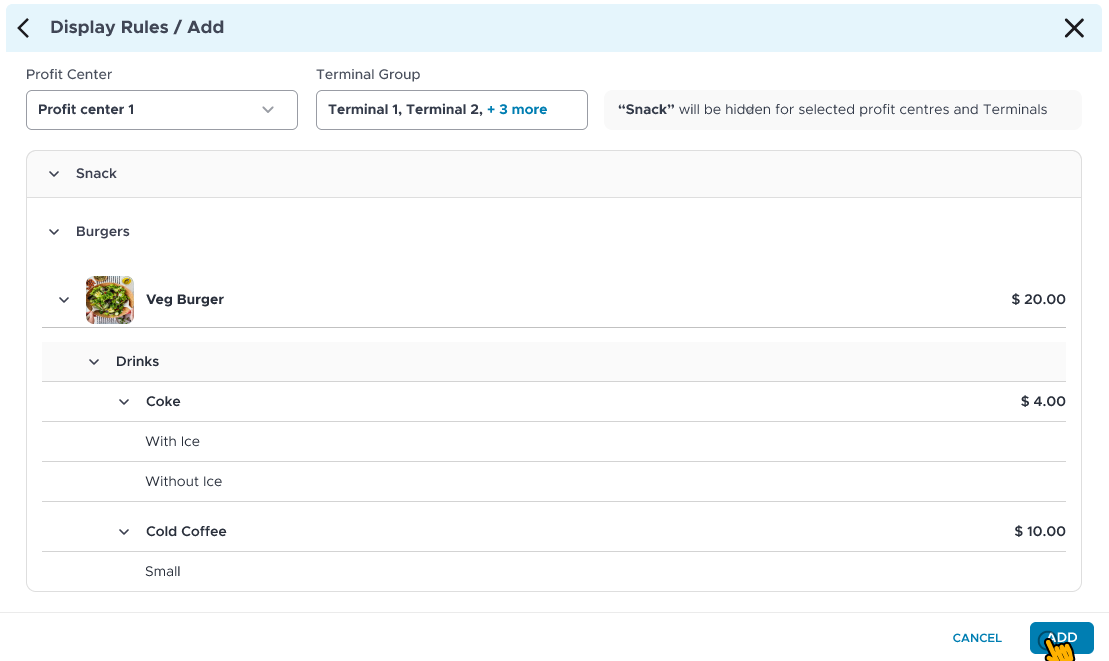
Choose the item, choice group, or modifier that must be hidden for the selected profit center and terminal group.
Select Add.