


12.3.16.3 (12.x Server Only)
Display Estimated Wait Time during Ordering
IG Kiosk has been enhanced to display estimated wait times for Profit Centers during ordering. Previously, guests could not view the expected wait time before selecting a Profit Center and placing an order. With this enhancement, users can configure wait times based on the number of open, queued, held, and preparing kitchen orders for each Profit Center. When the current order count reaches a configured threshold, the kiosk displays the corresponding wait time, display message, and visual indicator to help guests understand current kitchen demand before placing an order. Guests can continue ordering regardless of the displayed wait time.
Important Points
-
Multiple order-count thresholds can be configured for each Profit Center. When the order count does not match the configured threshold, wait time will not be displayed.
-
The order count will be applicable only when there is an active KV order item is present. It is not applicable for KP and QSR orders. Failed orders will not be considered for order count.
-
Kiosk preview is not supported.
-
Audit Logging is supported.
-
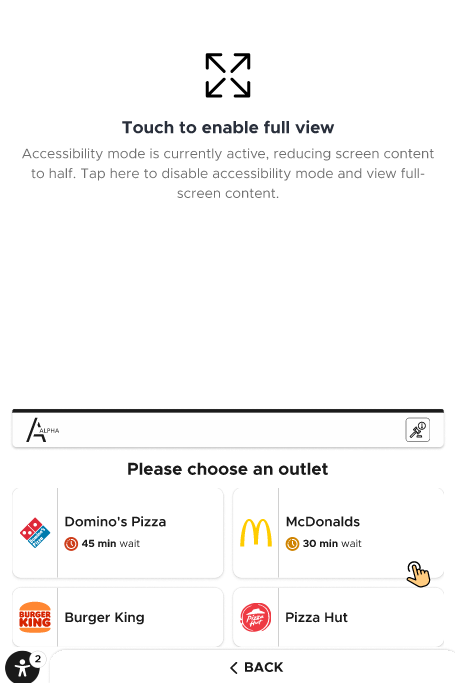
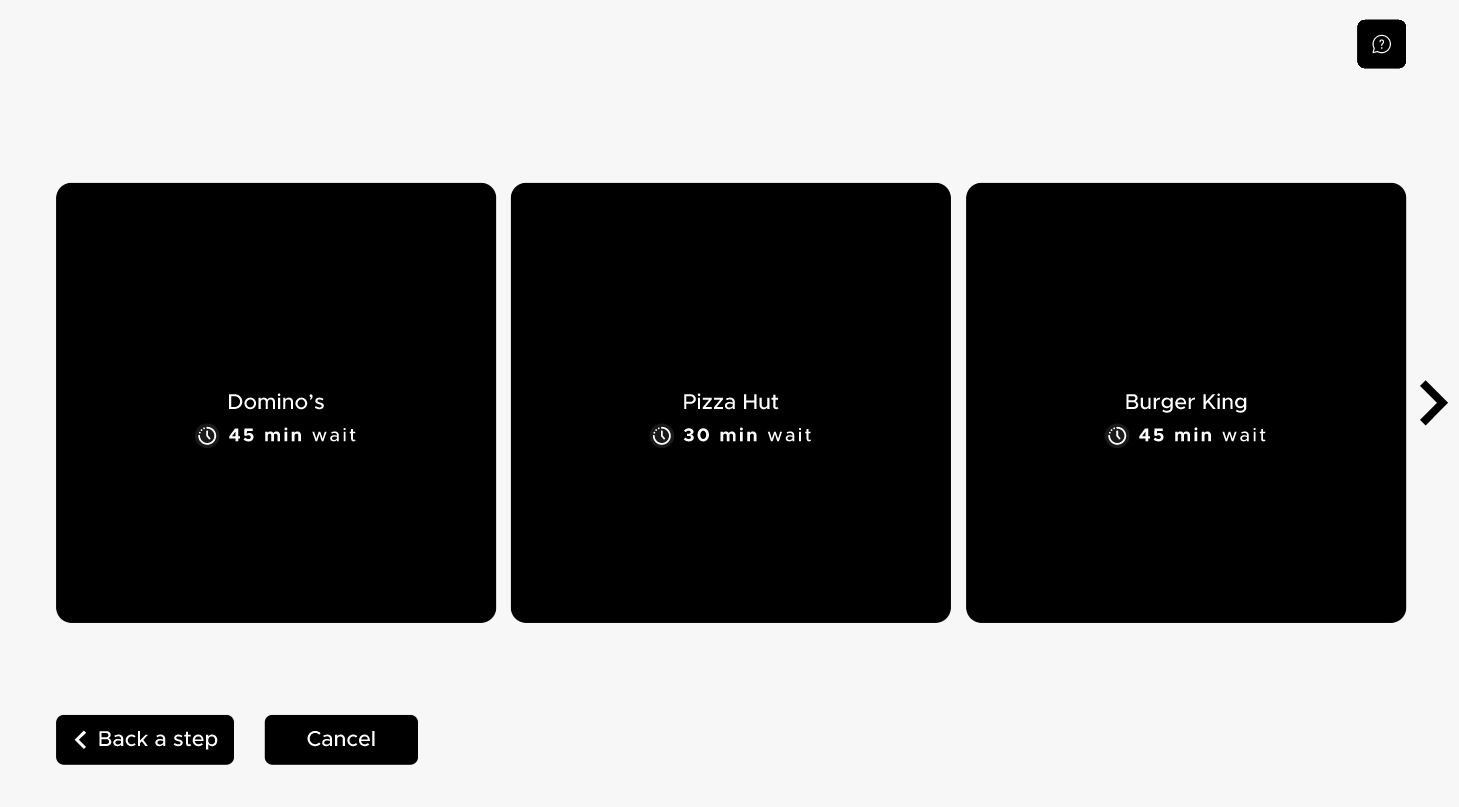
The feature supports PMR and Enhanced ADA modes.
-
Concepts inherit the same wait time configuration configured for the Profit Center.
-
Wait times are displayed only when the store is open.
-
The following kiosk profiles are not supported:
-
Engage Reload
-
GA Reload
-
Retail Kiosk
-
-
This feature is applicable only to Minimalist and Plainscape templates.
Changes Made in IGCM
To support this feature, the following changes have been made in the IGCM:
-
A new checkbox, Show Wait Time on Kiosk, has been added to the Toggles section under the Additional Configuration submenu of the Terminal Group menu (Kiosk/OnDemand Configuration ➜ Terminals ➜ Terminal Group).
-
When enabled, wait time information is displayed for applicable Profit Centers.
-
When disabled, wait time information is not displayed. However, configurations remain available in IGCM. By default, this checkbox is disabled.
-
-
A new checkbox, Show Wait Time on Kiosk, has been added to the Basic Details submenu of the Kitchen Profile menu (POS Configuration ➜ Kitchen ➜ Kitchen Profile).
-
When enabled, the wait time functionality will work.
-
When disabled, the functionality will not be supported. By default, this checkbox is disabled.
-
-
A new submenu, Wait Time Configuration, has been added to the Profit Center menu (Kiosk/OnDemand Configuration ➜ Business ➜ Profit Center).
Configurations in IGCM
Configure Kitchen Profile
Navigate to POS Configuration ➜ Kitchen ➜ Kitchen Profile.
Choose the appropriate record and select Edit.
Enable the Show Wait Time on Kiosk checkbox under the Basic Details submenu.
Select Save.
Configure Terminal Group
Navigate to Kiosk/OnDemand Configuration ➜ Terminals ➜ Terminal Group.
Choose the appropriate record and select Edit.
Navigate to the Toggles section under the Additional Configuration submenu.
Enable the Show Wait Time on Kiosk checkbox.
Select Save.
Configure Wait Time Threshold
Navigate to Kiosk/OnDemand Configuration ➜ Business ➜ Profit Center.
Choose the appropriate record and select Edit.
Navigate to the Wait Time Configuration submenu.
Select Add.
Refer to the following table and fill in the fields:
|
Field |
Description |
|---|---|
|
Order Count Range-From |
This field is mandatory. Enter the minimum number of open and queued kitchen orders required. Example: 0 |
|
Order Count Range-To |
This field is mandatory. Enter the maximum number of open and queued kitchen orders required. Example: 20 Maximum value supported: 999999 |
|
Wait Time (Mins) |
This field is mandatory. Enter the estimated wait time, in minutes, that will be displayed to guests when the current order count falls within the configured range. Example: 5 mins |
|
Wait Time Display Text |
This field is mandatory. Enter the text displayed along with the configured wait time. By default, the Wait Time Display Text shall be populated using the configured Wait Time with the prefix Wait Time as the suffix as display text. Example: 5 mins Wait Time |
|
Wait Time Text Color |
This field is optional. Select the preferred text color used to display the wait time message on the kiosk. Default Value: #FFFFFFFF. |
|
Wait Time Background Color |
This field is optional. Select the preferred background color displayed behind the wait time message on the kiosk. Default Value: #00000080. |
Select Save.
Implementation at Kiosk
Single Outlet Profit Center
Launch kiosk.
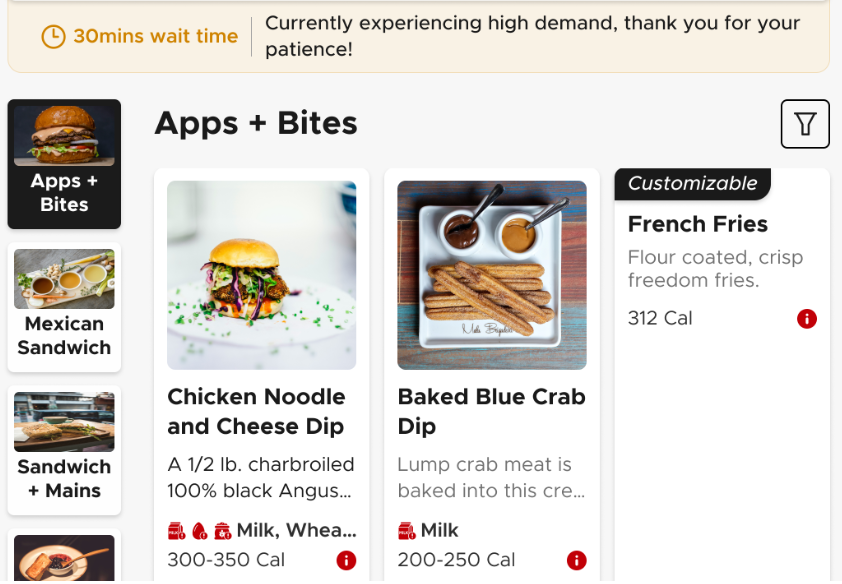
The message is configurable using the Literals menu.
Multiple Outlets Profit Center
Launch kiosk.
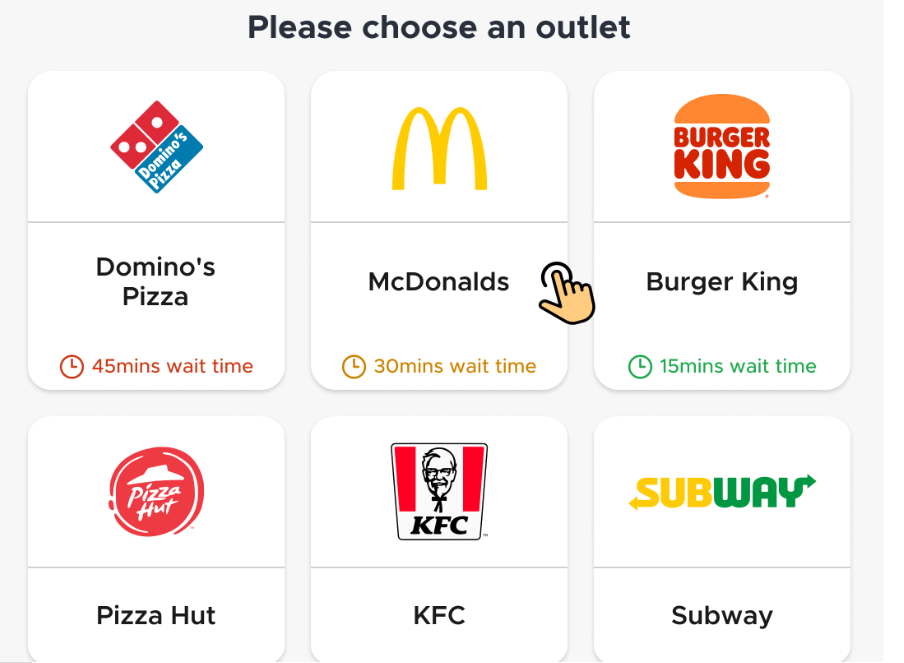
Select the preferred outlet to continue ordering.
The wait time will be displayed only when the Profit Center or Concept selection is configured as the main action.
When the Profit Center or Concept selection is configured as the pre-action, the wait time will not be displayed. Only after the guest selects the preferred outlet, a pop-up will be displayed with the wait time. Guests must select OK to proceed with the ordering.
When the order count changes while the guest is placing an order, the wait time will not be updated. The wait time will be updated automatically only before placing an order. When the order count increases or decreases while the guest is on the Menu screen, the displayed wait time is updated automatically based on the applicable threshold.
PMR Mode
Enhanced ADA Mode
Updated Documentation: Using IG Kiosk 12.3.16; InfoGenesis Configuration Manager for IG Kiosk 12.3.16