


12.3.15 (12.x Server Only)
Capture Signature in Kiosk
IG Kiosk has been enhanced to support signature capture for eligible tenders. When configured, it is mandatory to enter a signature to complete the payment. The signature is stored with the check, included in posting, and displayed in receipt and IGCM reports. Once the signature is captured and the payment is completed successfully, the signature will be displayed on the physical receipt. For partial tenders, multiple signatures will be displayed.
This functionality is also applicable to kiosks in PMR mode. The signature will not be displayed in receipt view, email, and SMS.
The signature will be printed on the receipt only when the configured CPF contains the @#SigPrinter.bmp@ tag.
The following kiosk profiles are supported:
-
Order & Pay Kiosk
-
Order & Optionally Pay Kiosk
-
Buffet with Reserve
-
Buffet Kiosk
-
Self Checkout Kiosk
-
Self Checkout with Auth
-
Multiple Orders and Pay Kiosk
-
GA Reload
Signature capture is not applicable when:
-
Enhanced credit card flow is used
-
Campus card payment is selected
-
External device is used to capture signature for credit card payments
-
Kiosk is in ADA mode
-
Pay at cashier method is selected
-
Multiple vouchers are selected
Changes Made in IGCM
To support this, a new checkbox, Signature capture for kiosk, has been added to the Terminal Group menu (Kiosk/OnDemand Configuration ➜ Terminals ➜ Terminal Group ➜ Additional Configuration ➜ Toggles).
Configurations in IGCM
It is mandatory to perform the following configurations for this functionality to work:
Configure Tender
Navigate to Kiosk/OnDemand Configuration ➜ Financials ➜ Tender.
Choose the appropriate tender and select Edit.
Navigate to the Tender Actions submenu.
Enable the Signature Capture checkbox.
Select Save.
Configure Terminal Group
Navigate to Kiosk/OnDemand Configuration ➜ Terminals ➜ Terminal Group.
Choose the appropriate terminal group and select Edit.
Navigate to the Toggles section under the Additional Configuration submenu.
Enable the Signature capture for kiosk checkbox.
Select Save.
For Credit Card tender, regardless of the checkbox’s setting, the signature capture will be prompted if the Terminal Option 528 (Enable signature capture application on the terminal) is enabled.
Configure Terminal Option
Navigate to Kiosk/OnDemand Configuration ➜ Terminals ➜ Terminal Option Group.
Choose the appropriate terminal option group and select Edit.
Navigate to the Terminal Options submenu.
Enable Terminal Option 528 (Enable signature capture application on the terminal).
Select Save.
Implementation at Kiosk
Launch kiosk.
Add preferred items to cart.
Proceed to checkout.
Select the preferred tender.
-
For Credit Card tender, the Signature Required prompt is displayed immediately after selecting the tender.
-
For other tenders, for example, Generic Auth, guests must enter the PIN associated with their account or swipe the card to select the appropriate balance after which the Signature Required prompt will be displayed.
-
If a tender is removed and a new tender is added, the prompt will be displayed again.
-
When guests navigate to the Payment Selection screen by selecting Back option, and select the same tender again, the prompt will be displayed.
-
For partial payments, the Signature Required prompt will be displayed each time a tender is selected.
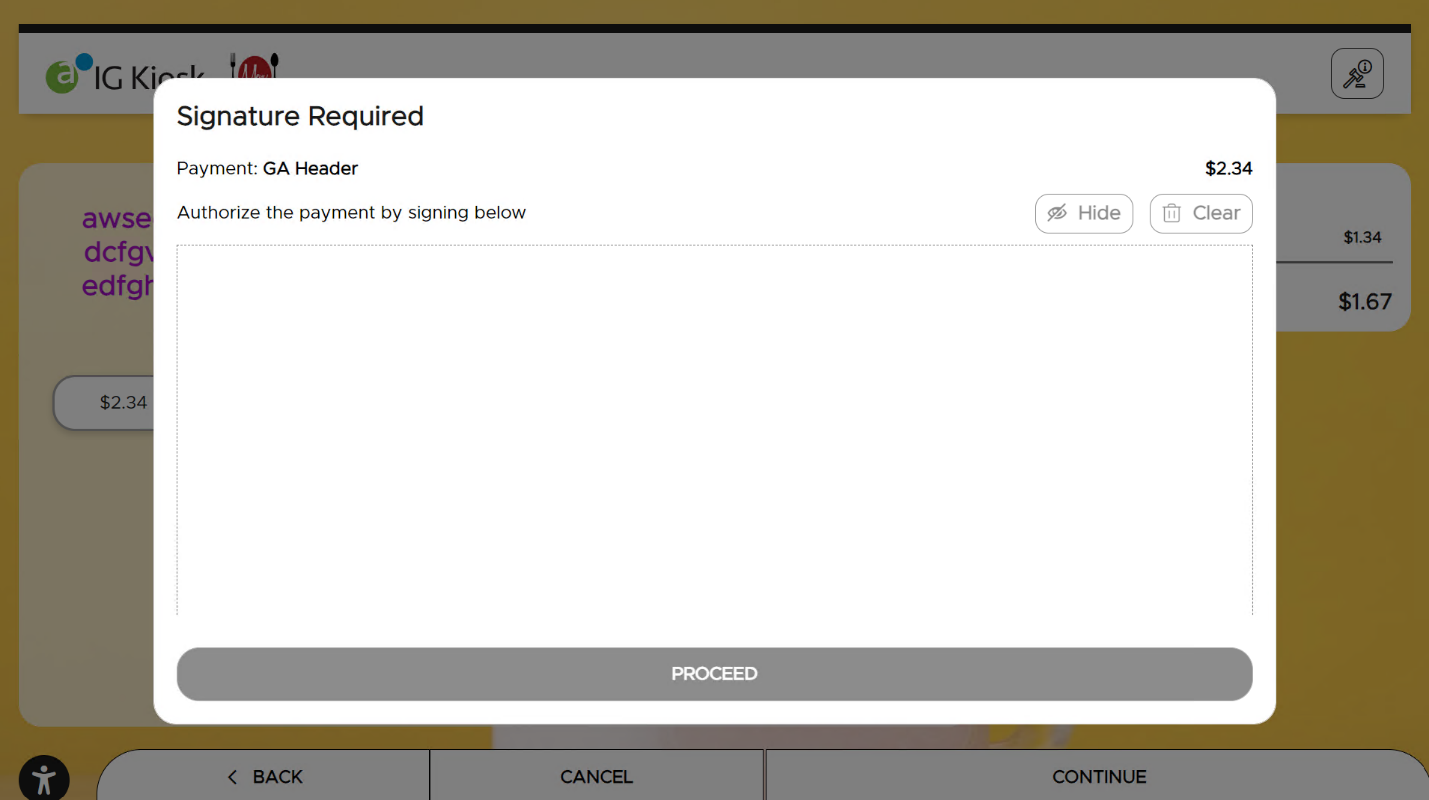
Enter the signature and select Proceed. Guests can also select the Hide icon for added privacy.
When hidden, the signature will not be displayed in the receipt view, email, or SMS, but it will be available in check zoom, recreate check, physical receipt, and PMS posting.
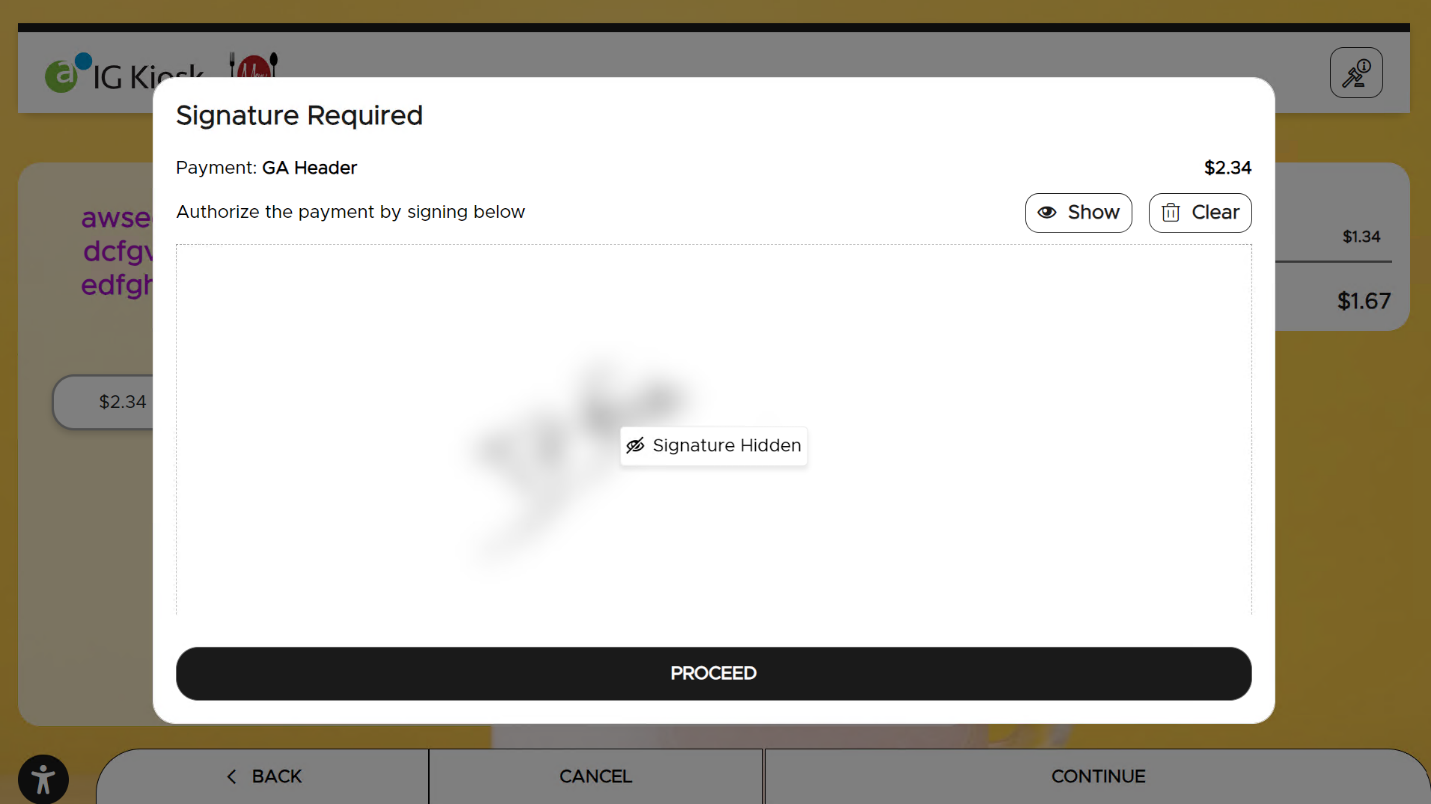
Guests can choose to delete the signature and re-enter the same by using the Clear icon.
Updated Documentation: Using IG Kiosk 12.3.15; InfoGenesis Configuration Manager for IG Kiosk 12.3.15