


Guest Consent for SMS and Email Notifications
IG Kiosk has been enhanced to support guest consent for receiving SMS and email notifications. Previously, guests could receive order-related notifications without explicitly providing consent to receive them.
With this enhancement, guests can choose whether to receive SMS or email notifications before providing their contact information. Users can configure consent text, upload a PDF document, and configure link text for guests to review additional information.
Limitation
Users can select any language in the Terminal Group menu to upload PDF files. However, PDF content is displayed only for English, French, and Arabic. If any other language is selected, the PDF file remains accessible to guests, but the content will not be displayed.
Changes Made in IGCM
To support this feature, the following checkboxes have been added to the Capture Guest Information section under the Additional Configuration submenu of the Terminal Group menu (Kiosk/OnDemand Configuration ➜ Terminals ➜ Terminal Group ➜ Additional Configuration).
Consent for Capturing SMS
This checkbox can be enabled only when Always or Optional option is selected from the SMS drop-down list.
-
When enabled, SMS consent is displayed in the Guest Information and Order Confirmation screens when guests choose to receive order details through SMS.
-
When disabled, SMS consent is not displayed, and the existing notification flow is followed. By default, this checkbox is disabled.
Consent for Capturing Email
This checkbox can be enabled only when Always or Optional option is selected from the Email drop-down list.
-
When enabled, email consent is displayed in the Guest Information and Order Confirmation screens when guests choose to receive order details through email.
-
When disabled, email consent is not displayed, and the existing notification flow is followed. By default, this checkbox is disabled.
Configurations in IGCM
Configure SMS Consent
Navigate to Kiosk/OnDemand Configuration ➜ Terminals ➜ Terminal Group.
Choose the preferred terminal group and select Edit.
Navigate to the Additional Configuration submenu and select the Capture Guest Information section.
Enable the Consent for Capturing SMS checkbox.
Refer to the following table and fill in the fields:
|
Field |
Description |
|---|---|
|
Consent Note |
Enter the consent note to be displayed. Default Value: I agree to receive order-related text messages (for example, order status and pickup notifications). Message and data rates may apply. |
|
Link Text |
Enter the link text to be displayed. When a document is uploaded for the guests to refer, a link text will be displayed. Default Value: Terms & Conditions |
|
Language |
Languages configured in the Enterprise menu will be displayed. Select the preferred language. Multiple languages can be selected by using the Add option. |
|
File Name |
Select Browse to upload the relevant file. Only PDF files are supported. |
|
Action |
Select Delete to delete a record. |
Select Save.
Configure Email Consent
Navigate to Kiosk/OnDemand Configuration ➜ Terminals ➜ Terminal Group.
Choose the preferred terminal group and select Edit.
Navigate to the Additional Configuration submenu and select the Capture Guest Information section.
Enable the Consent for Capturing Email checkbox.
Refer to the following table and fill in the fields:
|
Field |
Description |
|---|---|
|
Consent Note |
Enter the consent note to be displayed. Default Value: I agree to receive order-related emails (such as receipts and order updates). |
|
Link Text |
Enter the link text to be displayed. When a document is uploaded for the guests to refer, a link text will be displayed. Default Value: Terms & Conditions |
|
Language |
Languages configured in the Enterprise menu will be displayed. Select the preferred language. Multiple languages can be selected by using the Add option. |
|
File Name |
Select Browse to upload the relevant file. Only PDF files are supported. |
|
Action |
Select Delete to delete a record. |
Select Save.
Implementation at Kiosk
Launch kiosk.
Add preferred items to the cart.
Navigate to the Guest Information screen.
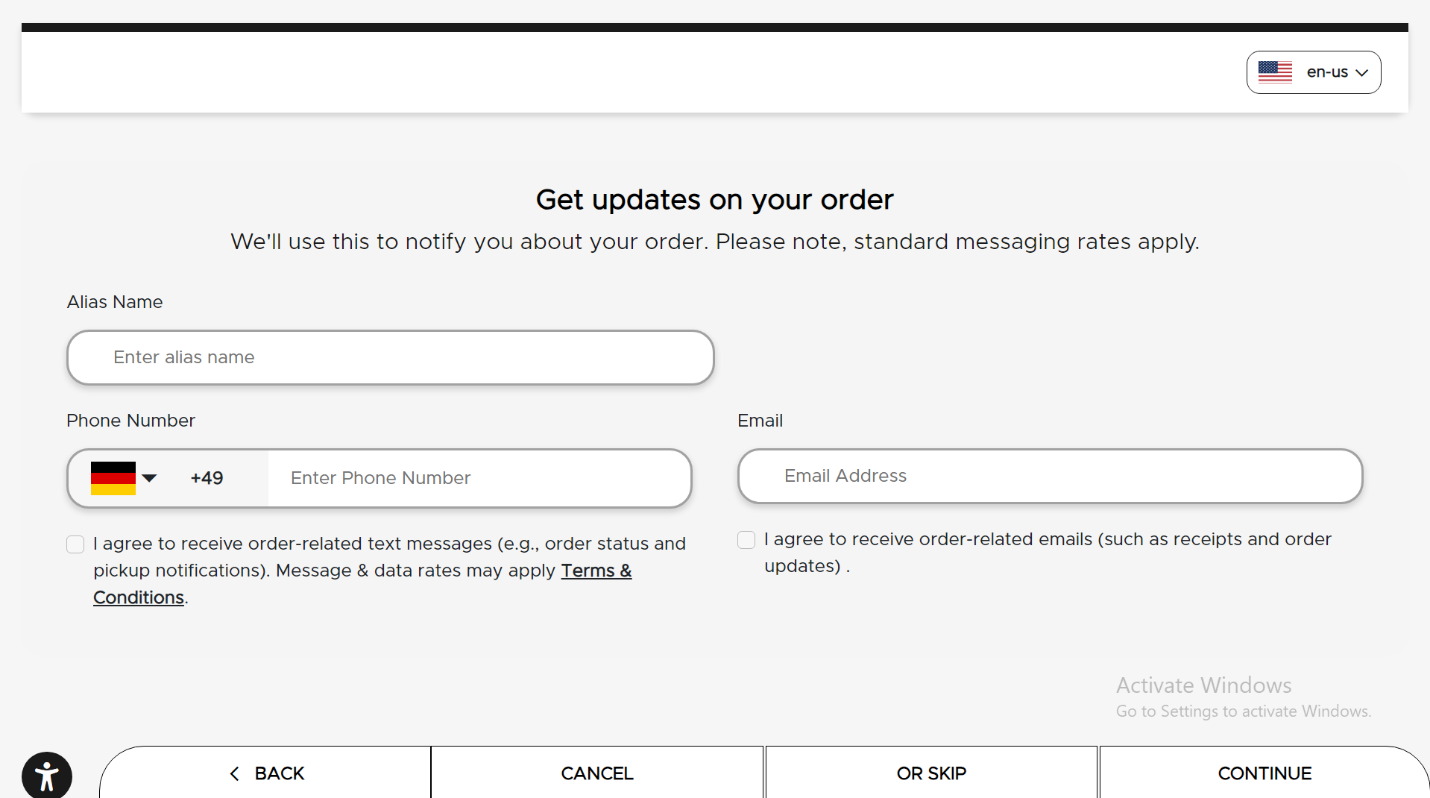
Enter the phone number in the Phone Number field.
Enable the consent checkbox.
Enter the email address in the Email field.
Enable the consent checkbox.
Select Continue.
Navigate to the Order Confirmation screen.
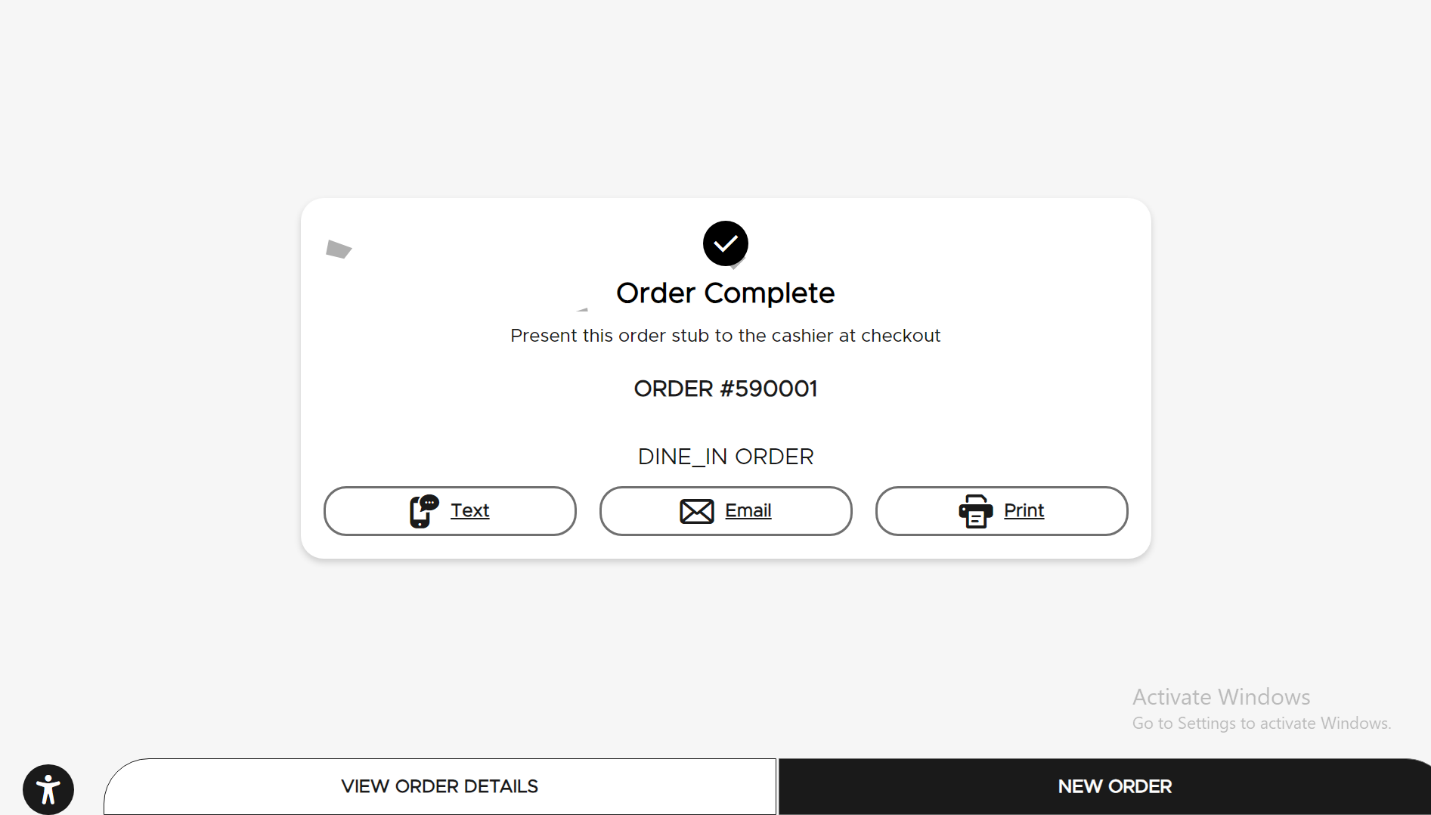
Select Text option to receive SMS.
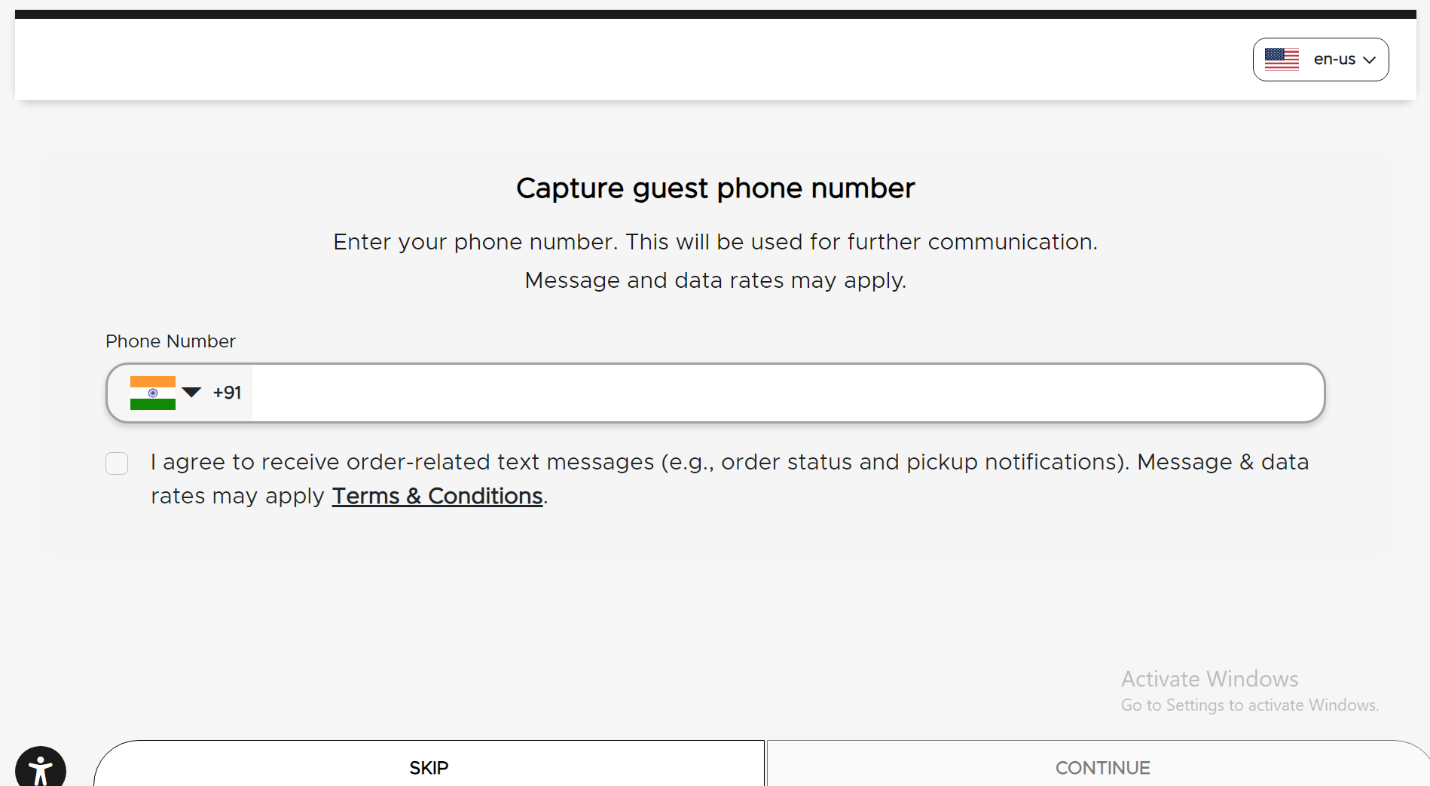
Enter the phone number in the Phone Number field.
Enable the consent checkbox.
Select Continue.
Select Email option to receive email.
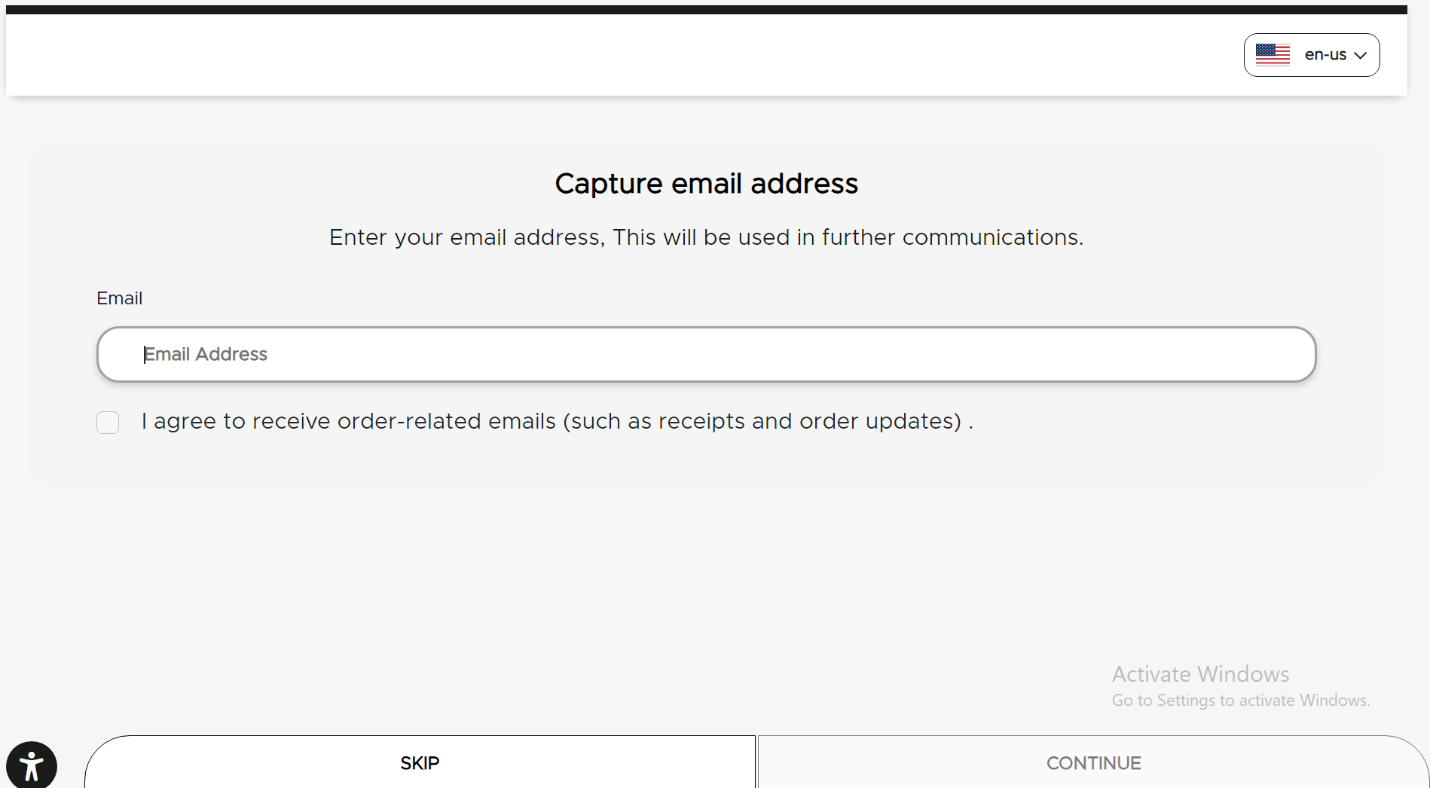
Enter the email address in the Email field.
Enable the consent checkbox.
Select Continue to proceed with the order.
If the fields are configured as mandatory, the Continue option will be greyed out and guests will not be able to select the option. If the fields are not filled with valid inputs, the Continue option will still be greyed out.