


Notification Info
Navigate to Notification Info. The following screen appears:
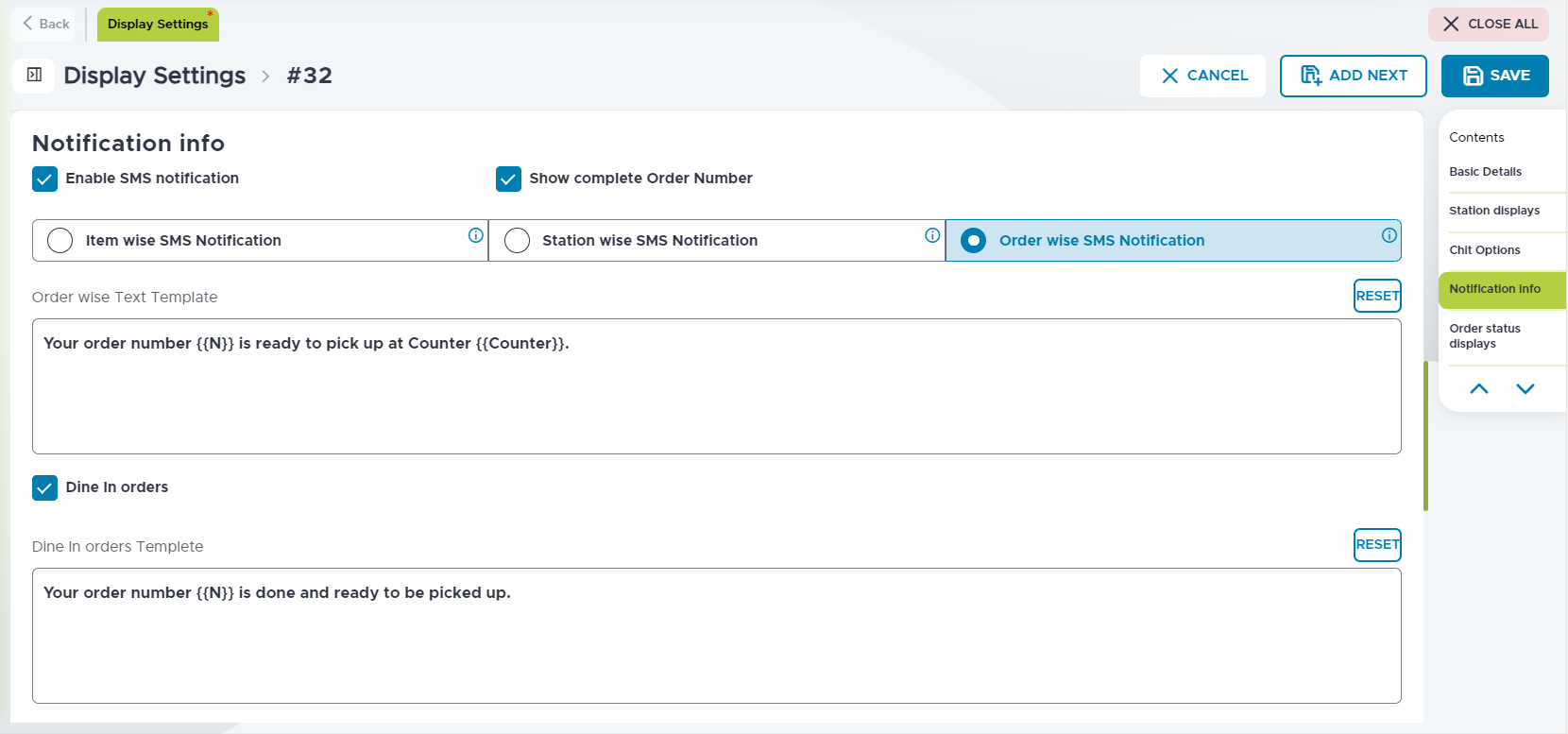
Refer to the following table and fill in the fields as necessary:
|
Field |
Description |
|---|---|
|
Enable SMS Notification |
Enable the checkbox to send a SMS notification once the order is completed. |
|
Show complete Order Number |
Enable the checkbox to display the complete order number in the notification sent to the guest. |
|
Item Wise SMS Notification |
Select the radio button to send a SMS once an item in an order is completed. This radio button is available only when the Enable SMS Notification checkbox is enabled. |
|
Item wise Text Template |
Enter the item wise text template. By default: Your order number {{orderNumber}} with item name {{itemName}} is ready and picked up at {{conceptName}},{{Counter}}. |
|
Station Wise SMS Notification |
Select the radio button to send a SMS when items in a station are completed. This radio button is available only when the Enable SMS Notification checkbox is enabled. |
|
Station wise Text Template |
Enter the station wise text template. By default: Your order number {{orderNumber}} is done and ready at {{conceptName}},{{Counter}}. |
|
Order Wise SMS Notification |
Select the radio button to send a SMS when items in an order are completed. This radio button is available only when the Enable SMS Notification checkbox is enabled. |
|
Order wise Text Template |
Enter the order wise text template. By default: Your order number {{N}} is ready to pick up at Counter {{Counter}}. |
|
Dine In orders |
Enable the checkbox to send notification for dine in orders. |
|
Dine In orders Template |
Enter the text to be displayed when dine in orders are taken. By default: Your order number {{N}} is done and ready to be picked up. |
|
Take Away orders |
Enable the checkbox to send notification for take away orders. |
|
Take away orders Template |
Enter the text to be displayed when take away orders are taken. By default: Your order number {{N}} is done and ready to be picked up. |
|
Order Arrival SMS Notification |
Enable this checkbox to send a SMS notification when the kitchen receives the order. |
|
Show Complete Order Number |
Enable this checkbox to send the complete order number in the SMS notification |
|
Order Arrival SMS Notification Template |
Enter the text that must be sent as text when the order arrives in the kitchen. By default: Your order number [CN] has arrived at the kitchen to be prepared. |
|
Enable Email Notification |
Enable the checkbox to send an email notification once the order is completed. |
|
Item Wise Email Notification |
Select the radio button to send an email once an item in an order is completed. This radio button is available only when the Enable Email Notification check box is enabled. |
|
Station Wise Email Notification |
Select the radio button to send an email when items in a station are completed. This radio button is available only when the Enable Email Notification check box is enabled. |
|
Order Wise Email Notification |
Select the radio button to send an email when items in an order are completed. This radio button is available only when the Enable Email Notification checkbox is enabled. |
|
Order Arrival Email Notification |
Enable this checkbox to send an email when the order is received in the kitchen. |
|
Email From Name |
Enter the name that must be displayed in the From field in an email. |
|
Email Address |
Enter the email address from where the email must be sent. |
|
Email subject |
Enter the text that must be displayed in the Subject field of the email. |
|
Order Arrival Email Notification Template |
Enter the text that must be sent to the guest once the kitchen receives an order. For example, Your order number [CN] with item name [ID] is ready and picked up at [PC], [CounterName]. Thank you. CN is replaced by counter name, ID is replaced by the item ID, PC is replaced by profit center name. Select the Reset option to display the default template, Your order number [CN] with item name [ID] is ready and picked up at [PC], [CounterName]. |
|
Enable App Notification when Order is Bumped |
Enable the checkbox to send app notifications when orders are bumped. |
|
Show complete Order Number |
Enable the checkbox to display the complete order number in the notification sent to the guest. |
|
Item wise App Notification |
Select the radio button to send a notification once an item in an order is completed. This radio button is available only when the Enable App Notification when Order is Bumped checkbox is enabled. |
|
Item wise App Template Name |
Enter the name for the template. |
|
Item wise App Template Text |
Enter the text that must be displayed in the app once the order is bumped. By default: Your order number [CN] with item name [ID] is ready and picked up at [PC],[CounterName]. |
|
Station wise App Notification |
Select the radio button to send a SMS when items in a station are completed. This radio button is available only when the Enable SMS Notification checkbox is enabled. |
|
Station wise App Template Name |
Enter the name for the template. |
|
Station wise App Template |
Enter the station wise app notification template. By default: Your order number [CN] is done and ready at [PC] and can be picked up at [CounterName]. |
|
Order wise App Notification |
Select the radio button to send a SMS when items in an order are completed. This radio button is available only when the Enable SMS Notification checkbox is enabled. |
|
Order wise App Template Name |
Enter the name for the template. |
|
Order wise App Template |
Enter the order wise text template. By default: Your order number [CN] is ready to be picked up at Counter [CounterName]. |
|
Dine In orders |
Enable the checkbox to take dine in orders. |
|
Dine In orders Template Name |
Enter the name for the template. |
|
Dine In orders Template |
Enter the text to be displayed when dine in orders are taken. By default: Your order number [CN] is done and ready to be picked up. |
|
Take Away orders |
Enable the checkbox to enabled take away orders. |
|
Take away orders Template Name |
Enter the name for the template |
|
Take away orders Template |
Enter the text to be displayed when take away orders are taken. By default: Your order number [CN] is done and ready to be picked up. |
|
Order Arrival App Notification |
Enable this checkbox to send a notification app when the order arrives to the kitchen |
|
Order Arrival App Notification Template Name |
Enter the name for the template |
|
Show Complete Order Number |
Enable the checkbox to display the complete order number in the notification sent to the guest. |
|
Order Arrival App Notification Template Text |
Enter the text that must be sent as a notification to the guest when the order arrives in the kitchen. By default: Your order number [CN] has arrived at the kitchen to be prepared. |