


12.3.16
Prioritize Orders Manually in Expo
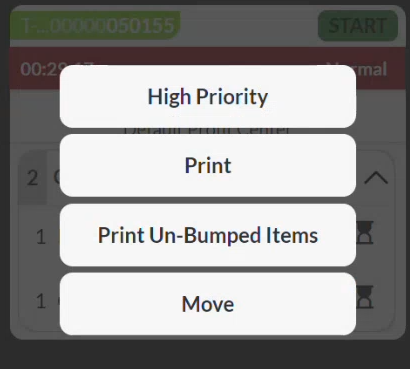
IG KDS has been enhanced to allow users to manually prioritize orders within the expo. With this enhancement, users can reposition chits using the Move option to adjust the sequence of orders in the expo.
Important Points
-
This feature is supported only for modern layout.
-
It is applicable to all expo types.
-
Both physical and virtual bump bars are supported.
-
This functionality is supported for backup orders.
-
A minimum of two chits must be available in the expo to move chits.
-
Move option is not displayed when no chits are available in the expo.
-
Manual chit movement is supported for both primary stations and their associated spy stations, but changes made in one station are not reflected in the other station.
-
Moved chit positions are retained when switching between stations and after a page reload.
-
Chit positions are not retained in the following scenarios:
-
Quitting and relaunching the application.
-
Re-registering stations.
-
-
This functionality is not supported on spy stations configured in view-only mode.
-
This functionality is not supported for closed chits.
-
This functionality is not supported for hold chits.
-
This functionality is not supported for accept/reject orders.
-
Actions cannot be performed while moving a chit. Any displayed prompt must be resolved before moving a chit.
-
Move action is performed at the individual chit level.
-
When a variable chit spans multiple columns and is displayed as multiple chits, selecting Move on any of the displayed chits selects the entire chit and moves all associated displayed chits together.
-
For split course or split seat orders, each chit can be moved independently.
-
Move action cannot be performed on Line Items tab, but chit movements made in the Open Orders tab are reflected on the Line Items tab.
-
When Move is selected, chit options opened for other chits are closed automatically.
-
Select the same chit again to cancel the move operation.
-
Manually moved chits take precedence over existing chit sorting configurations.
-
New chits are positioned based on the existing chit sorting.
-
A chit moved from the last position cannot be returned to its original last position unless a new chit is added to the expo.
-
Manual chit movement affects only the current expo and does not affect OSD reorder.
-
Chits moved in the master expo are not reflected in prep expo.
-
The position of a moved chit is retained after the chit is voided.
-
Recalled chits return to their manually assigned position in the Open Orders tab.
-
Expanded chits collapse automatically when Move is selected.
-
Multiple chits cannot be moved simultaneously.
-
Changes made to chit priority or chit time are not reflected in the reports.
-
Changes made through manual chit movement cannot be reset.
Changes Made in IGCM
To support this, the following changes have been made in IGCM:
-
A new checkbox, Move, has been added under the Chit Options submenu in the Display Settings menu (POS Configuration ➜ Kitchen ➜ Display Settings ➜ Chit Options).
-
When enabled, the Move option is displayed on the chit in the expo.
-
When disabled, the Move option is not displayed on the chit. This checkbox is disabled by default.
-
-
A new option, Move, has been added to the Primary Action and Secondary Action drop-down list under the Bumpbar Configuration submenu in the Display System menu (POS Configuration ➜ Kitchen ➜ Display System ➜ Bumpbar Configuration).
Configurations in IGCM
Configure Display Settings
Navigate to POS Configuration ➜ Kitchen ➜ Display Settings.
Select the preferred record from the screen and select Edit to modify it.
Navigate to Chit Options submenu.
Enable the Move checkbox.
Select Save.
Configure Display System
Navigate to POS Configuration ➜ Kitchen ➜ Display System.
Select the record with Bumpbar configured as input method from the screen and select Edit to modify it.
Refer to the following table and fill in the fields:
|
Field |
Description |
|---|---|
|
Orders |
|
|
Use Modern Layout |
Enable this checkbox. |
|
Bumpbar Configuration |
|
|
Primary Action |
Select Move from the drop-down list to assign the Move action as the primary bump bar action. Note - When Move is selected as the primary action, it is not available for selection as the secondary action. |
|
Secondary Action |
Select Move from the drop-down list to assign the Move action as the secondary bump bar action. Note - When Move is selected as the secondary action, it is not available for selection as the primary action. |
Select Save.
Implementation at Expo
Log in to the expo.
Open the Open Orders tab.
Select the preferred chit and select Move from the chit options. The chit gets highlighted.
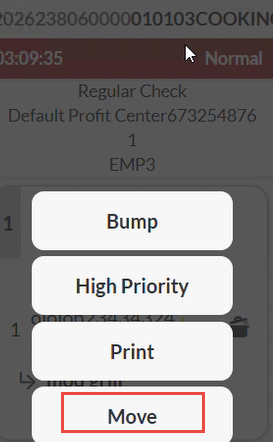
Select Move on another chit. The selected chit is repositioned and placed before that chit in the Open Orders tab.