


Reopen Delivered Chits and Items
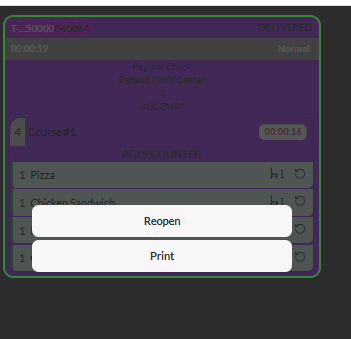
IG KDS has been enhanced to allow users to reopen delivered chits and individual items directly from the Closed tab. Previously, once a chit was marked as Delivered in the delivery prep, it could not be reopened.
Important Points
-
This feature is applicable only for Delivery prep display.
-
When a delivered chit is reopened, the chit timer will restart from the previously captured time.
-
Enable delivery Status checkbox under the Station Displays submenu of the Display Settings menu must be enabled (POS Configuration ➜ Kitchen ➜ Display Settings).
Refer to the following table for the reopen behavior of chits and items when bumped at chit-level or item-level:
|
Enable Item Wise Bumping |
Enable Item Level Actions on Chit |
Enable Delivery Status |
Behaviour |
|---|---|---|---|
|
Enabled |
Enabled |
Enabled |
Chit-level bumping:
Item-level bumping:
|
|
Disabled |
Disabled |
Enabled |
Chit-level bumping:
|
Changes Made in IGCM
To support this, a new checkbox, Enable Reopen for Delivered chits, has been added under the Orders submenu in the Display System menu (POS Configuration ➜ Kitchen ➜ Display System).
-
When enabled, delivered chits and items can be reopened from the Closed tab.
-
When disabled, delivered chits and items cannot be reopened. This checkbox is disabled by default.
Configurations in IGCM
Configure Display Settings
Navigate to POS Configuration ➜ Kitchen ➜ Display Settings.
Select the preferred record from the screen and select Edit to modify it.
Navigate to the Station Displays submenu.
Enable the Enable Delivery Status checkbox.
Select Save.
Configure Display System
Navigate to POS Configuration ➜ Kitchen ➜ Display System.
Select the record with the prep display configured as the display type and select Edit to modify it.
Navigate to the Orders submenu.
Refer to the following table and fill in the fields:
|
Field |
Description |
|---|---|
|
Enable Item wise Bumping |
Enable this checkbox. |
|
Enable Item Level Actions on Chit |
Enable this checkbox. |
|
Enable Reopen for Delivered Chits |
Enable this checkbox. |
Select Save.