


Release 12.3.14
12.3.14.1
Display Orders based on Priority in Master Expo
IG KDS has been enhanced to display orders from the prep expo on the master expo based on their priority and preparation time. Previously, all orders from the prep expo were displayed together. With this enhancement, the orders are logically grouped and displayed in the following orders in master expo:
-
Pending orders are displayed first, allowing users to accept or reject the orders.
-
Ready orders (prepared orders from prep) are displayed next. It is sorted in the following way:
-
Priority (High ➜ Normal)
-
Prepared time
-
Order ID
-
Additionally, if two orders have the same priority level, the order completed first will be displayed first.
-
Waiting/Cooking orders are displayed after the ready orders. It is sorted based on:
-
Priority (High ➜ Normal)
-
Payment status (if configured)
-
Earliest unbumped time or chit sorting (based on configuration)
-
Order ID
-
Refer to the following example:
|
Order |
Priority |
Fired Time |
Status |
|---|---|---|---|
|
001 |
Normal |
12:00 |
Yet to Start |
|
002 |
High |
12:02 |
Cooking |
|
003 |
Normal |
12:05 |
Ready |
|
004 |
High |
12:06 |
Ready |
|
005 |
Normal |
12:08 |
Awaiting Accept |
The orders are displayed in the following way:
|
Order |
Priority |
Fired Time |
Status |
|---|---|---|---|
|
005 |
Normal |
12:08 |
Awaiting Accept |
|
004 |
High |
12:06 |
Ready |
|
003 |
Normal |
12:05 |
Ready |
|
002 |
High |
12:02 |
Cooking |
|
001 |
Normal |
12:00 |
Yet to Start |
After orders 004 and 003 are bumped, the orders move to the Closed orders tab. When reopened, the orders return to the Open orders tab with the status set to Yet to Start.
Sample Screen
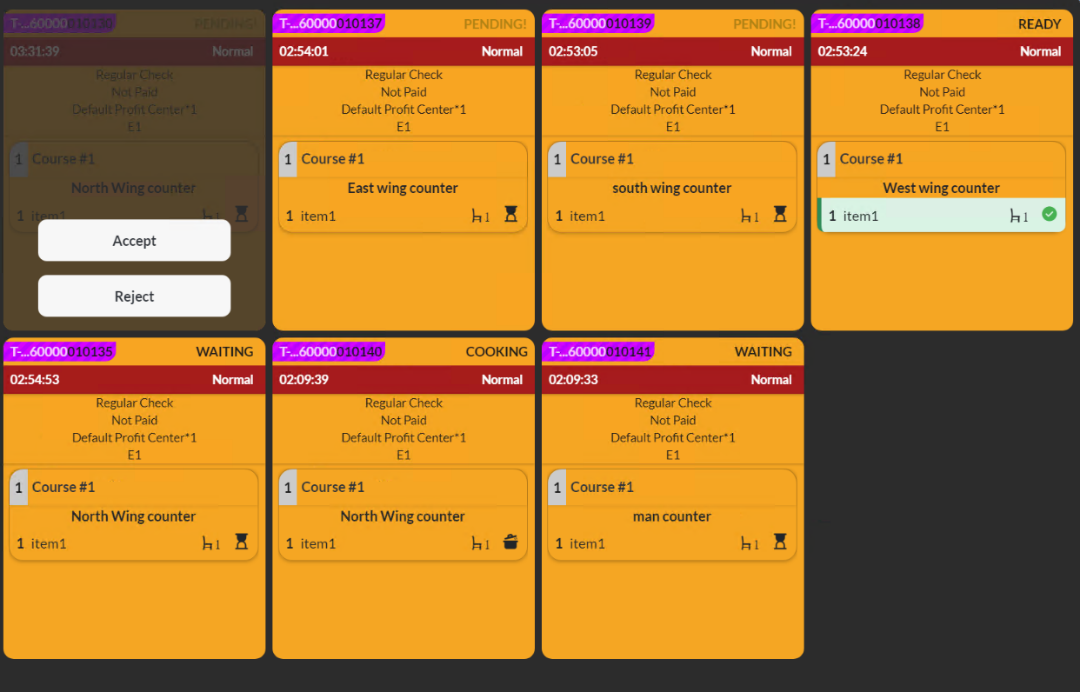
Order Source: InfoGenesis POS Terminal 12UX, IG Kiosk, IG OnDemand, and IG Fly.
Important Points
-
This feature is supported only for master expo type.
-
It is applicable only to open orders.
-
It is applicable to both classic and modern layouts.
-
Multi-station routing is supported.
-
Mirrored Displays are supported.
-
It is supported for both fixed and variable chits.
-
Orders with hold items are not moved to ready state.
Changes Made in IGCM
To support this, a new checkbox, Prioritize Ready Orders, has been added to the Orders submenu of the Display System menu (POS Configuration ➜ Kitchen ➜ Display System).
-
When enabled, orders are grouped and displayed based on their priority and the prepared time.
-
When disabled, orders follow the existing sorting behavior. This checkbox is disabled by default.
Configurations in IGCM
Navigate to POS Configuration ➜ Kitchen ➜ Display System.
Select the preferred record from the screen and select Edit to modify it.
Navigate to the Orders submenu.
Enable the Prioritize Ready Orders checkbox.
Select Save.