


Release 12.3.14
12.3.14.4
Prepare Portions of Item Across Multiple Stations
IG KDS has been enhanced to allow users to prepare an item in portions across different stations. With this enhancement, a single item can be split into multiple portions, and each portion can be routed to a different kitchen department and station. Each station prepares and bumps its assigned portion independently, while the item is considered complete only after all portions are bumped.
In the master expo, items with multiple portions display the status of each station.
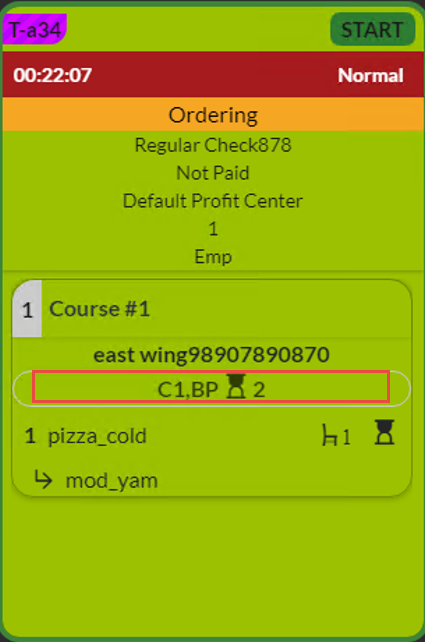
For example,
Consider the guest orders a Chicken Salad.
Station A prepares the chicken and Station B prepares the salad. The item is displayed at both stations, and each station prepares and bumps its portion independently.
Important Points
-
This feature is applicable to both prep and master expo.
-
It is recommended to use enhanced master expo to allow orders to be bumped to a backup station when the portion failed to reach the prep station.
-
Orders are displayed in all stations only when accepted at the master expo.
-
Terminal Option 156 (Use real-time kitchen video interface) is supported.
-
Auto bumping is handled independently at each station.
-
The following changes affect only the station where the action is performed. Other stations remain unaffected:
-
Priority change
-
Moving a chit from the Queue or Scheduled Orders tab
-
-
Item summary counts and open tab counts include the item in every station where a portion is routed.
-
CCM2 Parent configurations are supported.
-
Modifiers are displayed only under the portion routed to the modifier’s department. If a portion matches the modifier’s department, the item and modifier are displayed together.
-
If the modifier has no department, it is displayed with all portions.
-
Email and SMS notifications are sent only once after all portions are bumped.
-
For portioned items, the overall item status is based on the lowest status among all portions.
-
The short names displayed in the master expo can be configured in the Short Name field under the Basic Details submenu in the Station menu (POS Configuration ➜ Kitchen ➜ Station).
Limitations
-
Item import is not supported.
-
Bin Management is not supported.
-
Multiple languages are not supported.
-
Literals are not supported.
-
Partial cooking is not supported.
-
This feature does not impact KDS reports.
-
Duplicate items will be displayed at the station in the following scenarios:
-
When two portions are routed to the same department through shared routing.
-
When portions from different departments are routed to the same station.
-
When an order is partially rejected and a portion is routed to a station that already has another portion.
-
Changes Made in IGCM
To support this, the following changes have been made in IGCM:
-
A new checkbox, Enable Portion, has been added to the Kitchen Department submenu in the Item menu (POS Configuration ➜ Items ➜ Item).
-
When enabled, the item can be split and prepared in multiple portions.
-
When disabled, existing behaviour is retained. This checkbox is disabled by default.
-
-
A new checkbox, Override Kitchen Profile Configuration (Via Store), has been added to the Basic Details submenu in the Kitchen Profile menu (POS Configuration ➜ Kitchen ➜ Kitchen Profile).
-
When enabled, store‑level kitchen configuration takes priority over the kitchen profile.
-
When disabled, the kitchen profile configuration is supported. This checkbox is disabled by default.
-
-
A new checkbox, Prepare Portions Independently, has been added under the Feature Controls submenu in the Kitchen Profile menu (POS Configuration ➜ Kitchen ➜ Kitchen Profile).
-
When enabled, portions can be prepared and bumped independently at each station.
-
When disabled, portion-based preparation is not supported. This checkbox is disabled by default.
-
Configurations in IGCM
Configure Item
Navigate to POS Configuration ➜ Items ➜ Item.
Select the preferred record from the screen and select Edit to modify it.
Navigate to the Basic Details submenu.
Refer to the following table and fill in the fields:
|
Field |
Description |
|---|---|
|
Enable Portion |
Enable this checkbox. |
|
Kitchen Text |
Enter the preferred text to be displayed in the kitchen. Maximum characters: 20. Note: This text will be used as the default portion name. |
|
Kitchen Department |
Select the kitchen department to which the portion must be routed. |
|
Add |
Select to add more portions for the item. Maximum: 5 |
Select Save.
Configure Kitchen Profile
Navigate to POS Configuration ➜ Kitchen ➜ Kitchen Profile.
Select the preferred record from the screen and select Edit to modify it.
Navigate to the Basic Details submenu.
Enable the Override Kitchen Profile Configuration (Via Store) checkbox.
Navigate to the Feature Controls submenu.
Enable the Prepare Portions Independently checkbox.
Select Save.