


12.3.16.3
Send Email Notifications for Generic Authorization Transactions
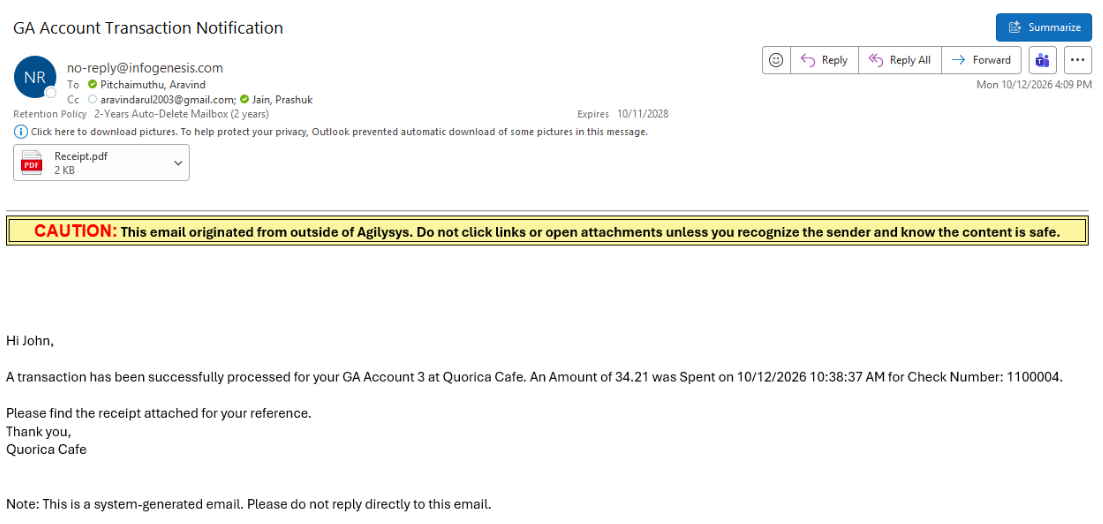
IG Fly has been enhanced to automatically send email notifications when Generic Authorization (GA) transactions are successfully processed. Users can configure email recipients and modify default template for email contents for GA Accounts. When email notifications are enabled, IG Fly automatically sends transaction details and a copy of the transaction receipt to the configured recipients whenever a qualifying GA transaction is processed.
Important Points
-
Email notifications are supported for:
-
Add Fund / GA Credit
-
-
Notifications are sent only when email notifications are enabled at the store level. Additionally, when the Enterprise level checkbox is enabled, the GA Account Holder’s To Email, CC, and BCC email addresses will be captured and stored.
-
Existing GA accounts are not automatically configured when this feature is enabled. Users must manually update existing GA Account records and provide recipient details before notifications can be sent.
-
GA Email configuration is supported only for Child locations. Parent CCM1 and CCM2 locations are not supported.
Changes Made in IGCM
To support this feature, the following changes have been made in the IGCM:
-
A new checkbox, Enable GA Profile and Notifications, has been added to the Settings submenu of the Enterprise menu (POS Configuration ➜ Administration ➜ Enterprise).
-
When enabled, the GA Email Configuration submenu in the Store menu will be enabled.
-
When disabled, the GA Email Configuration submenu in the Store menu will not be available for configuration. By default, this checkbox is disabled.
-
-
A new submenu, GA Email Configuration, has been added to the Store menu (POS Configuration ➜ Administration ➜ Store).
-
The following fields have been added to the Basic Details submenu of the Generic Auth Account menu (POS Configuration ➜ Interfaces ➜ Generic Auth Account):
-
To Email
-
CC Email(s)
-
BCC Email(s)
-
Configurations in IGCM
Enable Email Notifications
Navigate to POS Configuration ➜ Administration ➜ Enterprise.
Choose the appropriate record and select Edit.
Navigate to the Settings submenu.
Enable the Enable GA Profile and Notifications checkbox.
Select Save.
Configure GA Account Recipients
Navigate to POS Configuration ➜ Interfaces ➜ Generic Auth Account.
Choose the appropriate record and select Edit.
Navigate to the Basic Details submenu.
Refer to the following table and fill in fields:
|
Field |
Description |
|---|---|
|
|
Enter the To email address to which the GA transaction notifications have to be sent. This field accepts only a single email address and prompts, Please enter a valid email address, whenever the entered email address is invalid. |
|
CC Email Address |
Enter the CC email addresses.
|
|
BCC Email Address |
Enter the BCC email addresses.
|
Select Save.
Configure Store Email Settings
Navigate POS Configuration ➜ Administration ➜ Store.
Choose the appropriate record and select Edit.
Navigate to the GA Email Configuration submenu.
Enable the Enable GA Email Notifications checkbox. By default, this checkbox is disabled.
Refer to the following table and fill in the fields:
|
Field |
Description |
|---|---|
|
Email from Display Name |
From email address will be displayed by default. |
|
E-mail Subject |
Enter the preferred e-mail subject. Default: GA Account Transaction Notification. Value: 0 - 255 Characters. |
|
E-mail Body |
Enter an appropriate email content. This field is already configured with a default template. |
Select Save.
Sample Email
Updated Documentation: Using IG Fly 12.3.16; InfoGenesis Configuration Manager for IG Fly 12.3.16