


Release 12.3.14
12.3.14.4
Capture Delivery Details and Send Order Status to Guests
IG Fly has been enhanced to support Add Delivery Details (#2051) function at Fly and perform the following functionality:
-
Capture delivery details specific to guests and improve coordination with kitchen.
-
Initiate SMS and email Order Ready alerts from IG KDS using guest’s captured details
-
Configure fulfilment type and print delivery details on kitchen printer chits
The following delivery details will now be captured:
-
Delivery Type
-
Customer Name
-
Mobile Number
-
Email ID
-
Address
-
Postal Code
-
Date
-
Cutlery
-
Time
The following table summarizes the mandatory fields for each delivery type:
|
Delivery Type |
Mandatory Field |
|---|---|
|
Pickup |
|
|
Dine In |
|
|
Delivery |
|
Important Points
-
Since this functionality is applicable only to open checks, the Add Delivery Details (#2051) function button is recommended to be displayed on the Check Summary screen.
-
The following delivery types are supported:
-
Dine-In
-
Pickup
-
Delivery
-
-
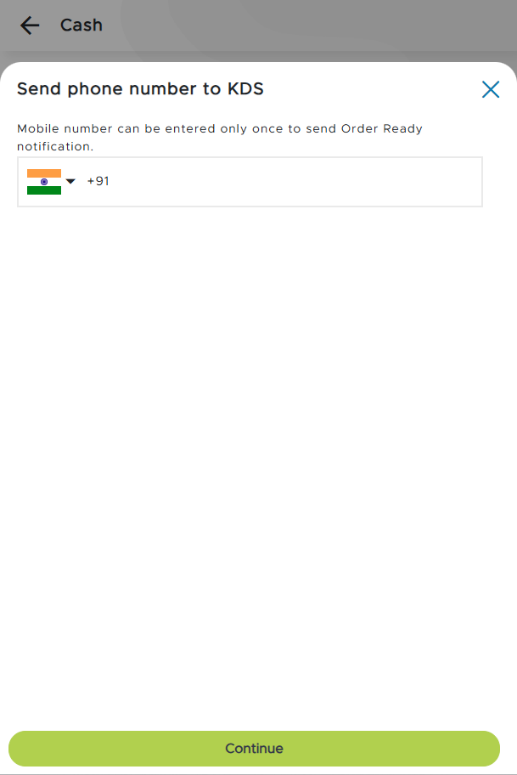
If a phone number is already captured in the Delivery Details screen, the same number is automatically displayed in the Send Mobile Number to KDS prompt. Users can modify the number, if preferred. The modified number will be sent to expo. This prompt is displayed even for partially tendered checks.
-
Food locker fulfillment functionality is not supported.
-
When a check with delivery details is saved in IG Fly and reopened in the terminal, and the user modifies the delivery details, IG Fly updates the mandatory fields based on the new delivery type. If any required fields are not filled, alert message against each field will be displayed. The other optional details remain unchanged.
-
The delivery details will be captured in the Electronic Journal.
Configurations in IGCM
Configure Terminal Options
Navigate to POS Configuration ➜ Terminals ➜ Terminal Option Group.
Choose the appropriate record and select Edit.
Navigate to the Terminal Options submenu.
Refer to the following table to configure the terminal options:
|
Terminal Option |
Description |
|---|---|
|
1235 (Prompt for kitchen video mobile number) |
Note: If a phone number is captured in IG Fly, the prompt will not be displayed in the terminal. If a check is partially tendered in the terminal without capturing the phone number, the prompt will be displayed in IG Fly while selecting another tender. When a phone number is captured in IG Fly, it will be populated in terminal when the check is recalled.
|
|
1498 (Kitchen will consider Guest name over delivery name) |
|
Select Save.
Configure POS Terminal Profile
Implementation at Fly
Launch Fly.
Add preferred items to the cart.
Navigate to Functions and tap the Add Delivery Details (#2051) function. The Add Delivery Details screen is displayed.
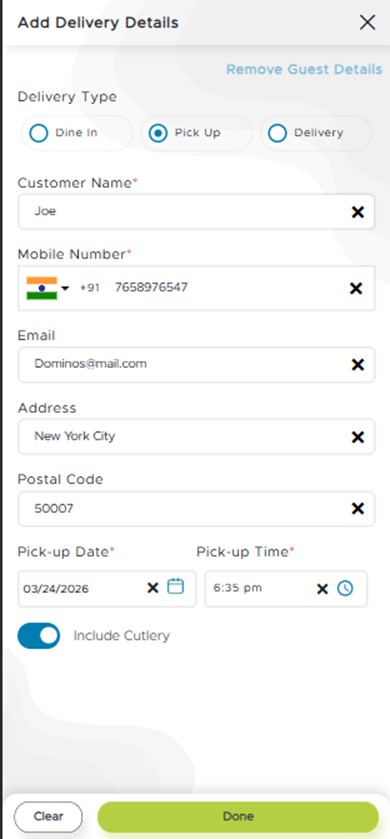
Tap the appropriate delivery type.
Enter the following information according to the selected delivery type:
-
Customer Name
-
Mobile Number
-
Email
-
Address
-
Postal Code
-
Date
-
Time
The mandatory fields will change based on the selected delivery type.
For Delivery and Dine In delivery types, date and time fields are not applicable.
Enable or disable the Include Cutlery checkbox, as preferred.
Select Continue.
The Clear button enables users to clear all fields and re-enter the information. The selected delivery type will remain intact. The Continue button will be disabled when this option is selected.
The Close icon enables users to close the Add Delivery Details prompt.
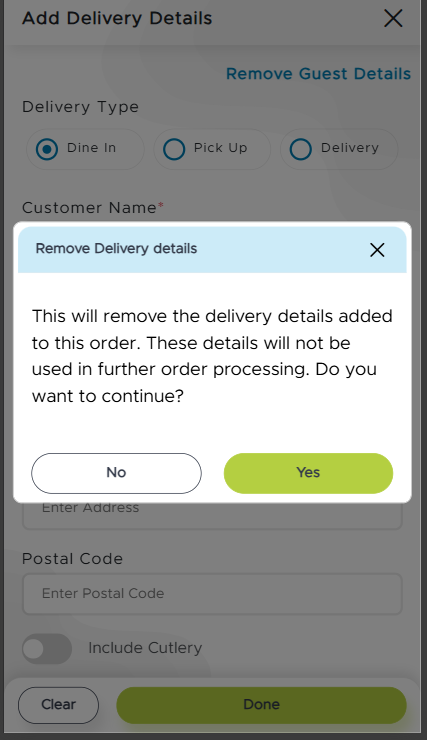
When the Remove Guest Details option is tapped and when a check contains guest delivery details, the Remove Delivery Details prompt is displayed.
-
Upon selecting Yes, all guest details will be removed from the check and all fields in the Deliver Details screen will be cleared. When the user reopens the same, all details will still be removed. The details will not be displayed in the expo as well.
-
Upon selecting No, the prompt will be closed.
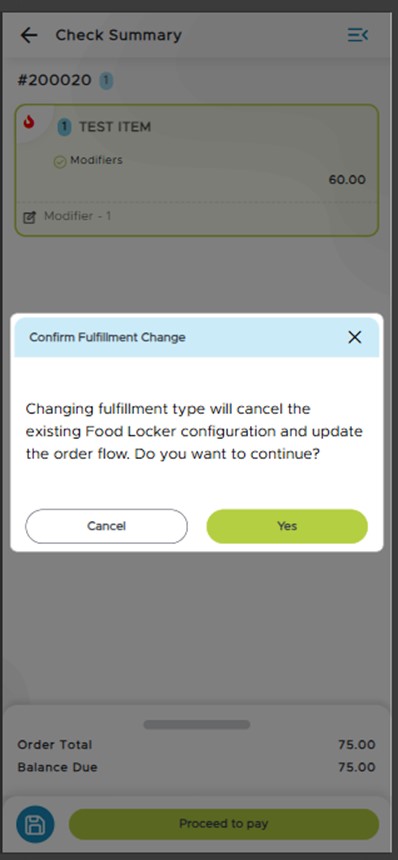
When a check from IG Kiosk or IG OnDemand with Food Locker fulfillment is reopened in IG Fly, the Confirm Fulfillment Change prompt is displayed.
-
Upon selecting Yes, the Add Delivery Details screen is displayed, and the guest can modify the delivery type.
-
Upon selecting Cancel, the prompt is closed and Food Locker fulfillment will be retained.