


12.3.13.7
Manage Multiple Sub-Kitchens within a Kitchen
IG Digital Menu Board has been enhanced to support multiple sub-kitchens within a single kitchen. A sub-kitchen is a section of the kitchen that handles orders from specific counters. With this enhancement, each station can be turned off individually, and pending order counts will automatically transfer to backup stations or sub-kitchens to maintain smooth kitchen operations.
For example,
Consider Counter 1 has 3 Burgers and 2 Fries, and Counter 2 has 2 Burgers and 1 Fry.
If the Station A in one sub-kitchen is turned off, all 5 Burger orders automatically transfer to Station B configured as the backup station. If that entire sub-kitchen closes, the combined orders from Counters 1 and 2 merge with another sub-kitchen, and the counts are combined.
Important Points
-
A maximum of 4 sub-kitchens can be configured per kitchen.
-
Each front kitchen must be mapped to one sub-kitchen and cannot be shared across multiple sub-kitchens.
-
Stations can be turned on or off individually.
-
Turning off a station transfers items to the backup station. For example, refer to the following table:
|
Station |
Backup Station |
Items |
Items in Backup Station |
Description |
|---|---|---|---|---|
|
Meat |
Fry |
3 Chicken Burgers |
2 Chicken Burgers |
The items are merged and displayed together (total 5). |
|
Meat |
Fry |
3 Chicken Burgers |
2 French Fries |
The items are displayed separately when the primary station is turned off (3 burgers and 2 fries). |
-
If a counter or sub-kitchen is turned off, existing order counts remain visible, but new orders will not be assigned to the inactive counter.
-
When Sub-Kitchen 1 and Sub-Kitchen 2 are merged, the number of items displayed must not exceed 13.
-
Kitchen printing is not supported.
-
To ensure proper alignment, only two fields can be configured in the Fields to be Displayed section of the Board menu.
-
The following options in the Select your preference drop-down list of the Terminals submenu in the System Management Utilities are not supported:
-
Go Online
-
Go Offline
-
-
The primary item text will not be displayed on the backup DMB.
-
The item size adjusts to fit the screen when orders go to the backup DMB.
-
All items must be configured in one widget per board/layout. Using multiple widgets will duplicate items in the backup DMB.
-
This functionality is not supported for properties running LAS on the interface server.
Changes Made in IGCM
To support this, the following checkboxes have been added to the Basic Details submenu under the DMB Station menu in IGCM (POS Configuration ➜ Digital Menu Board ➜ Station).
-
Enable Counters
-
When enabled, the order count based on the selected counter will be displayed.
-
When disabled, the order count will not be displayed. This checkbox is disabled by default.
-
-
Enable Backup Stations
-
When enabled, orders are transferred to backup stations based on priority when the main station is unavailable.
-
When disabled, orders cannot be transferred to backup stations and will resume once the main station is available. This checkbox is disabled by default.
-
-
Enable Online/Offline
-
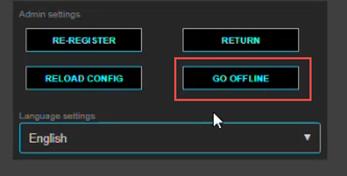
When enabled, the station can be switched to offline by selecting the Go Offline button in the expo.
-
When disabled, the station remains online. This checkbox is disabled by default.
-
Configurations in IGCM
Navigate to POS Configuration ➜ Digital Menu Board ➜ Station.
Select the preferred record from the screen and select Edit to modify it.
Navigate to the Basic Details submenu.
Refer to the following table and fill in the fields as required:
|
Field |
Description |
|---|---|
|
Enable Counters |
Enable this checkbox. |
|
Enable Backup Stations |
Enable this checkbox. |
|
Enable Online/Offline |
Enable this checkbox. |
|
Counters |
|
|
Counter Name |
Select the preferred counter from the drop-down list. |
|
Backup Stations |
|
|
Backup Stations |
Select the backup stations from the drop-down list |
|
Priority |
Set the order of backup stations in this field. |
Select Save.