


12.3.16.3
Display Item Prices Based on Price Levels
IG Digital Menu Board has been enhanced to support item pricing based on Price levels. Previously, only the base price of an item was displayed. With this enhancement, item prices are displayed based on the price level configured for the DMB station. By default, the Regular Price level (base price) is displayed. Additionally, DMB Studio allows users to preview item prices for different price levels to verify the board layout before publishing changes.
For example,
Consider the following item pricing configuration:
-
Item: Burger
-
Base Price: $10
-
Happy Hour Price: $8
If the DMB station is configured with the Regular Price Level, the board displays $10. If the DMB Station is configured with the Happy Hour Price Level, the board displays $8 for the same item. If the configured price level is not defined for the item, the board displays the base price ($10).
Important Points
-
When multiple prices exist for an item, the following priority is applied:
-
Store price level
-
Item-level price level
-
Base price
-
-
Item price level may vary when the store and server are set to different time zones.
-
The base price is displayed in the following scenarios:
-
The configured price level is not defined for the item at the store level or item level.
-
The price level association is removed from the item.
-
The associated price level record is deleted from the Price level menu.
-
-
The Delete dependency prompt is displayed when a user attempts to delete a price level from the Price Level menu that is associated with a DMB station. The price level can be deleted only after the association is removed from all DMB stations.
-
If a user attempts to configure a price level for an existing board schedule with the same timing, the message, Scheduled time already exists. Please enter a valid time is displayed. For example, if a board schedule is already configured from 10:00 to 12:00, another price level cannot be configured for the same schedule.
-
DMB Studio must be refreshed to reflect item price changes made after the studio is launched.
-
Users must perform a cook and reload configuration to reflect the price level changes on the DMB station.
-
Audit Logging is supported.
-
This functionality is not supported for the following:
-
Backup DMB
-
Bar Stock items
-
Price Tier pricing
-
CCM1 and CCM2 enterprises
-
Selection Group
-
Scheduled price change
-
Changes Made in IGCM
To support this, the following changes have been made in IGCM:
DMB Station
The following changes have been made in the DMB Station menu (POS Configuration ➜ Digital Menu Board ➜ DMB Station):
-
A new drop-down list, Price level (Default), has been added to the Basic Details submenu.
-
A new drop-down list, Price level, has been added to the Start Times submenu.
Board
A new drop-down list, Price level - Preview Only, has been added to the Widget Panel in DMB Studio (POS Configuration ➜ Digital Menu Board ➜ Board).
Configurations in IGCM
Configure Price level for DMB Station
Navigate to POS Configuration ➜ Digital Menu Board ➜ DMB Station.
Select the preferred station from the screen and select Edit to modify it.
Refer to the following table and fill in the fields:
|
Field |
Description |
|---|---|
|
Basic Details |
|
|
Price level (Default) |
Select the preferred price level from the drop-down list.
|
|
Start Time |
|
|
Price level |
Select the preferred price level for the board during the scheduled time.
Note - The price level configured in this field takes precedence over the price level configured in Price Level (Default) drop-down list. |
Select Save.
Preview Price Level in DMB Studio
Navigate to POS Configuration ➜ Digital Menu Board ➜ Board.
Select the board for which the price level is configured. DMB Studio is launched.
Select an item, screen, modifier, or package widget.
Select the Price level section in the Widget Panel.
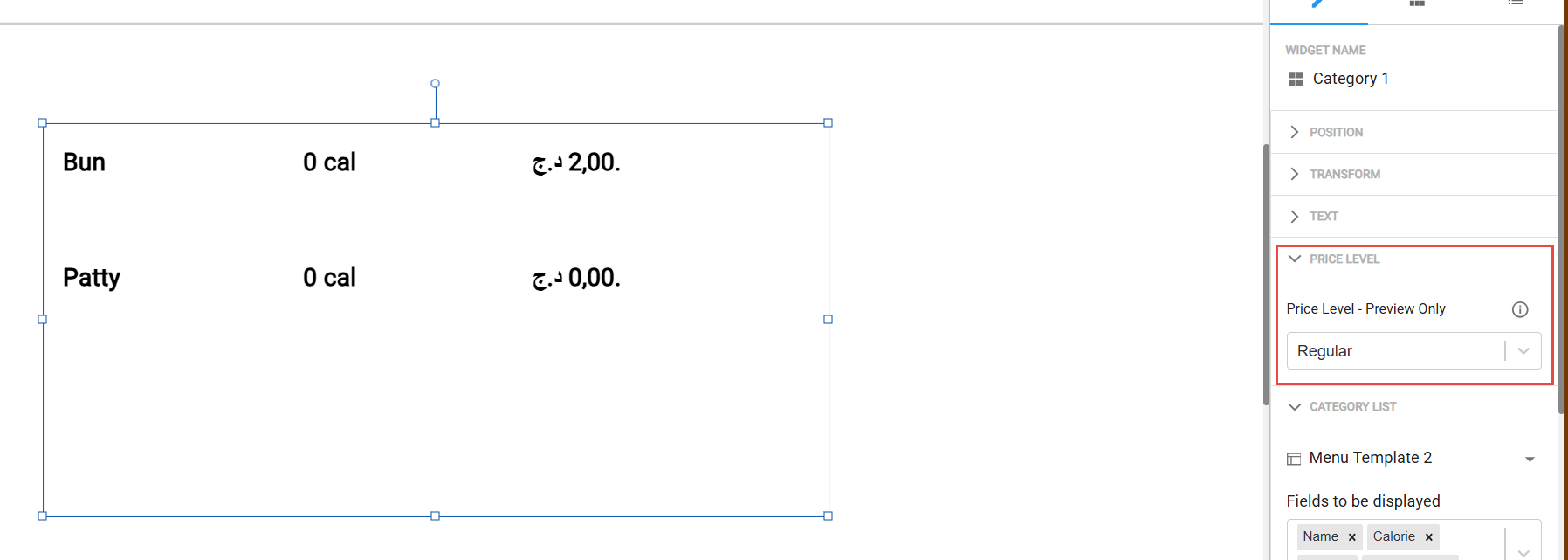
Select the preferred price level from the Price level - Preview Only drop-down list. By default, Regular is selected.
-
The Price level selected in the Price level - Preview Only field is used only for Studio preview and cannot be saved.
-
The selected price level is reset to the Regular when the page is reloaded.
Select the Preview icon to view how item prices are displayed for the selected price level.