


Transfer Check
The Transfer Check function allows users to transfer a check to another server or profit center or table.
-
Transfer Server - allows the user to transfer a check to another server.
-
Transfer Profit Center - allows the user to transfer a check to another profit center.
-
Transfer Table - allows the user to transfer a check to another table.
Navigate to Jump Bar ➜ Function Screen. The Function Screen is displayed.
Select Transfer Check. If there is no check available in the Check View, the Select Open Check prompt is displayed with the list of open checks.
Select an open check. The Transfer Check prompt is displayed.
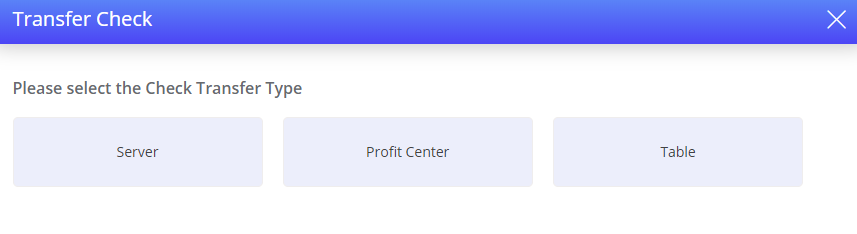
Server
Select Server in the Transfer Check prompt. The Transfer Server prompt is displayed.
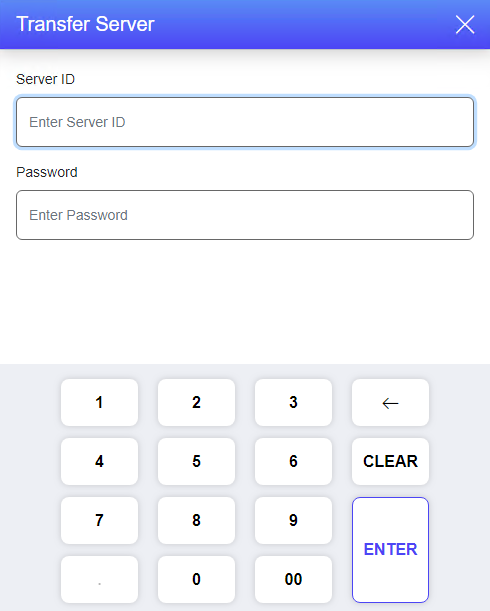
Enter the values in the following fields:
|
Field |
Description |
|---|---|
|
Server ID |
The unique ID of the server to whom the check must be transferred. |
|
Password |
The password of the server. It is an optional field. |
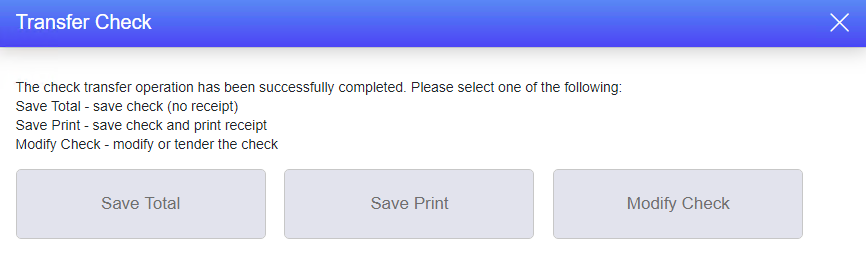
Select Enter. The check is transferred, and the Transfer Check prompt is displayed.
The Server Name in the Check View is changed.
Select Save Total to save the check.
Select Save Print to save and print a receipt.
Select Modify Check to modify the check. The check remains open in the check view.
If the Terminal Option 130 (Transfer check: choose server from list) is enabled, the Select Server prompt is displayed. It displays the list of clocked-in employees, and the user can select the server to whom the check must be transferred directly.
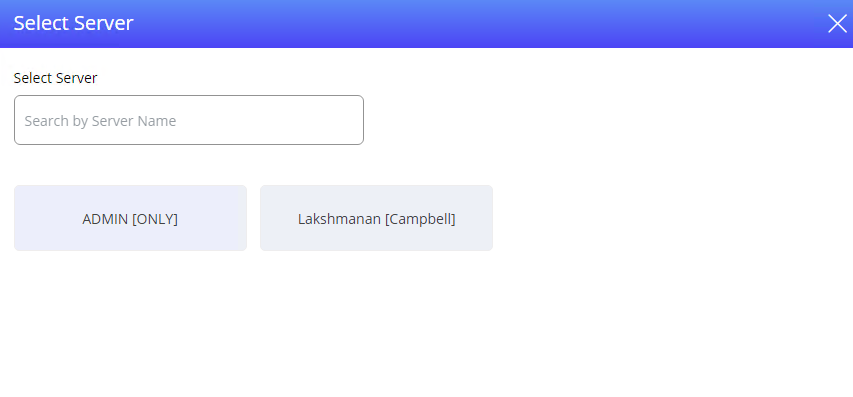
The user can also transfer the check to another server by selecting the Transfer Server function in the Function Screen or from the User screen.
Profit Center
Select Profit Center in the Transfer Check prompt. The Transfer ProfitCenter prompt is displayed. It displays the list of the profit centers configured.
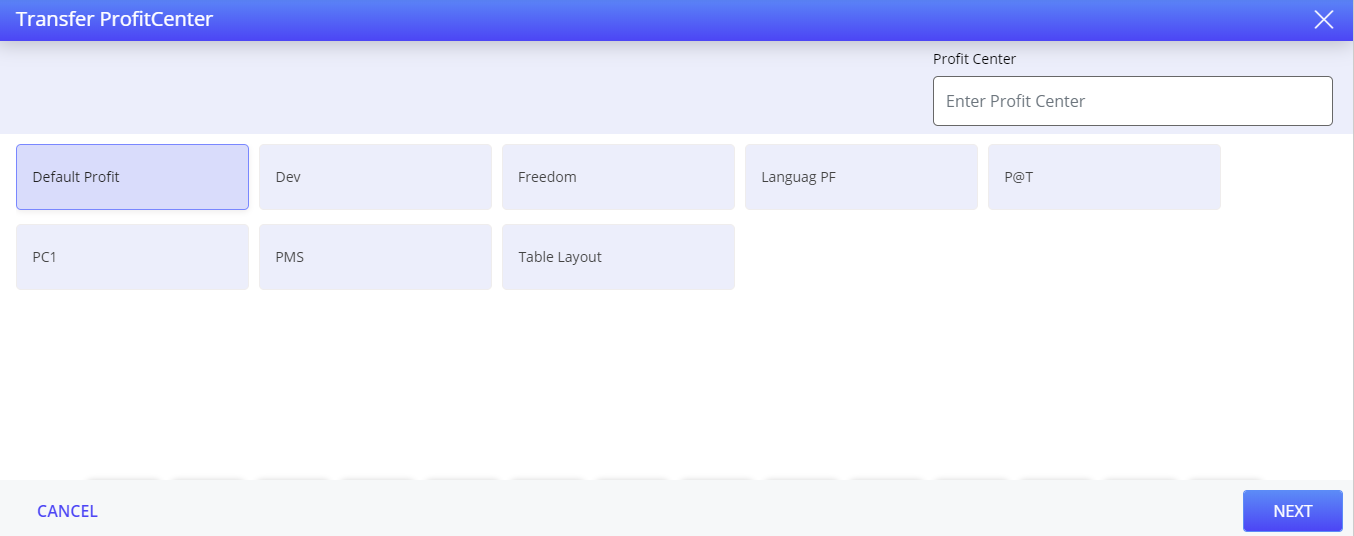
Select the profit center to which the check must be transferred. The Transfer ProfitCenter prompt is displayed.
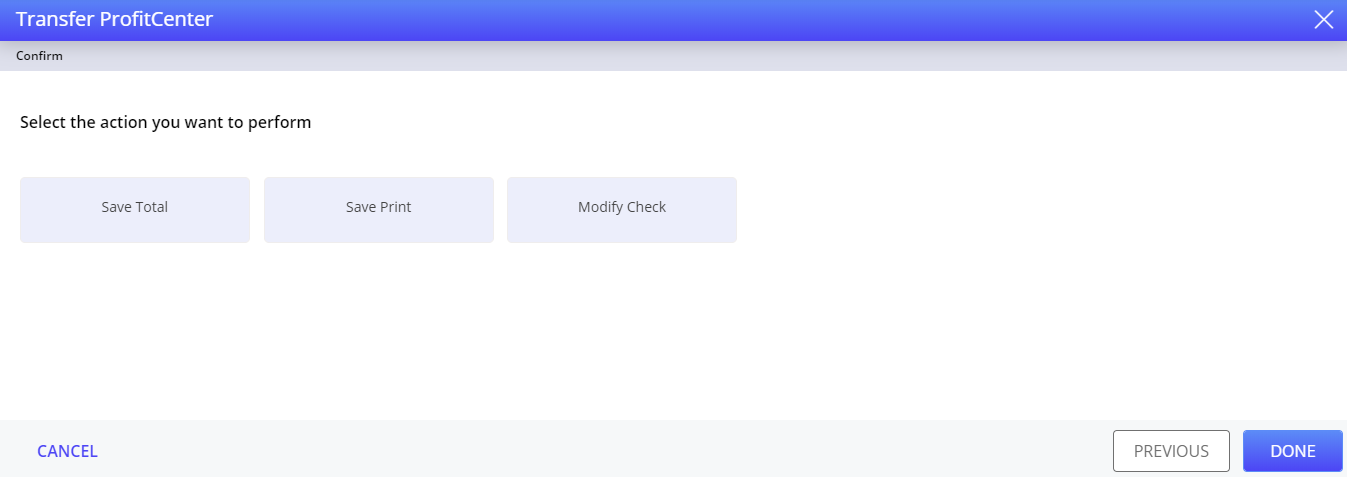
Select Save Total to save the check.
Select Save Print to save the check and print the receipt.
Select Modify Check to modify the check. The check remains open in the check view.
The user can also transfer the check to another user or profit center by selecting the Transfer Profit Center function in the Function Screen. Once a check has been transferred to another profit center, it cannot be recalled.
Table
Select Table in the Transfer Check prompt. The Select/Enter Table Number prompt is displayed.
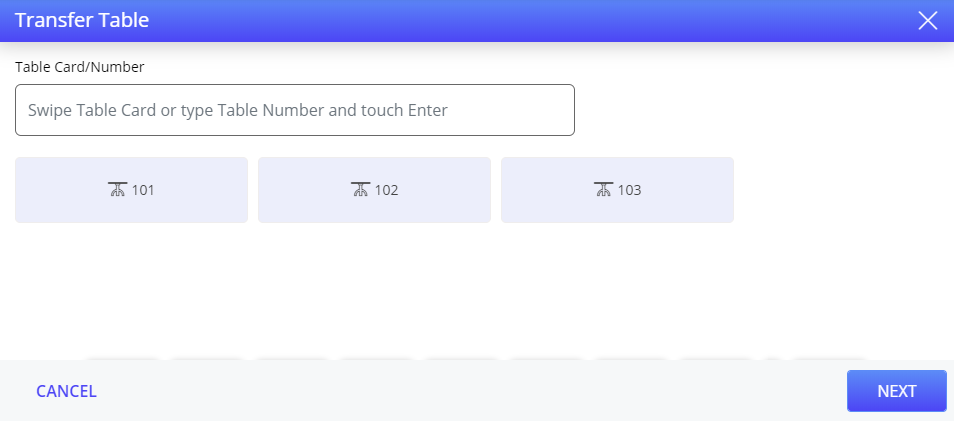
Swipe the table card or enter the table number, to search the table. Alternatively, select the table number to which the check must be transferred, the Transfer Table prompt is displayed.
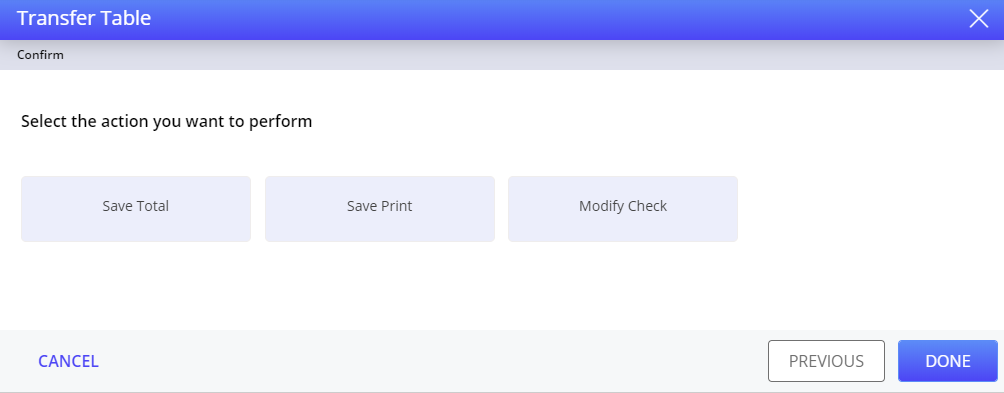
Select Save Total to save the check.
Select Save Print to save and print the check.
Select Modify Check to modify the check in the check view. The check remains open in the check view.
The user can also transfer the check to another table by selecting the Transfer Table function in the Function Screen.
Terminal Options Supported
|
Terminal Option |
Description |
|---|---|
|
130 (Transfer check: choose server from a list) |
If this terminal option is enabled, transferring a check to another server is allowed by choosing the server from a list of clocked in employees. |