


Tip Transfer
The Tip Transfer function allows users to transfer the tip amount to other employees. The tip amount can be transferred in amount or percentage.
Navigate to Jump Bar ➜ Functions. The Function screen appears.
Select Tip Transfer. The Tip Transfer prompt appears.
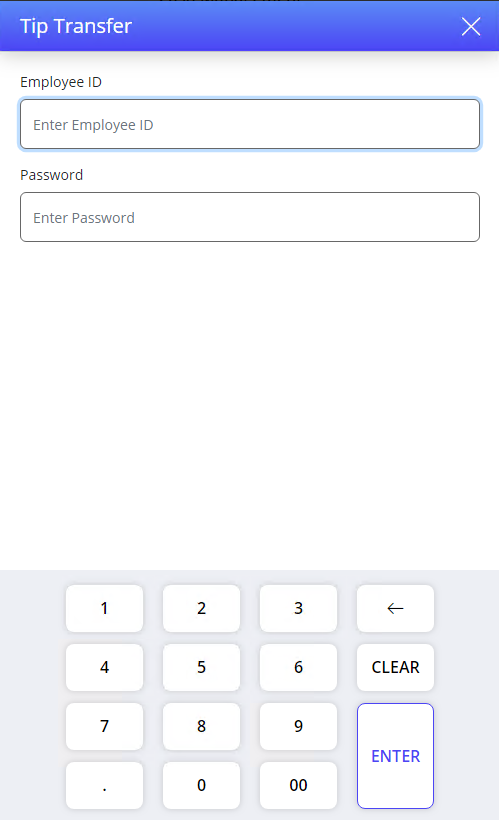
Swipe the employee card or enter the credentials of the employee to whom the tip must be transferred to.
Select Enter. The modes of tip transfer and the total tip amount are displayed.
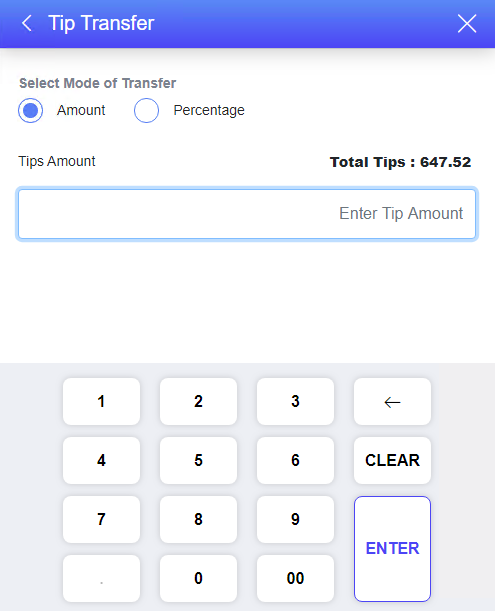
Select the mode of the tip transfer: Amount or Percentage.
Enter tip amount to be transferred. Either a portion of the tip amount or the whole tip amount can be transferred. The user cannot enter a value that is greater than the total tips available.
Select ENTER. A confirmation prompt appears.
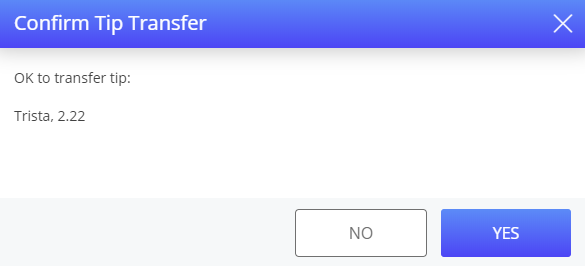
Select YES to confirm tip transfer amount. The tip transfer is completed successfully.
The Additional Tip Transfer prompt appears if only a portion of the tip amount is transferred and there is some tip amount still left to be transferred. This prompt does not appear if the entire tip has already been transferred and the total tip amount available is 0.
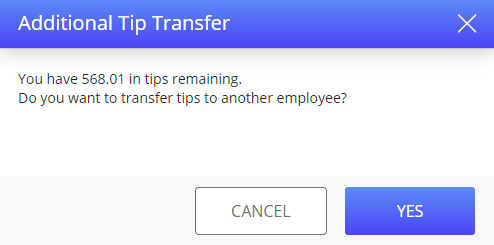
Select YES to transfer the remaining tip amount to another employee. The Tip Transfer prompt appears again.
Terminal Options Supported
|
Terminal Option |
Description |
|---|---|
|
131 (Tip transfer: choose server from a list) |
Enable this option to view the list of servers to transfer the tip amount. When this terminal option is enabled, users are allowed to search for employees by ID when transferring tips in addition to search using only the first and last names. The keypad is displayed only when the Search option is selected. |
The user cannot transfer the tip to themselves. A message, The tip transfer operation cannot be completed because the receiving employee is the same as the signed-on employee appears.
The user can also perform tip transfer by selecting the Tip Transfer function from the Tips section in the User screen.
The tip transfer and tip payout functions cannot be performed if the tip balance available is 0.
Display or Hide Employee ID
Selecting the Tip Transfer function in the terminal displays employee IDs along with employee names. Users can choose to display employee IDs or not.
This can be configured in the TipTfrShowEmpID field (POS Configuration ➜ Profiler ➜ POS Terminal ➜ Files ➜ Settings.ini ➜ Settings).
-
When set to true, employee names will be displayed along with employee IDs in the Tip Transfer prompt.
-
When set to false, employee names will be displayed without employee IDs in the Tip Transfer prompt.