Terminal
The terminal related information such as the state in which the terminal is in, the primary and secondary languages configured for the terminal, and time zone are displayed here. In addition to this, the Log Settings and the Quick Functions sections are also displayed here.
Terminal Time Zone
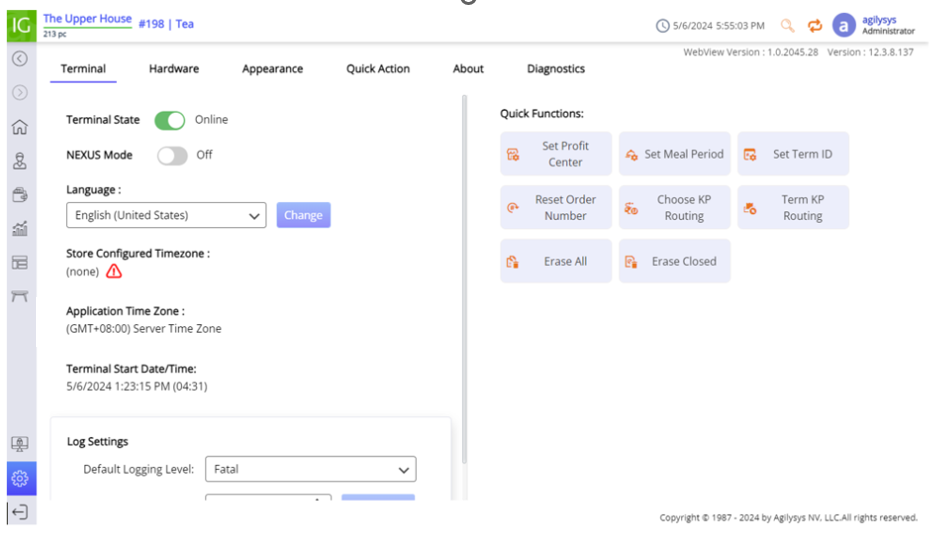
The Application Time Zone section in this screen displays the time zone followed by the terminal. The time zone for the terminal need not be configured and is automatically updated based on the configuration in the Time Zone Type drop-down list in the Store menu in IGCM.
The time displayed in the Sign On screen and at the top-right of the terminal application is based on the time zone it follows, which is displayed in this section.
The time zone followed by the terminal is categorized into the following types:
-
Terminal Time Zone - This means that the terminal follows the time zone set in the device it is installed in.
-
Server Time Zone - This means that the terminal follows the time zone of the server. When the server time zone is followed by the terminal, the Store Configured Timezone section does not display the time zone and shows none.
-
Store Time Zone - This means that the terminal follows the time zone configured for the store.
-
The type of the time zone followed as well as the type is displayed in this section. For example, in this case, the time zone followed by the terminal, which is GMT + 8.00 is displayed along with the text, Server Time Zone which indicates that it follows the time zone set in the server. Similarly, when it follows the terminal or store time zone, the appropriate time zone is displayed along with the Terminal Time Zone or Store Time Zone texts.
Important Points:
-
This feature is not supported in SaaS and distributed environments.
-
The Terminal Start Date/Time field which displays the terminal relaunch time is not impacted when the time zone followed by the terminal is updated.
-
The terminal receipts display the time as per the time zone followed by the terminal.
-
The terminal events logged in the Electronic Journal display the time and date as per the time zone followed by the terminal.
-
When daylight saving is in effect, it is indicated in the following manner:
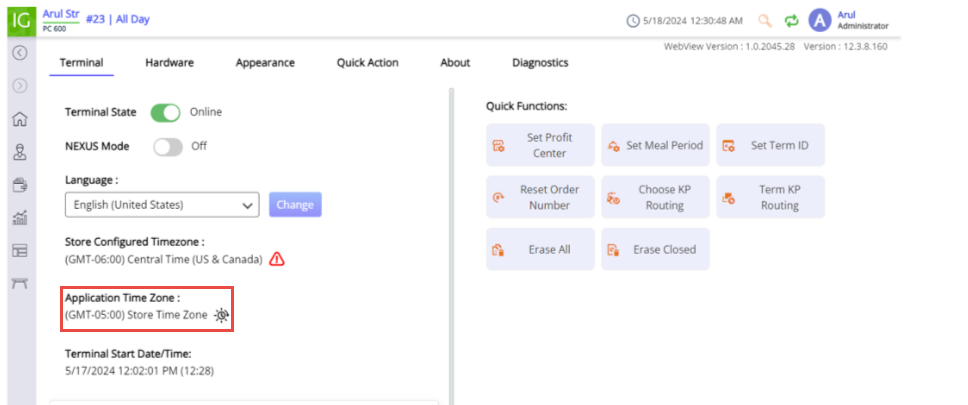
This indication is applicable only when the terminal follows the store time zone.
-
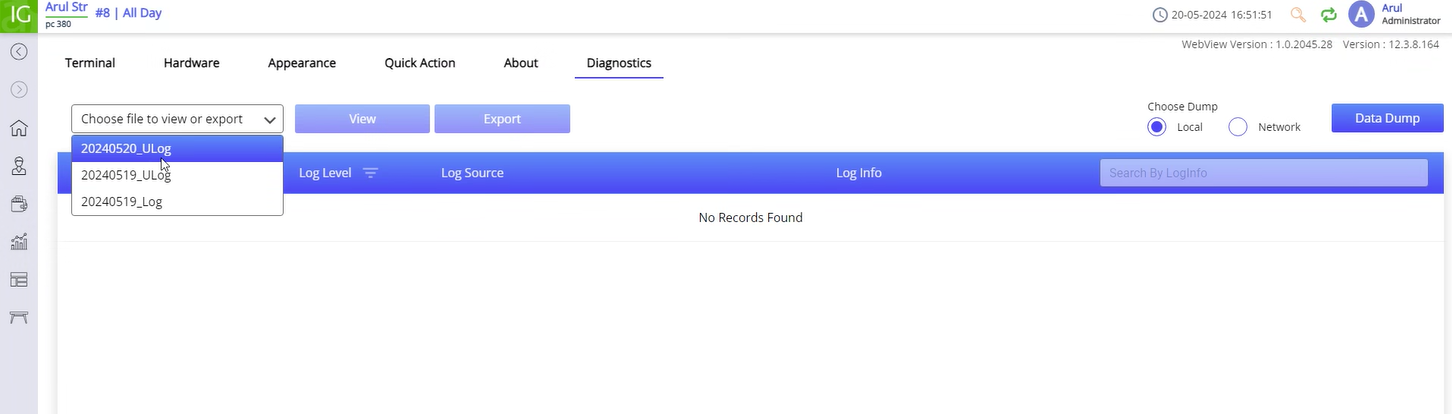
The terminal logs are displayed as yyyymmdd_ULog indicating that the data dump/export logs are shown in the UTC time zone. For example, 20240519_Ulog. On the day, the terminal is upgraded to 12.3.8, two logs are shown for the same date. The old logs that were generated before the upgrade are displayed as yyyymmdd_Log.