


Packages
Packages are a group of items sold for a set price. Individual items and/or selection groups are assigned to a package, and then the overall price of the package is determined by the combination of the set amounts for each item within the package.
Packages are placed onto screen layouts in the same way that items, functions, or tenders are placed onto screen layouts: by selecting the package and dragging it onto the appropriate screen. When selected at the POS terminal, the package lists the assigned items on the check with the set price.
Adding Packages with Items Only
Start a check.
Select a package from the screen layout. In this example, the Lunch Combo package is added to the check.
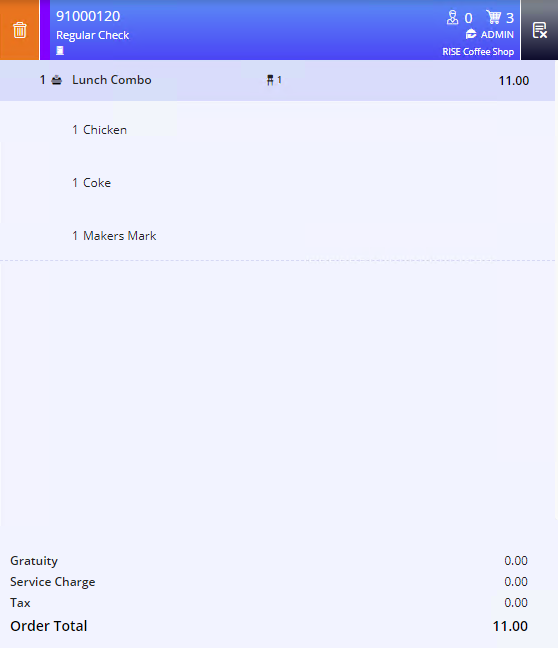
If there are any modifiers associated with the items in the package, the modifiers are also added to the check along with the item.
Adding Packages with Items and Choice Groups
Start a check.
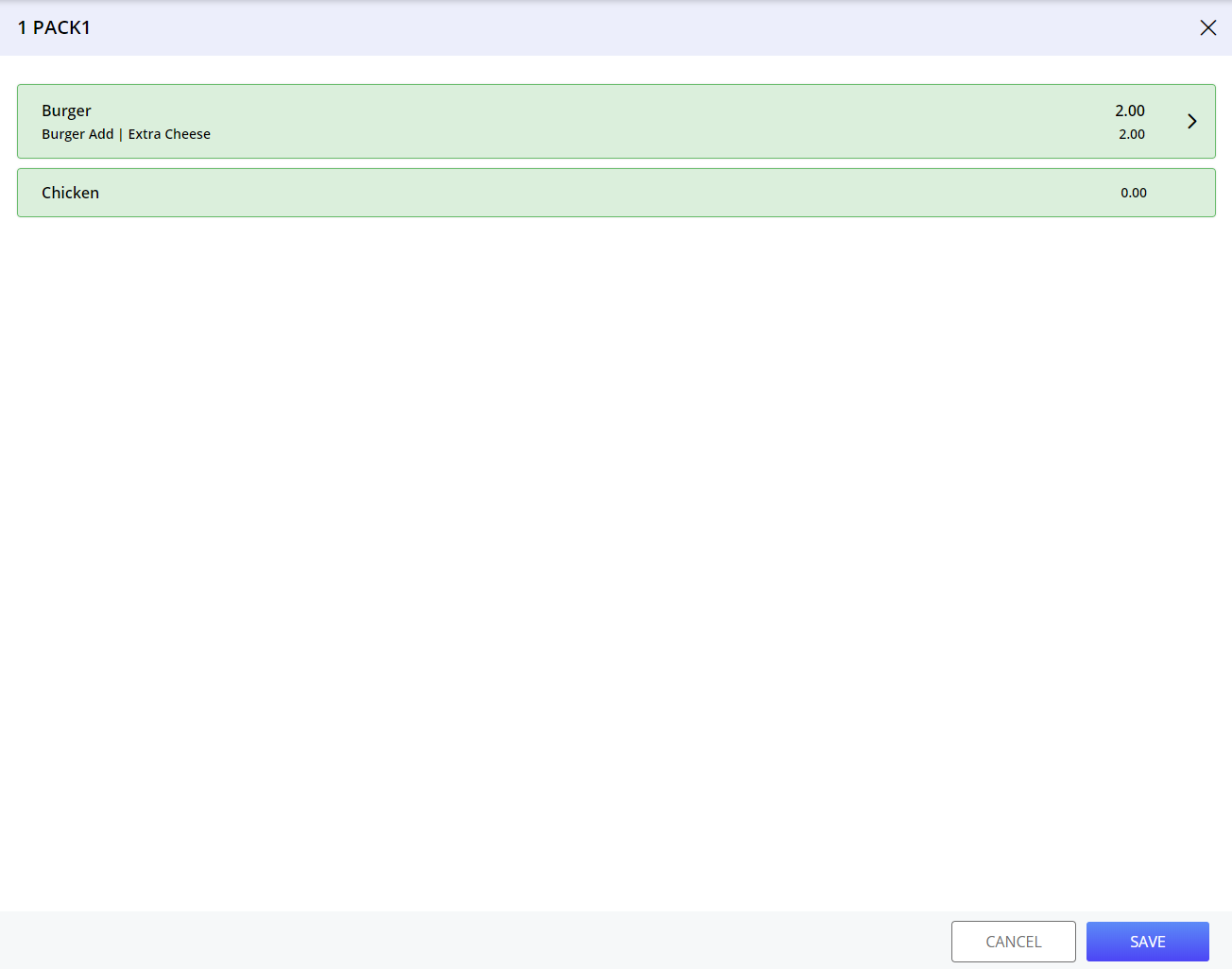
Select a package from the screen layout. In this example, the Pack 1 package is added to the check. It consists of the items Burger and Chicken. Th item Burger is associated with a choice group. A prompt that displays the contents of the package appears.
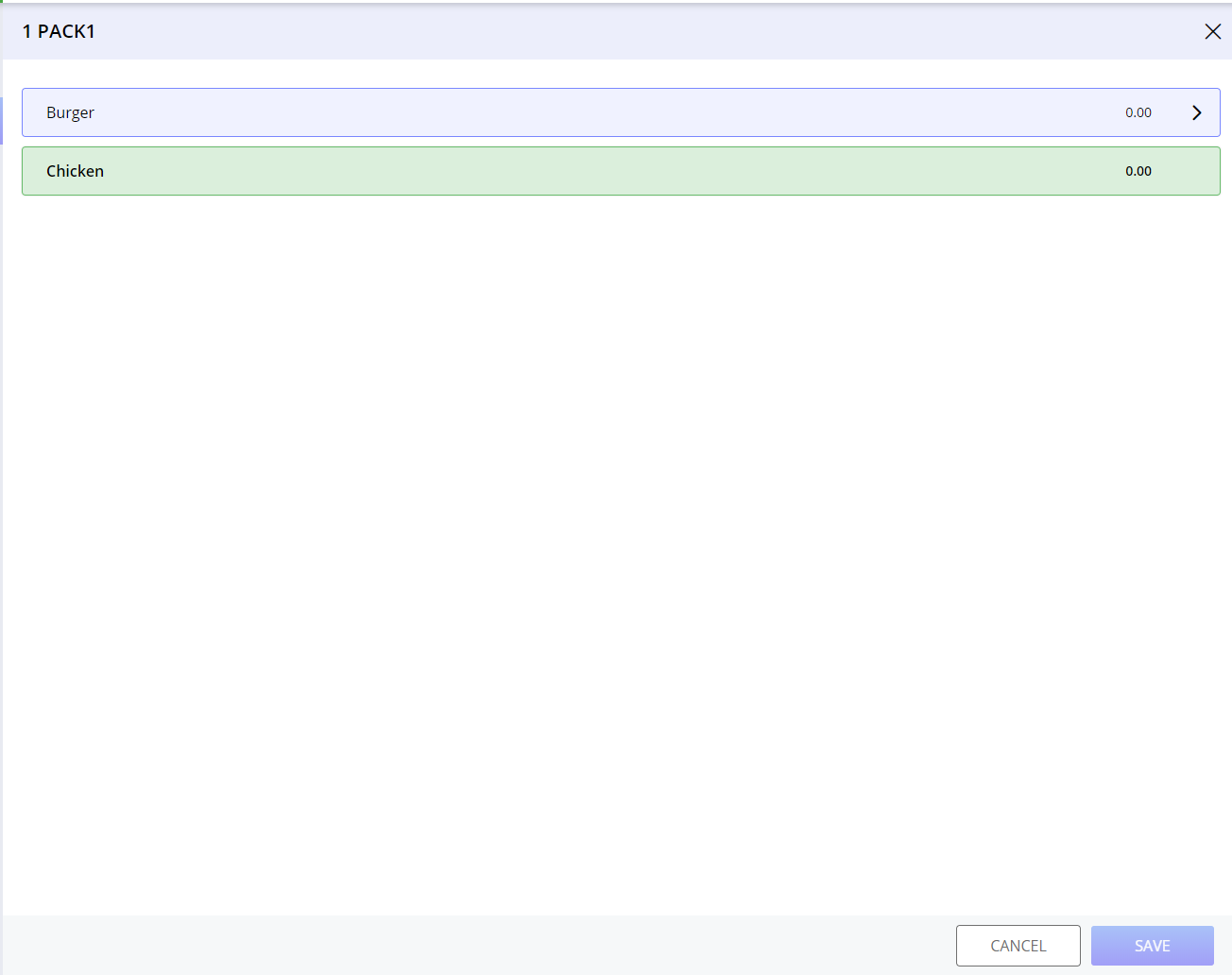
Expand the item associated with the choice group.
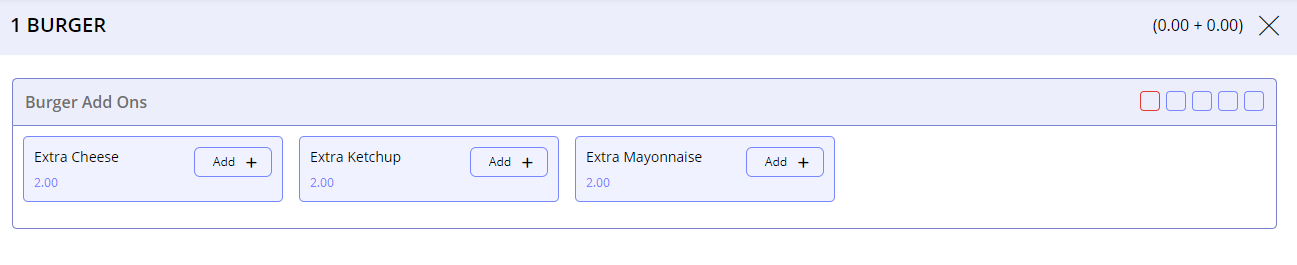
Select the minimum number of modifiers. Once done, the Save button is enabled. The modifiers within the choice group are displayed.
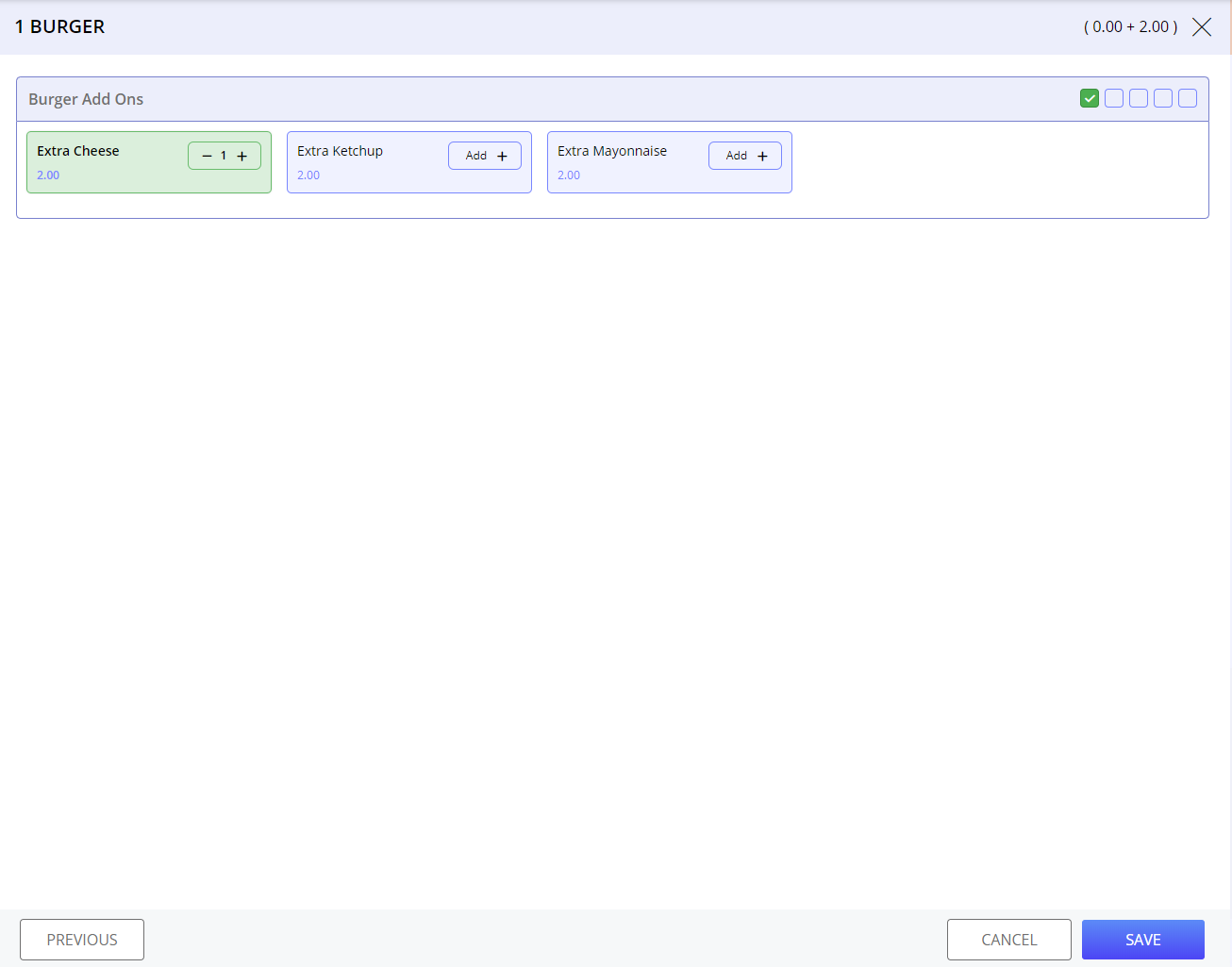
Select Save. The selected modifiers are displayed:
Select Save. The package is added to the check with the selected modifiers.
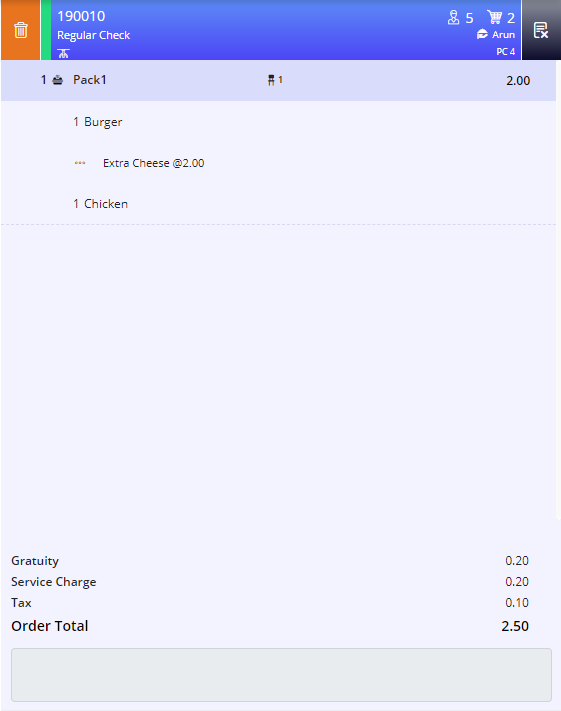
When the Terminal Option 71 (Allow multiple modifier selection (min /max in choice group ignored)) is enabled, there is no min/max limit on the number of modifiers, or the quantity of modifiers selected per choice group. In this case, a package can be added in the check even when no modifier is selected.
Adding Packages with Selection Groups
A selection group functions similarly to a package, which combines a group of items for a set price. The difference between a package and a selection group is that a package contains a set group of items that cannot permit substitutions while a selection group can have substitutions inserted when required.
Selection groups are configured and then assigned to a package. When selected at the POS terminal, the package with the selection groups shows a prompt for each individual selection group, in the exact same way that a choice group shows what modifiers are assigned.
Start a check.
Select a package from the screen layout. In this example, the Dinner Tonight package which has the Soft Drinks selection group associated with it is selected. The package contents appear. It has the item Chicken and the selection group, Soft Drinks.
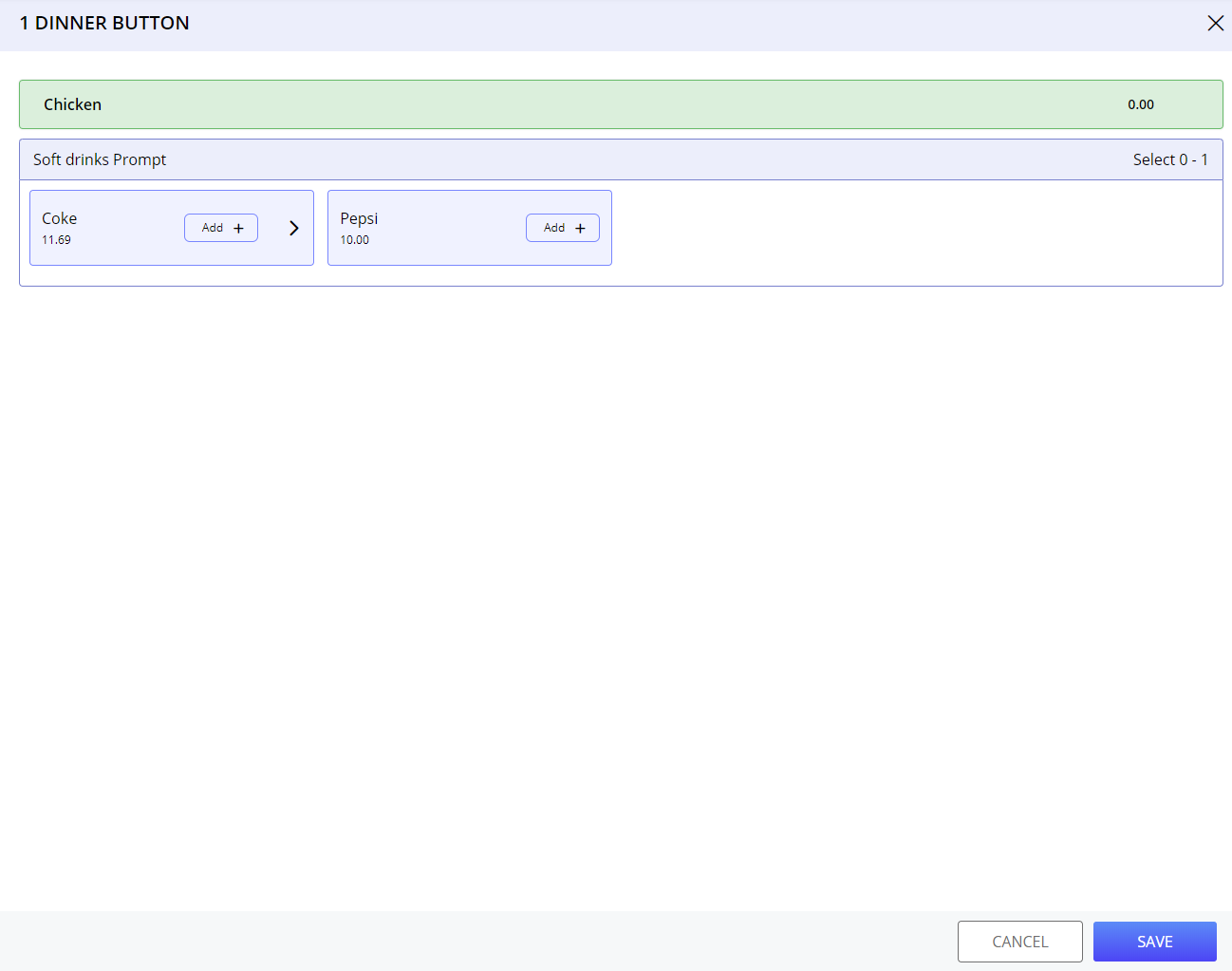
Expand the selection group Soft Drinks to view the items associated with it.
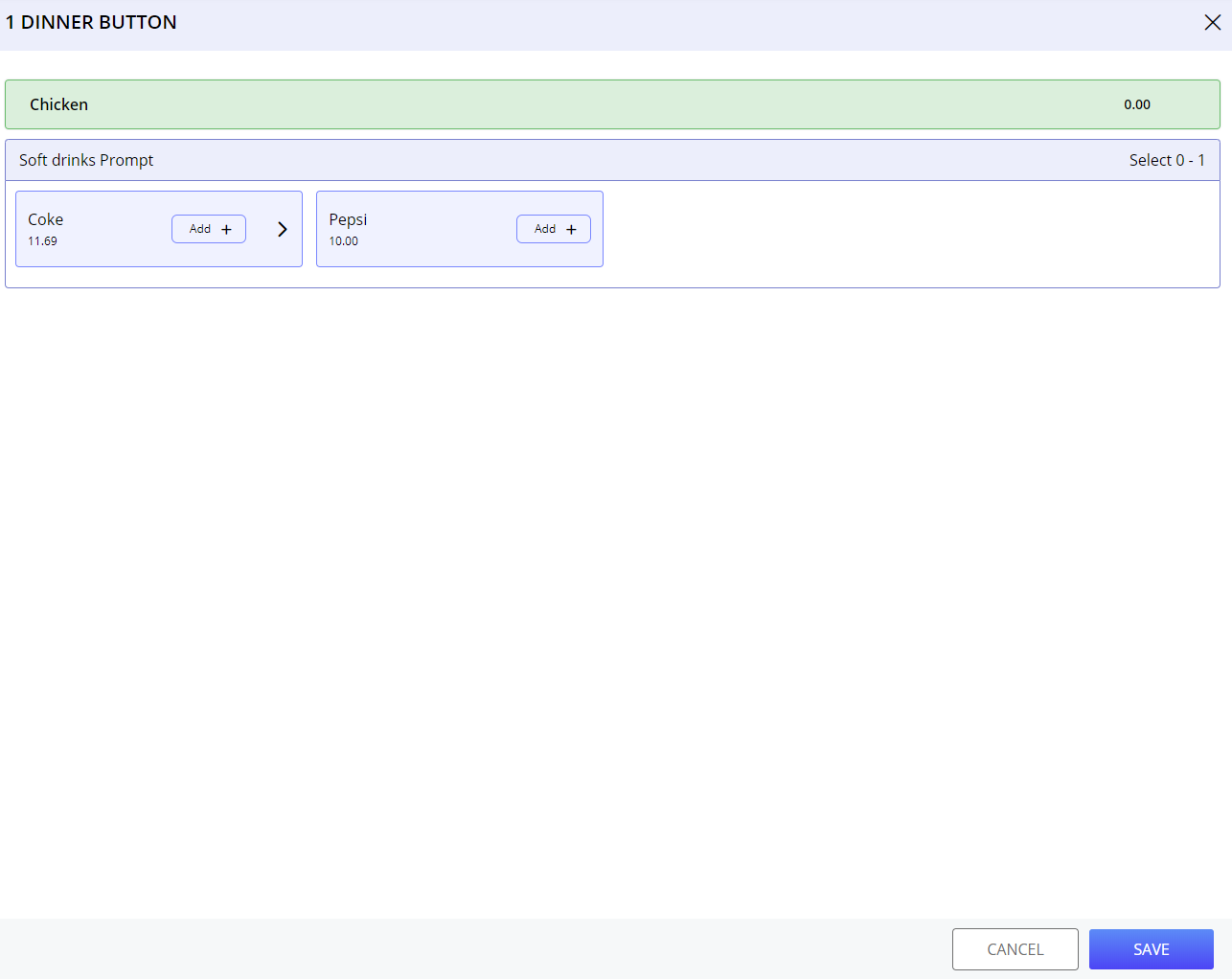
Long-press the item to select quantity. The Quantity prompt appears.
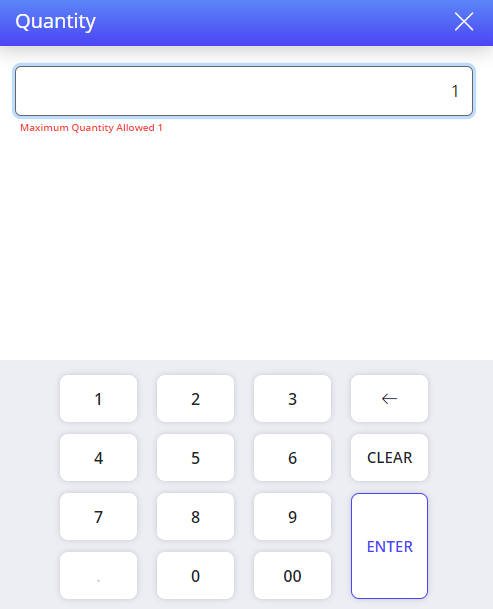
Only 1 quantity of one of the items is allowed to be added to the selection group.
Select Enter. The quantity can also be added by selecting the Add button.
Select Save. The package is added to the screen with an empty selection group.
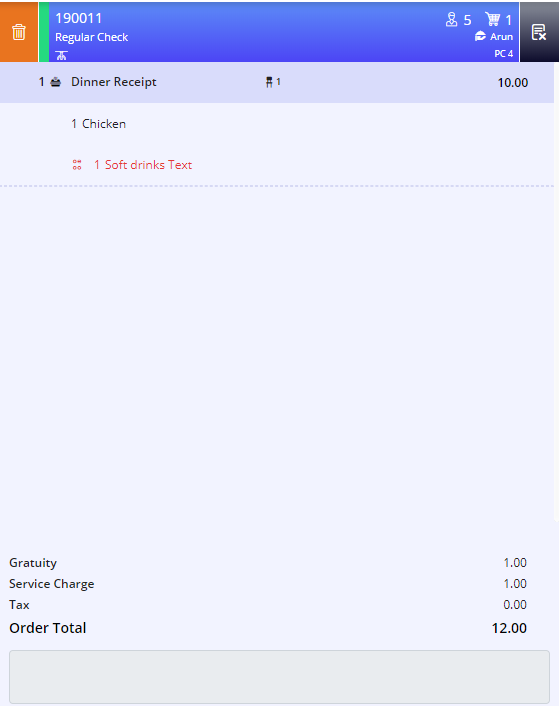
The Package Update function can be used to select a selection group later.
Package Update
The Package Update function allows the user to display the menu item choices for the currently highlighted selection group in a package. When ordering a package that contains a selection group, the user has the option of either ordering an item in the selection group or later during a coursed meal. Items within the selection group can be ordered at that time or select Done if the customer has not decided what to order for that course. Partial tender is not allowed if outstanding selections are there on the check.
Select the package.
Navigate to Jump Bar ➜ Function Screen. The Function Screen appears.
Select Package Update. The unselected items in the selection group are displayed and the user can fire the required items.
If all the items in a package are fired, and the user selects Package Update or Next Package an error message is displayed. If a check is recalled, and a selection group is voided, the user is prompted for selection group again and a void tag is added to the selection that was voided.
The package item can have only the check level discounts and it is not applicable for item level discounts.
For more information, refer to the Discount Rule section under Financials, in the Configuring InfoGenesis POS 4.5.3 document.
For customers using 12.x server, refer to the Discount rule section under Financials, in the InfoGenesis Configuration Manager for POS Terminal document.
Next Package
The Next Package function allows the user to find the first or next selection group in a package from the beginning of the check and displays the menu item choices for the selection group. The user can select an item from the group of items in the selection group. If the next package function is selected at any point in the check, the terminal automatically goes to the first selection that needs to be made on the check. Since a package may contain multiple selection groups in the same prompt, the terminal will display only the name of the package in the check display.
Navigate to Jump Bar ➜ Function Screen. The Function Screen appears.
Select Next Package. The selection group in a package is selected successfully.
Terminal Options Supported
|
Terminal Option |
Description |
|---|---|
|
551 (Print Selection Groups on the Receipt) |
If this terminal option is enabled, selection groups are printed on the receipt when ordering packages. This terminal option is applicable when the Terminal Option 550 (Use the Packages GUI Application) is enabled. |
Important Points
-
Once a package has been added to a check, voiding of items in the package, removal of item taxes, applying item-level discounts on the items in the package, adding or changing the modifiers associated with the items in the package, reordering a package or the items within it are not allowed.
-
A package can consist of items, choice group, modifiers, and selection groups.
-
Price override cannot be applied on a package even if the Allow Price Override option is enabled for the items in the package.
-
Check-level discounts can be applied after adding a package to the check. However, the discounts are applicable only for the items within the package and not to the package itself.
-
SKUs for items in a package do not appear on the POS Terminal.
-
When the Print flag is selected for an item or selection group in the package, the item or selection group prints on the receipt in the same way that the package appears on the POS Terminal order display.
-
The items within the package cannot be reordered.
-
When an item in the package is returned, the whole package is returned.
-
Packages in the check can be deleted.
-
Packages, like items and modifiers can be put on hold and fired to the kitchen printer/kitchen video.
-
If an item in a package is sold by weight, the Item Weight prompt is not displayed when the package is added in the check.
-
If an item in a package is an open item, the prompt for price does not appear when the package is added in the check.
-
Special instructions can be added for packages as well.
-
The Quick Actions section is applicable for packages.
-
If a package has an item that is 86ed, it can still be added to the check by users with a security level above 5 after they select Yes in the Item Unavailable prompt. Users with a lower security level can add the package with manager override.
-
The prompt that displays the items associated with the packages does not display the item images.
For more information, refer to the Package section under Items, in the Configuring InfoGenesis POS 4.5.3 document.
For customers using 12.x server, refer to the Package section under Items, in the InfoGenesis Configuration Manager for POS Terminal document.