


POS Terminal Settings
This section allows the user to perform essential terminal settings like making the terminal go online or offline, changing the terminal language, theme, mode, button size, terminal ID, primary profit center, and meal period. It is also used to view the terminal related information and export terminal logs.
Select the Settings icon in the Home screen. The Settings screen appears.
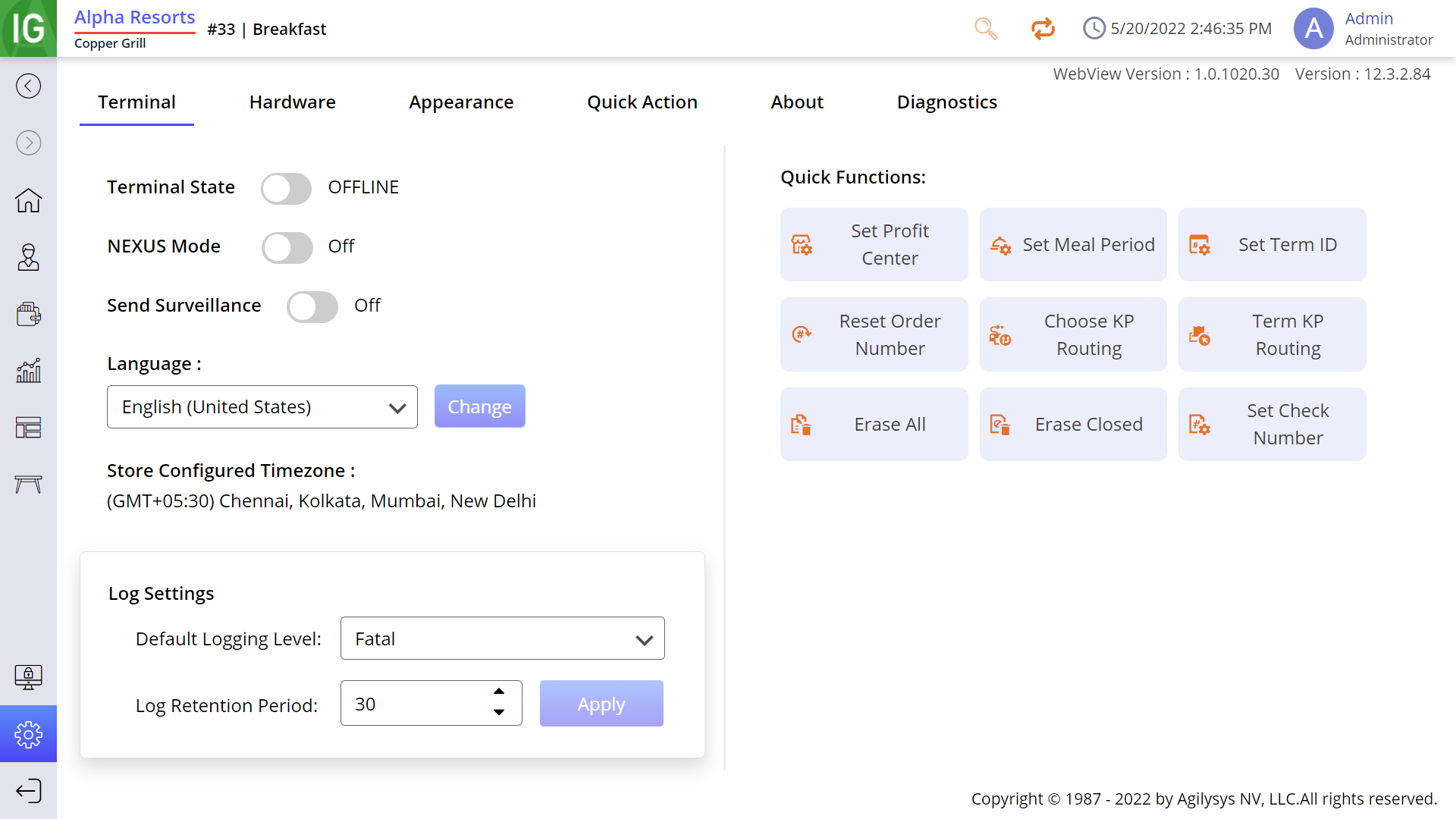
It consists of the following tabs:
-
Terminal
-
Hardware
-
Appearance
-
Quick Action
-
About
-
Diagnostics
For 12.x server, terminal settings access is restricted based on job code. POS Terminal settings screen can be accessed using the Terminal Settings (#2077) function button.
The Settings screen and Terminal Settings (#2077) function button are accessible to users only if the function button is enabled for their job codes. If it is disabled, a Lock icon appears on the Settings screen as well as the function button restricting the user from making changes to the terminal settings. When access is restricted, users must perform a manager override to configure the terminal settings. By default, the Terminal Settings (#2077) function button will be enabled for all job codes.