


Ordering Items by Seat
Every menu item in a check can be assigned to a seat. This helps with the food service and also while splitting checks.
Advance Seat
The Advance Seat function is used to advance or modify a seat for an item.
Open a check and add an item. It is assigned to Seat 1 by default.
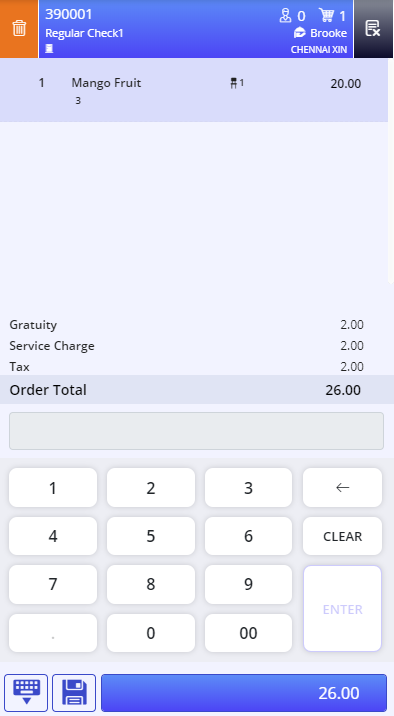
Navigate to Jump Bar ➜ Function Screen. The Function Screen appears.
Select Advance Seat.
Add a new item. The item is added to Seat 2.
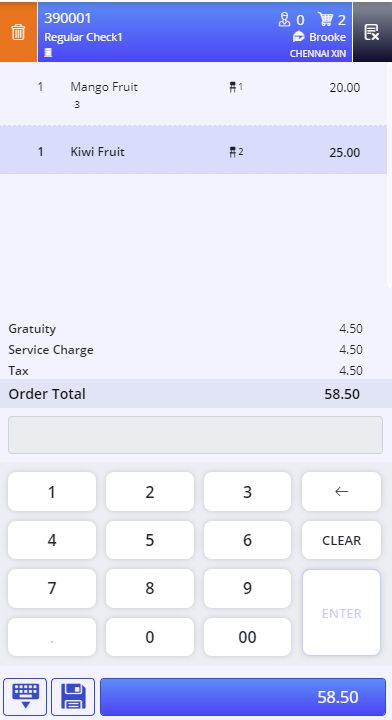
Any new item that is added to the check is also assigned to Seat 2 until the Advance Seat function is selected again.
Important points
-
The seat number can be advanced from 1 to 25 and then circle back to 1.
-
The Advance Seat function can be performed on an open check only.
-
When Advance Seat is performed from the Quick Actions prompt, manager override is not required even for users with lower security level.
Modify Seat
The Modify Seat function is used to modify an item from one seat to another.
Create a check and add items.
Select the item for which the seat is to be modified.
Navigate to Jump Bar ➜ Function Screen. The Function Screen appears.
Select Modify Seat. The Modify Seat prompt appears.
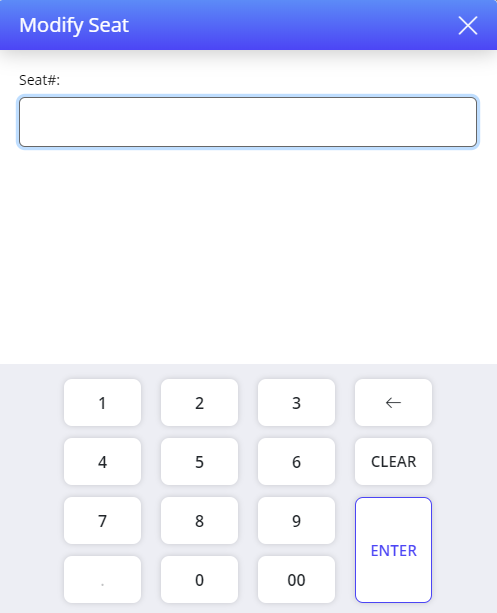
Enter a valid seat number between 1 to 25. The seat assigned to the item is modified.
Important Points
-
The Modify Seat function can also be accessed from the Quick Actions prompt which appears when an item is long pressed. Refer to the Check View section for more information on the seat related functions that can be performed from the Quick Actions prompt.
-
The Modify Seat function cannot be performed on a check if it is partially tendered, or a tip is already applied to the check.
-
The Modify Seat function can be performed on a menu item only.
VIP Seat
The VIP Seat function is used to mark a seat in an open check as a VIP seat.
Create a check and add items.
Select an item.
Navigate to Jump Bar ➜ Function Screen. The Function Screen appears.
Select VIP Seat. A crown symbol appears over the seat number to indicate that the seat is a VIP seat.
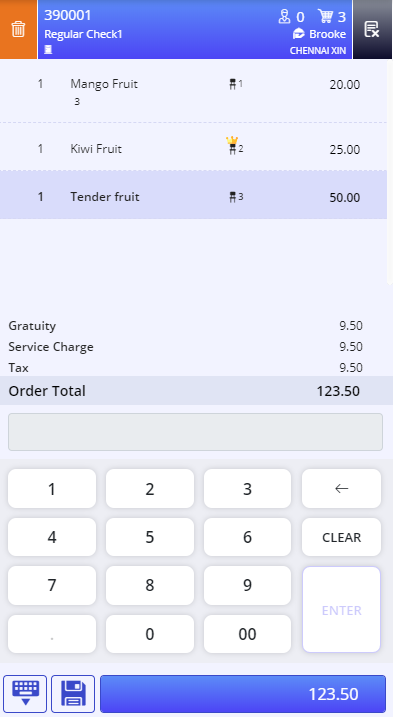
Select the VIP function again to make it a normal seat.
Important points
The VIP Seat function can be performed on an open check only.
Print Seat
The Print Seat function is used to print the seat number of an item.
Create a check and add items.
Navigate to Jump Bar ➜ Function Screen. The Function Screen appears.
Select Print Seat. The check is saved and printed successfully.
Terminal Option Supported
|
Terminal Option |
Description |
|---|---|
|
1003 (Print open check only once) |
If this option is enabled, user can prevent an open check from being printed more than once by employees with a security level of 2 or less. Employees with a security level of 3 of higher can override this option. This terminal option when enabled, does not affect tendering, however, it does affect Save Print, Save Check, Split Check, Combine Check and Transfer Check. Employees with a security level of 2 or less require a manager override to print an open check more than once if this terminal is enabled. |
Switch Items to a New Seat
Users can switch all items ordered for a particular seat to another seat. To achieve this, users must perform the Switch Seat (#2089) from the Functions screen. Additionally, this function can be accessed through the Quick Seat View by long pressing on a seat in the Check view.
Since the Switch Seat and Modify Seat functionalities are similar, the Switch Seat feature will be enabled by default for the job codes that have access to the Modify Seat functionality.
If a user wants to disable or enable the Switch Seat option, they can do so by modifying the settings using the Switch Seat function button.
Select an item in the check.
Navigate to Functions ➜ Switch Seat (#2089).
A Manager Override prompt is displayed, if the user’s job code does not have access to the Switch Seat function.
-
Select the preferred seat (from 2 to 25) to which the item should be switched. For instance, select Seat 2.
-
Tap Enter.
-
All items that were originally assigned to Seat 1 will be moved to Seat 2.
Toggle to Switch Between Advance Seat, Modify Seat and Switch Seat
Users can switch between Advance Seat, Modify Seat or Switch Seat in the terminal using a toggle in the Seat View in the terminal. By default, the toggle would be set to the Advance Seat option.
The toggle remains in the selected option till the user signs off, quits the application and reruns the terminal.
The manager override prompt is displayed when users without access to Seat View open the Seat View.