


Modifiers
A modifier is an add-on or choice for an item, such as cooking instructions, preparation instructions, condiments, or added items. Modifiers provide a method to vary or enhance the item. Modifiers and Choice groups are division level configuration. There is a store level choice group and modifier supported only to the specific store. The user can add special instructions to modifiers as well.
Assign modifiers to choice groups, then assign choice groups to items, so modifiers display after ordering the item at the terminal. Modifiers and choice groups are also placed directly on the screen layout.
Choice groups can have up to 20 modifiers and are assigned a minimum and maximum number of modifiers to select from the group. The minimum indicates the number of modifiers that must be entered. The maximum indicates the greatest number of modifiers that can be entered for a given item.
Important Points
-
Once added to the check, a modifier can be deleted, returned, put on hold, and fired to the kitchen as well.
-
Modifiers will be linked with Product Mix item. This is used for tracking modifier sales and revenue via product mix report. The user can add an item with nested choice group to the check.
-
The minimum and maximum modifier limit must be set in the Choice Group menu in IGCM.
Using the Modifier Button in the Screen Layout
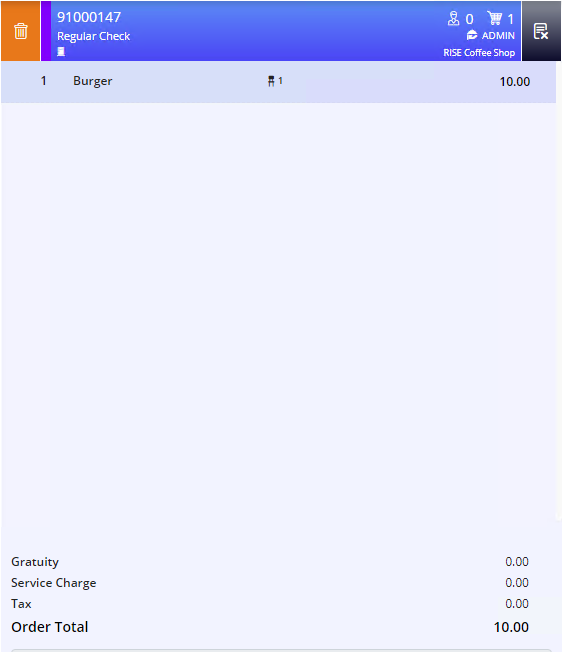
Create a check and add an item.
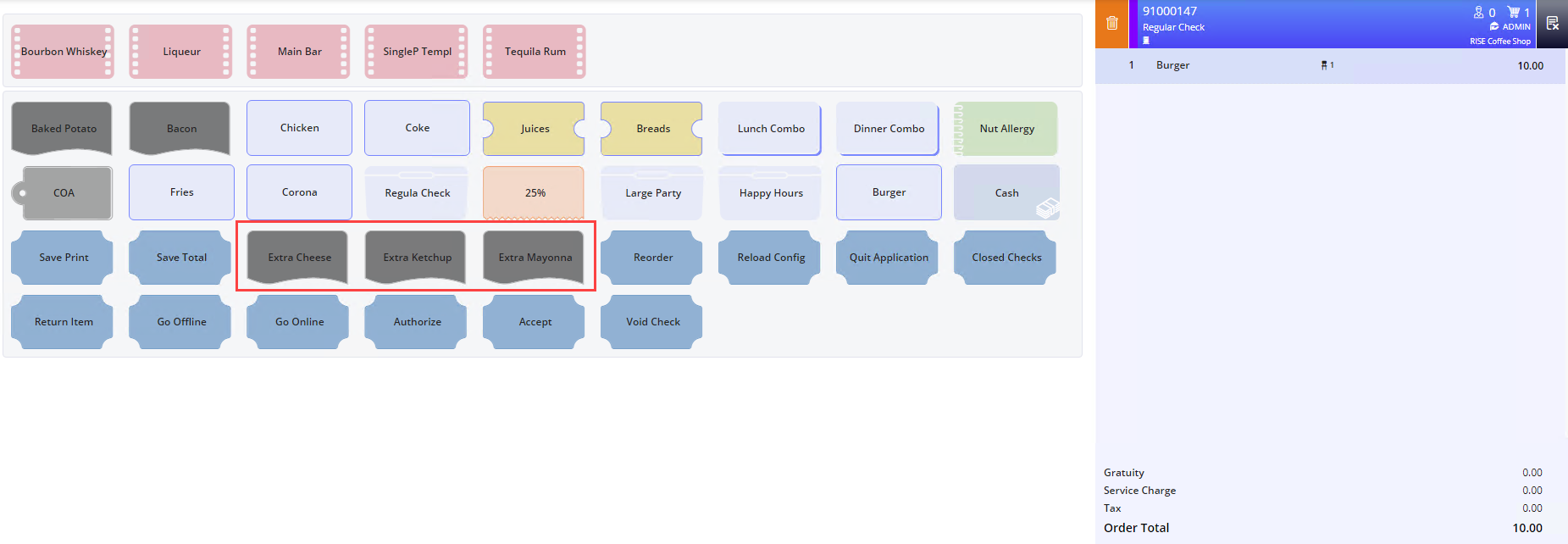
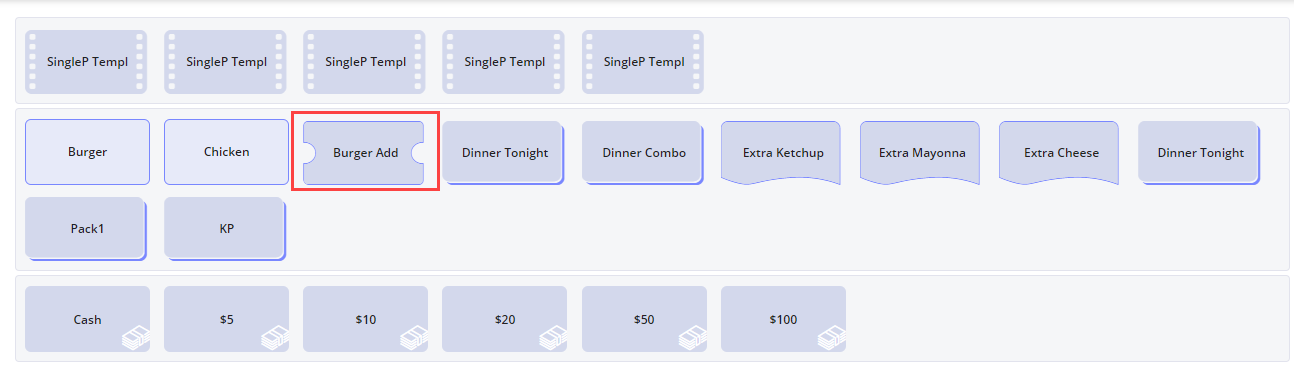
Select the appropriate modifier button from the screen layout.
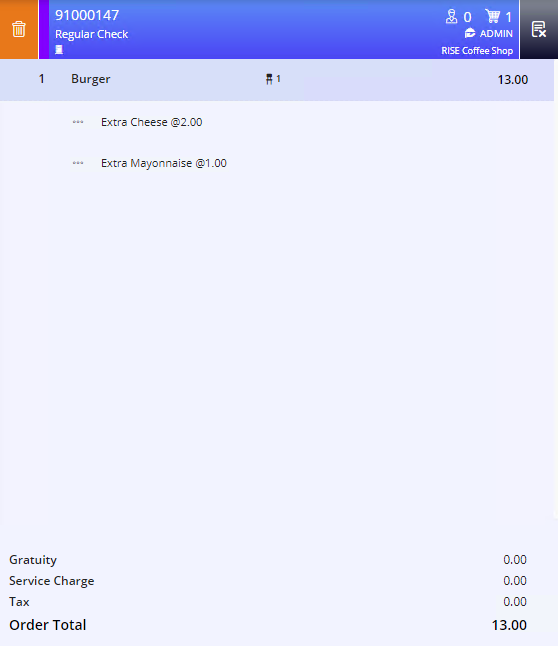
The modifier is added to the check.
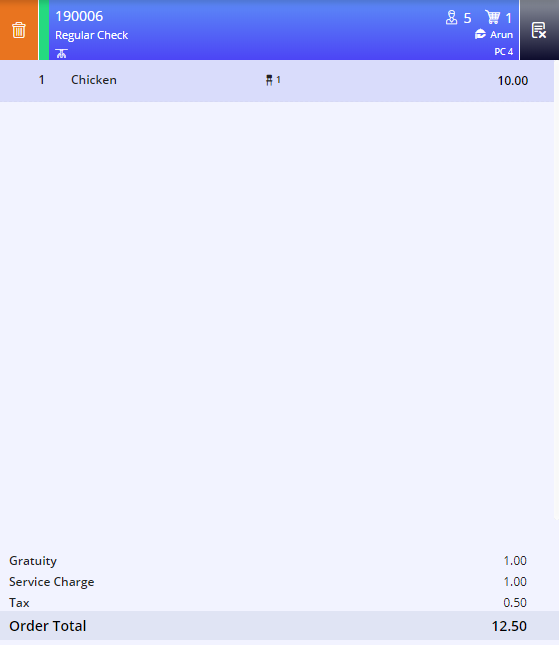
If the user tries to add a modifier to a line item such as the check financials or taxes applied, other than a menu item, a message, This function can only be performed on a menu item appears.
Using Choice Group Button in the Screen Layout
Create a check and add item.
Select the choice group button from the screen layout.
The list of modifiers associated with the selected choice group appears. The item to which the choice group is being added appears at the top-left of the prompt. The price of the item added with the price of the modifiers is displayed at the top-right of the prompt. The price of the modifiers is initially 0 and gets updated as the modifier selection is made.
The boxes which appear on the top-right corner of the prompt indicate the minimum and maximum number of modifiers that can be added in a choice group. The total number of boxes indicates the maximum limit. In this example, the maximum number of modifiers that can be added is 5, so 5 boxes are displayed.
The first box is green in color since the minimum limit is 0. The limit applies to the number of modifiers and quantity of modifiers. If the minimum selection limit is 1, the first box appears in red. If the maximum limit is set as 5, then only 5 modifiers can be added, and the quantity of each modifier cannot surpass 5.
If 5 quantities of the one of the modifiers is selected, no other modifier can be added. This means at least 1 modifier must be selected. If not, the Save button is not enabled.
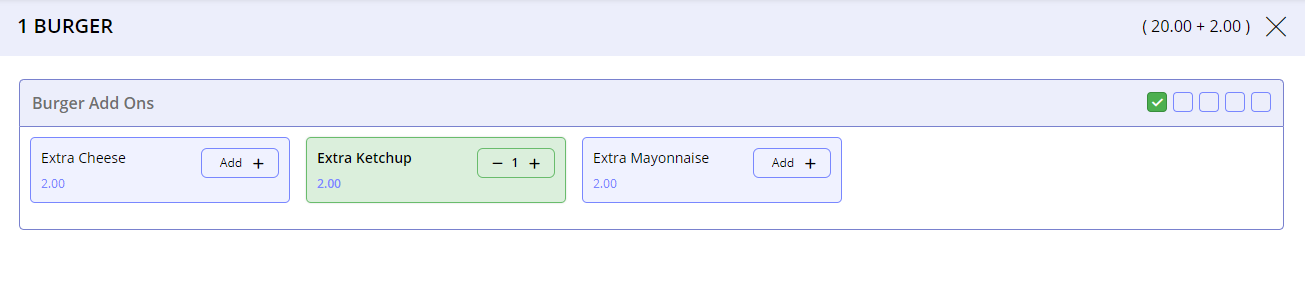
Select the right half of the modifier button to add a quantity of the modifier. The first box turns green and the Save button is enabled since the minimum quantity has been selected.
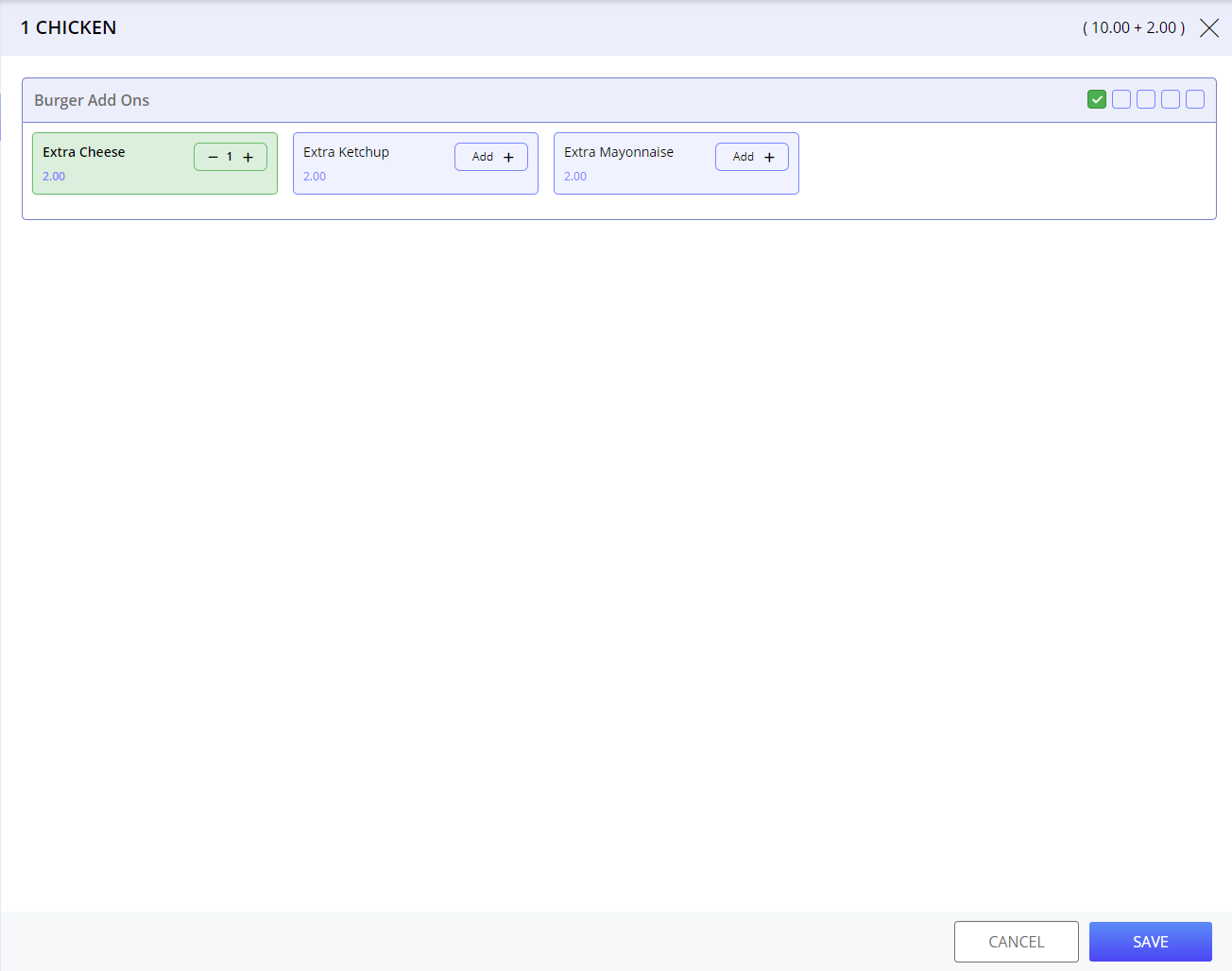
Select Save. The modifier is added to the check:
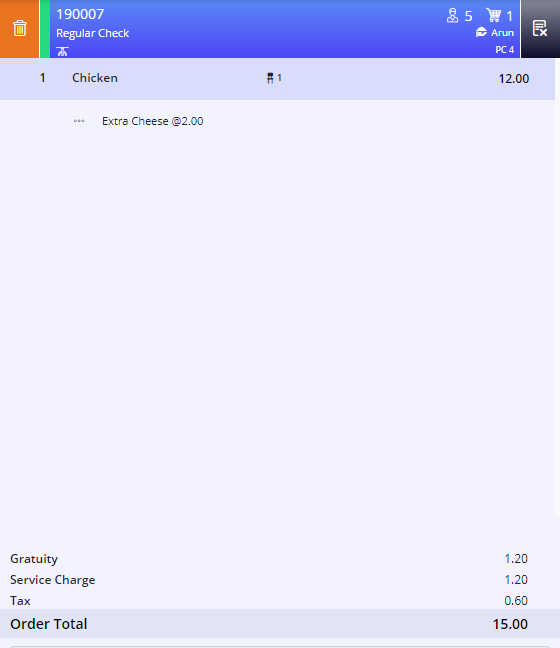
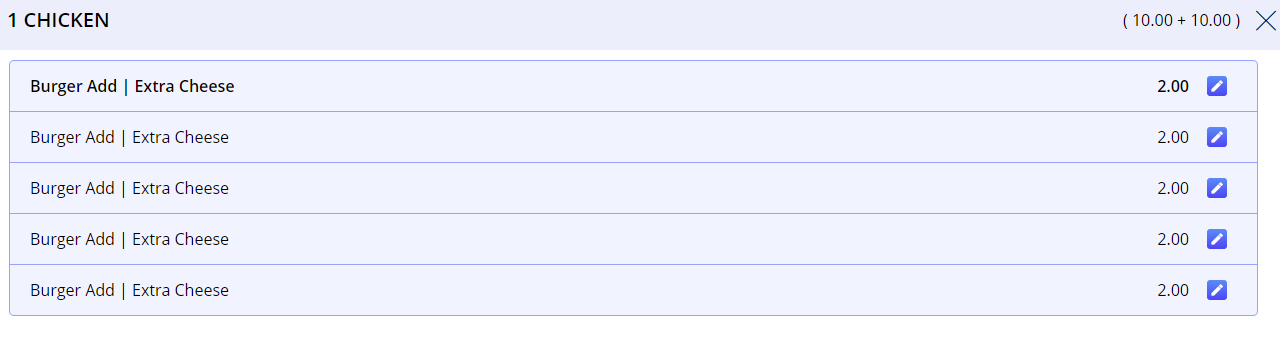
The table displays the box selection based on the modifier selection:
|
Selection |
Behavior |
|---|---|
|
When 1 quantity of 1 modifier is selected |
|
|
When 2 quantities of same modifier are selected |
|
|
When 1 quantity of each modifier is selected |
|
|
When 5 quantities of same modifier are selected |
|



Using Choice Groups Assigned with Item
Create a check and select an item to which the choice group is associated. In this example, the item Burger which is associated to the Burger AddOns choice group is selected. The choice groups prompt appears. It displays the list of modifiers associated.
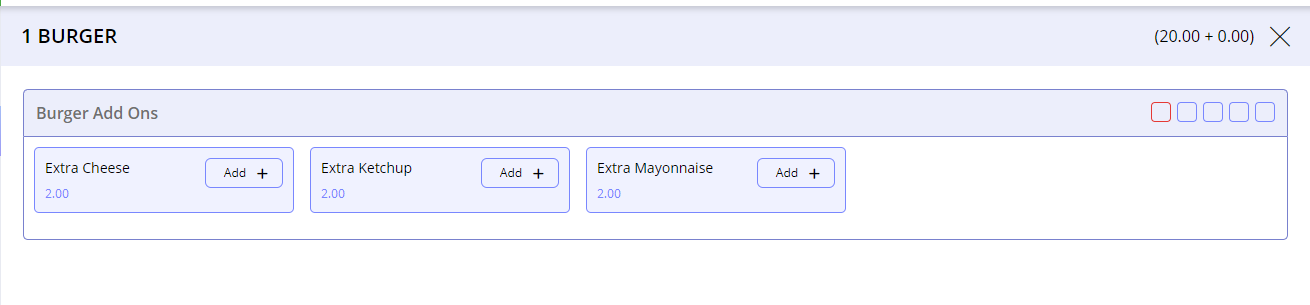
Select Add in the modifier to select it. The first box turns green when a modifier is selected and the Save button is enabled.
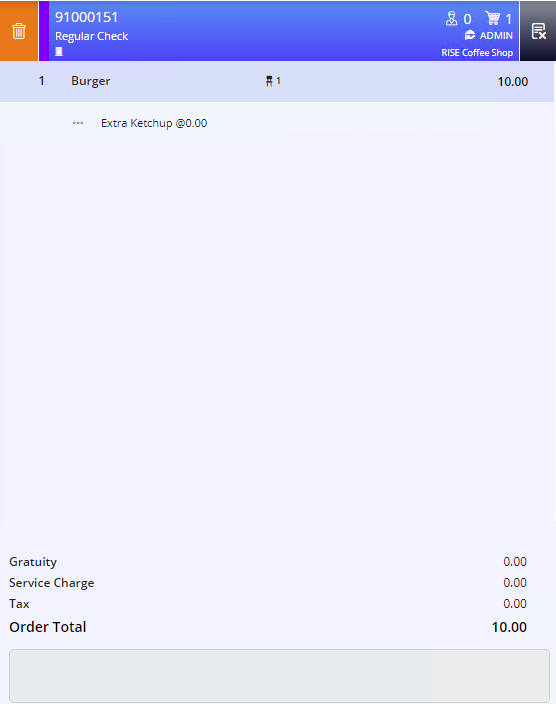
Select Save. The item and the modifier are added to the check.
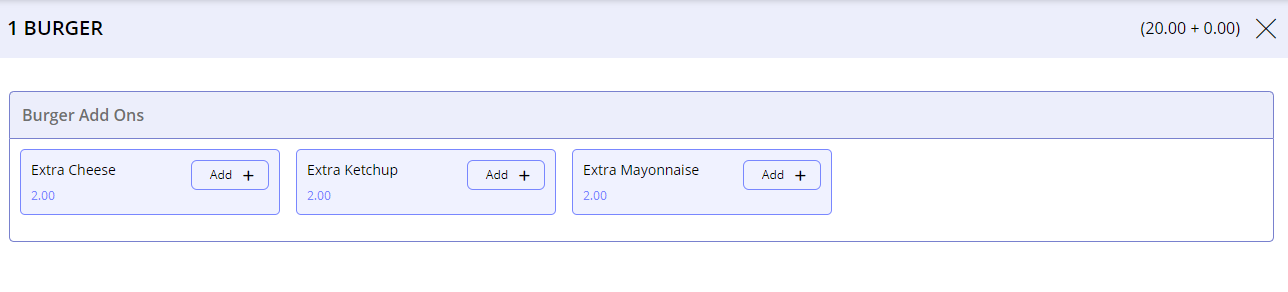
When the Terminal Option 71 (Allow multiple modifier selection (min/max in choice group ignored)) is enabled, there is no min/max limit on the number of modifiers, or the quantity of modifiers selected per choice group. In this case, the boxes that indicate the quantity of the modifier selected do not appear since any number and quantity of modifiers can be selected in the Choice Group prompt. The Save button is also enabled even if the minimum quantity of modifiers is not selected.
When the Terminal Option 501 (Suppress display of choice groups when ordering items) is enabled, the Choice Group prompt does not appear even when an item associated with a choice group is selected.
Assign Sizeable Modifiers to Choice Group
This is applicable for 12.x server only.
Sizeable modifiers can be assigned to a choice group which can then be assigned to an item. Thus, sizeable modifiers can be assigned to items through choice groups instead of quantity categories.
Important Points
-
It is not possible to assign two sizeable modifiers to the same choice group. In case a sizeable modifier is already selected, another can be selected only after deselecting the sizeable modifier that is already selected.
-
The quantity category mapped to the sizeable modifier assigned to the choice group must also be mapped to the item if the Sizeable checkbox in the Item menu is enabled. If not, the Item menu cannot be saved.
-
A choice group can be mapped to a single sizeable modifier along with multiple normal modifiers.
Adding Multiple Quantities of Same Items with Modifiers
When multiple quantities of an item that is mapped to a choice group is added to the check, the user must select the choice group for each quantity of the item added. Consider 5 quantities of the item Burger is added to the check. In this case, the user selects 5 in the keypad in check view and selects Burger. In this scenario, since the item Burger is mapped to the choice group Burger AddOns, the Choice Group prompt appears.
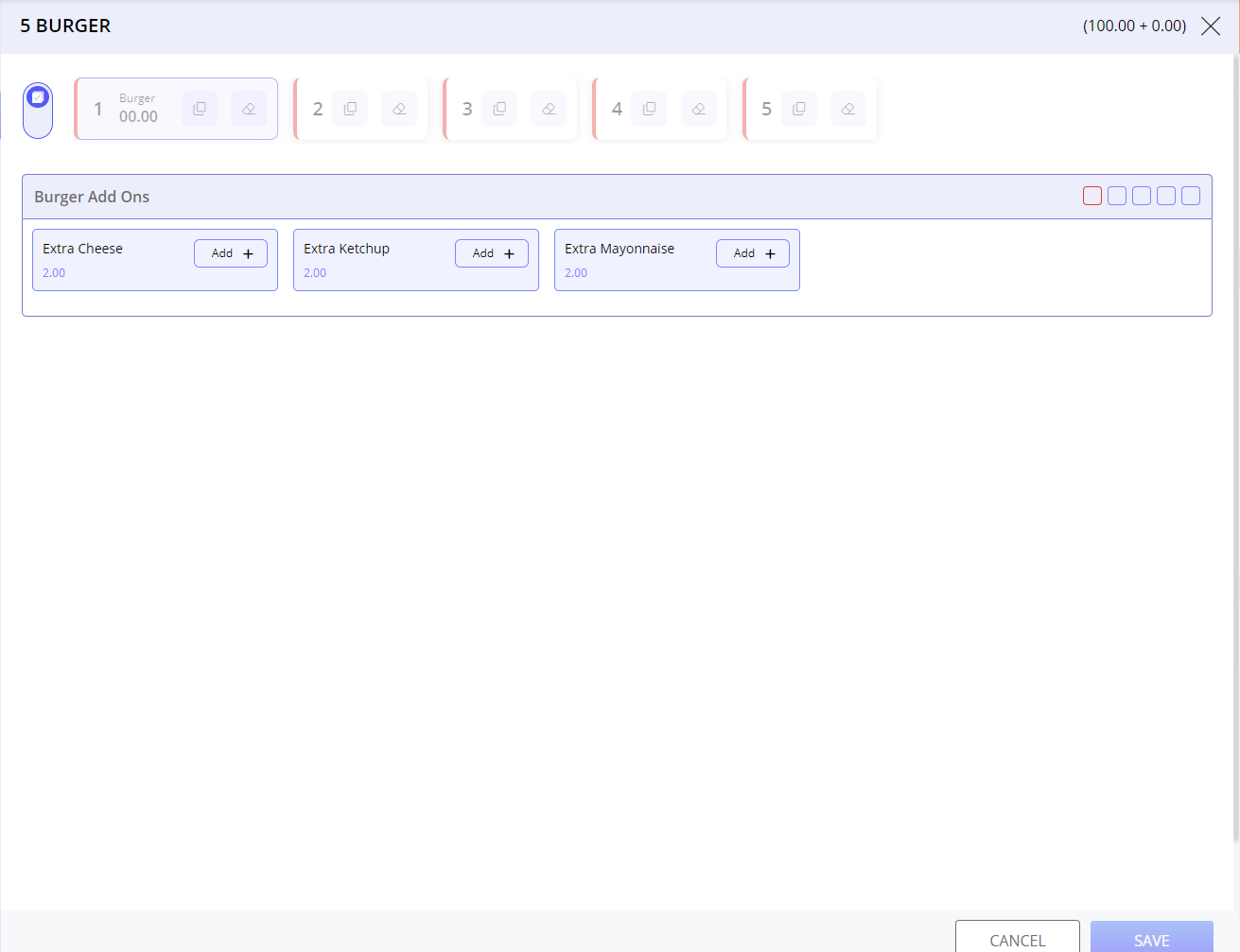
The quantity of the item ordered is displayed at the top. The sum of the price of the number of items combined and the modifiers appears at the top-right of the prompt. Each quantity of the item is displayed as a separate unit. A selection toggle appears next to the units of items.
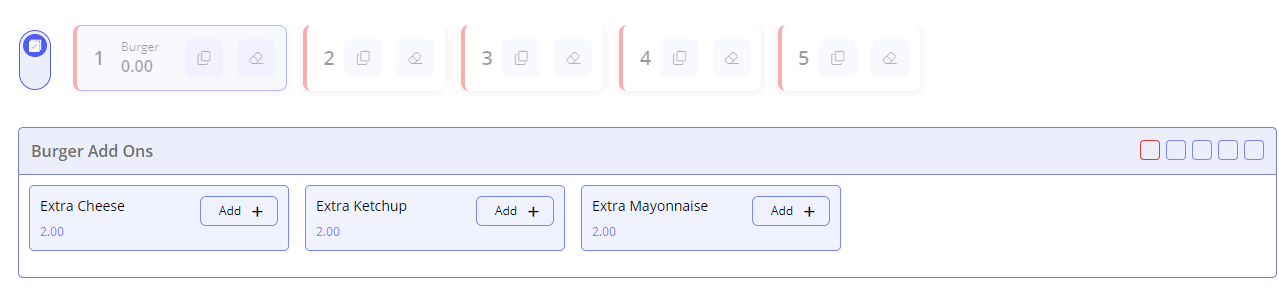
When the toggle is set as Up, the modifier selection can be done for all units of the item together. In this case, when the minimum number of modifiers are not selected, the item unit and the first box appear in red.
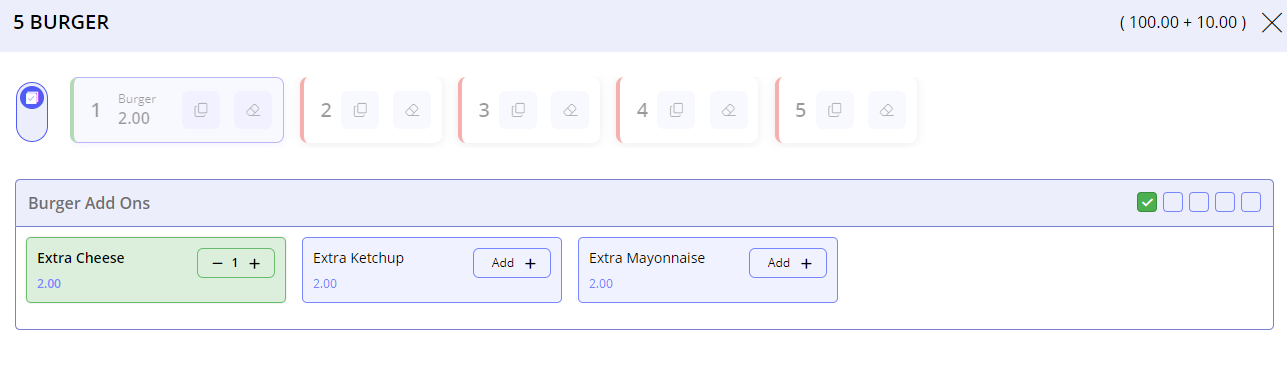
When at least 1 modifier is selected, the item unit and the first box appear in green.
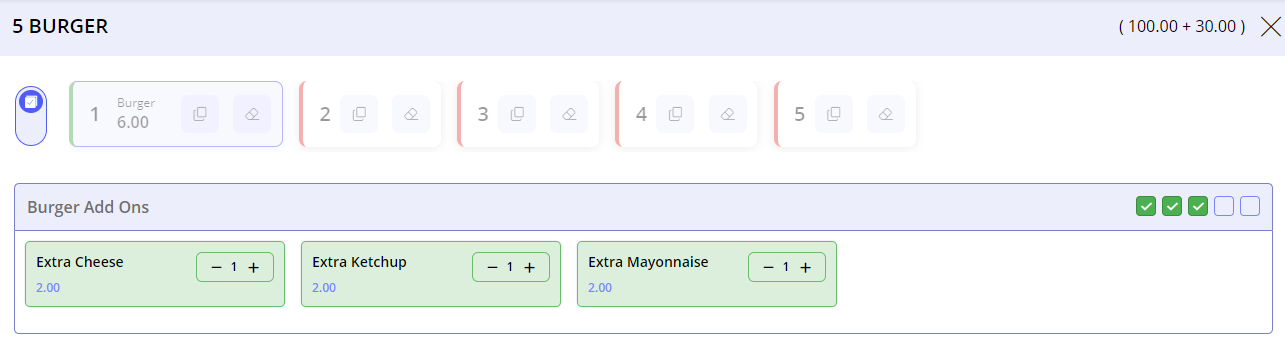
As more modifiers are selected, the boxes are selected, but only the first unit of the item appears in green, the rest of the units are disabled.
When the toggle is set as Down, the modifier selection must be done for each individual unit of the item. In this case, the item units appear enabled and open for selection. Initially all units appear in red.
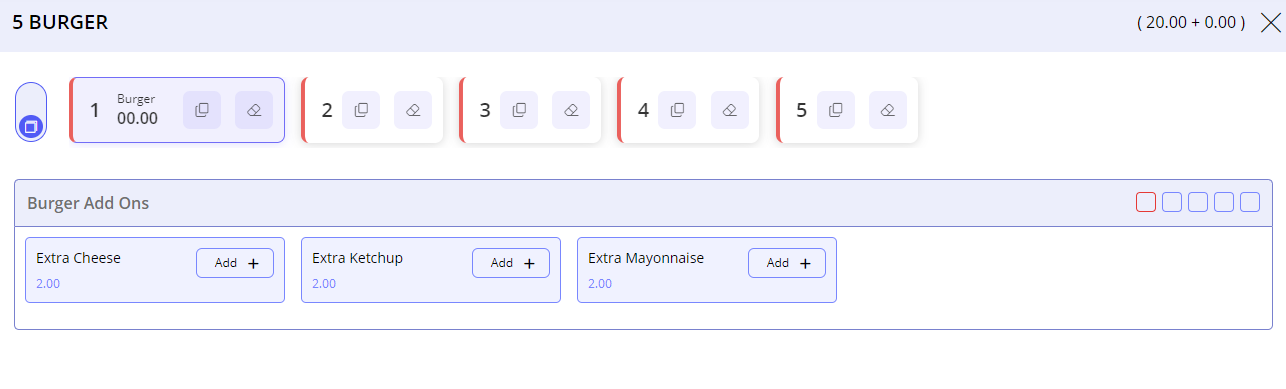
To add a modifier, the user must first select the item unit. The modifier selection section id disabled until the item unit is selected. The boxes are also displayed for each unit separately.
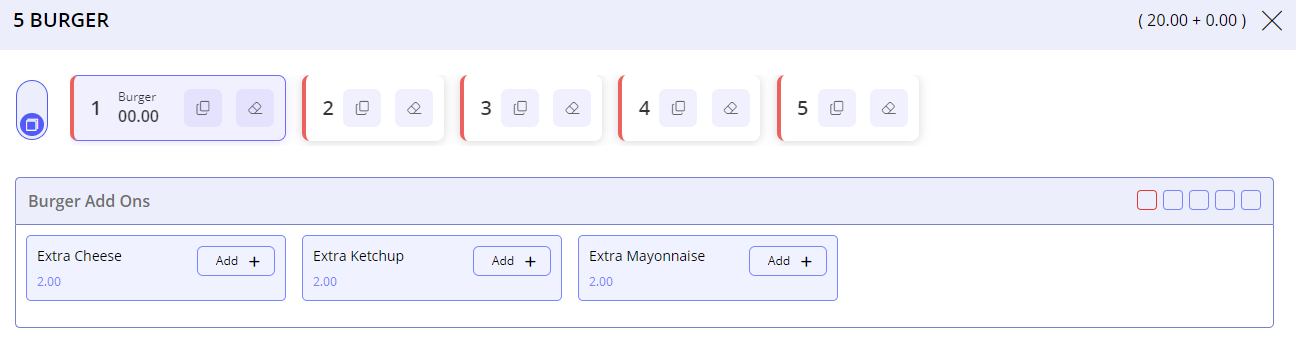
When the minimum number of modifiers is not selected for a unit of the item, the respective unit appears in red. When the minimum number of modifiers is selected for an item unit, that unit appears in green while the rest of the units appear in red.
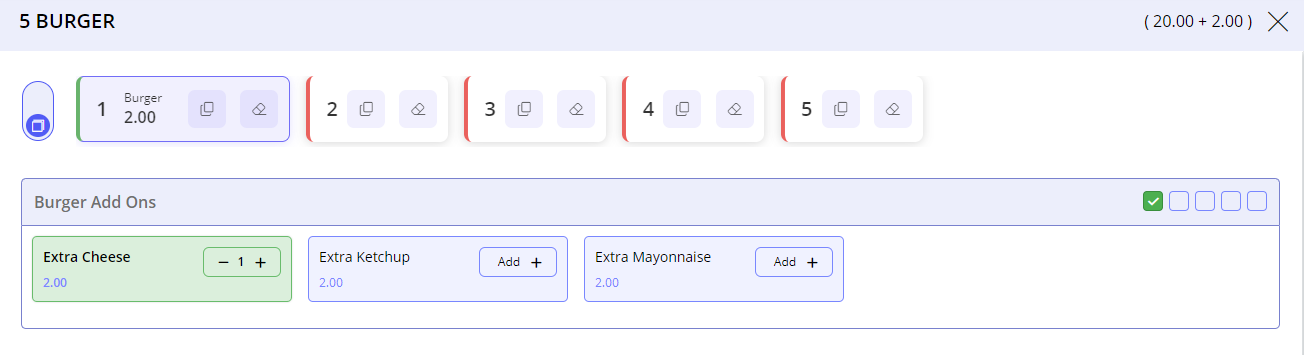
The Erase icon within the item unit erases the modifier selection when selected. The Copy icon in the item unit copies the modifiers selected to the subsequent unit. When the Copy icon is selected in the 1st quantity of the item, the modifiers selected are copied to the 2nd unit.

The toggle is set as Up by default.
Terminal Options Supported
|
Terminal Option |
Description |
|---|---|
|
71 (Allow multiple modifier selection (min /max in choice group ignored)) |
If this terminal option is enabled, the user can select multiple modifiers and to end a modifier selection the user needs to select Done. When this option is enabled, the user can select multiple modifiers (e.g., pizza toppings) consecutively. For example, when the user orders a pizza, the Toppings prompt appears. Select the required pizza toppings (i.e., cheese, olives, garlic), then select Done button. This terminal option overrides the minimum and maximum values of choice group. |
|
501 (Suppress display of choice groups when ordering items) |
If this terminal option is enabled, the terminal will prevent the display of choice groups that are configured for items. When this terminal option is enabled, it overrides the Terminal Option 500 (Allow display of choice groups when ordering items with bar gun). |
Auto Save Modifier and Choice Group Selection
An item can be auto saved to a check with selected modifiers and choice group when Terminal Option 1289 (Autosave the item with modifier without selection confirmation) is enabled and the maximum limit for all the choice groups is reached.
Users can also make any modifications to the selected modifier and choice group using the Edit Modifier (#2039).
User can access the Edit Modifier function in the Quick Actions Menu as well the Functions screen.
Limitations
-
Packages are not in scope for the automatic save feature.
-
Directly added modifiers are not in scope for automatic save and Edit Modifier function.
IGCM Settings
Configure Terminal Option
The following terminal options are supported in this feature.
Navigate to POS Configuration ➜ Terminals ➜ Terminal Option Group ➜ Terminal Options.
Enable the following terminal options:
|
Terminal Option |
Description |
|---|---|
|
69 (Require void reason for current pass) |
Enable this option to require a void reason when an item is voided during the current pass (usually no reason is needed to void a current pass item - except with bargun items). When active, the Void Reasons window displays a list of void reasons. Select a void reason button. |
|
156 (Use real-time kitchen video interface) |
Select this option when the kitchen video interface service used by the terminal is sending check level transactions in real-time to the Kitchen Display Service (KDS). This is designed for the quick service environment to facilitate real-time update to the KDS for check create, add item, void item, and check tender transactions. |
|
1289 (Autosave the item with modifier without selection confirmation) |
Enable this option to autosave the item with selected modifiers without clicking Save option in the InfoGenesis POS Terminal 12UX. This will occur only after all choice groups for the items that reach maximum the modifier limit. |
Select Save.
Configure Function Button
The following functions button is configured for this integration:
-
Edit Modifier (#2039)
Add Function Buttons to Screen
Navigate to Items ➜ Screens.
Add the functions to the appropriate screen layout(s).
Select Save.
This is an optional step. The functions can be accessed directly from the Functions screen in the POS terminal. If not, they can be added to a custom screen.
Assign Function to Job Codes
Navigate to Employees ➜ Job Codes ➜ Functions.
Enable the function button to the appropriate job codes.
Implementation at the POS Terminal
Edit Modifier
The Edit Modifier (#2039) function enables the user to revisit the added modifier or items ordered with choice group and make the changes as needed. The modifications are updated and saved in the same check.
Open a check and add the preferred items.
Add the modifier and choice groups.
Navigate to Functions ➜ Edit Modifier. The modifier and choice group prompt showing the existing preferences appears.
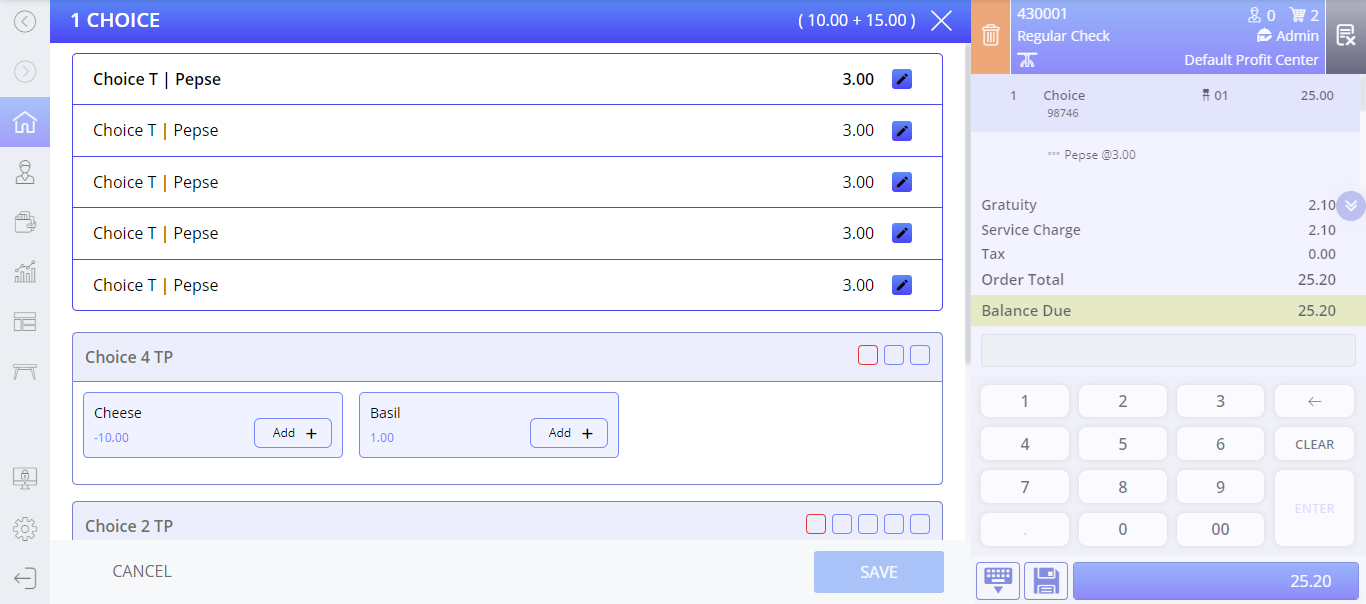
Make the preferred changes.
Select Save. Discounts, if any, added with the previous selection are removed once the modifier is edited.
The user can edit a modifier by deselecting the chosen options.
If the minimum limit for the modifiers and the choice group is not reached, a prompt to select modifiers is displayed again. After the maximum limit for the choice groups and modifiers is reached, the item is auto saved without selection confirmation if the Terminal Option 1289 (Autosave the item with modifier without selection confirmation) is enabled. If the terminal option is disabled, the user is prompted for confirmation.
Once the items added are sent to the kitchen, the user is restricted to edit and make any more modifications. The user is prompted with a message if the Edit Modifier (#2039) function is used after the items are sent or fired to the kitchen.
Void Modifier
A user can void the modifiers added. If the modifiers are voided below the minimum limit required for the choice groups and modifiers, the user is prompted again to select the modifiers.
A user must select the preferred modifiers, and the item updated with the new selection is displayed at the POS Terminal.
Automatic Modifier Switching
The POS terminal supports streamlining modifier selection by automatically deselecting the previous modifier when a new one is chosen. Also, this is applicable only when one modifier must be selected per item from two available modifiers. If more than two modifiers are available, users must manually select the preferred modifier.
To support this, Terminal Option 1410 (Modifier Auto Switching) must be enabled.
-
When enabled, the system will automatically deselect the previous modifier when a new modifier is selected.
-
When disabled, users must manually deselect the previous modifier. By default, this option is disabled.