


Item Countdown
The POS terminal supports item count decrement when an item is added to a check and the check is saved or tendered. Similarly, when the item is voided or the check is cancelled, the item count is incremented.
This functionality can be configured in IGCM using the Item Countdown form. The Item Countdown menu displays an item countdown group for each profit center available. Items can be added to the cutdown groups and details such as Quantity On Hand, Warning and Cut Off limits can also be added for each item in the countdown group here. Whenever an item is added to a check and the check is saved or tendered, the Quantity On Hand decreases, and if the item is voided or check is cancelled, it increases. This can be viewed in IGCM. Based on the Warning and Cut Off limits configured; the POS terminal displays a warning.
Users can set tracking for items in countdown groups, set default countdown groups, assign items to the countdown groups, and set the on-hand quantity, warning, and cutoff limits for items in the terminal as well. The quantity and limits set for items in the terminal override the values configured in the Item Countdown menu in IGCM.
A threshold limit can also be assigned to each item/modifier, if the POS user orders a quantity of the item that reaches the threshold limit, the terminal displays a warning. When the item quantity goes below the threshold limit, it is 86ed automatically.
Whenever an item is added to the check, the counter in the item button displays the on-hand quantity of the item. In this case, 500 quantities of Country Croissant are available and the counter in the item button displays the quantity. The counter color is Blue in this case, since the available quantity of the item is equivalent to the Qty on Hand value set for the countdown group in the Item Countdown menu in IGCM. The counter shows the depleted item quantity based on the quantity of the item added in the check and when the same is saved or tendered. In this case, if 1 Country Croissant is added to the check, the counter shows 499 as the value if the check is saved or tendered.
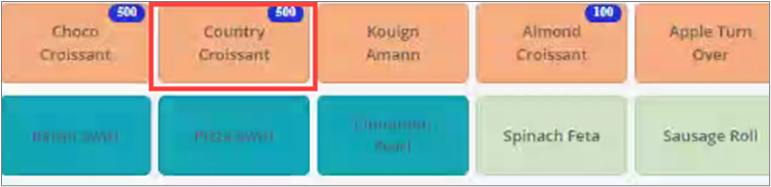
If the warning limit is set as 20, a warning is displayed when 480 quantities of the item are added to the check and the check is saved or tendered.
Sample Warning Screen
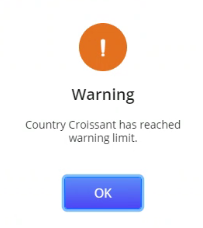
The user can select OK and still add the item to the check. The counter displays the updated quantity. In this case, 480 quantities of the item are sold, and the counter displays 20. The color of the counter turns Orange in this case since the item quantity has reached the Warning value set in the countdown group.
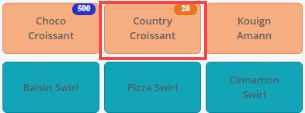
If the Cutoff limit is set as 2, and 2 more quantities of the same item are added to the check, the counter shows the item as 86d since the item quantity has reached the Cutoff limit set in the countdown group.
If the user tries to add the item to the check after it is 86’d, the Item Unavailable prompt is displayed.
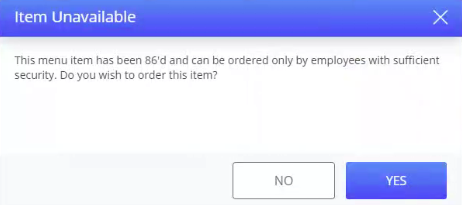
Users with security level 5 and above can proceed to order the item by selecting Yes in the prompt.
When an item is 86’d and the on-hand quantity of the item reaches 0, the Available Quantity prompt is displayed when the user adds the item to the check.
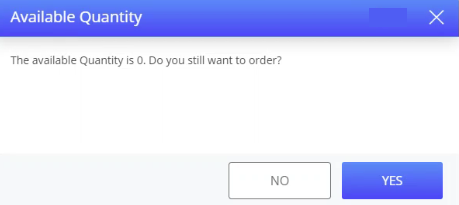
If the user selects Yes and proceeds to order the item, a negative value is displayed in the countdown group. In this case, Country Croissant is 86’d and the on-hand quantity becomes a negative value when the user orders the item even after it is 86’d.
Apart from these regular scenarios, the following workflows are also possible:
If the on-hand quantity of an item is 500, and 20 is set as the warning level, the POS terminal shows a warning prompt when 480 units of the item is added to the check.
If 479 units of the item are added instead, the on-hand quantity of the item becomes 21. In this case, when the user proceeds to add one more quantity of the item, the item count becomes 20, and the warning prompt is displayed repeatedly until the check is tendered or saved.
If 495 units of the item are added, the warning prompt is not displayed, and the user does not know the item has been 86’d until they see the counter displayed in the item button.