


Floor Plan
The Floor Plan screen displays the floor plan associated with the profit center. A floor plan is nothing but a map that represents the physical layout of tables in a property.
Navigate to Jump Bar ➜ Floor Plan. The primary floor plan associated with the profit center appears. If there is no primary floor plan associated with the profit center, all the floor plans configured for the enterprise appear.
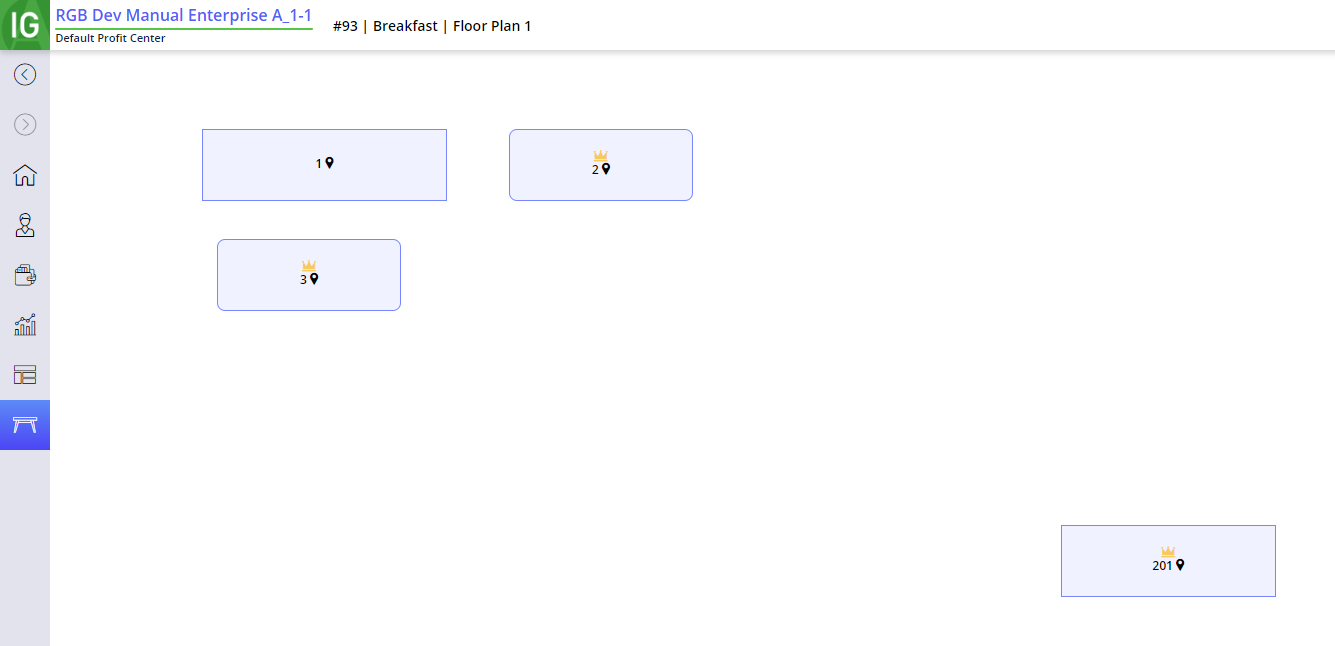
The floor plan screen displays the tables, functions, check types, terrains, and terminal reports. The tables from other profit centers may also be displayed in the default floor plan associated with the profit center.
The following functions can be carried out by long pressing the tables:
-
New Check - Allows the user to start a new check and associates the new check to the selected table.
-
Clear Table - Allows the user to clear any checks associated with the table. This function can be performed only if the table has any open checks.
-
Transfer Server - Allows the user to transfer a check to another server. This function can be performed only if the table has any open checks.
-
Transfer Table - Allows the user to transfer a check to another table. This function can be performed only if the table has any open checks.
-
Recall CheckList - This function can be performed only if the table has any open checks.
-
Transfer Pull - Allows the user to transfer a check from another server. This function can be performed only if the table has any open checks.
The tables are classified as follows:
|
Icon |
Description |
|---|---|
|
|
Tables with this icon have one or more open checks associated with them. |
|
|
Tables with this icon are of the VIP category. |
|
|
Tables with this icon belong to a different profit center. When such tables are long pressed, a message, This table is located in a different profit center. Do you wish to switch to that profit center? appears. The user must switch to the appropriate profit center and then perform the table functionalities. |


Terminal Options Supported
|
Terminal Options |
Description |
|---|---|
|
1215 (Prompt for check type from floor plan) |
Enable this option to have the terminal prompt for the check type when starting a check from the floor plan. The properties of the selected check type like price level, service charge, tax group & gratuities are added to the table. Once selected, the check type cannot be modified using the Modify Check Type function. |
|
269 (Print the check label on receipts and credit card drafts) |
Enable this option to print the check label on itemized receipts and credit card drafts. The check label will be printed where the table number is otherwise printed. |
Important Points
-
The tables must be configured in the Tables submenu in the Profit Center menu in IGCM.
-
The configured tables must be placed in the appropriate floor plan layout in the Floor Plan form.
-
The layout of the floor plan displayed in the POS terminal resembles the floor plan layout configured in IGCM.
-
The shapes, sizes, and colors of the tables, function and check type buttons displayed in the floor plan layout in the POS terminal resemble the configuration in IGCM.
-
The floor plan layout is displayed in the Modern Ocean theme irrespective of the theme selected in the POS terminal.
-
The long-press functionality is limited to the tables only.
-
The Floor Plan screen does not display header and footer.
-
If the Allow Button Overlap option in the Layout Options submenu of the Floor Plan menu in IGCM is enabled, the table buttons in the floor plan can overlap with each other. Enabling this option does not change the existing layout.
-
Once overlapping is allowed, disabling this option does not alter the arrangement of the buttons. The overlapping buttons must be manually modified.
-
The Terrain tool in the floor plan layout can have a text label. This label is configurable and allows the POS terminal user to identify the terrain tool added in the floor plan.
-
If the DisableFloorPlanInJumpbar field in the Appearance section of the Settings.ini file is set to True, the Floor Plan icon is not displayed in the Jump Bar and the user cannot access the floor plan screen.