Enabling Manager Override in Sign-On Screen Based on Security Levels
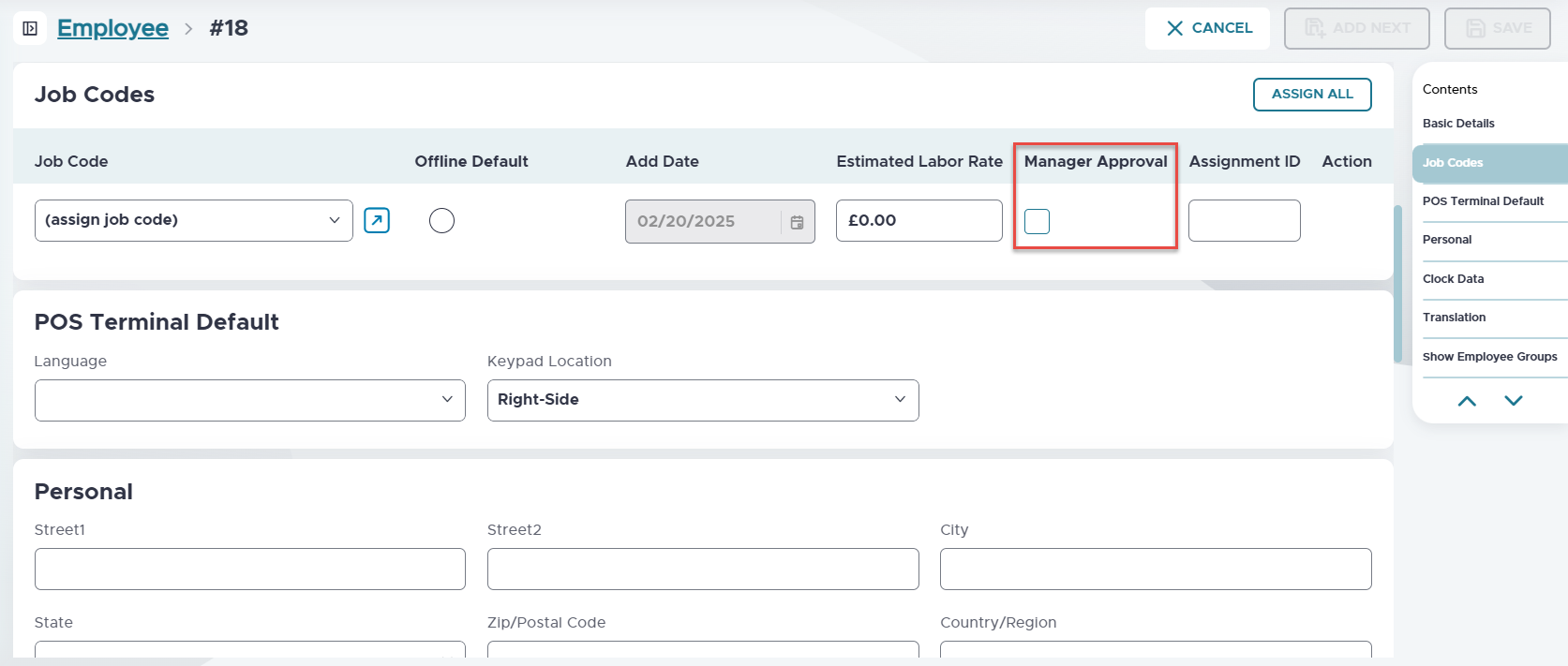
Users can select job codes from a drop down in the Sign-On screen which displays all the job codes mapped under an employee ID. Manager Approval checkbox can be enabled for the preferred job codes in IGCM under Employee ➜ Job Codes tab.
The job codes which have the manager approval checkbox enabled for them are displayed with a lock sign. The users must provide the manager override ID to clock in for those job codes.
IGCM Settings
Configure Employee Approvals
Logon to the IGCM
Navigate to POS Configuration ➜ Employees ➜ Employee.
Select the appropriate employee and navigate to Job Codes submenu.
Select the appropriate job code from the dropdown.
Enable the manager approval checkbox.
Select Save.
Configure Terminal Option
Navigate to Terminals ➜ Terminal Option Group ➜ Terminal Options.
Enable the Terminal option 301 (Enable job code restrictions by terminal).
|
Terminal Option |
Description |
|---|---|
|
301 (Enable job code restrictions by terminal) |
If this terminal option is enabled, the employees with job codes that are not associated with the terminal group will not be able to sign on to the POS terminal. |
Select Save.
Implementation at the POS Terminal
Manager approval checkbox must be enabled for employees with security levels 0-4. When signing in at the POS Terminal with any of these security levels, override must be provided with job codes configured with security level 5-9.
If the manager override is provided with a security level between 0-4, an Invalid Manager Override: The employee does not have sufficient security to perform the manager override. Do you want to try another? message is displayed at the POS Terminal.
When Terminal Option 301 (Enable job code restrictions by terminal) is enabled, and the job code is removed from the terminal group while the employee is signed on, a Sign-On Failure message appears after reloading configuration when the employee attempts to log back in manually or with Auto Sign-On (#385) function enabled.
Terminal Option 301 Enabled: Deleting Job Code After Clock-Out
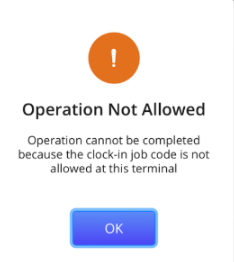
If the job code is deleted from the terminal group after the employee clocks out when the Terminal Option 301 (Enable job code restrictions by terminal) is enabled, a Job Code Not Allowed message appears at the POS Terminal when the employee attempts to log back in after reloading configuration.
The manager override prompt does not appear for employee IDs configured with only security levels 5-9. The manager override prompt appears even if one job code with security level 0-4 is configured along with security levels 5-9 job codes.
Auto Sign-On Enabled
When an employee with Auto Sign-On (#385) function enabled logs in with manager override once, they are automatically signed back in even after clocking out without providing the manager override again.
When Auto Sign-On (#385) function is enabled, and the job code is deleted while the employee has clocked out, the following message appears at the sign-on screen.