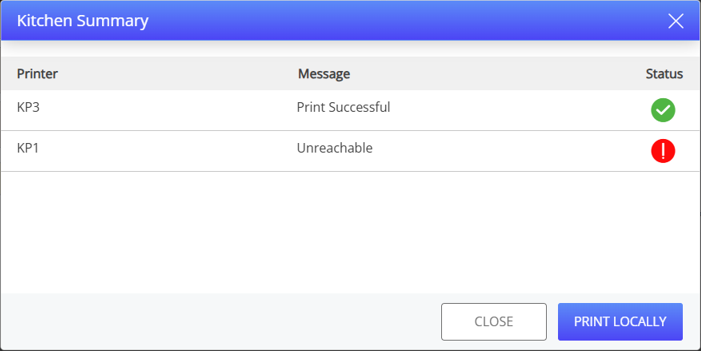
Display Kitchen Printer Error in Terminal
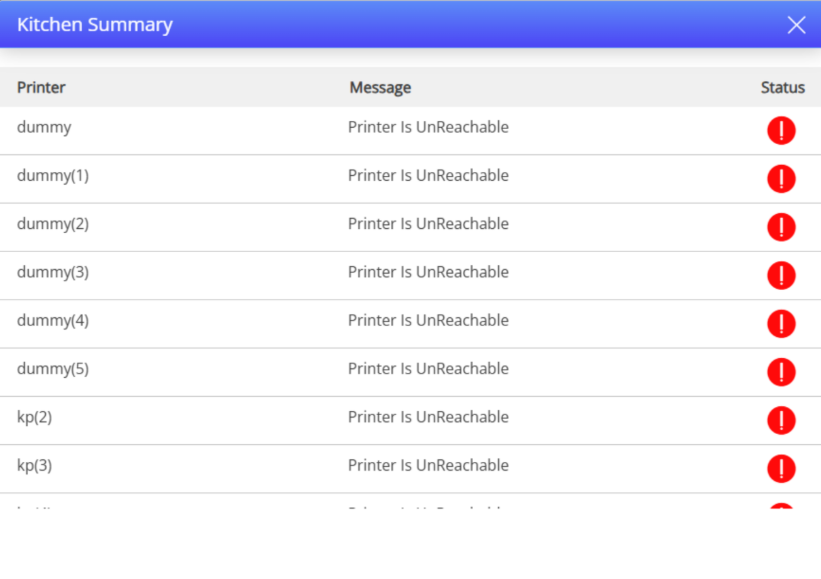
InfoGenesis POS displays a notification if any of the items fail to print on the kitchen printer while saving the check. The printer messages such as unreachable, door is open, out of paper appear to users as prompts while saving the check in the terminal. The prompts outline possible causes and suggest steps users can take to resolve the issue.
Prompt are displayed in the following scenarios:
-
The printer service has stopped
-
The printer is out of paper
-
The printer door is open
-
The printer is not reachable
-
LAN cable is disconnected
-
When the printer is switched off
The following buttons are displayed to users along with the prompt:
-
Print Locally - When selected, chit is printed at the terminal.
-
Cancel - When selected, users can proceed without printing the chit.
Terminal Option 1464 (Display kitchen printer error in terminal), must be enabled to support this functionality.
|
Terminal Option |
Description |
|---|---|
|
Terminal Option 1464 (Display kitchen printer error in terminal) |
|
Related Terminal Option
-
This feature is applicable only when the Terminal Option 150 (Print an offline kitchen receipt when an order fails KP process) is enabled. Users must also enable Terminal Option 152 (Send orders to kitchen printers) along with the Terminal Option 150 (Print an offline kitchen receipt when an order fails KP process).
When Terminal Option 150 (Print an offline kitchen receipt when an order fails KP process) is enabled, the receipt printer prints the kitchen chits when the kitchen printer fails to print chits.
Configurations in IGCM
Configure System Configuration Utility
The following properties in the System Configuration menu (Utilities ➜ Utilities ➜ System Configuration ➜ Kitchen Settings), must be set to the default values:
|
Property |
Default Value |
|---|---|
|
KitchenPingInterval |
30 seconds |
|
ValidateKitchenStationInterval |
45 seconds |
Configure Terminal Option Group
Navigate to POS Configuration ➜ Terminals ➜ Terminal Option Group.
Select the appropriate record from the screen and select Edit to modify it.
Select the Terminal Options submenu.
Enable the Terminal Option 1464 (Display kitchen printer error in terminal) checkbox.
Leave the Terminal Option 150 (Print an offline kitchen receipt when an order fails KP process) enabled.
Select Save.
Configure POS Terminal
Navigate to POS Configuration ➜ Profiler ➜ POS Terminal
Select the appropriate record from the screen and select Edit to modify it.
Navigate to Files ➜ Settings.ini.
Select the Kitchen Configuration section.
Select the Printer_Status_Interval field and set the polling interval to 15 seconds.
Navigate to Settings section and verify if the KSSConnectionTimeoutInSeconds is set to the default value, 5 seconds.
Select Save.
Universal Desktop Settings
Configure Terminal Option Group
Navigate to Terminals ➜ Terminal Option Group.
Select the appropriate record from the screen and select Edit to modify it.
Select the Terminal Options submenu.
Enable the Terminal Option 1464 (Display kitchen printer error in terminal) checkbox.
Leave the Terminal Option 150 (Print an offline kitchen receipt when an order fails KP process) enabled.
Select Save.
Configure POS Terminal
Navigate to Profiler ➜ POS Terminal
Select the appropriate record from the screen and select Edit to modify it.
Navigate to Files ➜ Settings.ini.
Select the Kitchen Configuration section.
Select the Printer_Status_Interval field and set the polling interval to 15 seconds.
Navigate to Settings section and verify if the KSSConnectionTimeoutInSeconds is set to the default value, 5 seconds.
Select Save.
Configure IG App Central
Launch the IG App Central.
Select the Settings icon adjacent to the Kitchen Printer Application Service (KPAS) pod.
Select Dispatcher.
Select Update.
Select Profile and CEDS.
Select Update.
Navigate to the IG App Central home screen and restart the KPAS pod.
Kitchen Summary Prompt