


Clocking In and Out
Clock In
An employee is required to clock in at the beginning of every shift. Clocking in indicates that the employee has started their shift.
Swipe, scan or tap the employee ID card or enter employee credentials at the Sign On screen.
Select the appropriate role.
All the employees who clocked in before upgrade must clock out and clock in again.
Clock Out
An employee is required to clock out at the end of every shift.
Navigate to Jump Bar ➜ Function. The Function screen appears.
Select Clock Out. A confirmation appears. It displays the employee’s role as well.
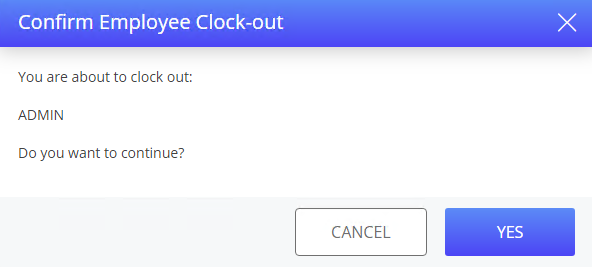
Select Yes. The user is clocked out from the shift successfully.
The user can also clock-out by selecting the Clock Out button in the User screen.
After clocking out, the user can clock-in with a different role also. This does not mean a different shift has begun. As along as the user does not perform Shift Reset, they are on the same shift irrespective of the role.
The user is not allowed to perform shift reset during working hours. Once the user performs a shift reset and clocks out following that, it means that the shift has ended. In such cases when the user clocks in again they are on a new shift. This affects the shift account.
Terminal Options Supported
|
Terminal Option |
Description |
|---|---|
|
37 (Disable printing of clock-in slip) |
If this terminal option is enabled, the clock-in slip is not printed when the employee clocks-in. |
|
38 (Disable printing of clock-out slip) |
If this terminal option is enabled, it disables the printing of clock-out slip. |
|
215 (Clock-out, Manager override with open checks) |
If this terminal option is enabled, the user can still clock-out with open checks when authorized by the manager. |
Important Points
-
The Select Role drop-down appears only when the user is clocking in. If a user who has already clocked in, logs on to the terminal, it does not appear.
-
The role is the same as the job code in IGCM.
-
The employees and job codes must be configured individually, and the employees must be mapped to one or more job codes in IGCM.
-
Only those job codes associated with the employee are listed in the Select Role drop-down.