Break Lock
The Break Lock function is used to recall a check which is open in another terminal of the same profit center. When a check is recalled from another terminal, it appears as a view only check.
Navigate to Jump Bar ➜ Functions Screen.
Select the Recall Check List or Recall Check Number function to recall a check from a different terminal within the same profit center. The Locked Check appears.
If Terminal Option 1461 (Enable break lock on locked check prompt) is enabled, the Locked Check prompt is displayed along with the View Only button at the terminal to reduce the number of clicks needed by users to break a lock of a check.
Terminal Option 1461 Enabled
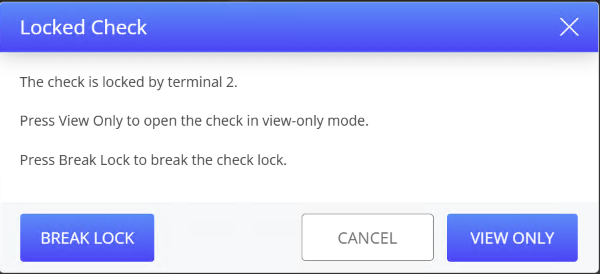
If Break Lock option is selected, a confirmation prompt is displayed.
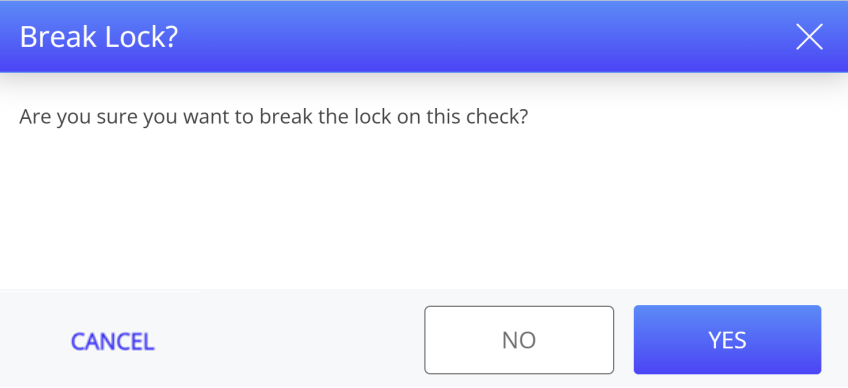
When Yes is selected, the check locked in another terminal is unlocked. Selecting No option takes users back to the previous prompt.
Terminal Option 1462 Disabled
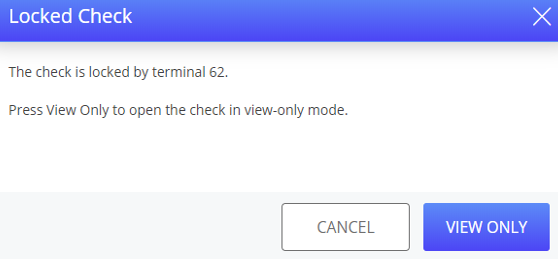
Select View Only. The check appears in view-only mode.
Select the Break Lock function. The Break Lock? prompt appears.
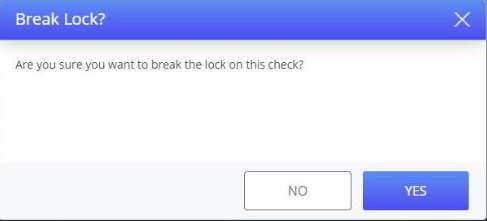
Select Yes. The lock is broken, and the check can be modified.
Important Points
-
The check recalled from another terminal opens in view-only mode in the current terminal only if it is open there. If the check is saved and not open in the other terminal, it does not appear in view-only mode when recalled in the current terminal.
-
When a check from another terminal is recalled in the current terminal, the latest save of the check is retrieved.
-
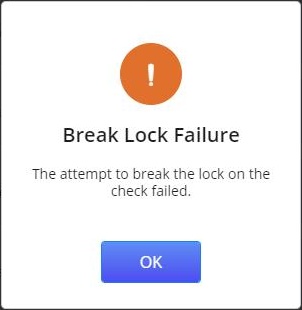
If the check is tendered in the other terminal while it is in view-only mode in the current terminal, and the Break Lock function is applied in the current terminal, the Break Lock Failure error prompt is displayed.
-
The Break Lock function must be used with caution as it can lead to discrepancies owing to the checks from different terminals getting mixed up. For instance, if there are two terminals, the check can be active in one, and in view-only in another. In this case, the user can break the lock in one terminal, and still tender the check in the other terminal, an item can be added in the check in one terminal, and the same can be tendered in the other terminal. In such scenarios, the user should be careful of not getting the terminals mixed up.