


Authorization
The user is allowed to authorize the check and complete the payment later while closing the check or adding a tip. The user can modify the existing authorization in the check to increase or decrease the authorization amount. Also, the user can remove the existing authorization to use another payment method for authorization and tendering. The user can tender the check using the authorization applied on the check.
Authorize
The Authorize function allows the user to authorize the check for payment.
Start a check and add items.
Navigate to Jump Bar ➜ Function Screen. The Function Screen appears.
Select Authorize. The Select Authorization Tender screen appears.
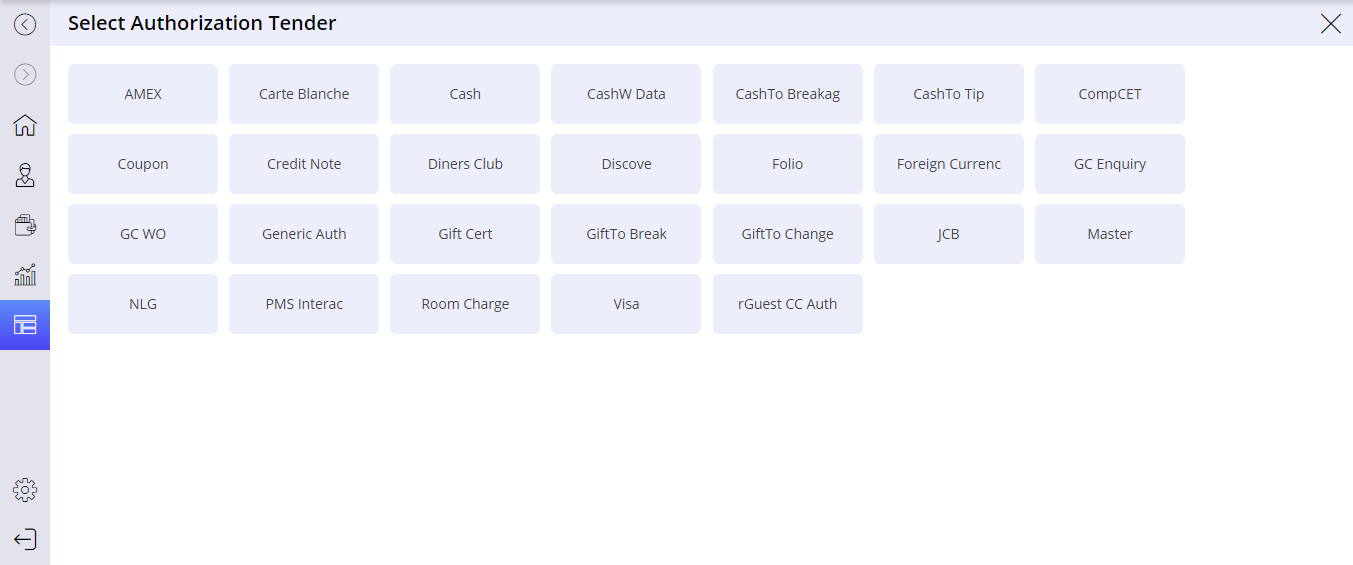
Select the required tender to authorize. Multiple authorizations can be added to a check. The user can also add the same tender as different authorizations.
Enter details based on the selected tender. The check is authorized and saved successfully.
When the check is authorized, it will be saved only if the Terminal Option 416 (Save the check after each new or modified authorization) is enabled.
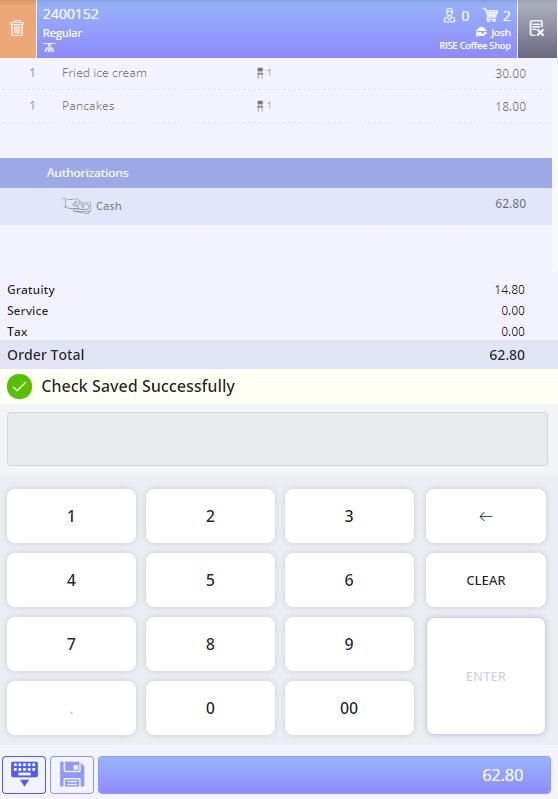
To add any further authorizations, the check must be recalled using the Recall function button. Once the check is recalled the user can perform all the check related operations like add items, void items, add authorizations and can modify the existing authorizations on the check.
The user cannot authorize an amount more the check value. However, if the Terminal Option 39 (Allow credit card preauthorization over the amount of check) is enabled, the user can authorize more than the check total using the customer’s credit card.
The user cannot authorize the check with negative balance. In an authorized check, the user cannot return an item that leaves a negative balance in the check. However, the user can return an item that leaves positive balance in the check.
The user cannot authorize the currently refunded check. Similarly, refund is not allowed on the authorized check.
When a check is fully authorized, the user cannot add authorization more than the check value. Once the check is fully authorized, on selecting Authorize function button, Modify Auth prompt appears, and the user cannot authorize further. When the check is not fully authorized, on selecting authorize button the Modify Auth prompt appears, the user can add new authorization or modify existing authorization. The auto discounts and auto remove taxes are not supported for authorization.
For reopened checks, authorization cannot be performed with tenders which have the Disable Auth to Reopened Check enabled.
When this checkbox is enabled for a particular tender, the corresponding tender does not appear in the reopened check, thereby making the authorization not supported. Terminal Option 415 (Display tenders on a reopened check) must be enabled to support this.
If the check is closed with multiple tenders, for which the Disable Auth to Reopened Check option is enabled for one tender and disabled for another, the results vary according to the selection of this checkbox. The following table shows different results:
|
Terminal Option 415 (Display tenders on a reopened check) |
Terminal Option 1318 (Preserve tip and authorization amount in reopened check) |
Terminal Option 1299 (Allow tip addition into check financial without any restrictions) |
Result |
|---|---|---|---|
|
Enabled |
Disabled |
Disabled |
The tender that supports auth appears with the amount 0. User can use Modify Auth function to enter appropriate value. |
|
Enabled |
Enabled |
Disabled |
The tender that supports auth appears with the corresponding amount excluding the tip. |
|
Enabled |
Enabled |
Enabled |
The tender that supports auth appears with the corresponding amount including the tip. |
|
Disabled |
Enabled/Disabled |
Enabled/Disabled |
The tender does not appear. |
Modify Authorize
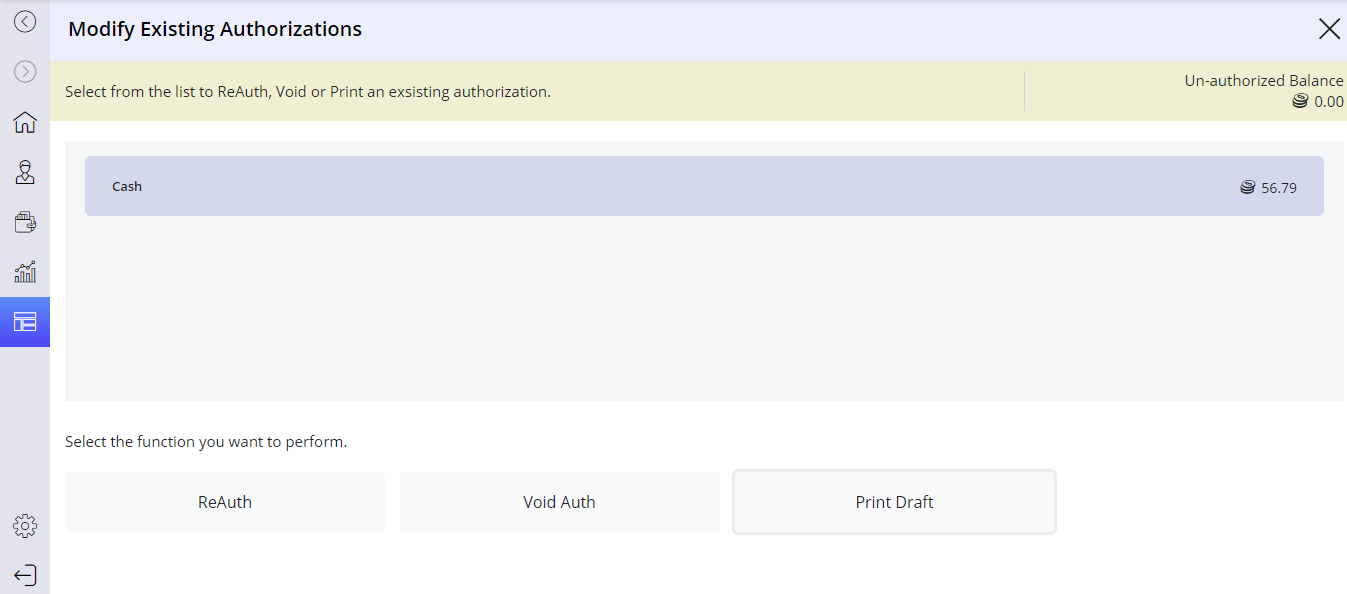
When the check is fully authorized and the user selects the Authorize function, the Modify Existing Authorization prompt appears.
ReAuth
The ReAuth function allows the user to reauthorize the check using the selected authorization. If the authorization amount is greater than the check total, the ReAuth function is used to reduce the authorization amount.
Select the required authorization.
Select the ReAuth function. The check is authorized successfully using the selected authorization.
Void Auth
The Void Auth function allows the user to void the selected authorization.
Select the required authorization.
Select the Void Auth function. A confirmation prompt appears.
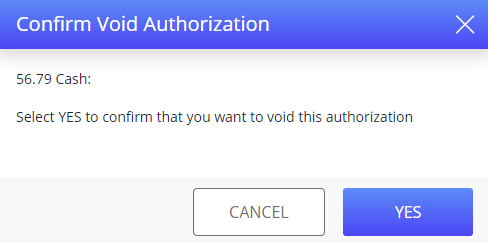
Select Yes. The selected authorization is voided successfully.
Print Draft
The Print Draft function allows the user to print the authorization details.
Select the required authorization.
Select the Print Draft function. The authorization details of the check are printed successfully.
The printed draft receipt includes a signature section to capture the guest’s signature.
The CPF configuration must be done to print the authorization details in the receipts.
The user can also perform print draft using the Print Draft function button in the Function Screen.
An error message No Authorization Selected appears if the user selects any function without selecting authorization.
When the check is not fully authorized and the user selects the Authorize function, the Modify or Add an Auth screen appears. The Modify or Add an Auth screen contains the Un-authorized balance, the tenders authorized in the check.
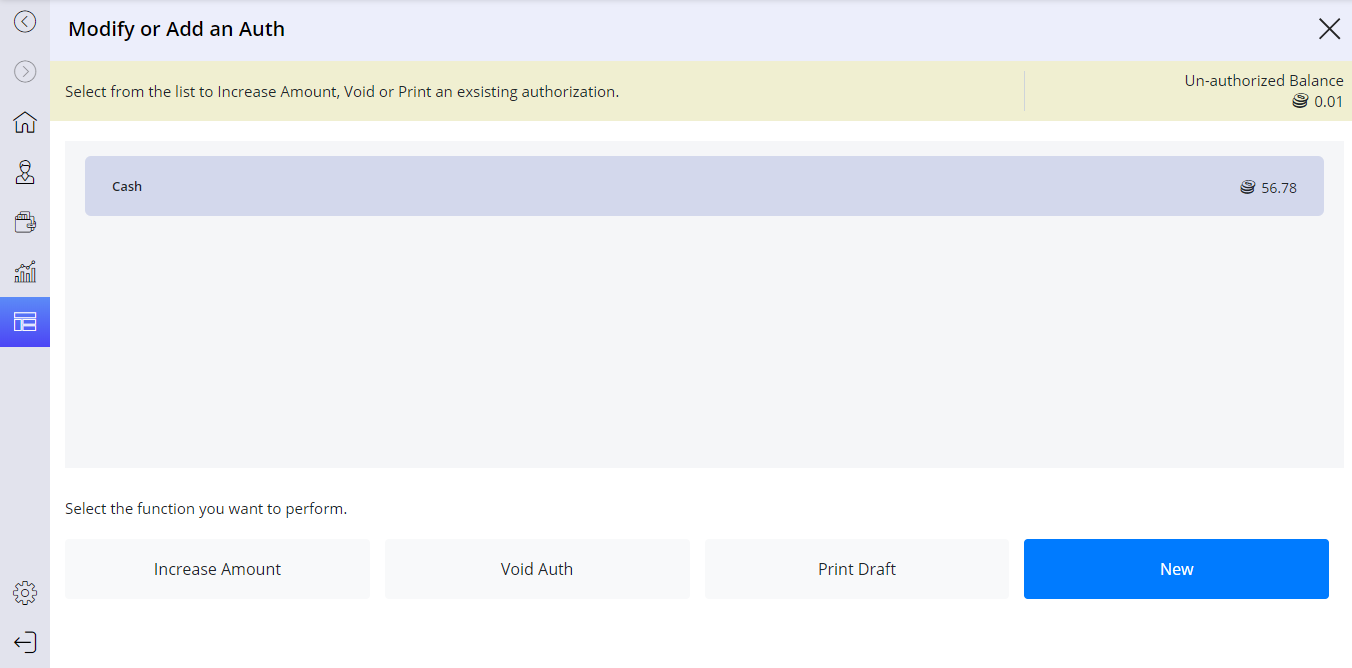
Increase Amount
The Increase Amount function allows the user to increase the authorization amount of the selected authorization.
Select the required authorization.
Select the Increase Amount function. The authorization amount of the check is increased successfully.
For more information about Void Auth, refer to the Void Auth section.
For more information about Print Draft, refer to the Print Auth section.
An error message No Authorization Selected appears if the user selects any function without selecting authorization.
Coupon will always retain its value, so ReAuth and Increase Amount options are disabled for coupon authorization.
New
The New function allows the user to select the new authorization for the check.
Select the New function. The Select Authorization Tender screen appears.
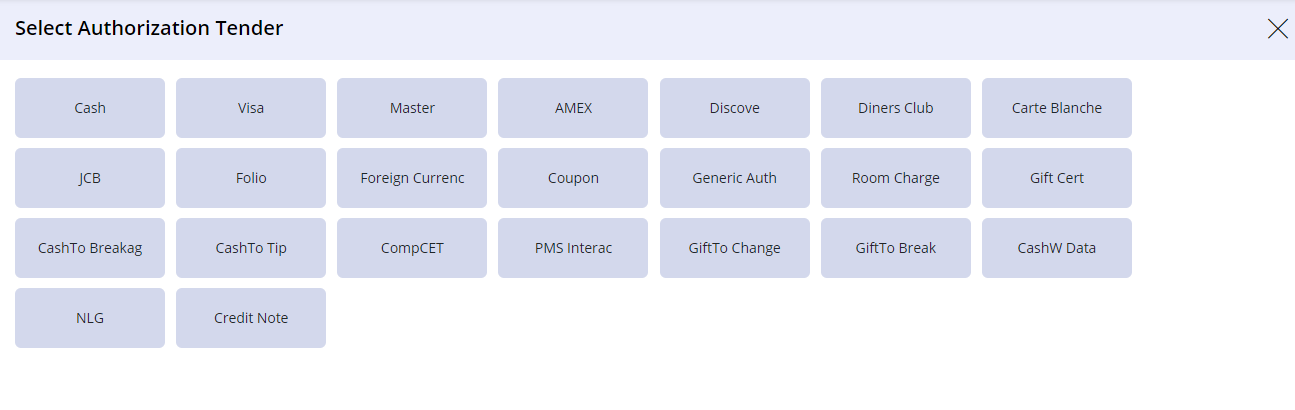
Select the required tender to authorize the check. The check is authorized successfully using new tender.
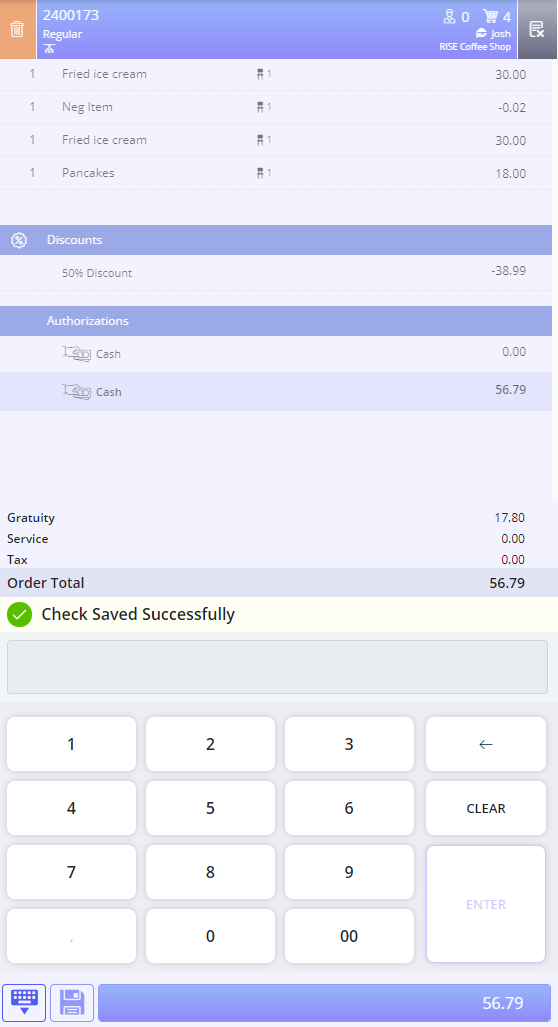
Accept Authorization
The Accept function allows the user to accept the selected authorization in the check to tender the check.
Navigate to Jump Bar ➜ Function Screen. The Function Screen appears.
Select Accept. The Tender Existing Authorizations screen appears.
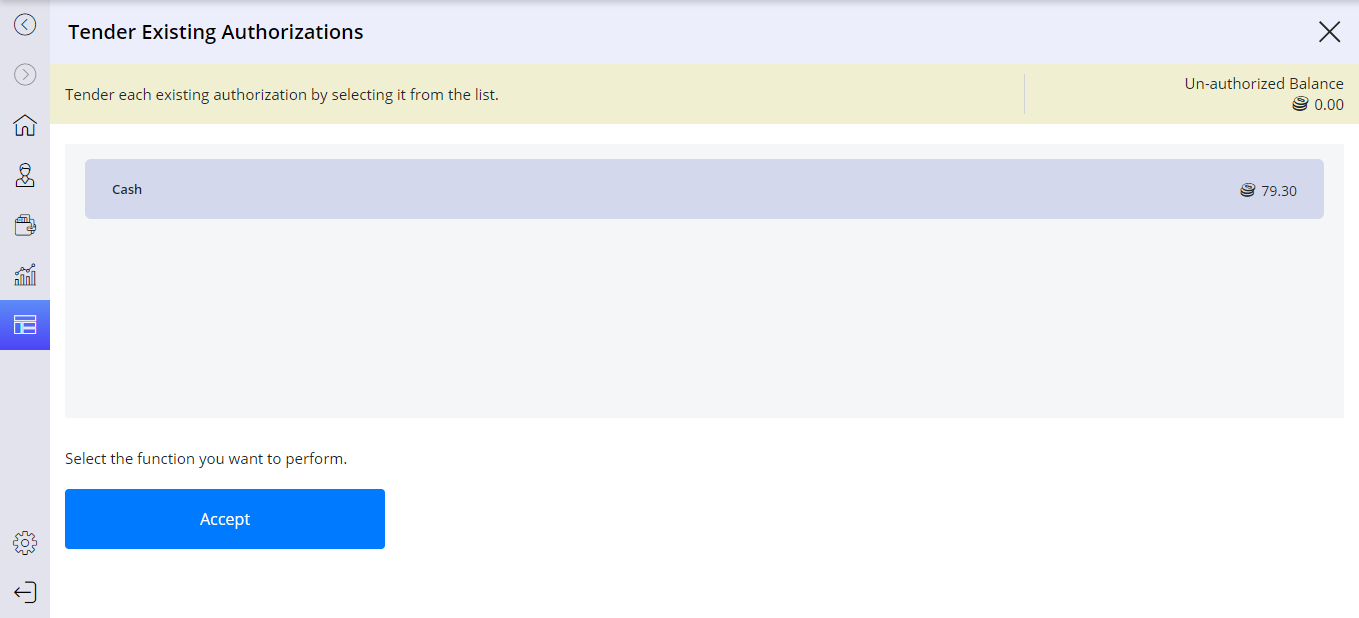
Select the required authorization.
Select Accept. A confirmation prompt appears.
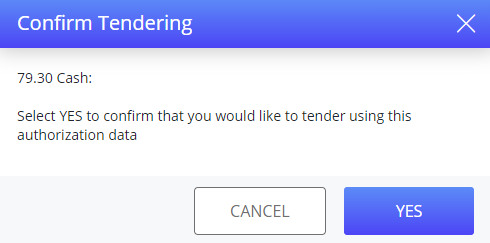
Select Yes. The check is tendered successfully.
If a tip amount is prompted during tender, tip value is added along with the authorized amount. If a tip amount is already available in the check and tip prompt configured to appear in external payment device, the user can either accept the tip amount or modify it by entering the tip amount in the external payment device.
Void Auth
The Void Auth function allows the user to void the authorization in the check. The void authorization makes the auth value zero, the authorization cannot be removed and can be added as tender for CC Auth. For other tenders it is removed from the check completely. The authorization can also be voided using the Authorize function button and Delete icon in the Check View.
Navigate to Jump Bar ➜ Function Screen. The Function Screen appears.
Select Void Auth. If there is no open check, the Select Open Check prompt appears.
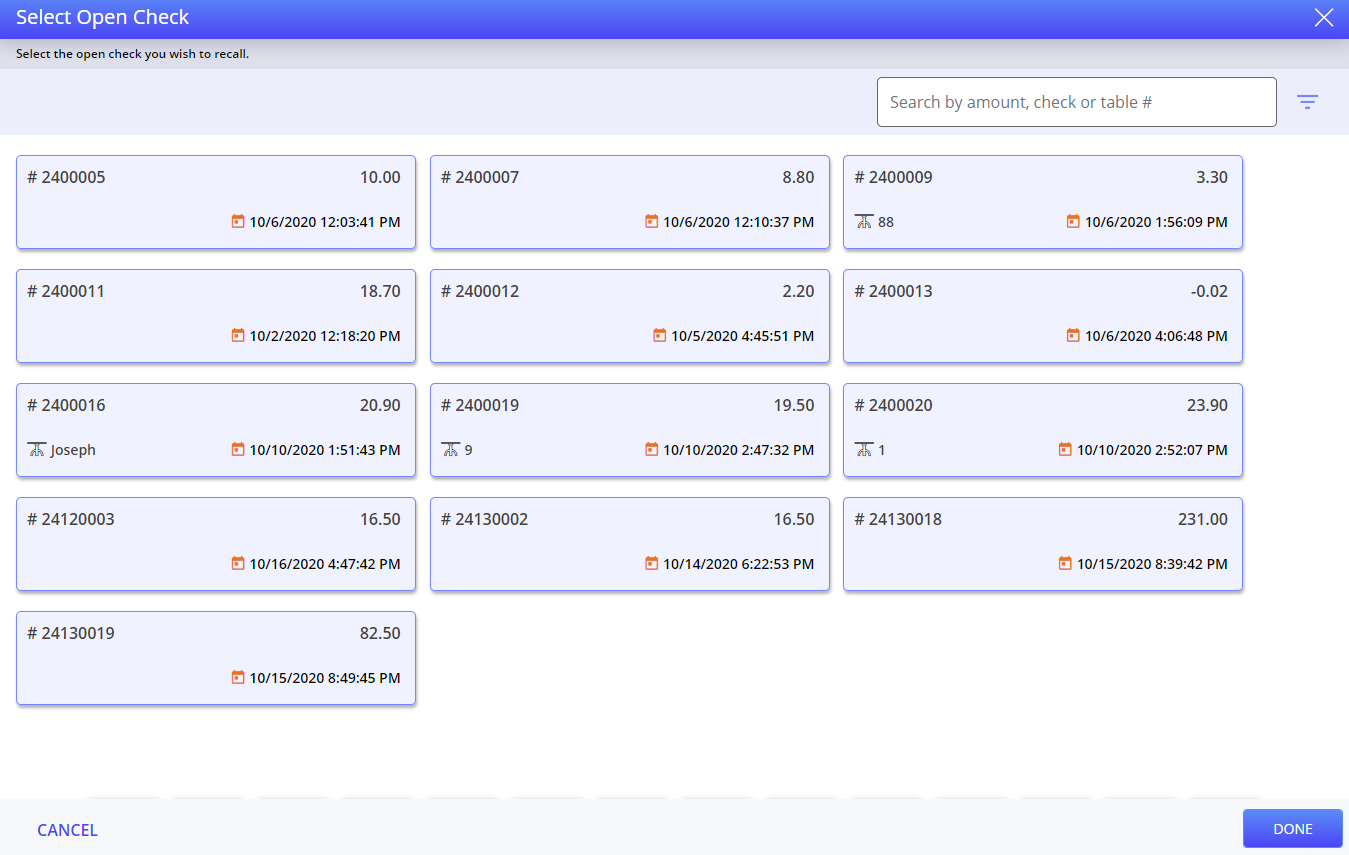
The user can search for the required check by entering the check number.
Select the open check. Pre-Auth: Void Data screen appears.
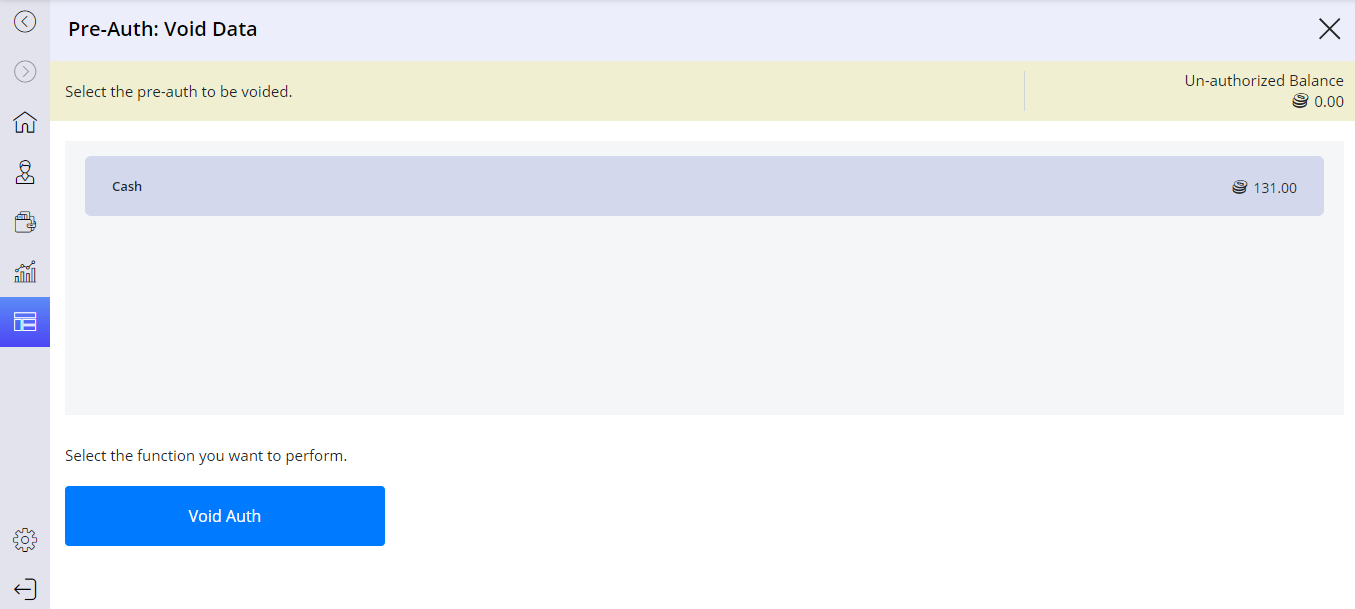
Select the required authorization to void.
Select Void Auth. A confirmation prompt appears.
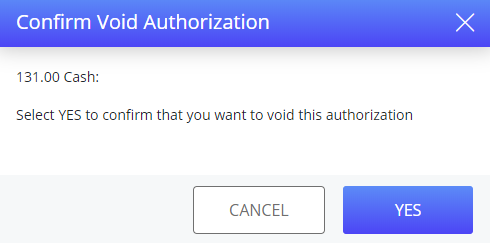
Select Yes. The authorization is voided successfully.
On voiding the credit card authorization, auth amount is reduced to zero but authorization still exists on the check. After voiding authorization, the cancel authorization message will not be sent to the third-party. If the user tenders the voided preauthorized credit card, POS Terminal reauthorizes the credit card for the check remaining payment amount.
Auth Benefits
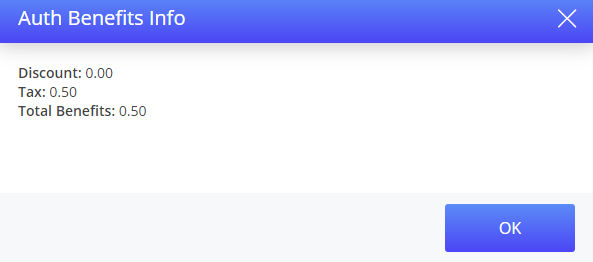
The Auth Benefits function is used to display the discounts and taxes, if any associated with the authorizations applied on a check. This function can be performed on an open check with authorization tender that have Auto Discount or Auto Remove Tax enabled.
When Terminal Option 1301 (Apply tender benefits during authorization) is enabled, and a check is authorized with a GA tender, any benefits associated with the tender such as the removal of tax or application of discount are automatically applied to the check.
The Auth Benefits function cannot be used when this terminal option is enabled.
Create a check and add items.
Authorize the check.
Navigate to the Function Screen and select Auth Benefits. The Auth Benefits Info prompt is displayed.
Credit Card Authorization
The rGuest CC Auth button allows the user to apply a credit card authorization to the check using Agilysys Pay interface. The credit card transaction needs to be authorized; checked against folio accounts; have tips, gratuities, and discounts applied against it; and finally tendered. This function button is available in the Main Screen also.
A credit card authorization checks the credit card to verify whether the funds are available for tendering the check (plus a tip). The open check is necessary to authorize a charge to a credit card.
Start a check and add items.
Navigate to Jump Bar ➜ Function Screen. The Function Screen appears.
Select Authorize. The Select Authorization Tender prompt appears.
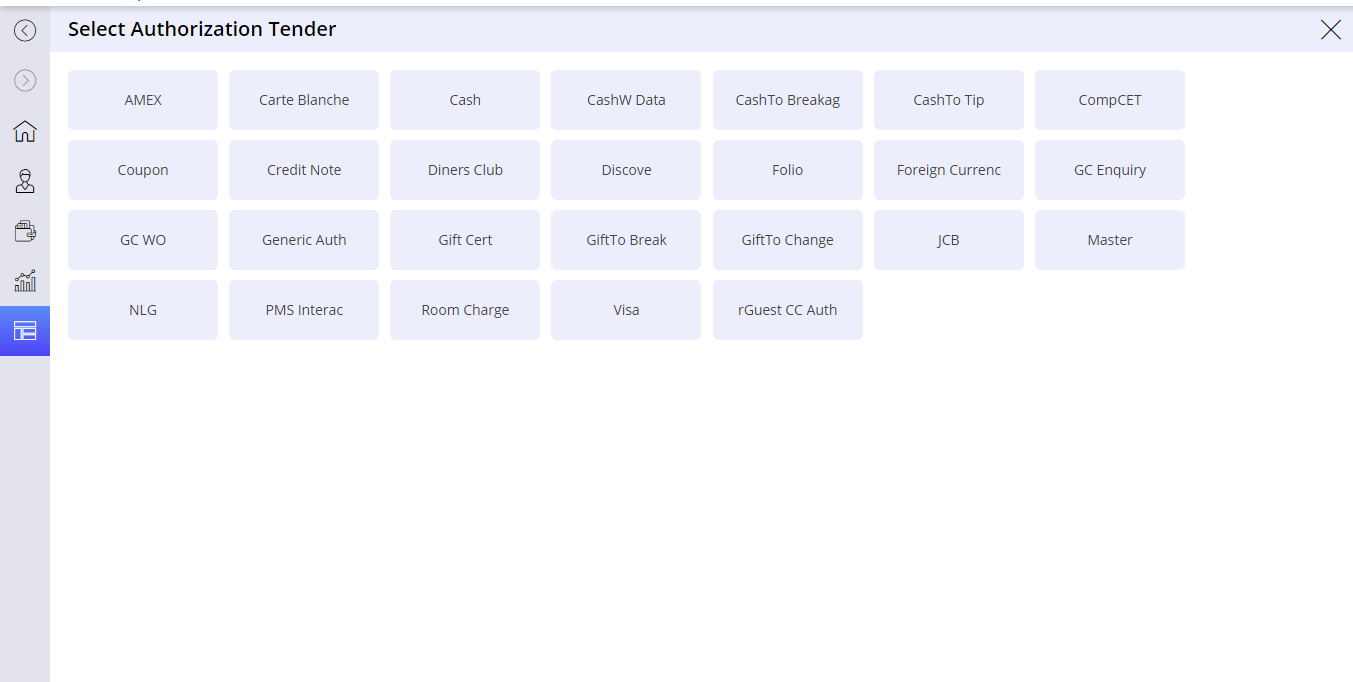
Select rGuest CC Auth. The rGuest CC Auth prompt appears.
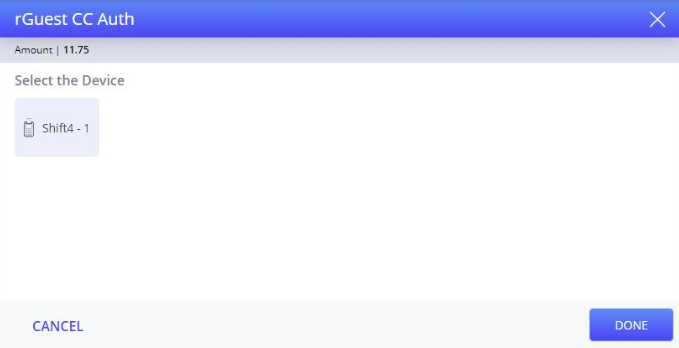
Select the device.
Select Done. The request is sent to the respective device and the check is authorized successfully.
For more information about Credit Card Authorization, refer to the Authorize section. The rGuest CC Auth function in the Function Screen is not supported for the POS terminal.
If Terminal Option 1338 (Restricting tip payment through credit card) is enabled, the check is tendered directly without any tip prompt in both terminal and the payment device.
Print Draft
The Print Draft function allows the user to print the authorization applied in a check. In order to print the authorization details, the respective CPF (Check Printing Format) details must be configured.
Start a check and add items.
Authorize the check. In this example, the check is authorized with the Cash tender and saved.
Sample Check Screen
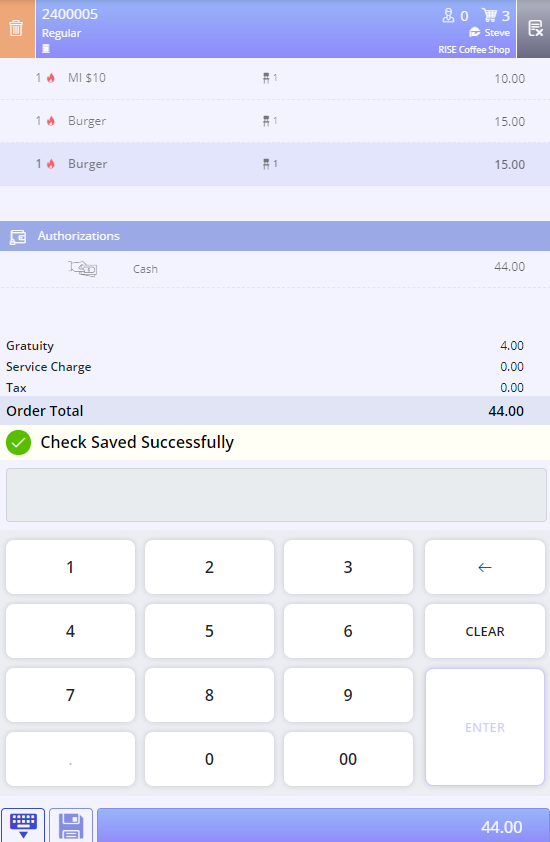
Recall the saved check.
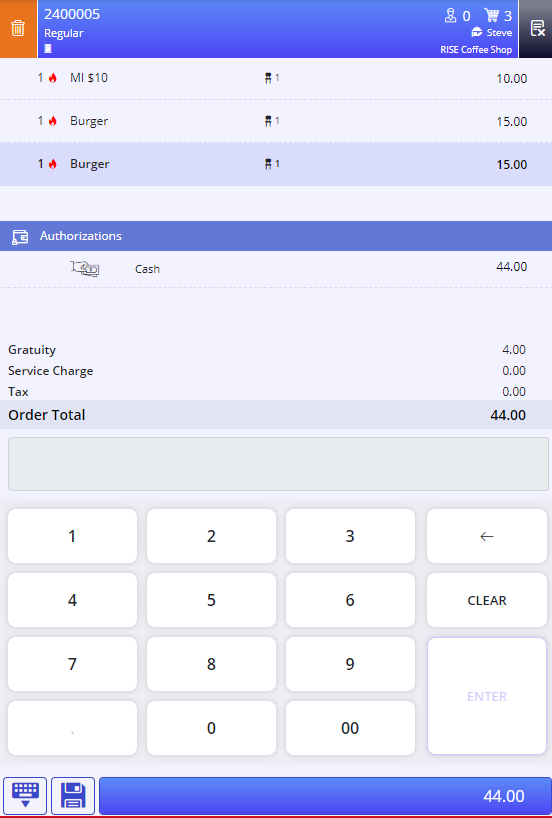
Navigate to Jump Bar ➜ Function Screen. The Function Screen appears.
Select the Print Draft function. The Tender Existing Authorization prompt appears.
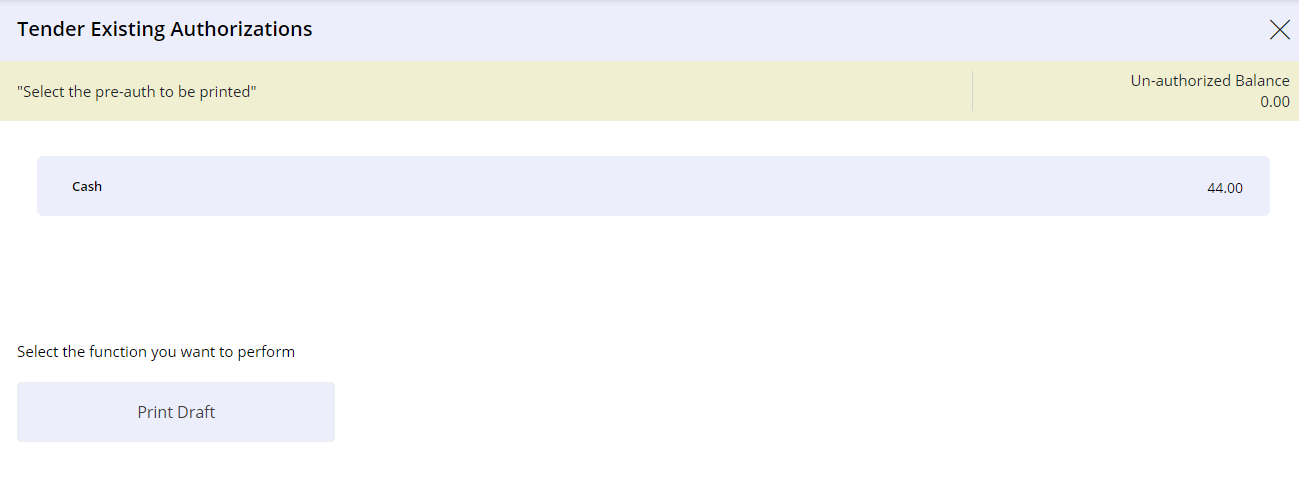
Select the authorization from the list.
Select Print Draft. A message Auth Draft Printed Successfully appears.
The sales draft is printed only when the date in the Enterprise menu in IGCM is in the MM/DD/YYYY format.
Terminal Options Supported
|
Terminal Option |
Description |
|---|---|
|
260 (Include Payments Section on Receipt) |
If this terminal option is enabled, the current authorizations or partial tenders on a check and the remaining balance due is displayed in a payment section. This is used when saving a check with one or more authorizations or partial tenders, so the receipt shows the payment data along with the remaining balance. Customers who have enabled this terminal option will get any additional information returned by the PMS host system printed on the customer receipts for interactive account authorizations. If the customer does not wish to have the information printed, then the PMS host system does not return any information in the ARP in the sequence 17 placeholder. When this terminal option is disabled, the account name and additional details are not printed on the receipt. This is the behavior of this terminal option in releases prior to 3.3.0 with the additional information always being printed along with the account name. |
|
416 (Save the check after each new or modified authorization) |
If this terminal option is enabled, the check is automatically saved when an authorization is added to the check or an existing authorization is modified. The check will be saved even when the check is not fully authorized. When using Credit Card via Service Manager (verify code 146), this terminal option is ignored; when an authorization is added to the check, the authorization is immediately saved. |
|
480 (Print Guest Receipt When Check Is Fully Authorized) |
If this terminal option is enabled, the terminal automatically prints an itemized guest receipt when the check is fully authorized. |
|
39 (Allow credit card preauthorization over the amount of check) |
If this terminal option is enabled, the user can authorize the amount greater than the check total. |
|
356 (Prevent multiple tenders to the same interactive acct on check) |
If this terminal option is enabled, the user cannot perform multiple authorizations, tenders, or credits to the same interactive account on a check. Two accounts are considered to be same if the tender ID, account number, and extra tender data are same. |
|
355 (Prevent multiple tenders to same GA account on check) |
If this terminal option is enabled, the user cannot perform multiple authorizations, tenders, or credits to the same generic authorization account on a check. |
|
415 (Display tenders on a reopened check) |
If this terminal option is enabled and a tendered check is reopened, the newly reopened check displays the account number and tender description for each tender that was applied. During this operation, the Authorize function should not be selected or all remaining authorizations may be lost from the reopened check. The tender and tip amounts must be re-entered for each tender and only the Accept function must be used. When this terminal option is disabled and a tendered check is reopened, the newly reopened check does not display any of the original tender data. To tender the reopened check, the user must re-enter the tender data. |
|
87 (Skip confirmation for overriding tender preauthorization) |
If this terminal option is enabled, Override Preauth prompt is skipped during when cashier overrides a preauthorized tender. For example, A check preauthorized for Visa, but the cashier wants to override and settle to cash. Preauthorization tenders include credit card, room charge, folio, and generic authorization. It is not recommended to enable this terminal option if partial authorizations are used to tender amounts less than the balance due of the check. |
Automatic Increase of Zero-Dollar Authorizations to Check Total
InfoGenesis POS supports automatic increase of zero-dollar authorizations to the check total.
To support this, Terminal Option 1419 (Increase Zero Authorization to Check Balance) must be enabled.
-
When this terminal option is enabled, zero-dollar authorizations available in the check are automatically increased to the check total when tendered or accepted. If there are multiple authorizations available in the check, and the zero-dollar authorization is tendered or accepted, it is still increased to the check total, and the other existing authorizations are not considered.
-
When this terminal option is disabled, users must manually increase the zero-dollar authorization amount before tendering the check or accepting the authorization.
When Terminal Option 305 (Remove non-critical confirmation prompts) is enabled, the Tender Existing Authorizations prompt is not displayed while tendering or accepting the zero-dollar authorization. If disabled, the Tender Existing Authorizations appears when the user tries to tender or accept the zero-dollar authorization. In this case, the user can select Accept or Increase.
If Terminal Option 1419 (Increase Zero Authorization to Check Balance) is enabled, the zero-dollar auth is automatically increased when Accept is selected too, and there is no need to increase the authorization amount manually.
For the Increase button to appear in the Tender Existing Authorizations prompt, Terminal Option 1278 (Enable Authorization Fraud Prevention Feature) must be enabled.