


Add Delivery Details
The Add Delivery Details function is used to input the following delivery information while sending an order to the KDS and get the same printed on kitchen printer chits as well:
-
Customer name
-
Delivery type
-
Phone number of the customer
-
Address for the delivery
-
Pick up time of the order
-
Postal Code of the address where the delivery must be made
-
Cutlery
Based on the delivery type selected only relevant fields are mandatory. This saves time for users when trying to modify or update the guest details for a closed check.
Email address will not be masked in the delivery details.
Refer to the following table for information on optional and mandatory fields for each delivery type:
|
Delivery Type |
Field |
Status |
|---|---|---|
|
Dine-in |
Customer Name |
Mandatory |
|
Delivery Type |
Mandatory |
|
|
Mobile Number |
Optional |
|
|
Email Address |
Optional |
|
|
Address |
Optional |
|
|
Postal Code |
Optional |
|
|
Pickup Date and Time |
Optional |
|
|
Cutlery |
Optional |
|
|
Pick-up |
Customer Name |
Mandatory |
|
Delivery Type |
Mandatory |
|
|
Mobile Number |
Optional |
|
|
Email Address |
Optional |
|
|
Address |
Optional |
|
|
Postal Code |
Optional |
|
|
Pickup Date and Time |
Mandatory |
|
|
Cutlery |
Optional |
|
|
Delivery |
Customer Name |
Mandatory |
|
Delivery Type |
Mandatory |
|
|
Mobile Number |
Optional |
|
|
Email Address |
Optional |
|
|
Address |
Mandatory |
|
|
Postal Code |
Mandatory |
|
|
Pickup Date and Time |
Optional |
|
|
Cutlery |
Optional |
The details entered in this screen are displayed in the KP chits based on the configuration in the Universal Desktop and the IGCM.
At the POS terminal,
Open a check and add items to it.
Navigate to Jump Bar ➜ Function Screen.
Select Add Delivery Details function. The Add Delivery Details prompt appears.
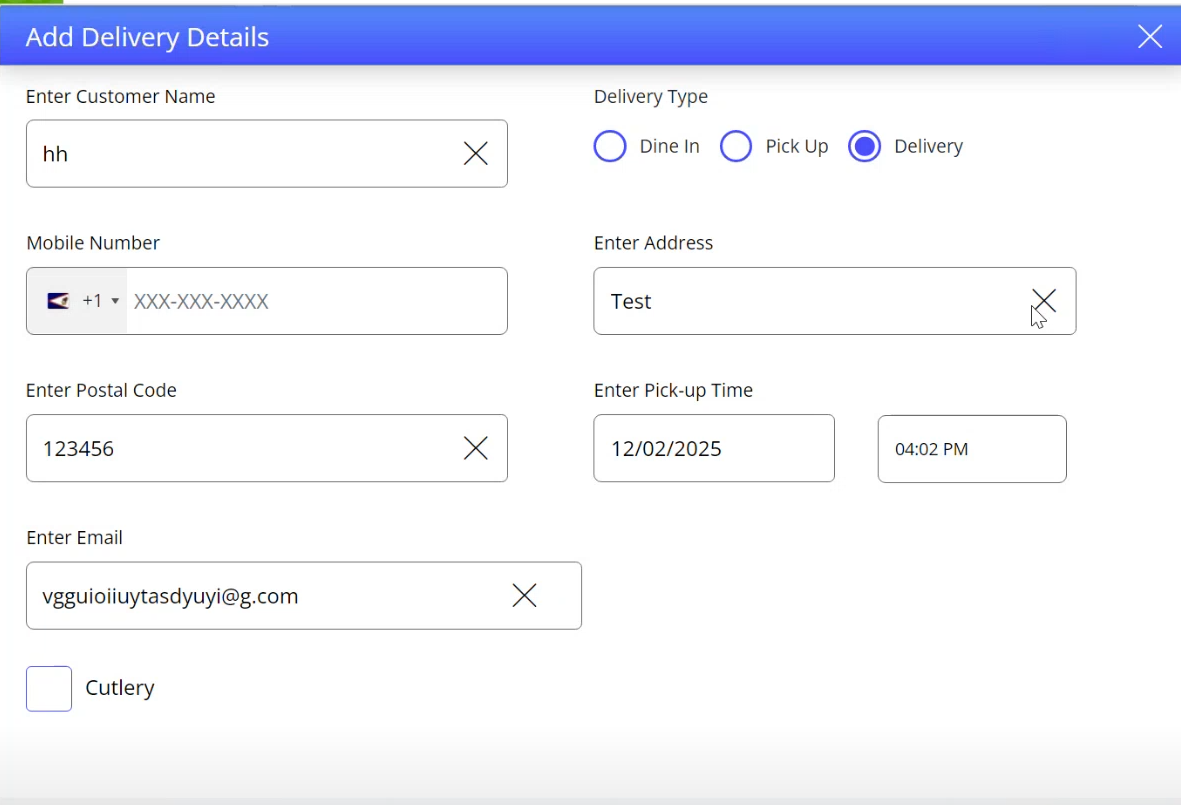
Refer to the following table and enter the details:
|
Field |
Description |
|---|---|
|
Enter Customer Name |
Enter the name of customer. |
|
Delivery Type |
Select the appropriate radio button from the following available options:
When Pick Up or Delivery is selected, users must provide input for either Mobile Number or Email Address to proceed further. |
|
Mobile Number |
Enter the mobile number of the customer. |
|
Enter Address |
Enter the address of delivery. |
|
Enter Postal Code |
Enter the postal code of delivery address. |
|
Enter Pick-up Time |
Enter the date and time of order pick up. |
|
Cutlery |
If enabled, cutlery is delivered with the order. |
Select Done. The details entered above are displayed on the kitchen display system and are printed on the kitchen receipt.
When a closed check or a saved check containing delivery details is reopened to modify the delivery information, the mandatory fields must be changed based on the updated delivery type. Any input previously entered for the optional fields are retained. This is applicable for 12.x server only.
If any mandatory field is skipped out, the POS terminal displays a message.
Manage Food Locker Logistics Option through Terminal
InfoGenesis POS supports food locker logistics when orders placed through the kiosk use the food locker delivery fulfillment option. Users can seamlessly switch the fulfillment type from an external fulfillment (Food Locker) to a POS‑managed fulfilment such as Dine in or Pickup.
This prevents any operational issues that may occur due to accidental or unintended modifications made to checks mapped to Food Locker delivery type.
Along with this, users can also perform the following actions at the terminal through the Add Delivery Details (#2051) function button:
-
Remove guest details from the delivery form through button
-
Clear all previously entered values and send updated information to Kitchen
Recall a check created at the kiosk.
Navigate to Functions ➜ Add Delivery Details. If the fulfillment type mapped is Food
Locker, the Confirm Fulfillment Change prompt is displayed.
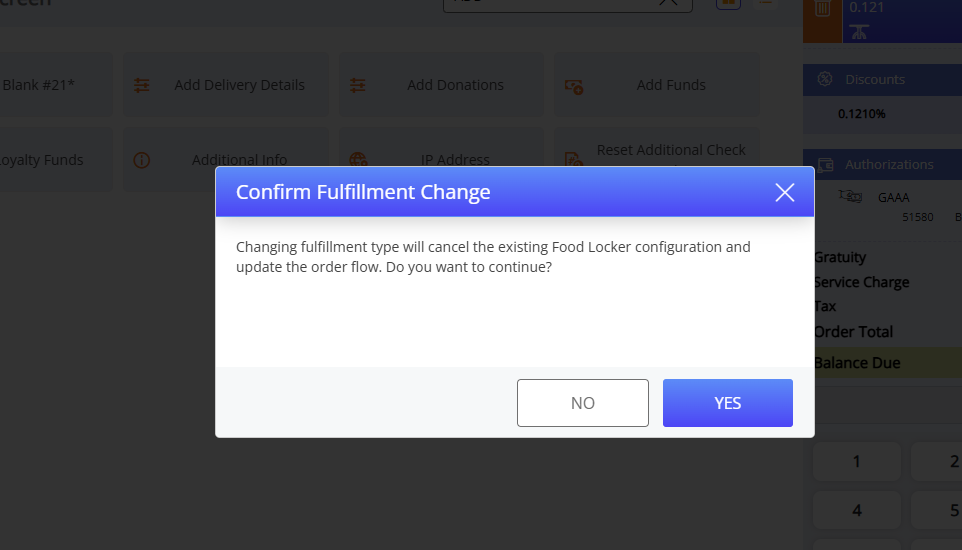
Users can select Yes or No in the prompt.
-
Yes - When Yes is selected, Food Locker as a logistics option is removed and users must select a delivery type from the screen.
-
No - When No is selected, Food Locker delivery type is retained, and the prompt is closed along with the Delivery Details screen.
Once the logistics option is modified to one of the delivery type options available on the terminal, the fulfillment type changes from external to a POS-managed delivery.
Users cannot reassign Food Locker as the logistics option and fulfillment type through POS terminal since only the following delivery type options are available at the terminal:
-
Dine in
-
Pickup
-
Delivery
Updating Delivery Details
Users can update guest details partially or remove all entered details in a single attempt.
Refer to the following table for information on options available for updating delivery details:
|
Field |
Description |
|---|---|
|
|
When this button is selected, all entered values are removed and users can refill all the fields. |
|
|
When this button is selected, a confirmation prompt, This will remove the delivery details added to this order. These details will not be used in further order processing. Do you want to continue, is displayed. Users can select Yes or No in this prompt.
|
Enter the guest details and select Done. A toast message is displayed to indicate that the guest information is updated.