


Server Sales Report
In the legacy Report Module, the Server Sales Report was known as the Server Sales by Primary Job Code Report. This report provides the ability to see the revenue by the primary job code of each server. The report shows other check data, cover and check counts, and averages for each server.
This report includes the following fields:
|
Field |
Description |
|---|---|
|
Server ID |
The employee ID of the server. |
|
Server Name |
The name of the server. |
|
Net Revenue |
Gross revenue minus discounts and taxes. |
|
Discount |
The dollar amount of all discounts. |
|
Gratuity |
Amount of gratuity added to the checks. |
|
Tip |
Amount of tips added to the checks. |
|
Tip + Grat |
Total amount of tips and gratuities added to the checks. |
|
Service Charge |
Amount of service charges added to the checks. |
|
# of Checks |
Quantity of checks that were closed. |
|
# of Covers |
Quantity of covers that were on closed checks. |
|
Avg Check |
Net Revenue divided by the number of checks. |
|
Avg Cover |
The average net revenue amount per net cover. |
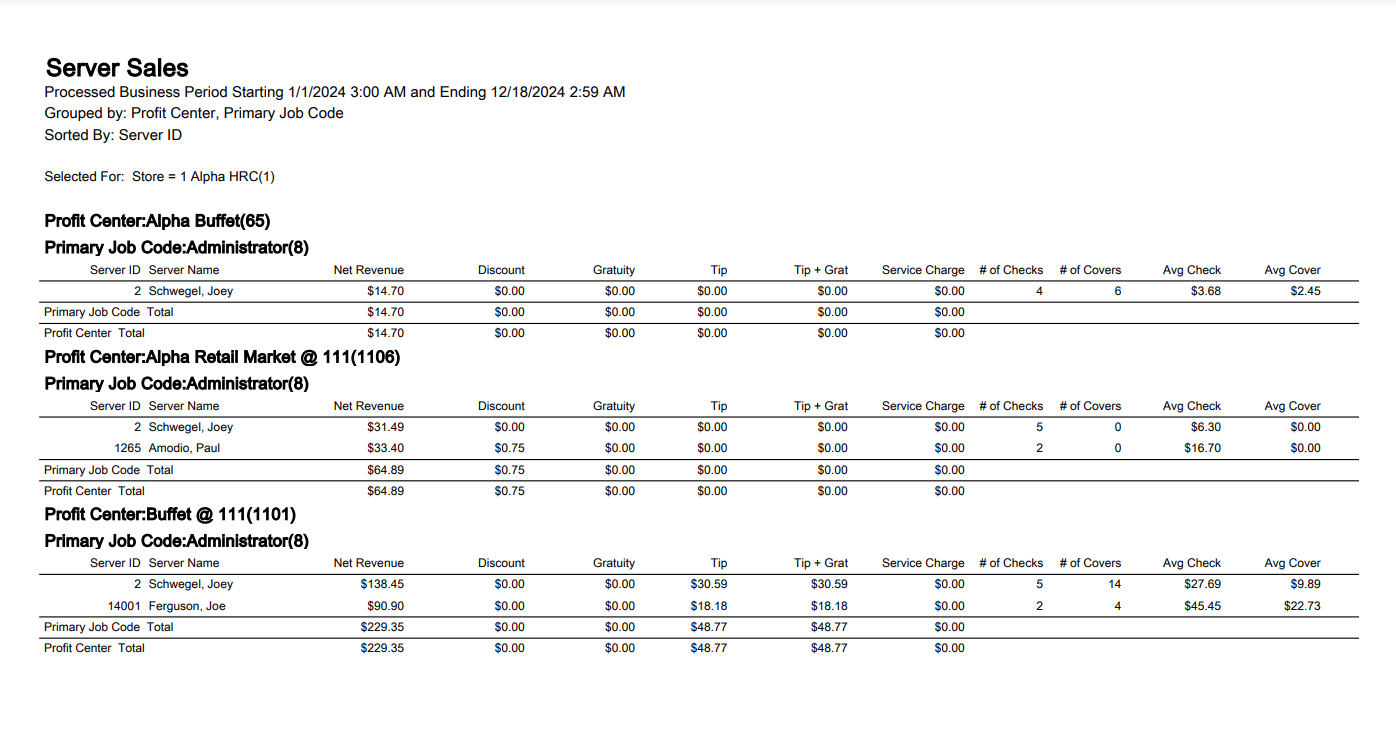
The report supports a variety of sorting, grouping, and filtering options.
Server Sales Report
|
Grouping Levels (3 possible) |
Sorting Choices |
Filters |
|---|---|---|
|
Profit Center * |
Average Check |
Business Period (on Date Ranges tab) |
|
Profit Center Group |
Average Cover |
Store * |
|
Primary Job Code * |
Checks |
Profit Center |
|
* = default setting |
Covers |
Profit Center Group |
|
Discount |
Meal Period |
|
|
Gratuity |
Check Type |
|
|
Net Revenue |
Server |
|
|
Server ID * |
||
|
Server Name |
||
|
Service Charge |
||
|
Tip + Grat |
||
|
Tip |
Report Reconciliation
When the report is grouped by Profit Center:
-
Net Revenue and Discount Amount totals balance with the respective totals in the Sales Performance Summary Report.
-
The number of checks and covers balance with corresponding columns in the Sales Performance Summary Report for each server.
-
Gratuity Amount totals balance with the Gratuity Amount in the Gratuity and Service Charge Summary Report (when the report is filtered by Gratuity type = Gratuity).
-
Service Charge Amount totals balance with the Gratuity Amount in the Gratuity and Service Charge Summary Report (when the report is filtered by Gratuity type = Service Charge).
-
The Tips Amount Total balances with the Total Tips Amount in the Closed Checks Report.