


Meal Swipe Entitlements for Guests through Loyalty & Promotions
InfoGenesis POS integration with Agilysys Loyalty & Promotions has been enhanced to connect with third-party vendors to authorize and redeem meal swipe entitlements for guests within the dining facilities.
This integration enables users to perform the following functionality at the terminal:
-
Perform badge inquiry to identify the guest
-
Redeem meal swipe entitlement only upon authorization of guests
-
Apply entitlement from next meal period to settle current meal period check within the same day
Prerequisites
The following configurations must be performed in the Agilysys Loyalty Suite admin portal and obtained before beginning the setup in IGCM:
-
Meal period code (Loyalty Setup ➜ Meal Period Configuration)
-
Tender bucket value (Loyalty Setup ➜ Bucket Configuration)
The latest version of the following add-ons must be mapped to the Integration Application Service module type in License Administration:
-
IAS_Channel_NAME_<version>
-
IAS_Adapter_NAME_<version>
Contact Agilysys for this mapping.
Changes Made in IGCM
-
A new adapter field, Engage.MealPeriodCode, has been added to the Loyalty ACES adapter settings displayed in the IAS Adapter Configuration menu (POS Configuration ➜Interfaces ➜ IAS Configuration)
Configurations in IGCM
Configure IAS Adapter Configuration Group
Navigate to POS Configuration ➜ Interfaces ➜ IAS Adapter Configuration Group.
Select Add.
Enter the preferred name for the group in the Configuration Group field.
Select Save.
Configure IAS Adapter
Navigate to POS Configuration ➜ Interfaces ➜ IAS Adapter Configuration.
Select Add.
Refer to the following table and fill in the fields:
|
Field |
Description |
|---|---|
|
ID |
Enter an ID for the IAS Adapter. |
|
Configuration Name |
Enter the preferred name for the IAS Adapter. |
|
Use Global IAS |
Leave this checkbox enabled. |
Under the Settings submenu, enter values for the fields as captured in the following table:
|
Field |
Description |
|---|---|
|
Channel Name |
Select Payment from the drop-down list. |
|
Adapter Name |
Select Loyalty ACES from the drop-down list. |
|
Adapter Category |
This value is auto filled as Loyalty when the channel and adapter names are selected. It is a read-only field and cannot be edited. |
|
Field |
Required |
Description |
|---|---|---|
|
Engage.MemChargePayMethodId |
No |
This value can be obtained from the PaymentMethodId column of the ARPostingConfiguration table in the Visual One Accounting (usually V1Acct) database. If no records exist for the profit center, contact Loyalty & Promotions Engineering. |
|
Engage.MemChargePostPropId |
No |
This value can be obtained from the PostToPropertyId column of the ARPostingConfiguration table in the Visual One Accounting (usually V1Acct) database. If no records exist for the profit center, contact Loyalty & Promotions Engineering. |
|
Engage.Password |
Yes |
The password configured in Loyalty & Promotions for the external system (InfoGenesis). To view the password, navigate to Loyalty & Promotions ➜ External System Configuration ➜ External System and enter the value available in the Password field. |
|
Engage.url |
Yes |
The URL where Loyalty & Promotions is hosted. Default: https://<IP Address > |
|
Engage.username |
Yes |
The username configured in Loyalty & Promotions for the external system (InfoGenesis). To view the username, navigate to Loyalty & Promotions ➜ External System Configuration ➜ External System and enter the value available in the User Name field. |
|
Engage.CardPin |
No |
The pin obtained from Loyalty & Promotions system. |
|
Engage.sourceSiteId |
Yes |
Site ID configured in Loyalty & Promotions. To view the sourceSiteID, navigate to Loyalty & Promotions ➜ Corporate Setup ➜ Site and enter the value available in the Site ID column. |
|
Engage.sourceCorpId |
Yes |
Corporate ID configured in Loyalty & Promotions. To view the sourceCorpID, navigate to Loyalty & Promotions ➜ Corporate Setup ➜ Site and enter the value available in the Corporate ID column. |
|
Engage.sourceSystemName |
Yes |
The system name configured in Loyalty & Promotions for the external system (InfoGenesis). For example, INFOGENESIS. To view the external code, navigate to Loyalty & Promotions ➜ External System Configuration ➜ External System and enter the value available in the System Code field. The value entered here must match the value entered in the Engage.SourceSystemCode field. |
|
Engage.GuestCardNumber |
No |
The default guest card number obtained from Loyalty & Promotions. |
|
Engage.GuestUniqueID |
No |
The unique ID for guest obtained from Loyalty & Promotions. |
|
Engage.SourceSystemCode |
Yes |
The system code configured in Loyalty & Promotions for the external system (InfoGenesis). For example, INFOGENESIS. To view the external code, navigate to Loyalty & Promotions ➜ External System Configuration ➜ External System and enter the value available in the System Code field. The value entered here must match the value entered in the Engage.SourceSystemName field. |
|
Engage.corpCode |
Yes |
The Corp Code obtained from Loyalty & Promotions. Navigate to Loyalty & Promotions ➜ Corporate Setup > Corporate and double-click the corporate record. In the pop-up screen that appears, the value in the Corporate Code field is the corporate code. |
|
Engage.tenderCode |
Yes |
The card code of a tender created in InfoGenesis must be mapped to a corresponding Group Bucket code provided by Loyalty & Promotions for that tender. Sample mapping: Meal Swipe=MEALCREDS, Cash=CSH, Points=CsBucket10, Vouchers=PtBucket2 This loyalty integration will work only for the tender codes mapped here. |
|
Engage.RequestType |
Yes |
Configure the value as 10011 for InfoGenesis. This will obtain profile info, bucket balances, and vouchers info from the Loyalty & Promotions system. 10000 - fetches profile info from the Loyalty & Promotions system 01000 - fetches Bucket Balances from the Loyalty & Promotions system 00100 - fetches Promotion info from the Loyalty & Promotions system 00010 - fetches Golf Rounds info from the Loyalty & Promotions system 00001 - fetches Vouchers info from the Loyalty & Promotions system |
|
Engage.KeySize |
No |
The Key Size for PIN encryption provided by Loyalty & Promotions Loyalty & Promotions. The key size must always be 256. |
|
Engage.BlockSize |
No |
The Block Size for PIN encryption provided by Loyalty & Promotions. The block size must always be 128. |
|
Engage.HashKey |
No |
The Hash Key for PIN encryption obtained from Loyalty & Promotions. Navigate to the folder where Loyalty & Promotions is hosted, for example, C:\inetpub\wwwroot\AgilysysEngage and open the appsettings.json file. The value in the ENCRYPTION KEY field is the hash key. |
|
Engage.Salt |
No |
The Salt for PIN encryption obtained from Loyalty & Promotions. Navigate to the folder where Loyalty & Promotions is hosted, for example, C:\inetpub\wwwroot\AgilysysEngage and open the appsettings.json file. The value in the IV_KEY field is the hash key. |
|
Engage.MealPeriodCode |
Yes |
The mapping between Meal period ID generated in IGCM and the meal period obtained from Loyalty & Promotions. Multiple mappings must be separated by comma. Sample mapping: 1=Breakfast,2=Lunch,3=Dinner |
In the Tender Mapping submenu, select the tender configured from the drop-down list. Only one tender can be configured for a single IAS adapter configuration group.
Configure Tender
Navigate to POS Configuration ➜ Financials ➜ Tender.
Select Add to create a new tender record.
Under the Basic Details, enter the preferred tender name.
Select Tender Verification Code 239 (Engage Points) from the Verification Code drop-down list.
Navigate to Properties submenu and select Remaining Balance/Name in the Franking Code drop-down list. This must be configured to display the entitlement redemption and remaining balance on the check.
Select the adapter as created in the Adapter Configuration submenu.
Enter the Card Code value Meal Swipe.
Select Save.
Configure Terminal Profile Settings
Navigate to POS Configuration ➜ Profiler ➜ POS Terminal.
Select the appropriate profile and select Edit.
Navigate to Specific Details submenu and select the configured IAS Adapter Configuration Group from the Configuration Group drop-down list.
Navigate to the Files submenu and select the Settings.ini File.
In the Integration Application Configuration section, configure the following fields:
|
Field |
Description |
|---|---|
|
GlobalIAS |
https://10.10.10.10:8118 Replace 10.10.10.10 with the IP address of the Application server. |
|
IsIAS |
Enter true. |
Select Save.
Implementation at the Terminal
Open a check and add preferred items.
Navigate to the Tender screen and select the tender configured with Tender Verification Code 239 (Engage Points). A screen prompting for the guest’s badge number is displayed.
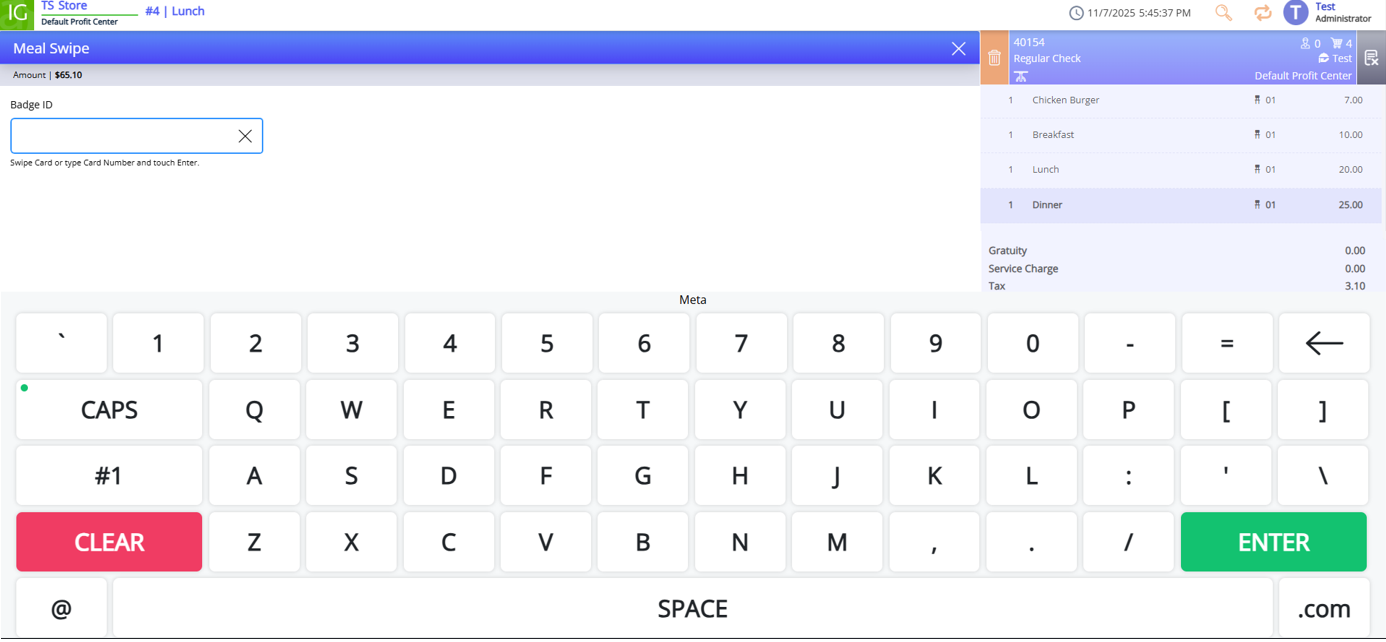
Enter the badge ID and select Next.
If the check amount is within the meal period entitlement amount, meal swipe tender is applied on the check, and the transaction is closed.
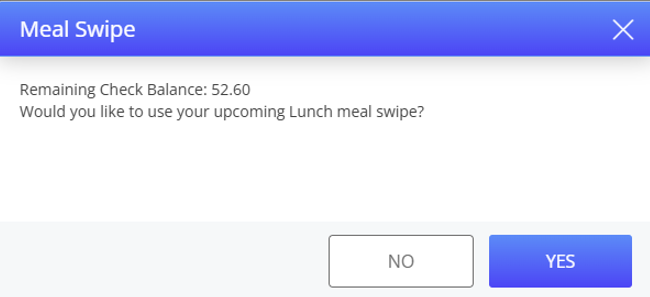
If the check amount is more than the meal period entitlement amount, a prompt confirming if the balance amount can be retrieved from the next meal period is displayed.
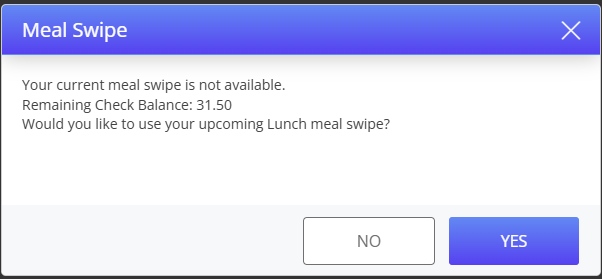
If the guest is not eligible for the entitlement, users must select any other tender to complete the payment.
If the Allow Bring Forward checkbox (Loyalty Setup ➜ Group Bucket Configuration) is not enabled in the Agilysys Loyalty Suite admin portal, the prompt to use next meal period amount for balance payment is not displayed.
The Meal Swipe prompt is only displayed once for a meal period.
For example, the guest is entitled to the following amounts for each meal period:
-
Breakfast - $20
-
Lunch - $20
-
Dinner - $20
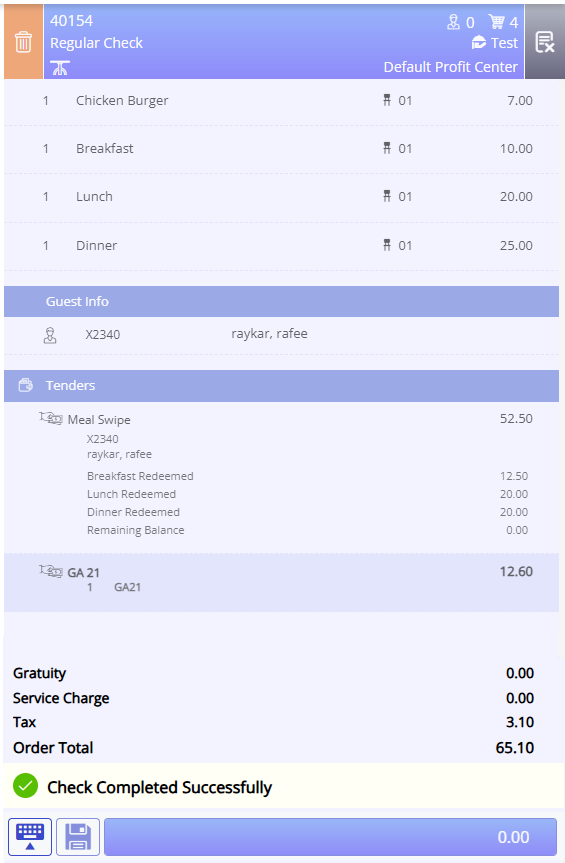
Scenario: During breakfast, the check totals up to $30.
A prompt is displayed confirming if the balance $10 after utilising the breakfast entitlement of $20 can be covered from the lunch entitlement.
-
If the guest arrives at the same restaurant (integrated with InfoGenesis POS) during the next meal period, prompt verification for the same badge ID is not displayed again. Guest is authorized to use the remaining lunch entitlement, and the meal swipe tender is directly applied on the check.
-
If the guest opts to make the next meal purchase at a restaurant not integrated with InfoGenesis POS, the remaining balance amount from the lunch entitlement cannot be redeemed.
Scenario: During breakfast, the check totals up to $15
After verifying the badge number of the guest, the check total amount is applied from the entitlement amount, and the remaining balance is retained in the guest’s bucket.
-
If the guest swipes their card again at the terminal during the same meal period, inquiry is skipped and the remaining balance from the existing meal period is utilized to close the check.
-
Guests must utilize the remaining balance in the same meal period since the balance from previous meal periods cannot be carried forward to the next meal period.
All meal period balances are reset to zero at the end of the day and new balances are loaded for the next business day.
Select Yes to utilize the entitlement amount from the next meal period. To retain the entitlement amount for the next purchase, select No, and the balance amount can be paid through any other tender.
Refund Entitlement
To refund an applied entitlement, select one of the following refund functions at the terminal:
-
Refund Check (#48)
-
Refund Cls Check (#441)
-
Reopen Closed Check (#160)
-
Closed Checks (#54)
Navigate to Functions ➜ Refund Check. A prompt for the check number appears.
Enter the check number. A confirmation prompt is displayed.
Select Yes. Check is refunded successfully.
The meal swipe entitlement amount is added back to guest’s bucket. The refilled amount is displayed in the Agilysys Loyalty Suite admin portal under My Balances (Profile Setup ➜ Profile ➜ Edit ➜ My Balances).
When the guest arrives for next meal period on the same day, inquiry is skipped, and the meal swipe entitlement is retrieved automatically from the Loyalty& Promotions system and applied on the check.
Offline Scenario
If during the inquiry, if the third-party system is offline, the Loyalty & Promotions system verifies if any downloaded entitlement data is available.
-
If the data is available, meal swipe tender is applied to close the check.
-
If downloaded data is not available and the system is unable to fetch the entitlement after coming back online, the meal swipe tender is applied on the check and recorded as manual adjustment required in the Loyalty & Promotions system.
At the POS terminal, once the tender is applied, the meal period is denoted with an asterisk symbol to indicate an offline redemption.
Updated Documentation: Agilysys InfoGenesis POS Integration with Loyalty & Promotions, eCash, Membership Interface