


Schedule Price Change
The Schedule Price Change menu allows the user to schedule a price change for a future date unlike the Price Change utility and optionally to schedule that change to last for a specified date range. With the Price Change Utility, the user can only change the price of an item at the time the utility is run and would have to run the utility again to make another change.
This is useful when a property wants to sell a certain item at a different price during a period of time, a schedule can be created, and the item’s price can be changed for the period that the schedule lasts.
Perform the following steps to configure Schedule Price Change:
Navigate to Utilities ➜ Items ➜ Schedule Price Change.
Select Add.
Basic Details
On selecting Add, the following screen appears:
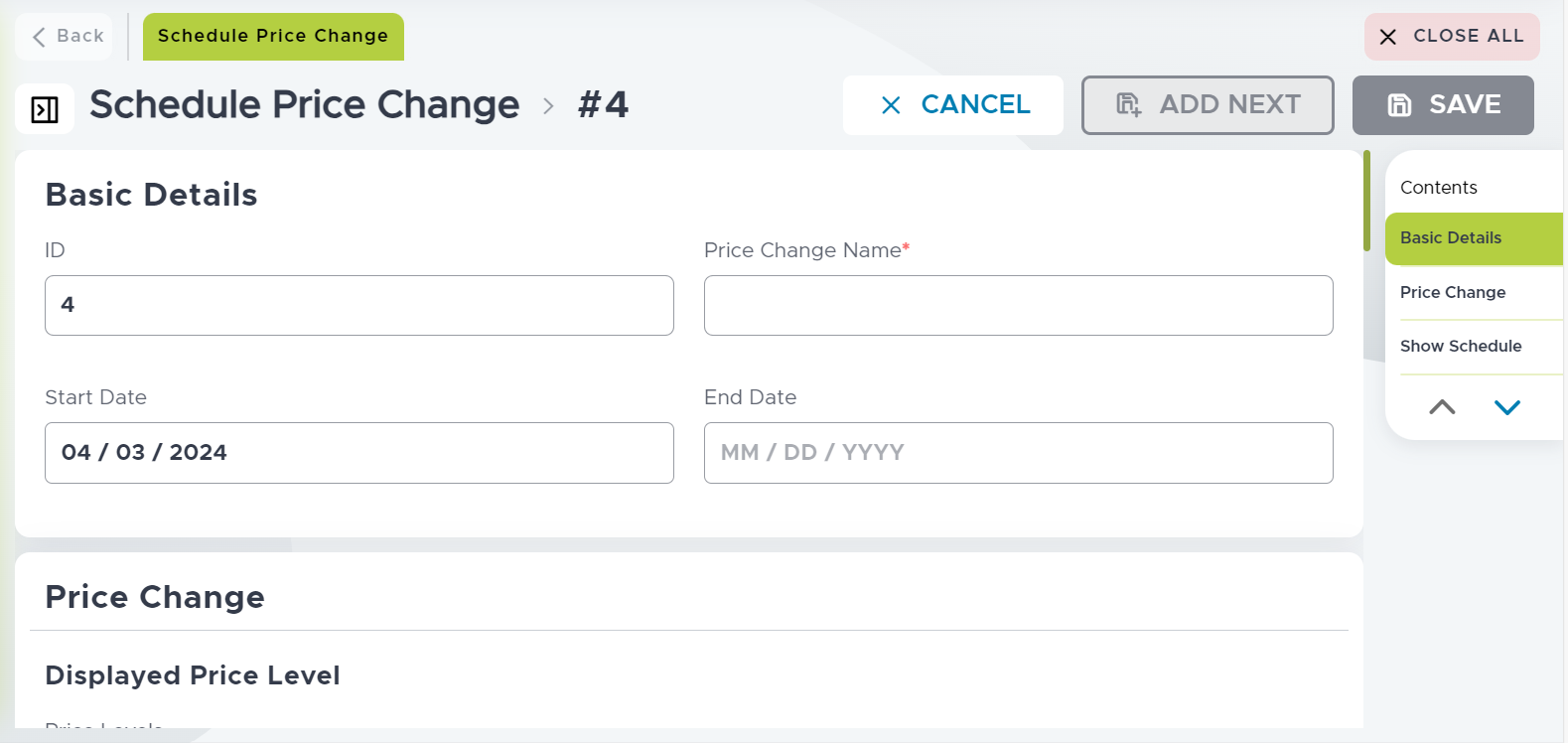
Refer to the following table and fill in the fields as necessary:
|
Field |
Description |
|
|---|---|---|
|
ID |
Enter a unique ID for the schedule price change. |
|
|
Price Change Name |
Enter a unique name for the schedule price change. |
|
|
Start Date |
Select the start date of the price change. The start date must not be lesser than the current date. This means that a schedule cannot be created for a past date. |
|
|
End Date |
Select the end date of the price change. The end date must be greater than the start date. |
|
Price Change
Navigate to Price Change.
Refer to the following table and fill in the fields as necessary:
|
Field |
Description |
|---|---|
|
Displayed Price Level |
|
|
Price Levels |
A drop-down list that displays all the price levels configured. Only those items mapped to the selected price level are displayed in the list. If an item is mapped to multiple price levels, it is displayed when any one of the price levels is selected. |
|
Swap to Previous Price |
Enable this checkbox to swap the item’s current price and previous prices. |
|
Change Price |
|
|
Displayed Price Level |
Select this option if the price change is applicable only for the price level selected in the Price Levels drop-down list. |
|
All Price Levels |
Select this option if the price change is applicable for all the price levels. This option overrides the selection in the Price Levels drop-down list. |
|
Amount |
Select this option to increase the item’s price by amount. |
|
Percentage |
Select this option to increase the item’s price by percentage. |
|
Enter Amount |
Enter the amount. |
|
Enter Percent |
Enter the percentage. |
|
Rounding Type |
The available rounding types are:
|
|
On/Off |
Enable this checkbox to select an item. When this checkbox is enabled, it means that the item is eligible for price change. At least one item must be selected from the list for the price change to take effect. |
|
Item Name |
Displays name of the item. |
|
ID |
Displays ID of the item. |
|
Current Price |
Shows the base price of the item. Once the item’s price is changed, the new price becomes the current price. |
|
Previous Price |
Shows the base price of the item before the change. The Previous Price is 0 until the price of the item has not been changed. Once the item’s price is changed, the base price of the item becomes the previous price, and the new price becomes the current price. |
|
Preview Price |
Shows a preview of what the item’s price will be after the change. The Current Price is 0 when Preview Price shows the price preview. Once the item’s price changes, the Current Price displays it, and the Preview Price becomes 0. |
|
Is Scheduled |
If this checkbox is enabled, it means the item is already mapped to an existing schedule. |
Show Schedule
Navigate to Show Schedule.
Select Show Current Schedule option to view the current schedule.
Select Show All Schedule option to view all the available schedules.
Select the month and year for which the schedule must be displayed.
Select Save.