


Manage 86
Item active status can be managed using the Manage 86 utility.
To view 86’ed items/modifiers:
Perform the following steps to view 86’ed items/modifiers:
Navigate to Utilities ➜ Utilities ➜ Manage 86. The following screen appears:
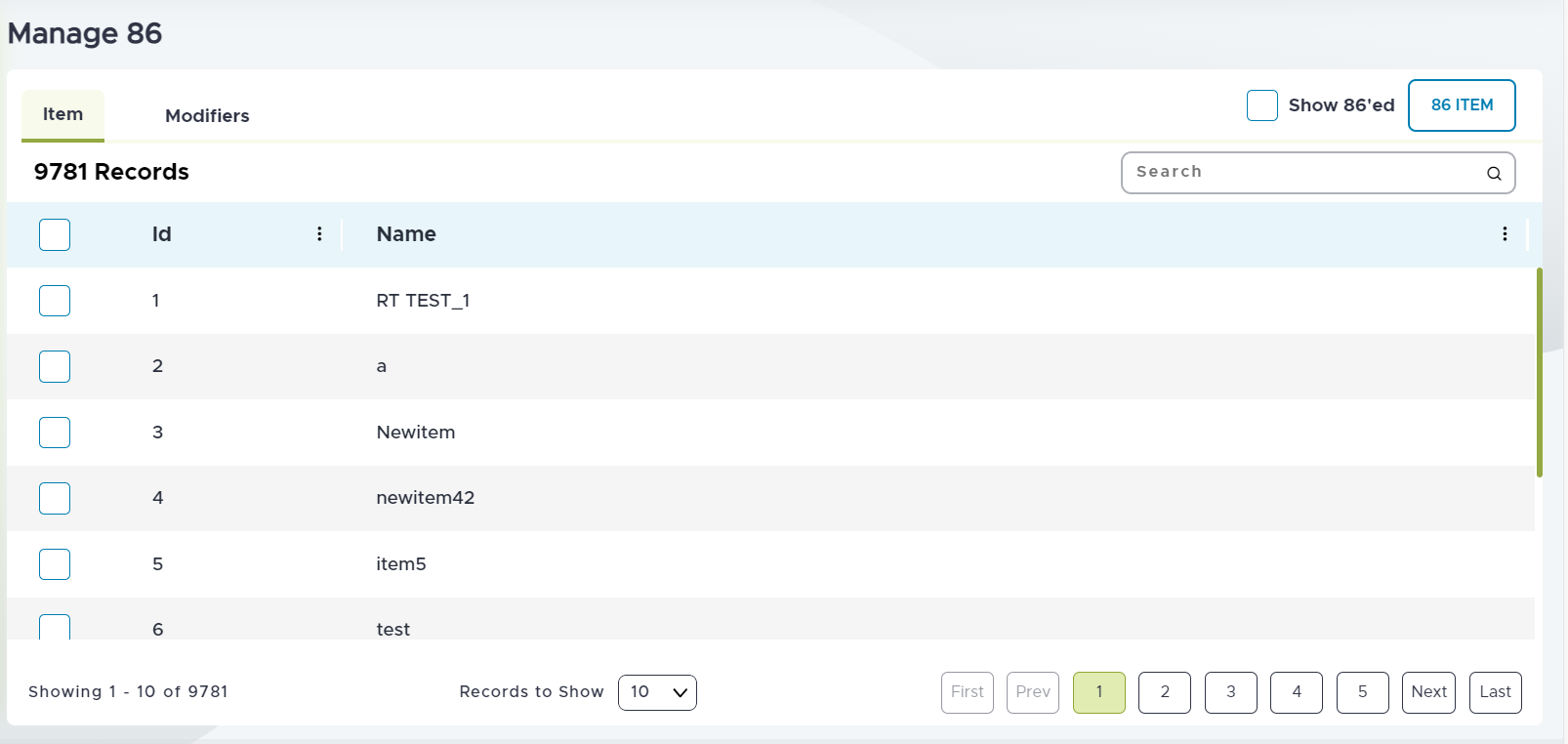
Select the Show 86’ed checkbox.
Select the preferred profit center from the drop-down list. Once selected, a list of 86’ed items/modifiers appears.
To 86 an item/modifier
Perform the following steps to 86 an item/modifier:
Navigate to Utilities ➜ Utilities ➜ Manage 86. The following screen appears:
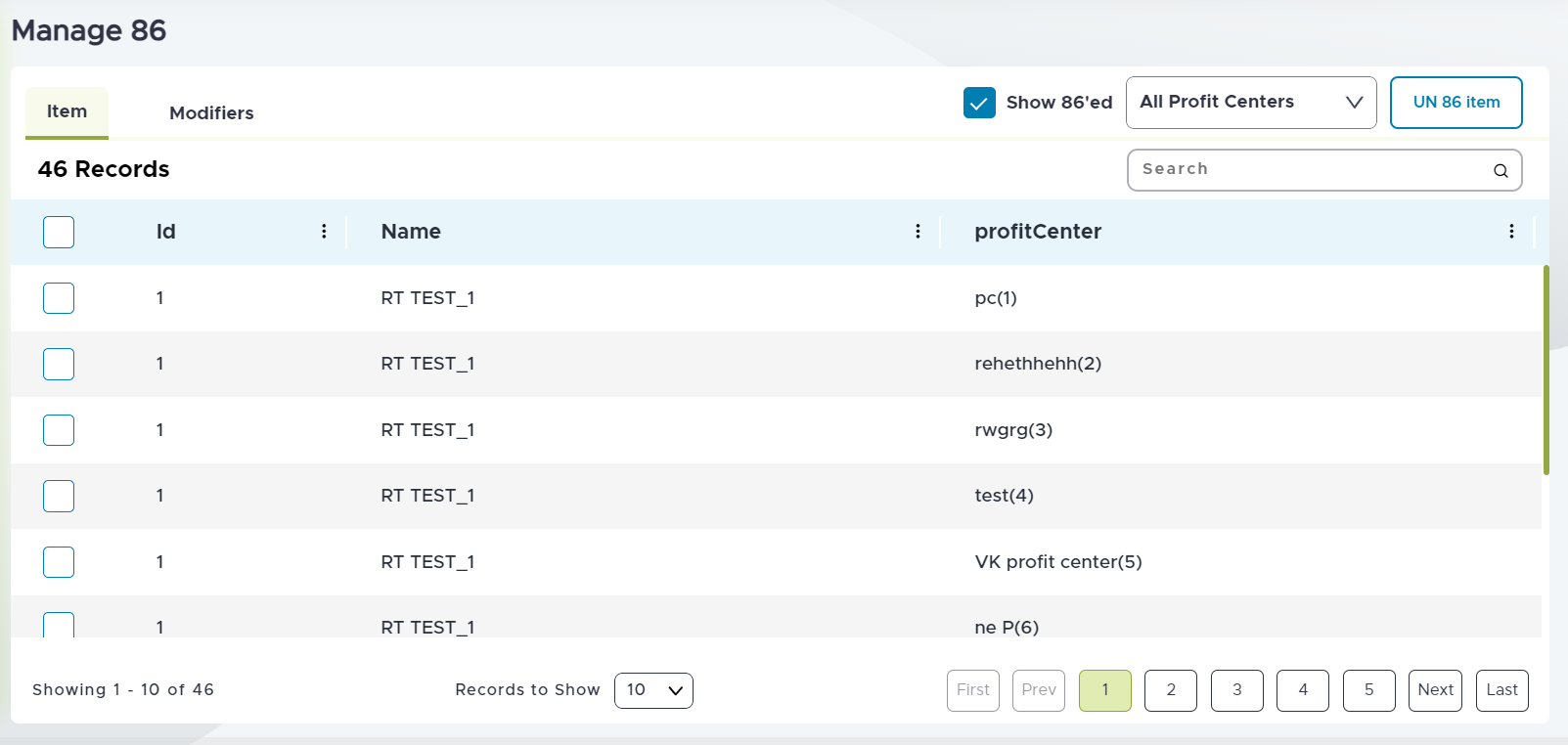
Select the Item/Modifier tab.
Select preferred checkboxes of items or modifiers.
Select the 86 Item button. The Select Any One Profit Center pop-up appears.
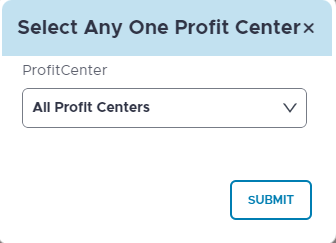
Select the preferred profit center from the Profit Center drop-down list.
Select Submit.
To Un 86 an item/modifier
Perform the following steps to Un 86 an item/modifier:
Navigate to Utilities ➜ Utilities ➜ Manage 86.
Select the Show 86’ed checkbox. A list of all 86’ed items/modifiers appear.
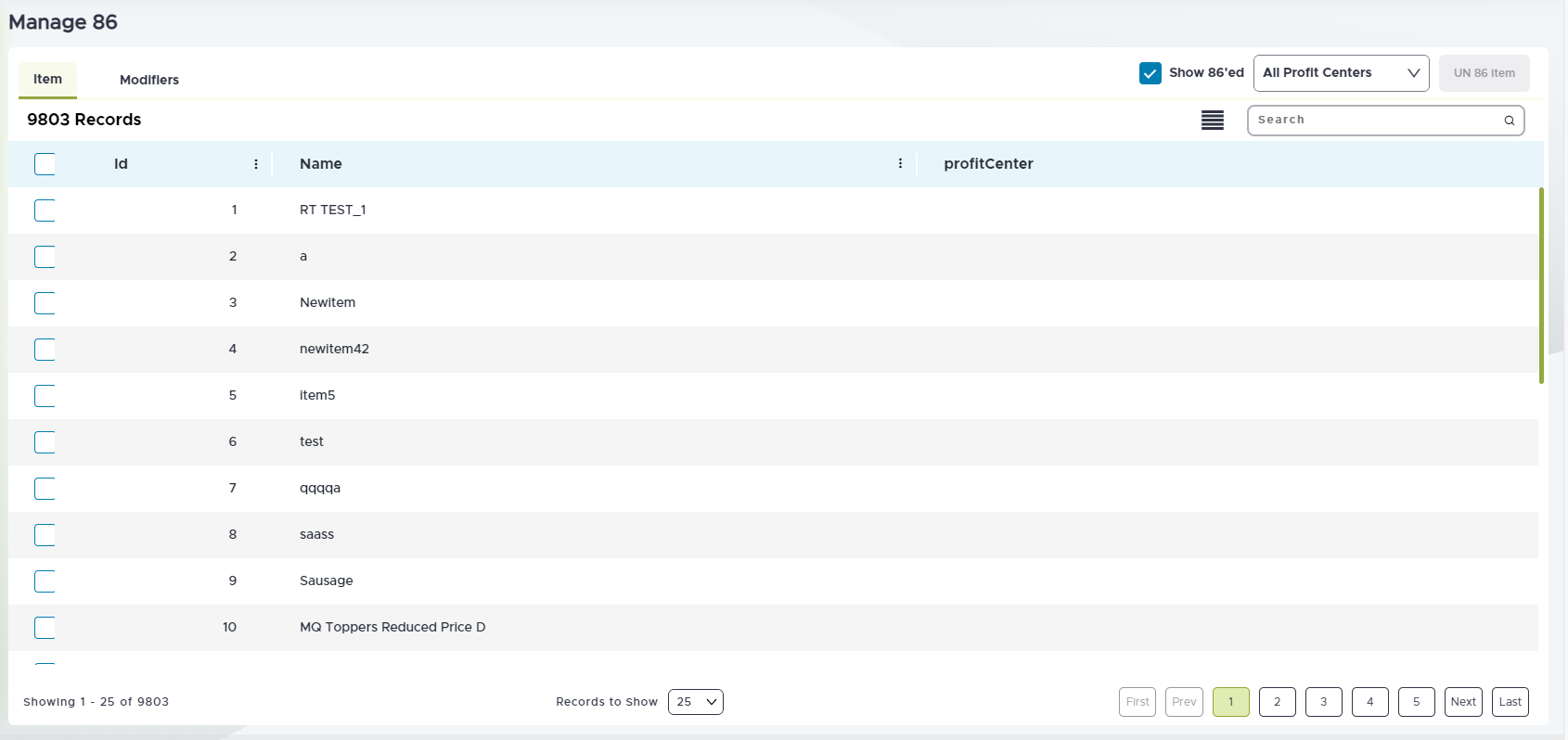
Select preferred checkboxes of items or modifiers.
Select the UN 86 item button. The Select Any One Profit Center pop-up appears.
Select the preferred profit center from the Profit Center drop-down list.
Select Submit.
Display Details of 86d Items
Users can view the details of the 86d item or modifier such as the date and time when it was 86d, and the terminal and profit center in which it was 86d.
On clicking the History icon in the Manage 86 utility, a prompt with the following columns is displayed:
|
Field |
Description |
||
|---|---|---|---|
|
Command |
The 86 or Un86 command is displayed. |
||
|
Source |
The source where the item or modifier was 86d or Un86d For items 86’d using the Item Countdown feature, the source is displayed as ICD. |
||
|
Source ID |
For future use |
||
|
Date and Time |
The date and time when the item was 86d are displayed. |
||
|
Initiated By |
If the item was 86’d using the Item Countdown feature, the employee name are terminal ID are displayed. These details are purged after a period of 2 weeks. |
||
|
Terminal ID |
The terminal ID in which the item was 86d or un86d is displayed. |
||
|
Profit Center ID |
The profit center ID in which the item was 86d or un86d is displayed. |
||
|
Profit Center Name |
|
-
This prompt displays the details of the items 86d and un86d using one of the following options only:
-
Terminal Functions
-
System Management Utility
-
Manage 86 Utility
-
-
This prompt is read only and cannot be edited.
-
The data displayed in all the columns except the Date and Time column can be filtered.
-
All the columns in the prompt are sorted by the created time by default, from most recently 86d or un8d items to the oldest.