


Item Countdown
The Item Countdown menu allows users to assign items and modifiers to countdown groups in the IGCM itself rather than the POS Terminal. Users can also configure the In-Hand, Warning, and 86 Cut-Off quantities for each item available in the database.
Perform the following steps to configure Item Countdown menu:
Navigate to POS Configuration ➜ Inventory ➜ Item Countdown. The following screen appears:
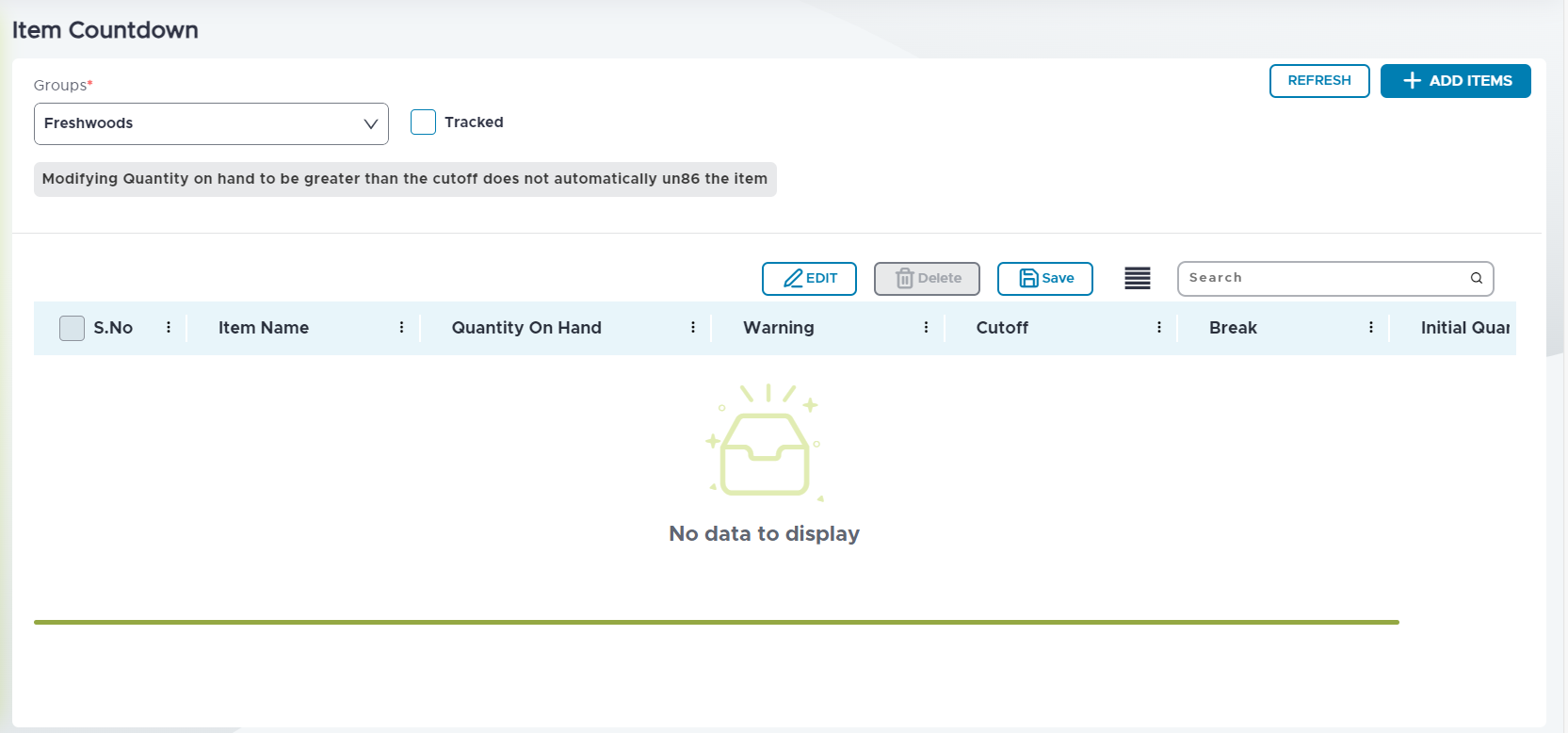
Select the preferred countdown group from the Groups drop-down list. An item countdown group for each existing profit center is available in the list.
When a new profit center is created, it is automatically added here and when an existing profit center is deleted, it is also automatically deleted from here. Thus, for every profit center ID, a countdown group with the same ID is available in the drop-down.
Every time a profit center is added or deleted, and the Refresh button must be selected to upgrade the Groups drop-down list.
Enable the Tracked checkbox. The countdown group is tracked, and the item quantity is updated in the terminal only when this checkbox and Terminal Option 290 (Enable item countdown) are enabled.
Select Add Items to add items to the selected countdown group. Only the items available in the appropriate profit center can be added. The added items appear in the grid below.
Select Edit to set the Quantity on Hand, Warning, and Cut Off limits for each item.
Refer to the following table and fill in the fields as necessary:
|
Field |
Description |
|---|---|
|
Quantity on Hand |
This column denotes the on-hand quantity of an item. For example, if 500 quantities of an item are available, enter 500. This quantity depletes as each unit of the item is added to a check, and the check is saved or tendered. When the item is voided, the quantity increments. When the Count as consumed in product mix checkbox is enabled for the void reason associated with the item, the on-hand quantity of the item does not increment. |
|
Warning |
This column denotes the quantity at which the POS terminal must warn the user that the item quantity is almost reaching the 86 level. For example, if the on-hand quantity of an item is 500, and 20 is set as the warning level, the POS terminal shows a warning prompt when 480 units of the item is added to the check. If 479 units of the item are added instead, the on-hand quantity of the item becomes 21. In this case, when the user proceeds to add one more quantity of the item, the item count becomes 20, and the warning prompt is displayed repeatedly until the check is tendered or saved. If 495 units of the item are added, the warning prompt is not displayed, and the user does not know the item has been 86’d until they see the counter displayed in the item button. |
|
Cut Off |
This column denotes the quantity at which the item would be 86’d. For example, if 2 is set as the 86 level, the item gets 86’d when the user adds 18 quantities of the item to the check. |
|
Break |
Select the checkbox to add breaks between each grouping. |
Select Save.