


12.3.16.3 (12.x Server Only)
Spain Fiscal Integration
InfoGenesis POS has been enhanced to send transaction details from POS terminal to EFSTA, a third-party vendor to enable accurate fiscal reporting and compliance with Spanish fiscal regulations.
The following functionality is supported with this integration:
-
Send sale transactions
-
Send refund transactions
-
Print fiscal-compliant receipts in country-specific template
Important Points
-
Receipt printing is supported only in English Language.
-
Add Funds (#334) and Return Item (#239) function buttons are not supported for this integration.
-
It is mandatory to map payment codes with Tender IDs created in IGCM. If any unmapped tender is applied on the check, response from vendor fails and receipts are printed without fiscal information.
Changes Made in IGCM
-
A new field, UseFiscalFramework, has been added to the FiscalInterface section available under the Fiscalconfig.ini File (POS Configuration à Profiler à POS Terminal à Files)
-
When set to True, the Fiscal integration is supported.
-
When set to False, the Fiscal integration is not supported. By default, this field is set to False.
-
-
A new menu, Fiscal Mapping, has been added to the Profiler module (POS Configuration à Profiler à Fiscal Mapping).
-
A new permission, Fiscal Mapping, has been added to the Permissions submenu of the Permission Group and Permission Level menus under the Administration module (User Management à Administration).
Contact Agilysys to perform the initial setup.
Configurations in IGCM
Configure Permissions
In the Permissions submenu under the Permission Level menu (User Management à Administration à Permission Level), the following permissions must be enabled:
-
Fiscal Mapping: Basic Details
-
Fiscal Mapping: Code Mapping
-
Fiscal Mapping: Entity Registration
-
Fiscal Mapping: Main
Configure Fiscal Mapping
Navigate to POS Configuration à Profiler à Fiscal Mapping.
Select Add to create a new record.
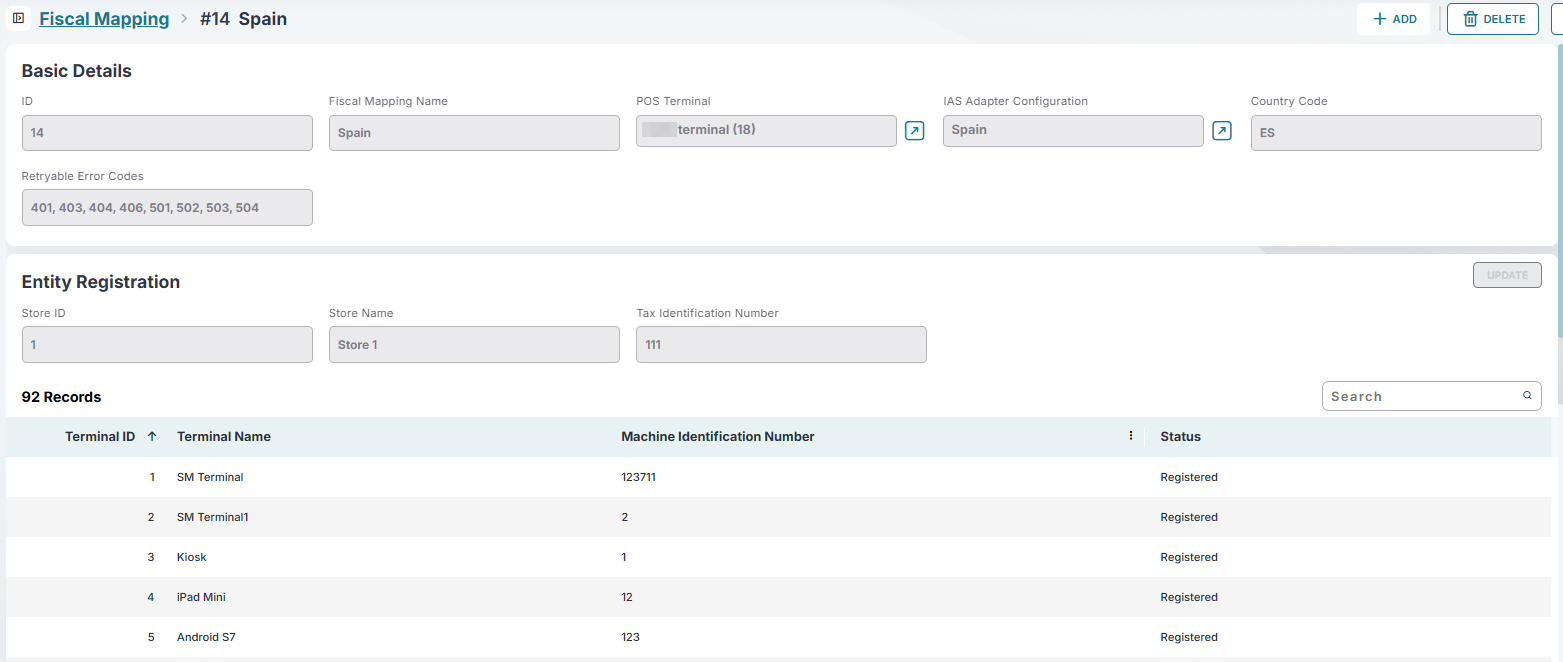
Refer to the table and enter the following details:
|
Submenu |
Field |
Description |
|---|---|---|
|
Basic Details |
ID |
This field is auto generated. |
|
Fiscal Mapping Name |
Enter an appropriate name for the record. |
|
|
POS Terminal |
Select the appropriate POS terminal profile from the drop-down list. |
|
|
IAS Adapter Configuration |
Select the IAS adapter configuration record configured from the drop-down list. |
|
|
Country Code |
This is auto filled and a read-only field. |
|
|
Retryable Error Codes |
Enter the comma-separated error codes to retry posting a failed transaction. Recommended: 401, 403, 404, 406, 501, 502, 503, 504 |
|
|
Entity Registration |
Store ID |
The ID of the store. This field is auto filled and read-only. |
|
Store Name |
The name of the store. This field is auto filled and read-only. |
|
|
Tax Identification Number |
Enter the tax identification number of the store. This field is mandatory. |
|
|
Register/Update |
Select this field to register the entity or update the existing registration. |
|
|
Terminal ID |
The ID of the terminal associated. This column lists all the terminal IDs configured for the store. |
|
|
Terminal Name |
The name of the terminal. This column lists all the terminals configured for the store. |
|
|
Machine Identification Number |
Enter the Machine Identification Number of the terminal configured for the store. This field is optional. |
|
|
Status |
The registration status of the terminal configured for the store. |
|
|
Code Mapping |
Get Code |
Select this button to retrieve the vendor-approved codes with their descriptions. |
|
Payment Codes |
||
|
API Code |
This column lists the supported payment codes retrieved from the vendor. |
|
|
Description |
The description of the codes listed in the API Code column. |
|
|
IG Tender ID(s) |
The corresponding tender ID created in IGCM for the API code. |
|
|
Tax Codes |
||
|
API Code |
This column lists the tax codes retrieved from the vendor. |
|
|
Description |
The description of the code listed in the API Code column. |
|
|
IG Tax ID(s) |
The corresponding tax ID created in IGCM for the API code. |
|
|
Tax Exemption Codes |
||
|
API Code |
This column lists the tax exemption codes retrieved from the vendor. |
|
|
Description |
The description of the codes listed in the API Code column. |
|
|
IG Tax ID(s) |
The corresponding tax ID created in IGCM for the API code. |
Supported Payment Codes
|
API Code |
Description |
POS Configuration |
|---|---|---|
|
cash |
Efectivo (Cash) |
Enter comma-separated Tender ID(s) created in IGCM. For example, 10 |
|
debitcard |
Tarjeta de débito (Debit Card) |
Enter comma-separated Tender ID(s) created in IGCM. |
|
creditcard |
Tarjeta de crédito (Credit Card) |
Enter comma-separated Tender ID(s) created in IGCM. |
|
mobile |
Proveedor de pago electrónico (Electronic Payment) |
Enter comma-separated Tender ID(s) created in IGCM. |
|
loyalty |
Tarjeta prepago / Monedero (Prepaid) |
Enter comma-separated Tender ID(s) created in IGCM. |
|
voucher |
Vale / Bono (Voucher) |
Enter comma-separated Tender ID(s) created in IGCM. |
|
open |
Cuenta abierta / Pendiente (Open item) |
Enter comma-separated Tender ID(s) created in IGCM. |
|
none |
Sin pago / No cobro (None) |
Enter comma-separated Tender ID(s) created in IGCM. |
Supported Tax Codes
|
API Code |
Description |
POS Configuration |
|---|---|---|
|
A |
Normal VAT rate |
Enter comma-separated Tax ID(s) created in IGCM. |
|
B |
Lower VAT rate |
Enter comma-separated Tax ID(s) created in IGCM. |
|
E |
Reduced VAT rate |
Enter comma-separated Tax ID(s) created in IGCM. |
|
F |
Exempt |
Enter comma-separated Tax ID(s) created in IGCM. |
Supported Tax Exemption Code
|
API Code |
Description |
POS Configuration |
|---|---|---|
|
Z1 |
Domestic transactions (Educational, healthcare, social services) |
Enter the Tax ID(s) created in IGCM. |
|
Z2 |
Exports of goods |
Enter the Tax ID(s) created in IGCM. |
|
Z3 |
Transactions treated as exports |
Enter the Tax ID(s) created in IGCM. |
|
Z4 |
Free zones, free warehouses, and customs/tax regimes |
Enter the Tax ID(s) created in IGCM. |
|
Z5 |
Supplies to another EU member state |
Enter the Tax ID(s) created in IGCM. |
|
Z6 |
Not subject to Art. 7, 14 and others of Provisional VAT regulation |
Enter the Tax ID(s) created in IGCM. |
|
Z7 |
Not subject to localization rules |
Enter the Tax ID(s) created in IGCM. |
|
Z8 |
Not subject due to sales made on behalf of third parties |
Enter the Tax ID(s) created in IGCM. |
|
Z9 |
Not subject to TAI due to location rules; foreign tax applies |
Enter the Tax ID(s) created in IGCM. |
|
Z |
Other |
Enter the Tax ID(s) created in IGCM. |
Select Save.
Configure Tax Group
Navigate to POS Configuration à Financials à Tax Group.
Select Add to configure a new tax group.
Refer to the following table and fill in the fields:
|
Field |
Description |
|---|---|
|
Basic Details |
|
|
Tax Group Name |
Enter a name for the tax group. |
|
Default Taxes |
|
|
Tax (defaults) |
Select the appropriate taxes to map them to this tax group. |
Select Save.
Enable VAT Mode
Select the Settings icon on the Home screen.
Select About.
Select Options.
Navigate to the Terminal section.
Enable the This enterprise uses VAT checkbox.
Select Save.
Configure Terminal Options
Navigate to POS Configuration à Terminals à Terminal Option Group.
Select the appropriate record and select Edit.
Navigate to the Terminal Options submenu.
Configure the following terminal options:
|
Terminal Option |
Description |
|---|---|
|
Terminal Option 505 (Enable Fiscal Interface) |
Enable this terminal option to support the fiscal integration. |
|
Terminal Option 1429 (Maintaining Fiscal Pending status during Service offline) |
Enable this terminal option to maintain the check in the pending status if the response from Data Express V2 is delayed or any of the InfoGenesis services is offline. |
Select Save.
Implementation at the POS Terminal
Perform the following steps to print invoice for B2C transactions, where the guest is the end consumer:
Open a check and add preferred items.
Tender the check. Once done, the check details are sent to the third-party system. A receipt is generated.
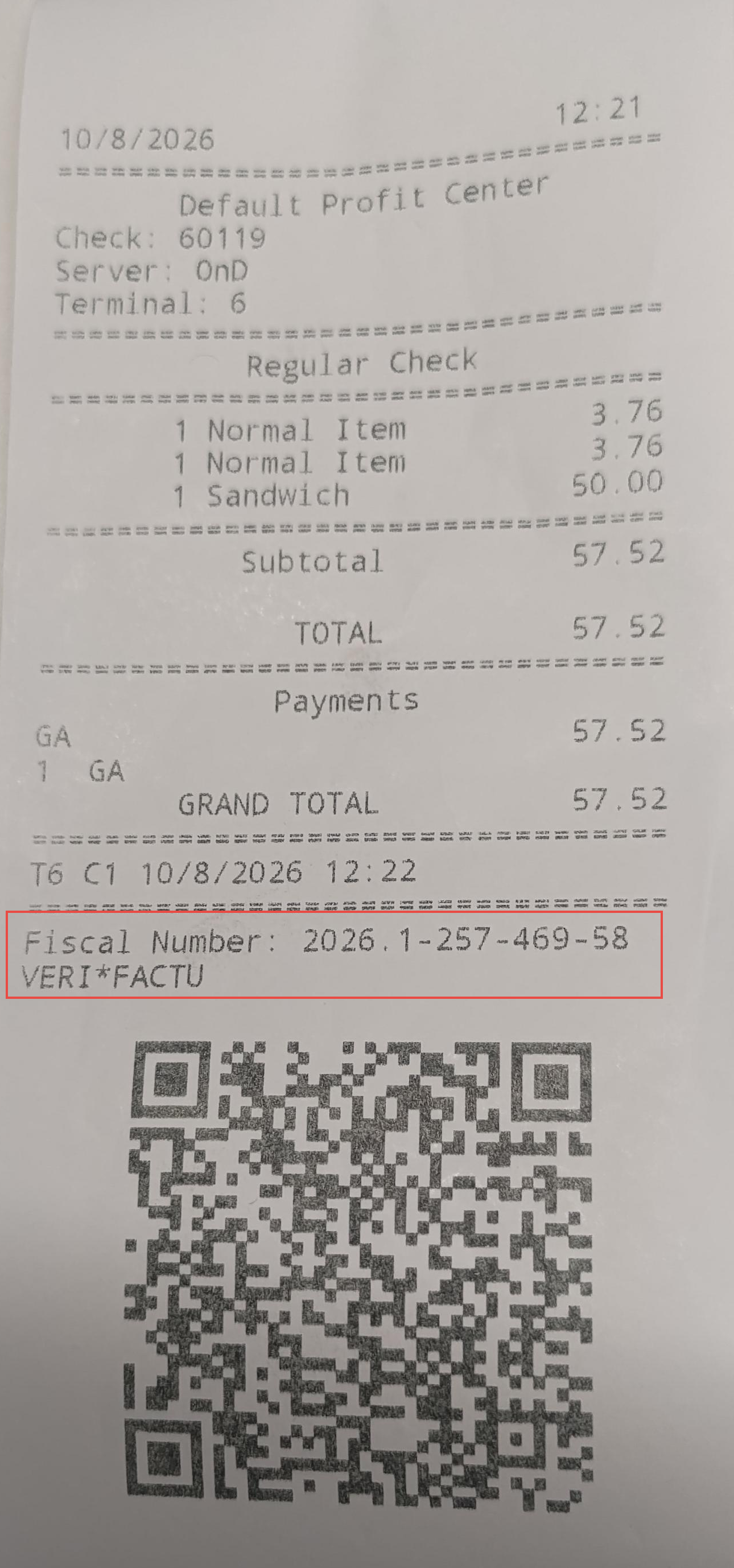
Receipt Information After a Successful Tender
After a successful tender, the transaction details along with the following information are printed on receipts:
-
Fiscal Invoice Number
-
QR Code
-
Veri*factu
Scanning the QR code directs guests to AEAT (Agencia Estatal de Administración Tributaria) website, allowing guests to view the following details:
-
NIF of the invoice issuer
-
Invoice Number
-
Invoice Issue Date
-
Total Transaction Amount (including taxes)
Updated Documentation: Agilysys InfoGenesis POS 12UX - Spain Fiscal Configuration Guide