


PeopleVine Integration
InfoGenesis POS integrates with PeopleVine, a member experience and customer relationship management platform to enable users to perform the following functionality at POS:
-
Identify members efficiently through lookup
-
Provide discounts for purchases made at POS
-
Serve customized orders and facilitate quicker payments
-
View order placed and transaction details on the PeopleVine portal for each member
-
Associate multiple members on the same check for payment
Prerequisites
-
The latest version of the following add-ons must be mapped to the Integration Application Service module type in License Administration:
-
IAS_Channel_payment_<12.3.14.4>
-
IAS_Adapter_peopevine_<12.3.14.9>
-
-
The following values must be obtained from PeopleVine before beginning the setup:
-
PeopleVine.APIUsername
-
PeopleVine.APIPassword
-
PeopleVine.APIKey
-
PeopleVine.Username
-
PeopleVine.Password
-
PeopleVine.CompanyNo.
-
PeopleVine.AuthenticateNo.
-
PeopleVine.DiscountID
-
PeopleVine.BusinessLocationNo
-
Important Points
-
Swiping or tapping cards are not supported at the terminal.
-
Accrual is not supported.
-
Discounts are applied only when inquiry is performed. If tender is applied without performing inquiry, discounts are not added to the check.
-
Trickle Post submenu (POS Configuration ➜ Interfaces ➜ IAS Adapter Configuration) is not supported.
Changes made in IGCM
-
A new terminal option, Terminal Option 1497 (Enable Peoplevine membership), has been added.
-
When enabled, PeopleVine membership is supported at the terminal through the Enhanced Casino Loyalty interface with IAS and loyalty inquiry screen is displayed automatically on the terminal upon opening a check.
-
When disabled, PeopleVine membership will not be supported at the terminal. By default, this terminal option is disabled.
-
Configurations in IGCM
Configure IAS Adapter Configuration Group
Navigate to POS Configuration ➜ Interfaces ➜ IAS Adapter Configuration Group.
Select Add.
Enter the preferred name for the group in the Configuration Group field.
Select Save. Only one IAS configuration group record must be created.
Configure IAS Adapter
Navigate to POS Configuration ➜ Interfaces ➜ IAS Adapter Configuration.
Select Add.
Refer to the following table and fill in the fields:
|
Field |
Description |
|---|---|
|
ID |
Enter an ID for the IAS Adapter. |
|
Configuration Name |
Enter the preferred name for the IAS Adapter. |
|
Use Global IAS |
|
Under the Settings submenu, enter values for the fields as captured in the following table:
|
Field |
Description |
|---|---|
|
Channel Name |
Select Payment from the drop-down list. |
|
Adapter Name |
Select peoplevine from the drop-down list. |
|
Adapter Category |
This value is auto filled as Loyalty when the channel and adapter names are selected. It is a read-only field and cannot be edited. |
|
URL |
The URL is auto filled. |
|
Field |
Description |
|---|---|
|
PeopleVine.baseUrl |
The URL to access the PeopleVine system. This field is auto filled when channel and adapter are selected. |
|
PeopleVine.APIUserName |
The API username assigned to access PeopleVine. This field is auto filled when channel and adapter are selected. |
|
PeopleVine.APIPassword |
The API password assigned to access PeopleVine. |
|
PeopleVine.APIKey |
The API key provided to access the PeopleVine system. |
|
PeopleVine.UserName |
The username provided to access the PeopleVine system. |
|
PeopleVine.Password |
The password provided to access the PeopleVine system. |
|
PeopleVine.AuthenticateNo |
The authentication number used to establish connection between the POS system and PeopleVine. The minimum character of input is 1 and a maximum of 20 characters can be entered in this field. |
|
PeopleVine.BusinessLocationNo |
The unique ID based on the location of the restaurant integrated with the PeopleVine system. |
|
PeopleVine.Discount ID |
The ID of the discount configured in IGCM.
|
Navigate to the Configuration Group submenu.
Select the IAS configuration group configured for PeopleVine from the drop-down list.
In the Tender Mapping submenu, select the tenders configured for PeopleVine from the drop-down list.
Select Save.
Configure Tenders
The following tenders are created exclusively for this integration:
-
House Credits
-
House Accounts
-
Card on File
-
Auto
House Accounts
House Accounts tender represents amount owed by the member to the club in their account. This account is set up during membership creation and can be managed at the PeopleVine portal.
It functions like an individual tab for the member, accumulating charges each time they make a purchase at the terminal and choose to pay later at a convenient time. To support house accounts tender at the terminal, configuration must be enabled in the PeopleVine system.
Navigate to POS Configuration ➜ Financials ➜ Tender.
Create a tender record with Tender Verification Code 175 (Loyalty Card).
Enter card code pvhouse in the Card Code field.
Select Loyalty from IAS Adapter Category drop-down list.
Select Save.
House Credits
House Credits functions like a gift card provided for the member’s account. House credits tender has a maximum spend limit for members, which can be configured and managed at the PeopleVine portal.
Navigate to POS Configuration ➜ Financials ➜ Tender.
Create a tender record with Tender Verification Code 175 (Loyalty Card).
Enter card code pvcredits in the Card Code field.
Select Loyalty from IAS Adapter Category drop-down list.
Select Save.
Card On File
Card On File tender refers to the member’s card stored information to facilitate faster future payments. This tender must be enabled for the member’s account in the PeopleVine portal to be supported at the POS terminal.
Navigate to POS Configuration ➜ Financials ➜ Tender.
Create a tender record with Tender Verification Code 175 (Loyalty Card).
Enter card code pvcardonfile in the Card Code field.
Select Loyalty from IAS Adapter Category drop-down list.
Select Save.
Auto
Auto tender is a payment option that enables members to pay for their check using the best available tender option without manually checking balances or splitting amounts. When this tender is selected, the POS terminal verifies the availability of tenders for members in the following priority order:
-
House Credits
-
Card on File
-
House Accounts
This ensures that the check is paid for without making members choose a tender each time.
Navigate to POS Configuration ➜ Financials ➜ Tender.
Create a tender record with Tender Verification Code 175 (Loyalty Card).
Enter card code pvauto in the Card Code field.
Select Loyalty from IAS Adapter Category drop-down list.
Select Save.
Configure Terminal Profile Settings
Navigate to POS Configuration ➜ Profiler ➜ POS Terminal.
Select the appropriate profile and select Edit.
Navigate to the Files submenu and select the Settings.ini File.
In the Adapter Type section, in the Loyalty field, enter PEOPLEVINE.
In the Integration Application Configuration section, configure the following fields:
|
Field |
Description |
|---|---|
|
GlobalIAS |
https://10.10.10.10:8118 Replace 10.10.10.10 with the IP address of the Application server. |
|
IsIAS |
Enter true. |
|
LocalIAS |
https://10.10.10.10:8118 Replace 10.10.10.10 with the IP address of the Interface server. |
Select Save.
Configure Terminal Options
Navigate to POS Configuration ➜ Terminals ➜ Terminal Option Group.
Select the appropriate record and select Edit.
Navigate to the Terminal Options submenu.
Enable Terminal Option 1497 (Enable Peoplevine membership).
Enable one of the terminal options to apply eligible discounts during inquiry:
|
Terminal Option |
Description |
|---|---|
|
345 ((Activate advanced check-level discount rules)) |
Select this option to install advanced check-level discounting rules that include the following:
|
|
347 (Allow items and checks to be discounted multiple times) |
Enable this option to allow checks to have up to 8 item level discounts on each item plus up to 8 check level discounts. Any discount’s Exclusive property may limit an item or check to fewer discounts. When this option is enabled, more than one check level discount can apply to the same revenue group, multiple discounts are always applied to the gross item price, and the settings of terminal options 11, 345, and 346 are ignored. |
Select Save.
Provide Discounts to Multiple Guests on Check
Users can add multiple members and guests on a single check and provide eligible discounts to them.
To avail PeopleVine discounts, at least one PeopleVine member must be associated with a check.
Discounts for multiple members on a check can be applied in one of the following ways:
-
Check level
-
Guest level
Navigate to Properties submenu.
Enable or disable the Apply Discounts at Guest Level checkbox.
-
Enabled - When enabled, discount is applied after inquiry is performed.
-
Disabled - When disabled, discounts are applied only at check level while applying tender and not after a successful inquiry.
Select Save.
Prepare Terminal Data
Prepare terminal data and reload configuration to POS terminals.
Implementation at POS Terminal
Loyalty Inquiry
Open a check to add preferred items. The Loyalty Inquiry screen is displayed to prompt users to perform inquiry and associate members before adding items.
On the inquiry screen, users can perform inquiry by providing any of the following inputs:
-
Name
-
Member ID
-
Email Address
-
Mobile Number
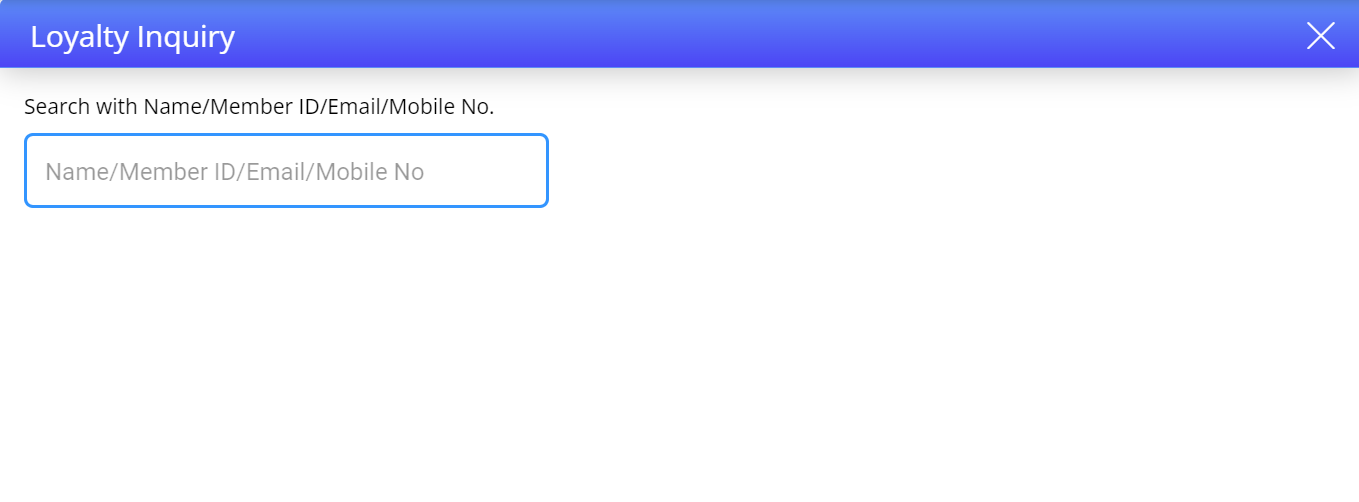
Enter the information. The search results are displayed.
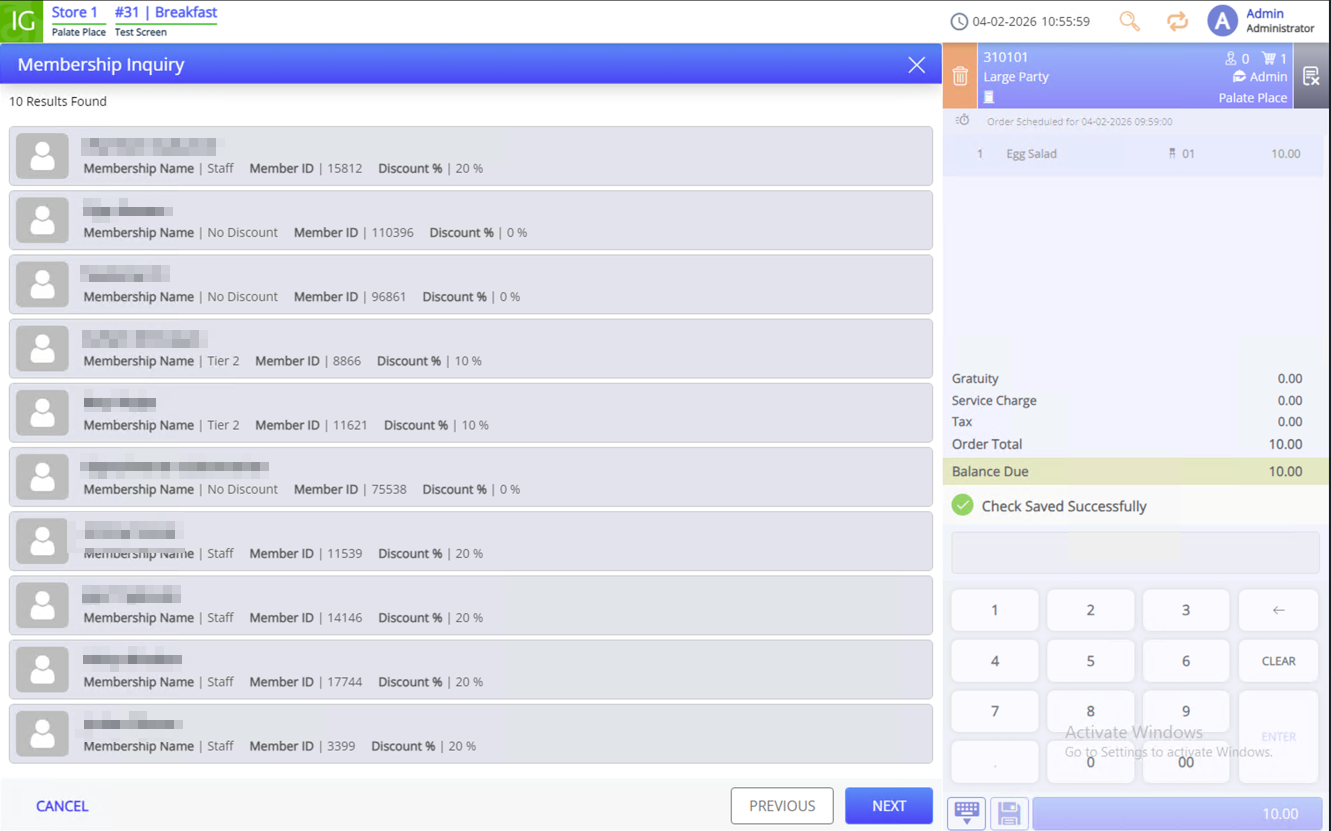
Select the appropriate search result. The guest information screen is displayed.
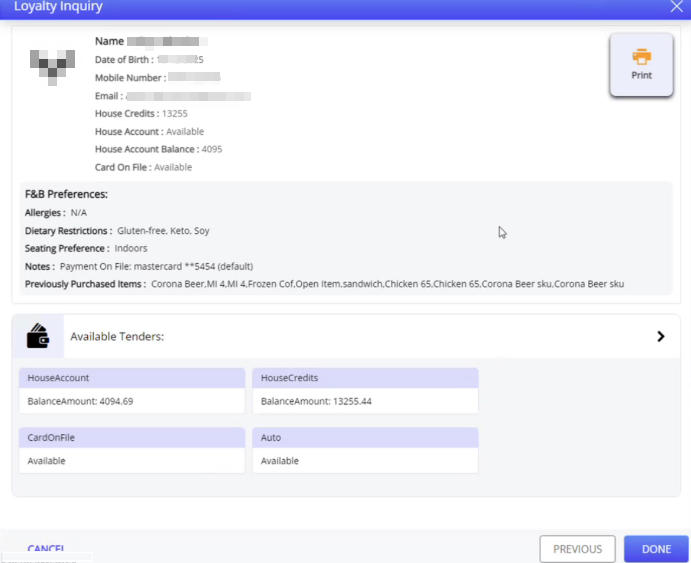
The following information is displayed on this screen:
-
Image of the guest
-
Name
-
Date of birth
-
Mobile number
-
Email address
-
Account balance
-
House credits available
-
Status of card information
-
Food and beverage preferences
-
Allergies
-
Dietary restrictions
-
Seating preference
-
Notes
-
Previously purchased items
-
Select Done. The member is associated, and the eligible discount is applied automatically. Only check-level open discounts are supported.
If a tender is voided from the check or a closed check is reopened or refunded, the order is cancelled in the PeopleVine system as well.
Loyalty
Navigate to Functions ➜ Loyalty. Since the guest is already associated with the check, the guest information screen is displayed directly.
Select the preferred tender from the Available Tenders section on this screen. The tender is applied and the check is closed. Once order is placed, details are also displayed on the PeopleVine portal.
Multi-Guest Functionality
If the configuration for multi-guest is enabled in IGCM, the vertical scroll bar appears next to the check view.
Users can perform Loyalty Inquiry (#456) function multiple times to associate more than one member.
Updated Documentation: Agilysys InfoGenesis POS 12UX Integration with PeopleVine