


Segregate Tips and Gratuity in Reports
InfoGenesis POS has been enhanced to separately track and report discretionary tips (voluntarily paid by guests and determined by the business) and non‑discretionary gratuities or service charges (mandatory and non‑modifiable) when employees transfer or pay out tip amounts.
Previously, when an employee’s bucket contained both tips and gratuities, the POS terminal transferred tips first, followed by gratuities, resulting in a combined transfer amount as tips without clear financial classification.
This segregation ensures clear segregation of tip and gratuity amounts, making reports tax‑compliant, audit‑defensible, and aligned with regulatory requirements preventing any non-discretionary amounts from being treated as deductible amounts during tax reporting.
The following attributes are applicable while segregating tips and other charges:
-
Only discretionary tips that includes standard tipping set by business or voluntarily added by guests, will be captured under the Tips column in reports, which will be considered as qualified tips.
-
Gratuity or service charge that is automatic or nonmodifiable is not considered as qualified tips even when distributed to employees through pooling or tip payout.
-
If an employee earns both tips and gratuities, and a tip transfer is performed, the amount is split and captured to maintain segregation between deductible and non-deductible tip amount.
Tips and gratuities can be segregated in the following methods with this enhancement:
-
Prompt to confirm segregation at the terminal
-
A manager override prompt to approve segregation at the terminal
-
Ratio-based segregation for Tip Payout (#12) and Tip Transfer (#318) functions
Changes Made in IGCM
The following changes have been made in IGCM to support this enhancement:
-
Two new terminal options, Terminal Option 1514 (Use separate gratuity transfer prompt) and Terminal Option 1517 (Manager override for gratuity transfers), have been introduced.
Terminal Option 1514 (Use separate gratuity transfer prompt)
-
When enabled, a separate prompt will be used to transfer tips and gratuities
-
When disabled, separate prompt for tips and gratuities will be not be displayed.
Terminal Option 1517 (Manager override for gratuity transfers)
-
When enabled, a manager override prompt will be displayed while transferring gratuity if the user’s security level is below 5.
-
When disabled, no manager override prompt is displayed.
-
A new checkbox, Track Tips & Gratuities Separately, has been added under Store menu (POS Configuration ➜ Administration ➜ Store ➜ Other Configuration).
-
When enabled, employee tips and gratuities are tracked separately for tip transfers and tip payouts instead of being combined under Tips. All terminals change to display tips and gratuity separately in terminal reports, employee functions and calculate the tips and gratuity separately based on percentage in Tip Payout (#12) and Tip Transfer (#318) functions. By default, this checkbox is enabled.
-
When disabled, tips and gratuity is not tracked separately.
-
-
A new checkbox, Display Grats Transfer, has been added to IRS Tips and Tip Transfer Detail report.
-
When enabled, employee gratuity and tips earned are displayed separately within the report. By default, this checkbox is enabled.
-
When disabled, gratuity and tips will not be displayed separately.
-
The following reports display tips and gratuity separated based on the configuration:
-
IRS Tips
-
A new column, Grats Transfer, has been added to the report to display the split amount.
-
-
Tip Transfer Detail
-
Two new columns, Grats Transfer and Total = Tips Transfer + Grats Transfer, have been added to the report.
-
-
Server Shift Sales Tips and Gratuities
-
Server Tips and Sales Export
This enhancement is not applicable for IRS Tips and Gratuity report.
Supported Terminal Reports and Chits
The following terminal reports and chits will display tips and gratuities separately when Track Tips & Gratuities Separately checkbox is enabled:
-
Tip Transfer chit (sender and receiver)
-
Tip Payout chit
-
Employee Tip Report (#190)
-
Tip Transfer Report (#191) - The following two new columns have been added to these report
-
Total Gratuities Transferred
-
Total Gratuities Received
-
-
Shift reports (#10, #12, #22, #110, #112) - The following four new columns have been added to these report and tip equivalent calculations are adjusted to exclude gratuity:
-
Gratuities Transfer
-
Gratuities Received
-
Gratuities Paid
-
Gratuities Due
-
Configurations in IGCM
Configure Store
Navigate to POS Configuration ➜ Administration ➜ Store.
Select the appropriate store profile and select Edit.
In the Other Configuration submenu, enable Track Tips & Gratuities Separately checkbox. This checkbox is enabled by default. To restrict segregation, users must manually disable the checkbox.
Select Save.
Configure Terminal Options
Navigate to POS Configuration ➜ Terminals ➜ Terminal Option Group.
Select the appropriate record and select Edit.
Navigate to the Terminal Options submenu.
Refer to the table and enable the following terminal options:
|
Terminal Options |
Description |
|---|---|
|
1514 (Use separate gratuity transfer prompt) |
|
|
1517 (Manager override for gratuity transfers) |
|
Select Save.
Implementation at POS Terminal
At the POS terminal, tips and gratuity is split or combined when using Tips Payout or Tips Transfer function in the following scenarios:
Tip Transfer
The Tip Transfer (#318) function supports the following three mutually exclusive modes to accommodate different businesses and operational needs:
-
Mode 1: Ratio-based Split
-
Mode 2: Prompted Split
-
Mode 3: Prompted Split with Permission
Only one mode can be active at a time per store configuration. Mode 1 is the default behavior unless explicitly overridden through configuration. If Prompted Split mode is not enabled, Ratio-based split mode is set by default.
Mode 1: Ratio-based Split
Conditions:
|
Track Tips & Gratuities Separately Checkbox |
Terminal Option 1514 (Use separate gratuity transfer prompt) |
|---|---|
|
Enabled |
Disabled |
In this mode, the tip transfer workflow remains unchanged for users.
Users enter a single transfer amount, and the system automatically splits the transfer amount between tips and gratuities based on the ratio from the sender’s bucket. No additional screens are displayed to users.
The transferred amount is split proportionally.
For example,
|
Bucket |
Balance |
% of Total |
|---|---|---|
|
Tips |
$100 |
66.67% |
|
Gratuities |
$50 |
33.33% |
|
Total |
$150 |
If the employee must transfer 20% of their bucket, that is, $30, the transfer is made based on the bucket ratio, as in this case:
Tips: 66.67% of $30 = $20
Gratuity: 33.33% of $30 = $10
Prompted Split
Conditions:
|
Track Tips & Gratuities Separately Checkbox |
Terminal Option 1514 (Use separate gratuity transfer prompt) |
|---|---|
|
Enabled |
Enabled |
In this mode when a tip transfer is initiated by an employee, prompts are displayed to enter tip amount and gratuity separately. The POS terminal records the transfer as two independent values, preserving the user-defined split.
If the employee has both tips and gratuities in their bucket, the Tip Transfer prompt is displayed first. In this prompt user can select one of the following options:
-
Amount
-
Percentage
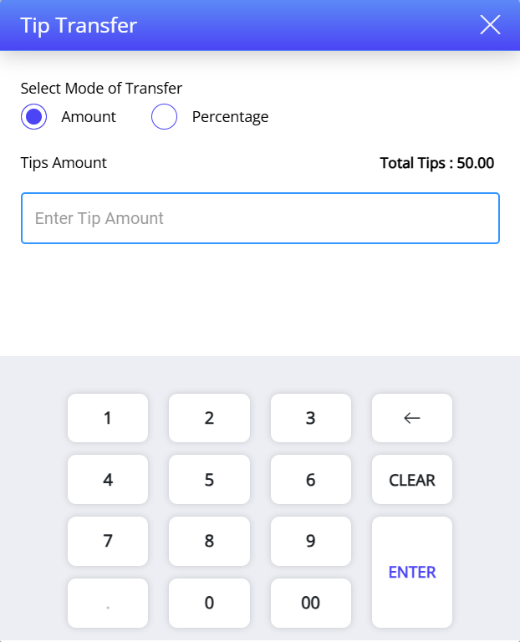
Selecting the Cross icon skips the tip transfer flow and proceeds directly to the Gratuity Transfer prompt.
Enter the value based on the mode of transfer selected and select Enter. A confirmation prompt is displayed.
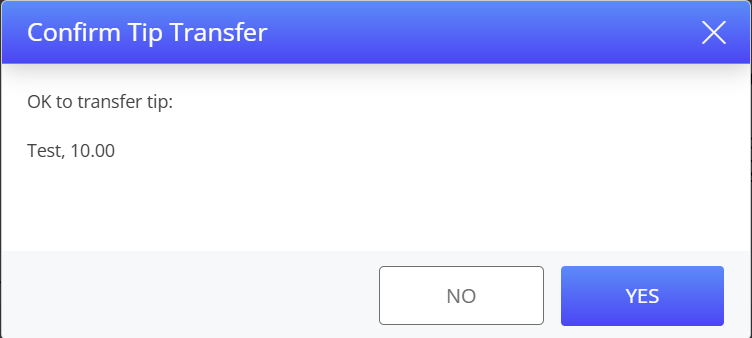
Select Yes to confirm transfer.
Users are also prompted for additional tip transfers for remaining balance. A maximum of 30 transfers is allowed in a session.
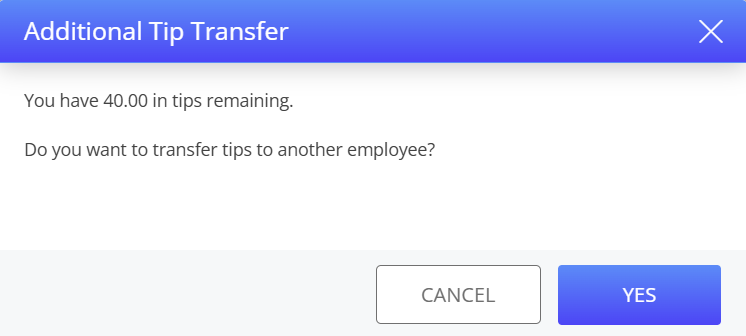
If Cancel is selected in the Additional Transfer prompt, Gratuity Transfer prompt is displayed.
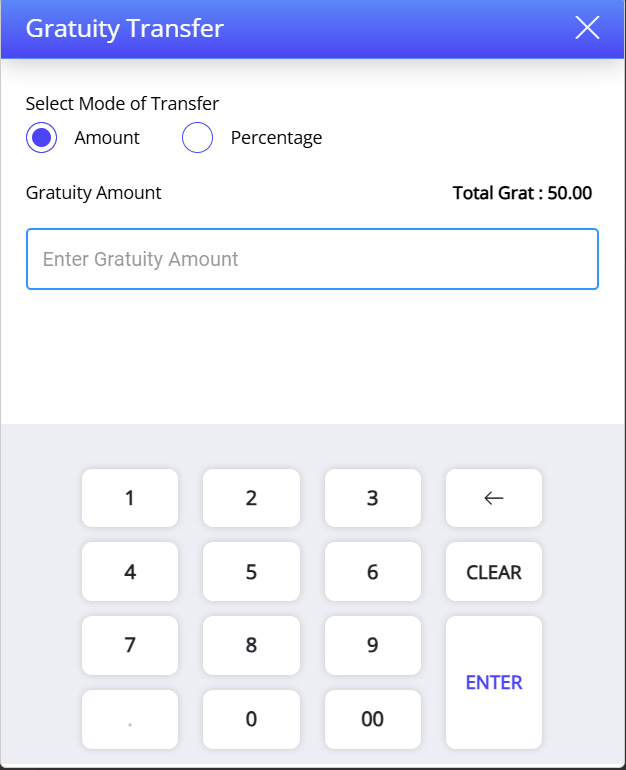
In the Gratuity Transfer prompt, user can select one of the following options:
-
Amount
-
Percentage
Selecting the Cross icon skips the gratuity transfer flow.
Enter the value based on the mode of transfer selected and select Enter. A confirmation prompt is displayed.
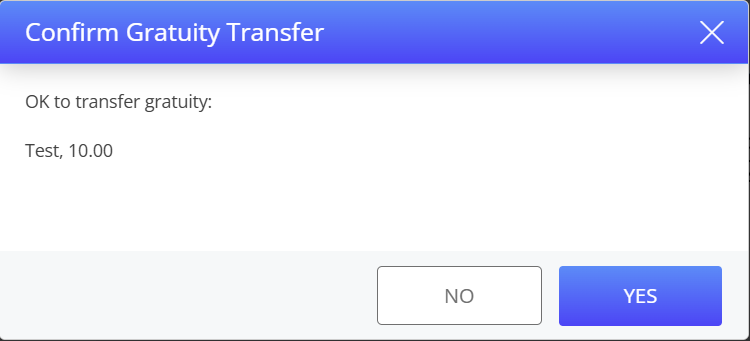
Select Yes to confirm transfer.
Users are prompted for additional gratuity transfer after the initial transfer. User can select one of the following options:
-
Yes
-
Cancel
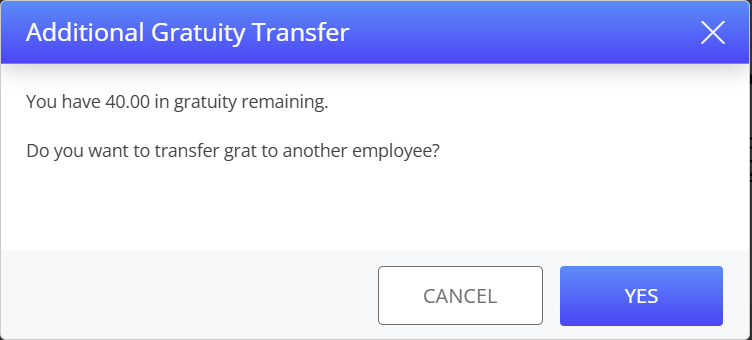
If Yes is selected, gratuity transfer flow is repeated. If Cancel is selected, the prompt is closed.
Prompted Split with Permission
Conditions:
|
Track Tips & Gratuities Separately Checkbox |
Terminal Option 1514 (Use separate gratuity transfer prompt) |
Terminal Option 1517 (Manager override for gratuity transfers) |
|---|---|---|
|
Enabled |
Enabled |
Enabled |
In this mode when a tip transfer is initiated by an employee, prompt to enter tip amount is displayed. Users are allowed to enter the preferred amount and modify entered tips amount.
To enter gratuity amount, a manager override prompt is displayed. This prevents intentional shifting of taxable gratuities to another employee.
Tip Payout
Conditions:
-
Track Tips and Gratuities Separately Checkbox - Enabled
When an employee performs a Tip Payout (#12) function and their bucket contains both tips and gratuities, the payout is performed as per ratio from the sender’s bucket.
Tip payout is always performed using the ratio-based split mode irrespective of the tip transfer configuration. Mode 2 and Mode 3 are not applicable for Tip Payout (#12) function.