


Copy Global Menu Across Stores
IGCM has been enhanced to allow users to copy the global menu created in one store to other stores within the same division. Only division-level items and modifiers from the menu can be copied. Once copied, users can modify the menu as preferred. This operation is executed as a task, and its status can be viewed in the Task Manager utility.
If the menu contains only store-level items, it will not be copied to the selected store. Similarly, if a category or subcategory contains only store-level items, that category or subcategory will be excluded from the copied menu.
Audit logging is supported for this functionality.
Changes Made in IGCM
To support this, a new icon, Copy Menu to Stores, has been added to the Actions column in the Menus menu grid (POS Configuration ➜ Items ➜ Menus).
Configurations in IGCM
Select the appropriate store in the Context Selection drop-down list from which the menu must be copied.
Navigate to POS Configuration ➜ Items ➜ Menus.
Select the Copy Menu to Stores icon adjacent to the appropriate menu. On selecting, the Copy to Store prompt is displayed with the available stores in the division.

Select the preferred stores to which the menu must be copied.
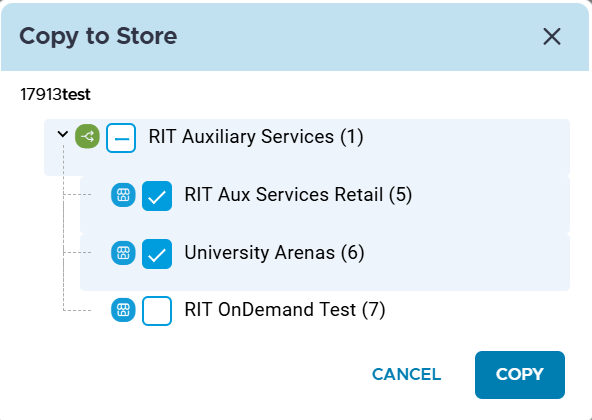
Select Copy. The following message is displayed: Copy initiated successfully. Please navigate to Utilities ➜ Task Manager to check the task status.
Select OK.
Select the Task Manager icon in the Top Bar of the IGCM to view the status of the task. Users can use the log available for the task to view items that are copied, items that are not copied, and reasons for the failure.
Select the appropriate store from the Context Selection drop-down list where the menu was copied.
Navigate to POS Configuration ➜ Items ➜ Menus.
Verify that the menu is copied and displayed with only division-level items. The copied menu name is displayed in the following format: Menu_(CurrentMenuID)_Copy(SourceMenuID). If a menu with the same name already exists, Menu_(CurrentMenuID)_Copy(SourceMenuID)_1 is displayed.